Viewport
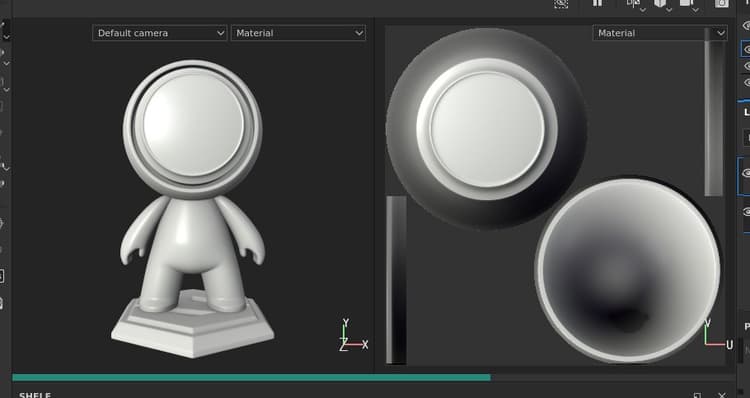
The viewport is where the 3D mesh and its textures are displayed. This is also where it is possible to paint on the 3D mesh surface.
Overview
The viewport is divided into fours parts:
- Contextual toolbar: this toolbar sits at the top of the viewport and offer shortcut to various properties depending on the current context (brush parameters when painting for example).
- 3D view: this view shows the 3D mesh from a specific angle, defined by a camera.
- 2D view: this view shows UV unwrapping of the 3D mesh for the currently selected Texture Set.
- Progress bar: this gray/green bar at the bottom of the viewport appears when a computation is in progress (for example when the engine is generating textures).
For more details, see the dedicated pages:
The 3D and 2D views can be adjusted to display additional or different information via the Display settings.
Changing The Layout
The default layout puts the 3D view on the left and the 2D view on the right. A few parameters are available from the Contextual Toolbar which allow to change the layout:
Viewport Mode
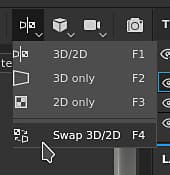
These settings control the layout of the viewport:
- 3D/2D (default): display both the 3D and 2D views in the viewport
- 3D only: maximize the 3D view and hide the 2D view.
- 2D only: maximize the 2D view and hide the 3D view.
- Swap 3D/2D: exchange the order in which the views are displayed. If the 3D view was on the left it will be on the right after choosing this action.
Perspective Mode
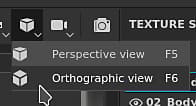
These setting control how the 3D mesh will appear in the 3D view:
- Perspective view (default): displays the 3D mesh as it would be seen by the human eye or a camera.
- Orthographic view: displays the 3D mesh as every direction measure the same length.
Camera Rotation Mode
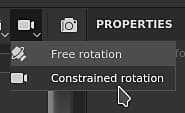
This settings control on how many axes the viewport camera can rotate.
- Free rotation: the camera rotate on the X, Y and Z axes.
- Constrained rotation (default): the camera rotate only on the X and Y axes (no roll).
Rendering Mode