Skew correction
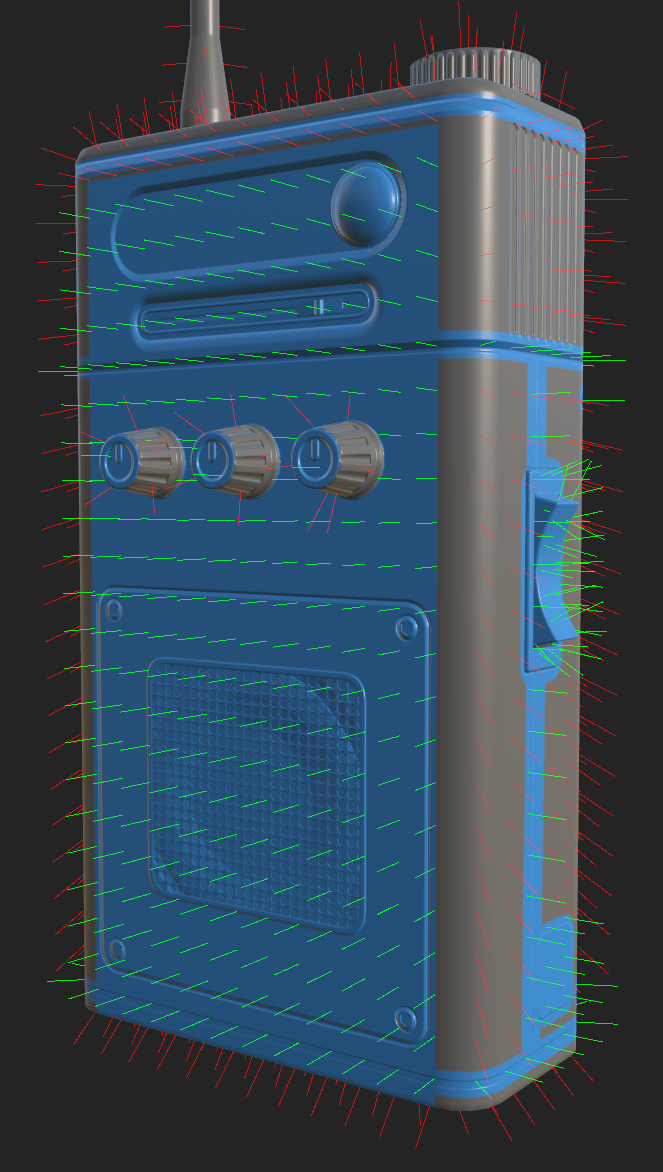
Fortunately, Skew correction (or Skew mapping) is available to help fix this type of artifact.
Skew correction allows you to paint values directly on the low-poly mesh to redirect the projection used during baking without needing to create a custom cage.
Paint skew corrections
Skew correction painting allows you to manually adjust the surface normals of your mesh specifically for baking. While you can paint skew corrections without baking, it can help to bake your mesh maps first.
Switch to baking mode to access Skew correction settings.
- A High poly scene needs to be selected. Skew painting is only available when baking from high to low poly; if Use Low poly mesh as High poly mesh is checked, Skew correction painting will not be available.
- Cage must be set to Distance-based.
- Average normals must be checked.
With the above settings, you can click Paint skew correction in the Common settings panel to start painting. When you first enter skew correction painting mode, Auto-rebake will automatically be turned on for the normal channel. If preferred, you can turn off Auto-rebake or change the selected channel in the Mesh map bakers panel.
Painting tools
When painting skew corrections, you can use many of the tools and shortcuts you’re used to from Painting mode, including the Eraser and Polygon fill tools.
- You can switch between Brush, Eraser, and Polygon fill from the toolbar, or use the standard keyboard shortcut from Painting mode.
- While using the Brush or Eraser tools, you can adjust the brush size, flow, opacity, and spacing with the parameters at the top of the Viewport. You can also use the relevant keyboard shortcut where available.
Edge protection
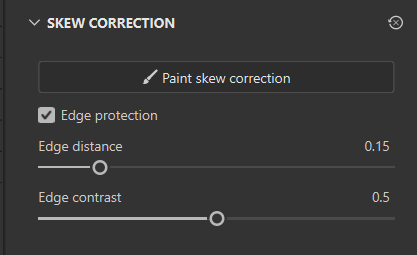
Edge protection ignores the painted skew correction near edges to maintain a smooth gradient of surface normals. You can toggle Edge protection under the Skew correction section. When Edge correction is enabled, you can adjust the Edge distance and Edge contrast to achieve optimal results.
- Edge distance: Control how far from the edge the edge protection takes effect.
- Edge contrast: Control the edge protection gradient. Low contrast produces a smoother gradient.
Skew Vector visualization
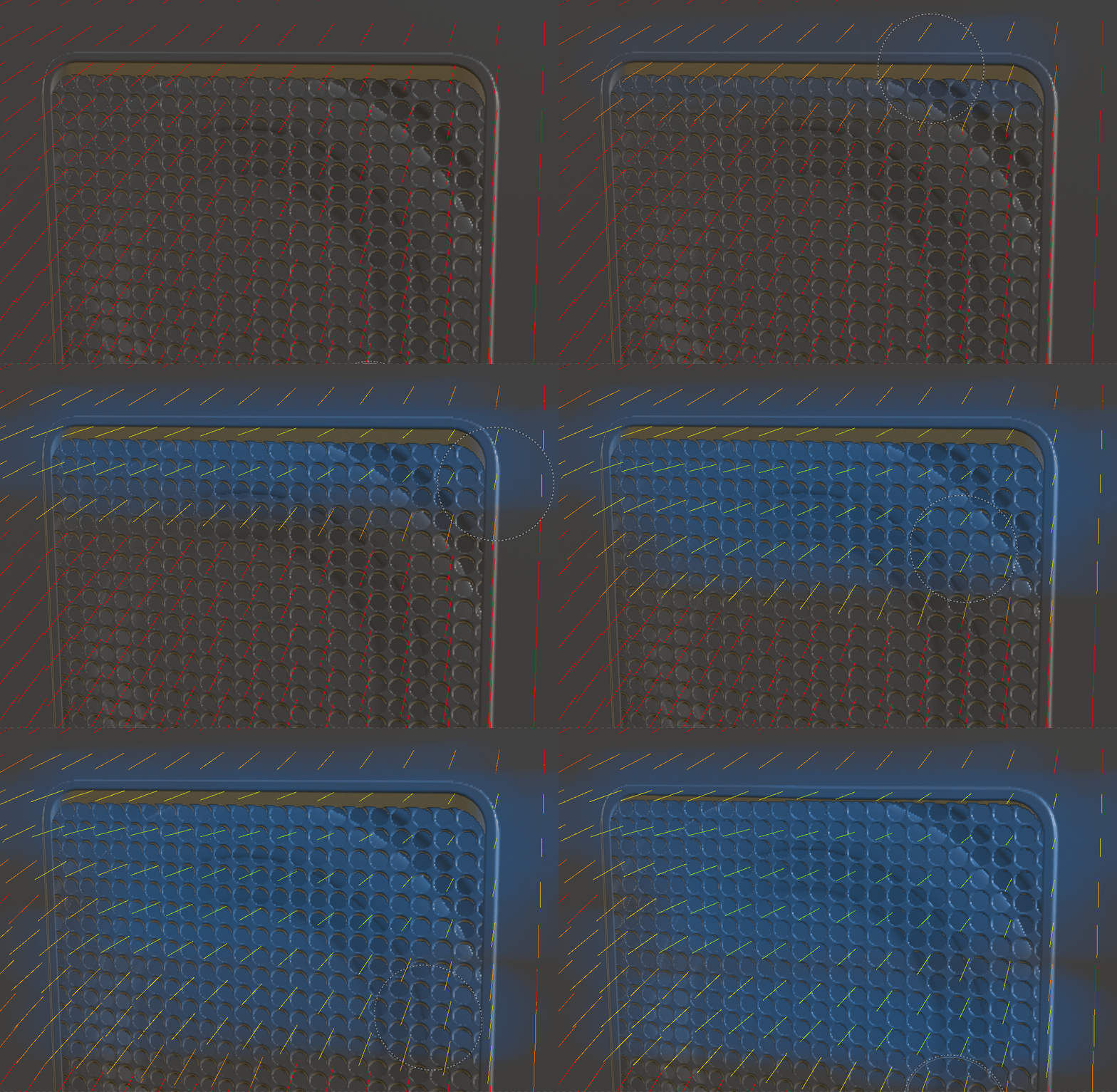
By default, when you start painting skew corrections, the mesh surface normals are visualized in the Viewport as red, yellow, and green lines. You can modify the appearance of these lines or turn them off altogether in the Skew vectors section of the Visualizations menu that appears in the Viewport.
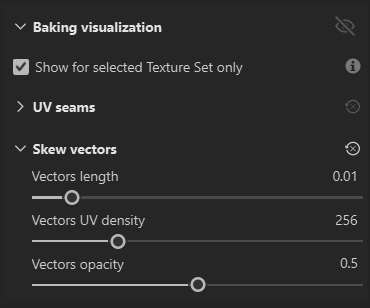
- Vectors length: Adjust the length of the lines in the viewport. Longer lines can make it easier to understand the direction of the vector.
- Vectors UV density: Change the number of lines across the surface of the mesh. Vectors are placed in UV space, so if the mesh has inconsistent texel density, the number of vectors per unit of surface area will vary with polygon size in the UV map.
- Vectors opacity: Make the vectors more or less transparent.
The color of the vectors indicates the amount of skew correction applied at each vector position.
- Red vectors indicate no skew correction - the default surface normals are being used.
- Green vectors indicate that the surface normals are fully corrected and directly perpendicular to the surface.
Optimize performance
Organize UVs
Auto-rebake is optimized to try to limit rebaking to the area affected by each brush stroke when painting skew corrections. When you paint a stroke, Auto-rebake draws a bounding box around the stroke in UV space and rebakes everything within the box. This means that if your stroke only covers a small section of UV space, only a small area will be rebaked, making the operation very efficient.
However, if the stroke happens to cross two UV islands on opposite sides of the UV space, even a small stroke can require rebaking the entire texture, negating the optimization.
As a result, we recommend organizing mesh UVs so that UV islands that are near each other in 3D space are also near each other in UV space. This improves the performance of Auto-rebake.
Set Alignment to UV
In general, painting skew corrections with Projection > Alignment set to UV is more performant. To change the Alignment:
- Select Paint skew correction and equip either the Brush or Eraser.
- Right-click in the Viewport to open the Brush settings panel.
- Scroll down to Projection.
- Set Alignment to UV.
With Alignment set to UV, it is more difficult to paint smooth strokes across UV island seams, however, this is generally less important when painting skew corrections than when texturing your mesh.
Skew corrections and the undo stack
Baking and painting share a single undo history. Switching between Baking Mode and paint mode is itself an undoable step, and enabling or disabling skew correction can also be undone. When undoing across a baking action while in paint mode, Baking Mode is reopened automatically before those steps are undone, so an action is never undone outside of the mode where it happened.