Color sampler tool
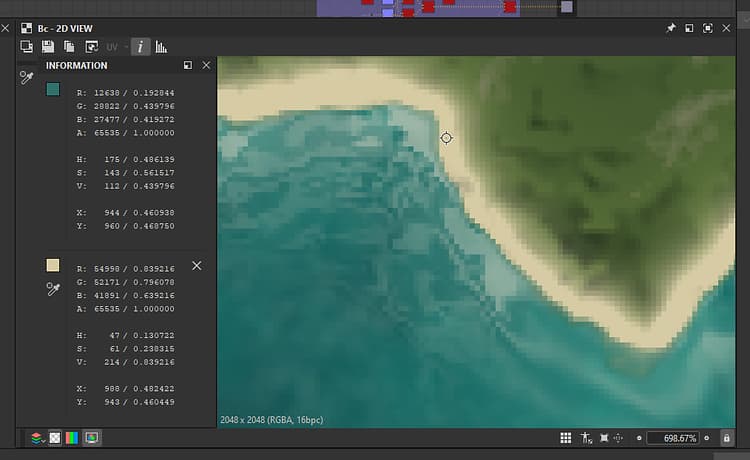
The Color Sampler tool lets you track the value of a specific pixel in the 2D View as you tweak parameters or switch nodes.
It places a pin in the viewport and samples the color and position of the pixel at that location.
Using the tool
Follow these steps to access and use the tool:
- Click the

- Click the

- In the viewport, click on the specific pixel you want to sample to place a

- Examine the sampled values in the dedicated section of the Information dock
- When you are done with the tool, click the

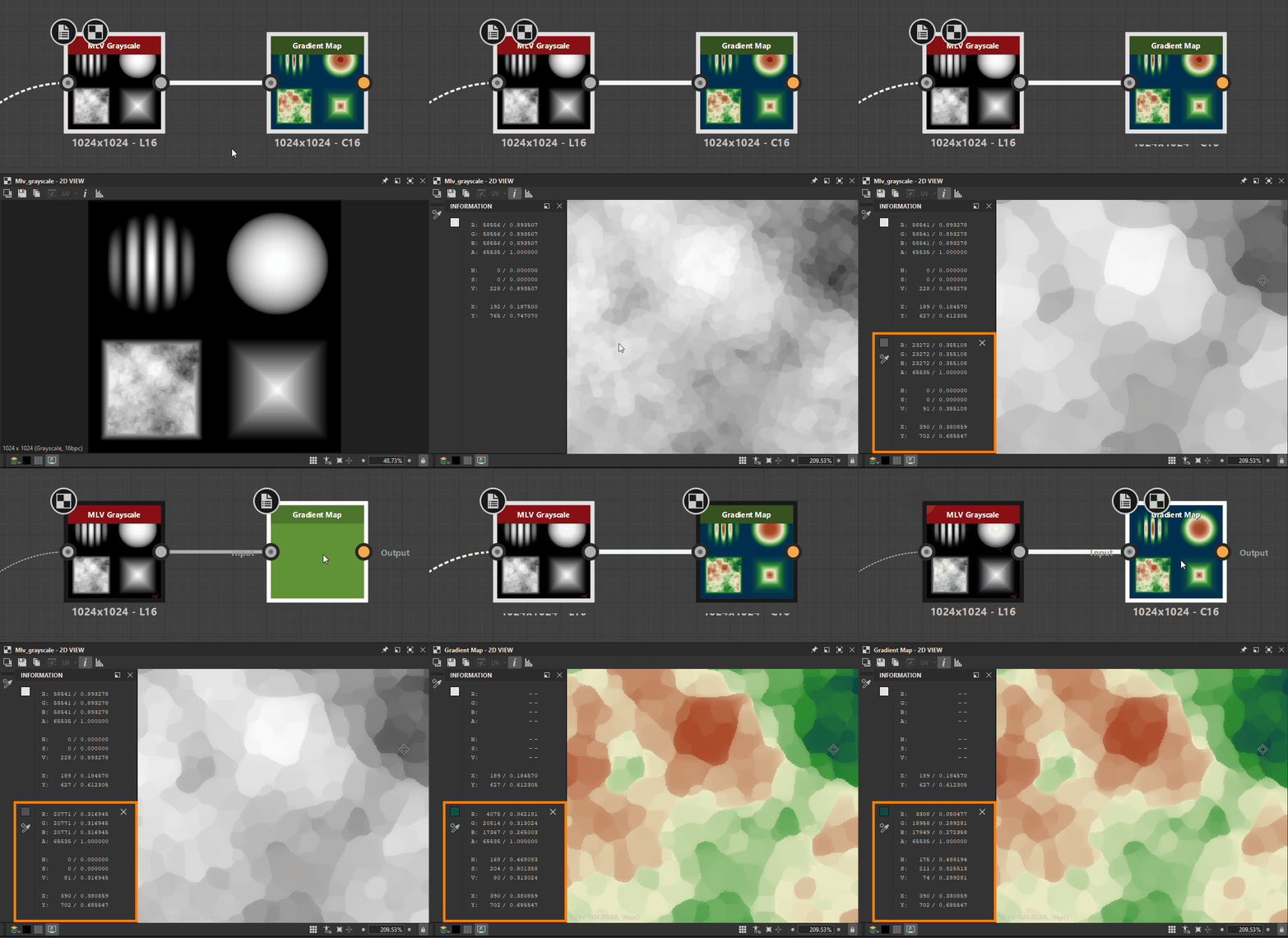
You can also remove the pin by clicking RMB on it and selecting the ‘Delete’ action in the contextual menu.
Here is a demonstration of the tool in action:
Click to enlarge
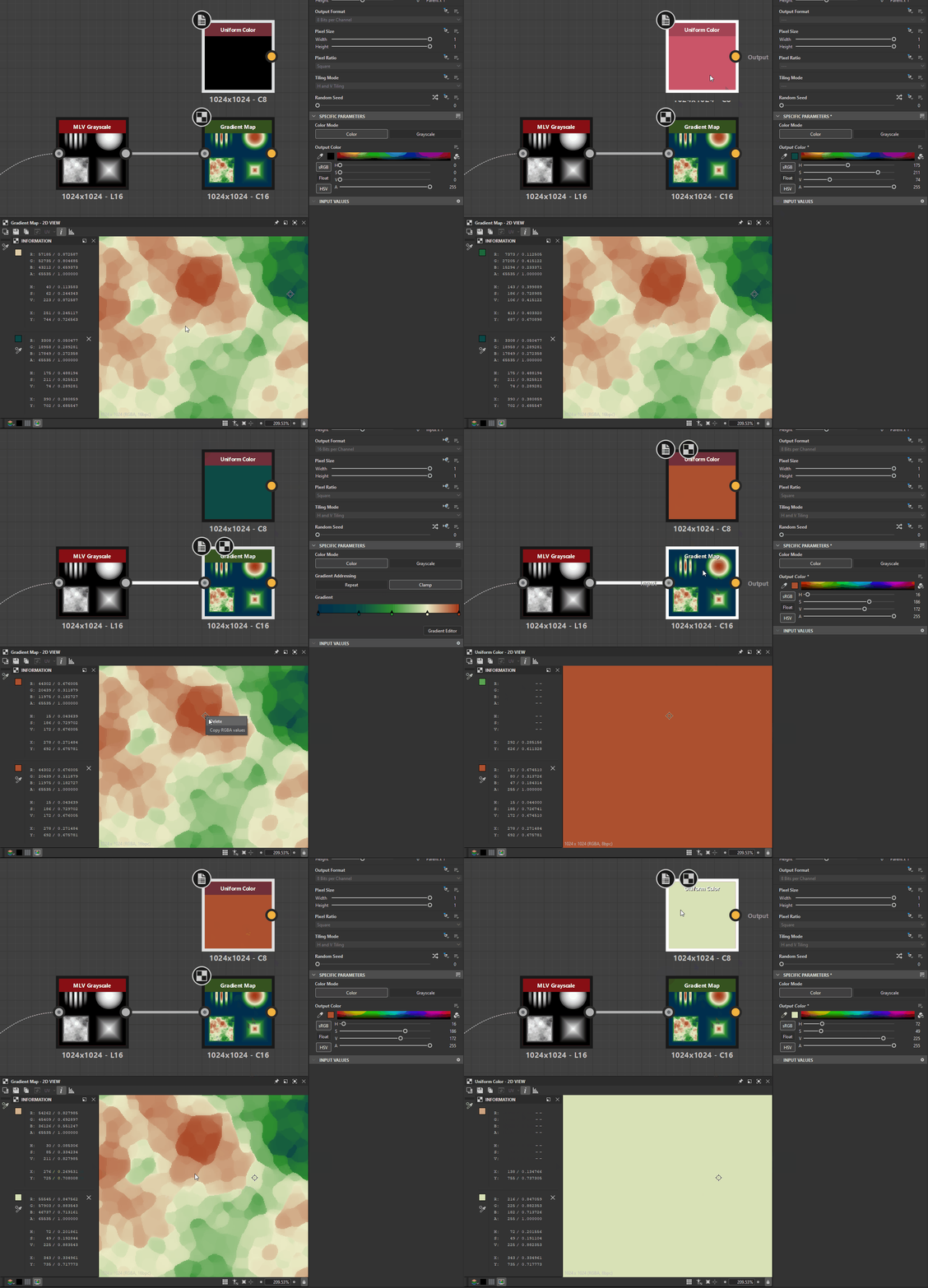
You can copy the sampled values by clicking RMB on the pin and selecting the ‘Copy RGBA values’ action in the contextual menu.
The copied values can be pasted in parameters using a color thumbnail.
The color thumbnails in the Information panel can also be dragged and dropped directly onto the color thumbnails of those parameters.
Click to enlarge
Sampled information
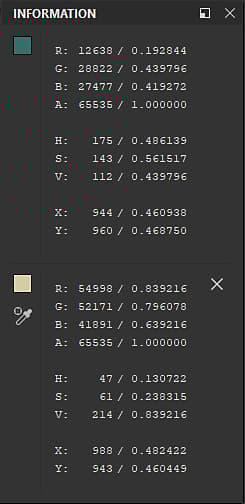
The information is grouped into three types and two formats.
- Sampled values stored in each of the image’s RGBA channels:
Varying* / Floating point - Sampled color in the HSV representation:
8-bit integer / Floating point - Position of the pixel in number of pixels and normalized image space:
Integer / Floating point
The value depends on the bitdepth used by the image. In a Substance graph, the bitdepth is controlled by the Output Format base parameter.
The available bitdepths are:
- 8-bit integer: 256 integer values from 0 to 255.
- 16-bit integer: 65,536 integer values from 0 to 65,535.
- HDR low precision (16-bit): A floating point value encoded using 16-bit.
- HDR high precision (32-bit): A floating point value encoded using 32-bit. This is the highest precision available in Designer.