Exporting MDL content
This page describes the export processes related to MDL graphs and materials in Substance 3D Designer.
Overview
Once an MDL material is authored in Designer, it needs to be exported into a format which can carry the material’s definition and be read by renderers which support MDL. MDL uses proprietary formats to carry material definitions, called MDL modules, written and packaged in different formats which can all be exported from within Designer.
MDL module (*.mdl)
This is the fundamental exchange file format for material definitions. An MDL module defines the following:
- the material’s characteristics and behaviour
- its exposed parameters and default values
- its annotations (i.e., metadata): author, tags, categories, …
Exporting an MDL module is performed at the package level. To export an MDL module for a given package, click the

The exported module will contain the definitions of all the MDL materials defined by an MDL graph in the package.
x appears to be invalid whereas it was expected to be an mdl::call are caused by the way MDL materials are processed in MDL graphs, and are safe to ignore.
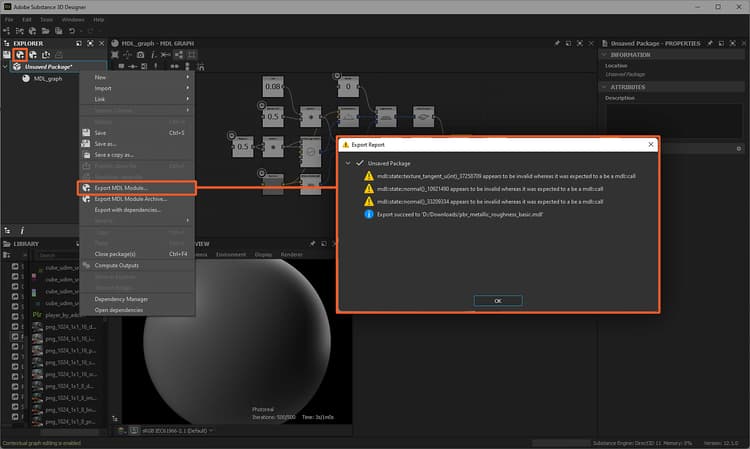
The “Export MDL Module” pathways in the Explorer, and the resulting Export Report dialog
MDL preset (*.mdl)
An MDL module preset is largely identical to the module it is based on, with the only difference being it carries a different set of default values – learn more here.
A preset for an MDL material assigned to a scene material my_material may be exported from the following locations:
The menu option opens the Export MDL Material Preset dialog, which offers the following options:
- Directory: The target location the MDL module is exported to
- MDL File Name: The name of the MDL module
- Embed Imported MDL Modules: If the MDL module relies on imported modules – i.e., has any module dependencies, checking this option results in the module dependencies to be embedded into the exported MDL module, making it effectively self-sufficient at the cost of file size and dynamic inheritance
The exported preset will use the material’s parameters’ current values in the 3D View as the new default values. These values may be modified using the Materials > my_material > Edit option, which will display the material’s exposed parameters in the Properties panel.
my_material in this example.
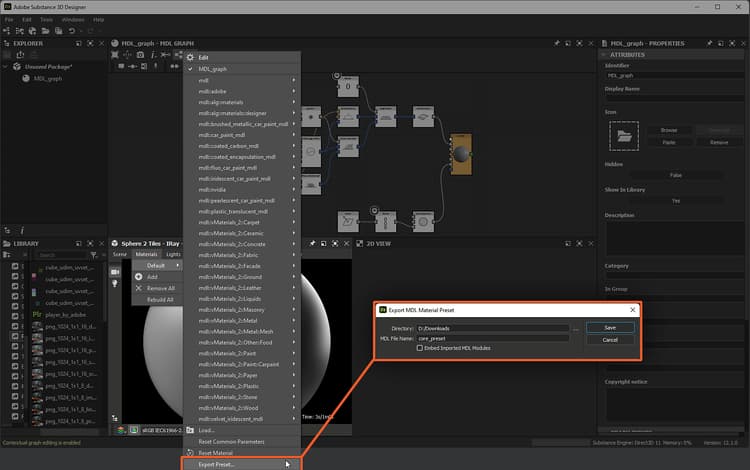
The “Export preset” pathway in the 3D View, and the resulting Export MDL Material Preset dialog
MDL module archive (*.mdr)
An MDL module archive combines MDL modules – see above – with resources such as textures and readme files into a single transportable file.
Exporting an MDL module archive is performed at the package level. To export an MDL module archive for a given package, click the
The exported module archive will contain MDL module holding the definitions of all the MDL materials defined by an MDL graph in the package. If a Substance graph is instanced into an MDL graph and connected to a stream going to the Root node, the textures it outputs are saved into the archive.
In addition to these items, the archive includes a MANIFEST file which describes the following metadata for the MDL module archive:
mdl: the version of MDL used to export the module archive – e.g., “1.5”version: the version of the module archive – e.g., “1.0.0”module: the name of the module archive – e.g., “::pbr_metallic_roughness_basic”exports.material: the name of the materials defined in the module archive – e.g., “::MDL_graph”
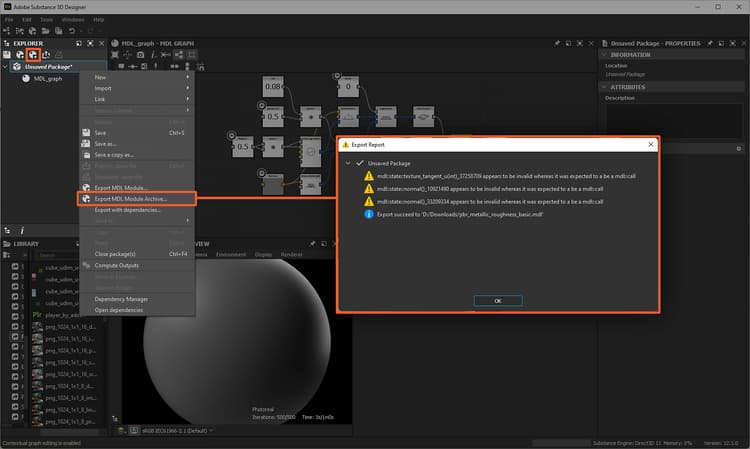
The “Export MDL Module Archive” pathways in the Explorer, and the resulting Export Report dialog
MDL encapsulated module (*.mdle)
MDL graphs with exposed parameters can be exported as encapsulated MDL materials. Encapsulation wraps data into a dedicated class so that data cannot be accessed directly.
For instance, while you are still able to modify the values of exposed parameters to control a material’s behaviour, the definition of these parameters is not available in an encapsulated MDL module.
Exporting an encapsulated MDL module is performed in the Explorer at the MDL graph level, by selecting the Export as .mdle option in an MDL graph’s contextual menu. Select a target location and name for the exported MDL encapsulated module, and the Export Report dialog is displayed with the list of messages logged during the export process.
Only the material definition for the selected MDL graph will be included in the exported encapsulated MDL module.
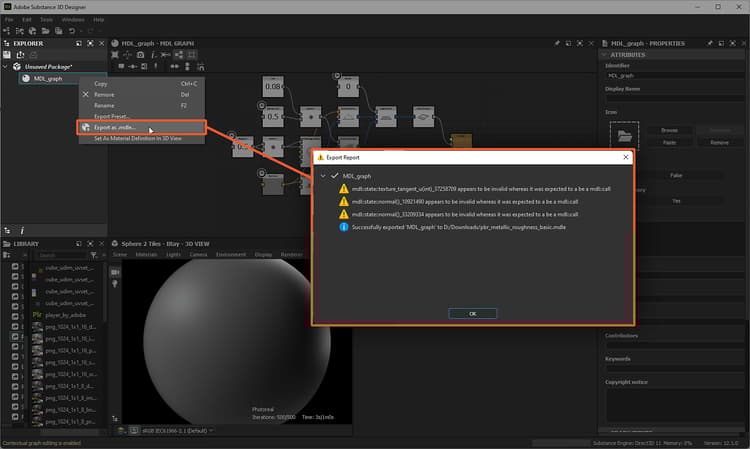
The “Export as mdle” pathway in the Explorer, and the resulting Export Report dialog