Tasks
Use Tasks to complete the actions generated by Outbound Workflows. Select a task, take action, mark the task complete, and continue to the next task without leaving the page.
In the left navigation, go to Activities > Tasks.
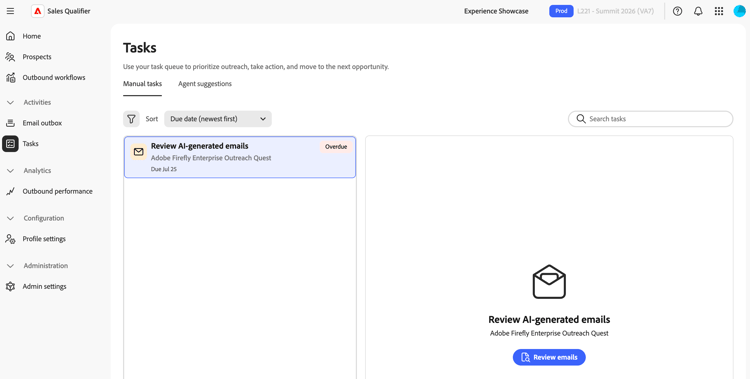
Task views
The page has two tabs:
- Manual tasks—Phone calls, LinkedIn InMails, and email reviews for prospects who are enrolled in an Outbound Workflow.
- Agent suggestions—Prospects that match an Outbound Workflow’s targeting criteria and are recommended for enrollment.
Each tab has its own filters, sorting options, and two-panel layout. The task list appears on the left, and the work panel appears on the right. Selecting a task loads its details in the work panel. When you complete a task, the next task is selected automatically.
Manual tasks
Task types
Manual tasks are tied to Outbound Workflow steps and come in three types:
-
Phone Call—Created when a cadence reaches a phone call step. The work panel shows the prospect’s phone number and, when available, an AI-generated call script.
-
LinkedIn InMail—Created when a cadence reaches a LinkedIn InMail step. The work panel shows content to copy and send from LinkedIn. Expand AI Rationale to review the rationale.
-
Email Review—Created after Adobe Marketo Qualifier generates a prospect’s personalized emails. To review and approve the drafts before outreach begins, select Review emails. See Review and refine generated emails.
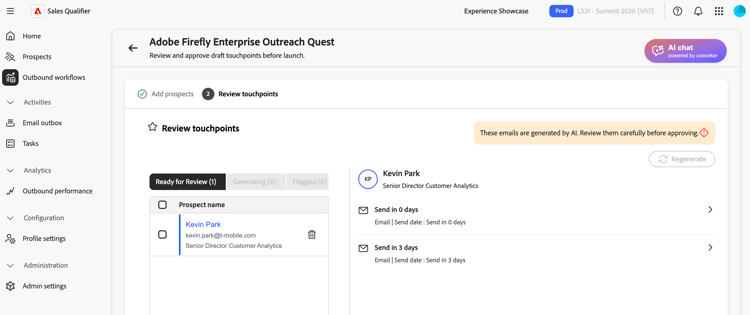
The work panel
For a Phone Call or LinkedIn InMail task, the work panel contains:
- Prospect—The prospect’s name, email link, and phone number, when applicable.
- Outbound Workflow—The linked Outbound Workflow name, due date, and auto-skip indicator, when applicable.
- Task content—The call script or InMail content.
- Notes—Notes save automatically when you select another task. You cannot edit notes after a task is completed, skipped, or canceled.
Generate a call script
For a Phone Call task, select Generate call script. When generation finishes, select View Detailed Call Script. If generation fails, try again from the panel.
Task actions
Two actions are available from the work panel header:
- Mark complete—Use this action after you make the call, send the InMail, or review the emails. The queue advances to the next task.
- Skip—Use this action when you cannot complete the step but want to keep the prospect in the Outbound Workflow. The prospect advances to the next cadence step.
Phone call and LinkedIn InMail tasks can be skipped automatically if they remain open past the configured threshold. An automatic skip advances the prospect through the cadence and does not affect scheduled email touchpoints.
Filter, search, and sort
The toolbar above the list controls which tasks appear and in what order. Your filter and sort choices are saved and reapplied the next time you open the page.
-
Filter—Open the filter panel:
- Status—Current, Upcoming, Overdue, Completed, Cancelled, Skipped.
- Task type—Email Review, LinkedIn InMail, Phone Call.
- Due date.
- Outbound Workflow—A searchable list of your Outbound Workflows.
-
Sort—Sort by due date or creation date. The sort order also determines the order in which the queue advances.
-
Search tasks—Find tasks by prospect name, company name, or Outbound Workflow. Search applies with active filters.
Active filters appear as chips below the toolbar. To reset them, select Clear all.
Task status
Each task shows its current status:
Completed, skipped, and canceled tasks are final. Their actions are no longer available, and their notes are read-only.
Agent suggestions
The Agent suggestions tab lists prospects that match an Outbound Workflow’s targeting criteria and are recommended for enrollment. To turn on recommendations, see Outbound Workflows.
To review a suggestion in the work panel, select it:
- A recency badge marks each suggestion as New or Previous.
- The Recommended leads or Recommended contacts table lists the proposed prospects with columns for Name, Title, Account, Status, Email, and Last updated.
Two actions are available:
- Review prospects—Open the Outbound Workflow to review and enroll recommended prospects. See Add prospects and start email generation.
- Mark as complete—Dismiss the suggestion after you review it.
The Agent suggestions tab includes Current, Completed, and Cancelled status filters, an Outbound Workflow filter, and sorting by creation date.
Reply to a prospect with an agent suggestion
When a prospect replies to an email, Marketo Qualifier can draft an in-thread response and add it as a task under Agent suggestions. The draft uses relevant context from:
- The full email thread, not only the latest message.
- Your Knowledge Center collateral and product research.
- Account signals, such as recent news, marketing engagement, and CRM activity.
- Your saved email drafting context.
The assistant adapts the response to the prospect’s intent. For example, it can offer times through your booking link for a meeting request, reinforce value when the prospect is interested, answer a product question from your collateral, share a relevant asset, address an objection with one differentiator, or use a low-pressure response when the prospect wants to defer.
Messages about pricing, legal or security requirements, hostile responses, and unclear requests remain with the representative for a personal response.
- Open the reply suggestion and review the full thread and drafted response.
- To create another draft, edit the response, or select Generate with AI.
- To send the response and continue the prospect’s Outbound Workflow, select Approve and send.
Complete tasks from an Outbound Workflow
On an Outbound Workflow’s Engaged Prospects view, a manual touchpoint provides the same Mark as complete, Skip, and notes options. Completing a task there also updates its status on the Tasks page. See Outbound Workflows.
Empty states
- When you have no tasks to act on, the list shows a You’re all caught up for today message.
- When filters match no tasks, the list reports that no tasks match your filters.
- When no task is selected, the work panel prompts you to select a task. To view its details, select a task.