Prospects
To view the leads and contacts that you can access, select Prospects in the left navigation. Use the list to review each prospect’s status and latest activity.
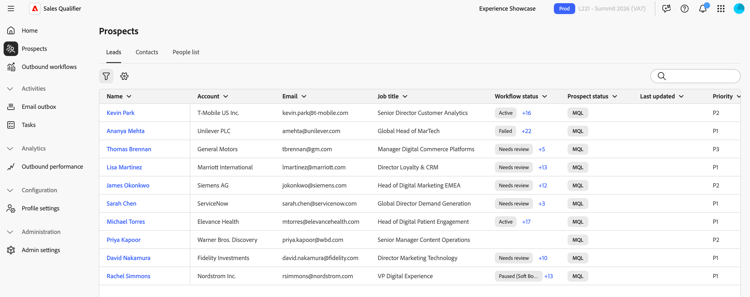
- Leads Leads assigned to you in the connected CRM.
- Contacts Contacts assigned to you in the connected CRM, with their associated account. Contact details also include the owner’s name. These details are available for Salesforce and Microsoft Dynamics 365.
- Marketing Highlights Prospects with live Marketo activity, such as email opens or clicks.
- People list Prospects that you import or add manually.
Review prospect context and export the list
The prospect list summarizes whether additional context is available for personalized outreach. A summary above the list shows the number of prospects in each state, and the context column displays the state for each prospect:
- Applied The available context was applied to the prospect.
- Partial Only some of the available context was applied.
- Missing No additional context is available.
To download the current prospect list as a CSV file, select Export CSV.
Build your prospect list
The prospect list combines people from more than one source:
- CRM prospects—Adobe Marketo Qualifier automatically imports leads and contacts assigned to the connected user. See Integrations.
- Imported prospects—Prospects imported from a CSV file.
- Manually added prospects—Individual prospects added in Marketo Qualifier.
To add prospects that do not come from your CRM:
-
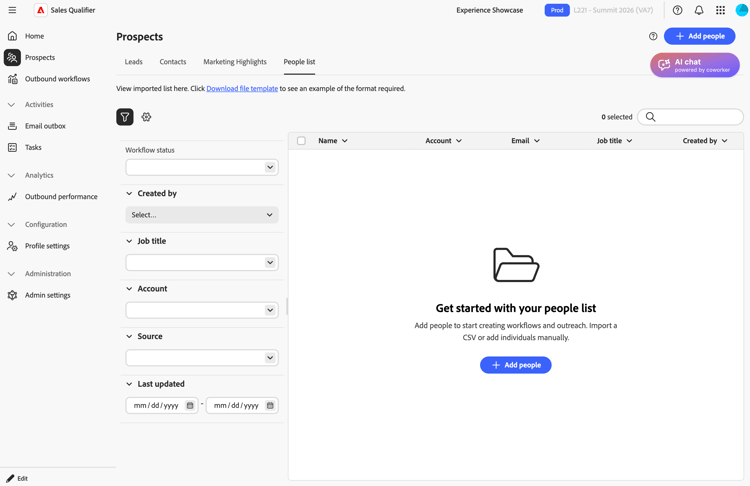
On the Prospects page, select People list.
-
Select + Add people, then select Import CSV or Add person.
- For a CSV import, upload a CSV in the
firstname,emailformat.
First name and email are required. Last name is optional. The CSV template does not include the CRM lead ID column, but you can add the column and its values to the file before import. If the import fails, review the error message for the fields or values to correct, then upload the file again.
Map any custom or additional CSV fields, not only the standard ones. Marketo Qualifier saves these values to each prospect and makes them available later, including for email generation. - To add a person manually, enter their details in the form.
- For a CSV import, upload a CSV in the
-
Select Save.
Filter and find prospects
To narrow the list, select Filter. You can filter by:
- Outbound Workflow status
- Created by
- Job title
- Account
- Source
- Last updated
Administrators can also make mapped CRM fields available as filters. In Admin Settings, turn on Filterable for each field that users use to find prospects. See Map CRM fields.
In My Opportunity Contacts, you can also filter contacts by fields from their associated opportunities, such as stage, type, and close date. Opportunity fields have labels such as Stage (Opportunity), which distinguishes them from contact fields. Your administrator controls which opportunity fields are available as filters.
You can also filter contacts by fields from their associated account, such as industry, region, or account type. Your administrator chooses which account fields are filterable. Combine account, contact, and opportunity filters to find, for example, contacts in a specific role at accounts in a specific industry. Account-field filtering is available for Salesforce and Microsoft Dynamics 365, and the same fields can be used in Outbound Workflow targeting.
Filter by Marketing Highlights
Review and prioritize prospects by their live Marketo engagement, such as email activity, web visits, and form fills. Engagement appears in near real time, as it happens.
To filter prospects by Marketing Highlights:
- Select Filter.
- Add a Marketing Highlights filter and set the activity type, campaign, or other attributes to focus on the engagement that matters.
Each prospect shows their latest Marketo activity along with recent history.
Marketing Highlights is available in all production regions. An administrator completes a one-time setup that connects Marketo to Marketo Qualifier. See Set up Marketing Highlights.
Review prospect details
To open a prospect’s profile, select the prospect. Review the signals that matter before you reach out:
- AI person summary—An AI-written snapshot of the lead or contact and their recent engagement. Use the summary to understand the person quickly before reviewing individual activities. AI person summaries are available on instances running Marketo Optimizer Prime or Ultimate.
- Activity list—A chronological list that shows the past 90 days of marketing activity.
- Timeline view—A visual timeline that shows the past 90 days of marketing engagement across channels.
- Viewed content—Web pages and assets that the prospect viewed. To open an item, select it.
Generate meeting prep
In addition to the standing AI person summary, you can generate meeting prep tailored to a specific upcoming call from the Meeting research tab, next to Account research.
Meeting prep combines web research about the prospect and their company with evidence from case studies about peer customers who use the product you are selling. Case-study talking points can include measurable customer results. The sources are combined into one brief, with talking points ranked by relevance. Each talking point identifies whether it comes from case studies, web research, or both. If no relevant case-study evidence is available, meeting prep uses web research.
- Goal-based—If the prospect is enrolled in a running Outbound Workflow, select it. The prep aligns to that Outbound Workflow’s goal, such as booking a meeting or re-engaging the prospect.
- Custom prompt—Enter what you want to prepare for, for example
Focus on renewal riskorPrepare for a technical deep dive with their IT lead. The prep matches your prompt. The custom prompt option is available whenever the prospect is not in a running Outbound Workflow.
The brief continues to follow the Outbound Workflow goal or custom prompt you choose. How you generate meeting prep does not change.