AI Chat
AI Chat answers natural-language questions based on your sales context. Use it to research an account, prepare for a call, draft outreach, and prioritize your work without leaving Adobe Marketo Qualifier.
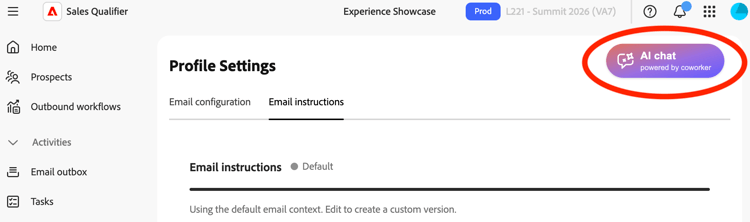
Open AI Chat
To open the chat panel, select the floating AI Chat button. The panel opens next to the current page so that you can keep a prospect, account, or Outbound Workflow in view. To resize the panel, drag its edge. To close the panel, select AI Chat again.
Data sources
AI Chat can use these sources:
- Your organization’s playbook in the Knowledge Center.
- Your connected CRM, including leads, contacts, accounts, opportunities, and activities.
- Marketo Activity and engagement data.
- Account research and recent news gathered by the Account Qualification Agent.
- Public web research.
Use AI Chat
Use AI Chat for these types of tasks:
- Research and summarize: Ask for a summary of an account, a buying group, or a prospect’s recent engagement.
- Build positioning: Ask the assistant to position your solution for a specific account before a meeting.
- Draft and refine outreach: Ask it to write or rewrite an email. Specify the tone, length, language, and whether to include emojis.
- Get recommendations: Ask which prospects or accounts to prioritize, or request a goal or cadence for a new Outbound Workflow.
- Find contact details: Ask the assistant to enrich a prospect with more contact and background information.
Ask AI Chat across your connected data
AI Chat can answer questions across your Marketo Qualifier, CRM, Marketo, Marketo Optimizer, and company intelligence data. Ask a question in plain language to look up information or retrieve context. AI Chat reads and reports on your data; it does not create, edit, or launch anything.
Here are some sample prompts. The more specific you are in your prompt, the more focused the results are.
Prospects and accounts:
- “Find prospects with engagement status New.”
- “Research the company Adobe.”
- “Give me the full profile for a prospect.”
- “Show outbound performance for the last 30 days.”
- “List booked meetings from the last 30 days.”
Knowledge Center:
- “What collateral is available on handling pricing objections?”
- “What are the key differentiators against competitors?”
- “List documents in the Knowledge Center.”
- “Summarize a document.”
CRM:
- “List open opportunities.”
- “List the first five leads with name and email.”
- “Show sales activities for a lead or account.”
Marketo:
- “Browse my smart campaigns.”
- “Get the smart list named ‘Acquired.’”
- “Browse my programs, or get a program by name.”
- “List Marketo activity types.”
Adobe Journey Optimizer B2B Edition:
- “How many journeys do I have?”
- “How does persona segment my audience?”
- “What landing pages exist in my account?”
- “Which lead fields feed into scoring?”
Company intelligence:
- “What technologies does a company use?”
- “Show recent news for a company.”
- “Find companies similar to a given company.”
- “List open job openings for a company.”
Current scope and limits
- AI Chat reads and reports on your data. It does not create, edit, or launch anything. For example, it does not create a program, launch a campaign, or edit a list.
- AI Chat looks up information; it is not a reporting tool. It does not build Marketo-style analytics or trends over time, such as email health for the quarter or a list of leads created in the last 10 days. Use native Marketo reporting for these tasks.
Ground answers in your playbook
To use your Knowledge Center playbook, refer to the Knowledge Center in your question. For example:
From the Knowledge Center, help me position our security solution for ABC Corp ahead of tomorrow's call.
The response reflects the messaging in your playbook.
Give feedback on responses
Rate generated content with the thumbs-up or thumbs-down controls. Your feedback helps improve future responses.
Review AI responses
AI-generated responses can be inaccurate. Review all content before you use it.
- Verify facts, names, and figures before you rely on them.
- Read drafted emails carefully and personalize them before sending.
- Use the assistant’s output as a starting point, not a finished deliverable.
The Adobe Generative AI terms govern your organization’s use of AI Chat.