1.3.1 Create your first form
1.3.1.1 Environment requirements for using AEM Forms with Edge Delivery Services
Prior to configuring your first form, there are a number of requirements that need to be met before you can follow the below steps.
Program setup
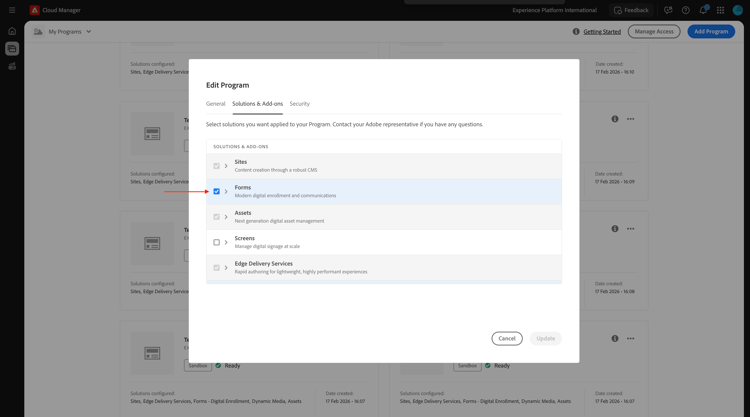
In the Solutions & add-ons of your Cloud Manager Program, Forms needs to be enabled.
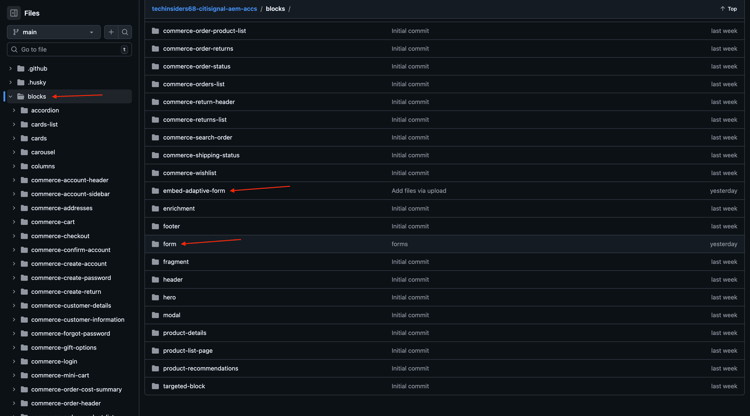
blocks
In your Github repository, you need to have the following blocks available:
- form
- embed-adaptive-form
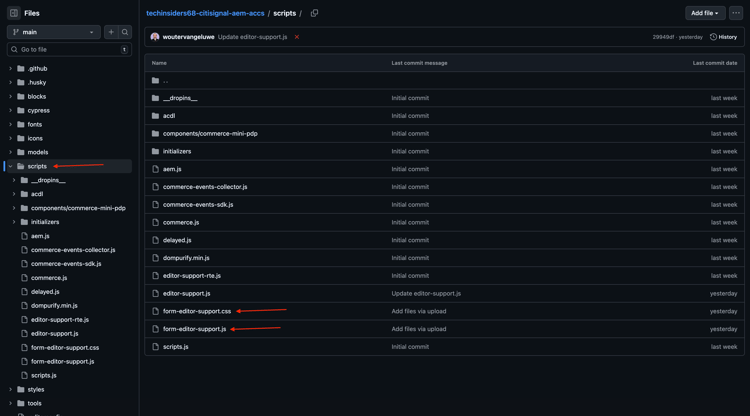
scripts
In your Github repository, you need to have the following scripts available:
- form-editor-support.css
- form-editor-support.js
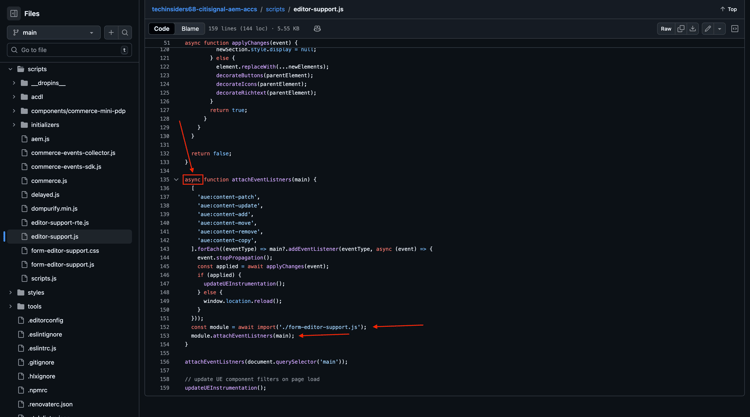
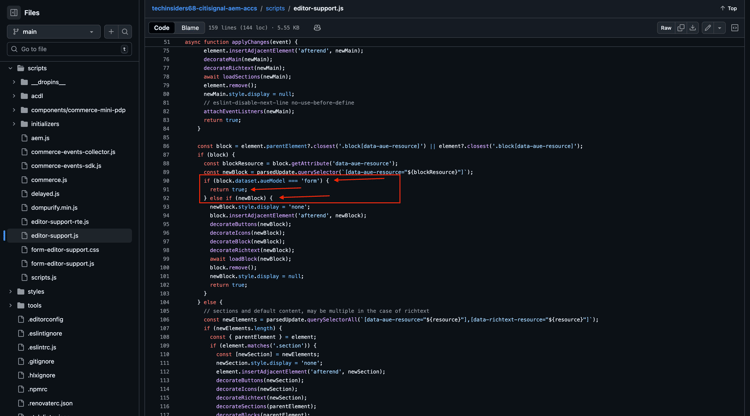
Additionally, in the file editor-support.js, the following changes need to be done to enable editing forms in the Universal Editor.
- change function declaration from function attachEventListners(main) to async function attachEventListners(main)
- add lines 152 and 153:
const module = await import('./form-editor-support.js');
module.attachEventListners(main);
Also, in the file editor-support.js, change lines 90-92 like this:
if (block.dataset.aueModel === 'form') {
        return true;
      } else if (newBlock) {
paths.json
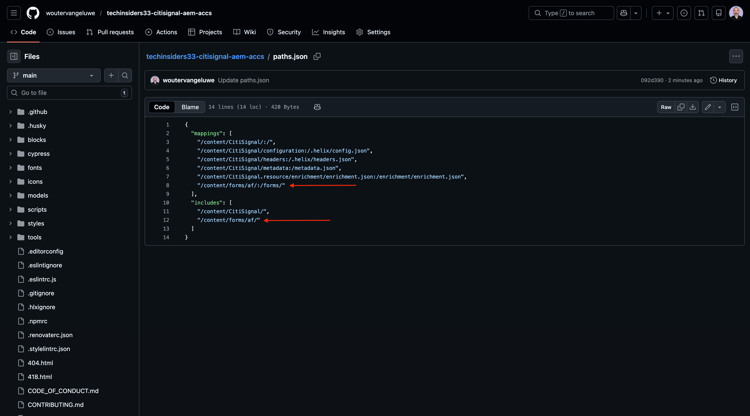
Please verify your Github repo configuration, specifically in the file paths.json. These lines need to be present in the file:
- Under mappings: “/content/forms/af/:/forms/”
- Under includes: “/content/forms/af/”
{
  "mappings": [
    "/content/CitiSignal/:/",
    "/content/CitiSignal/configuration:/.helix/config.json",
    "/content/CitiSignal/headers:/.helix/headers.json",
    "/content/CitiSignal/metadata:/metadata.json",
    "/content/CitiSignal.resource/enrichment/enrichment.json:/enrichment/enrichment.json",
    "/content/forms/af/:/forms/"
  ],
  "includes": [
    "/content/CitiSignal/",
    "/content/forms/af/"
  ]
}
With these requirements in place, you can create your first form.
1.3.1.2 Create form
Go to https://my.cloudmanager.adobe.com{target=“_blank”}. The org you should select is --aepImsOrgName--. Open your environment.
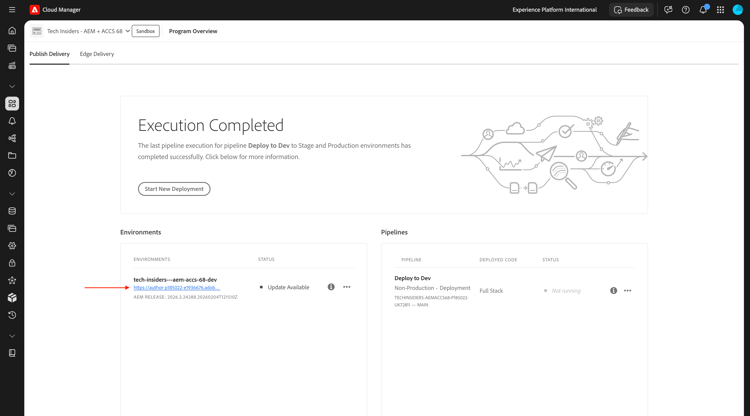
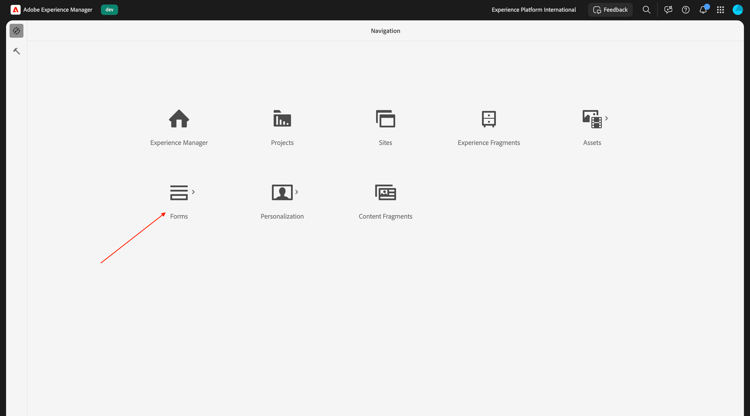
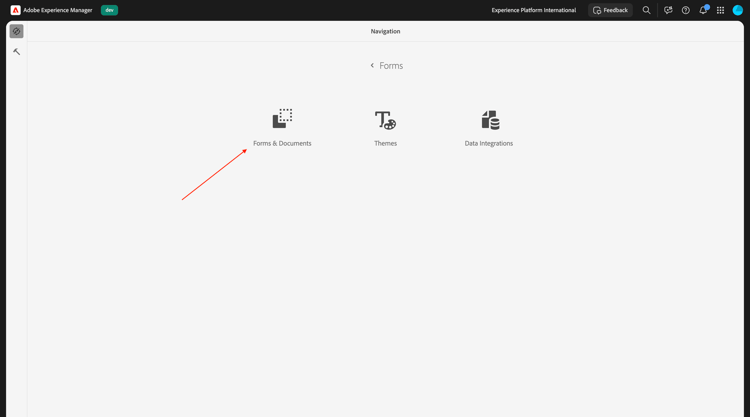
Go to Forms.
Go to Forms & Documents.
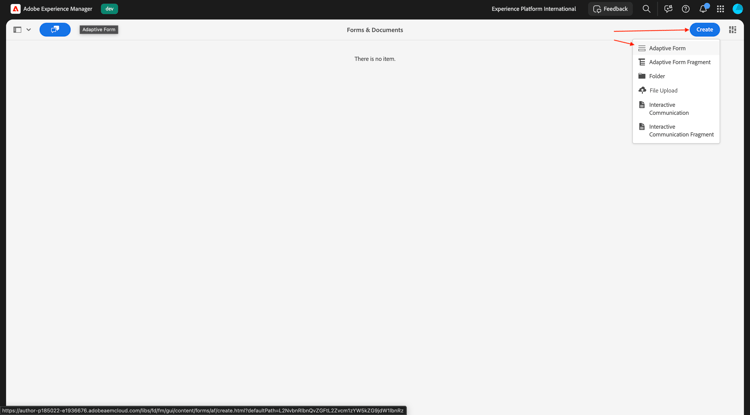
Click Create and then select Adaptive Form.
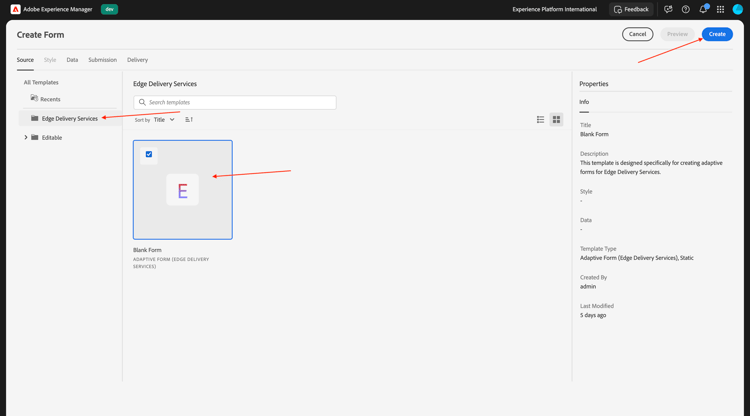
Select Edge Delivery Services and then select Blank Page. Click Create.
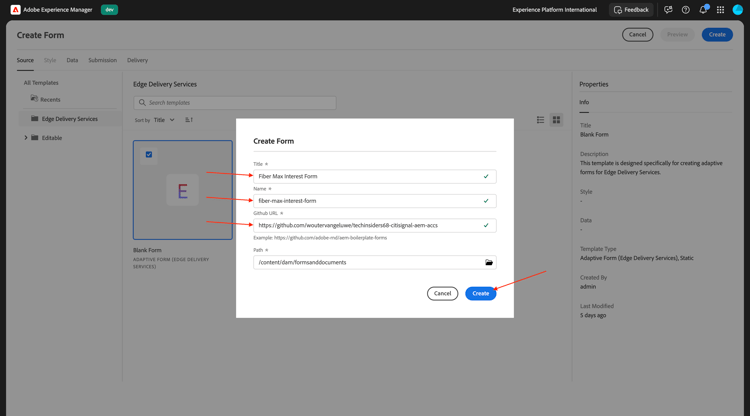
You should then see this. Fill out the following fields:
- Title:
Fiber Max Interest Form - Name: should be populated automatically based on the field Title.
- Github URL: provide the path to the Github repo that is linked to your website
Click Create.
After clicking Create, the Universal Editor should open automatically and you should see something like this. Click the icon to open the Content Tree.
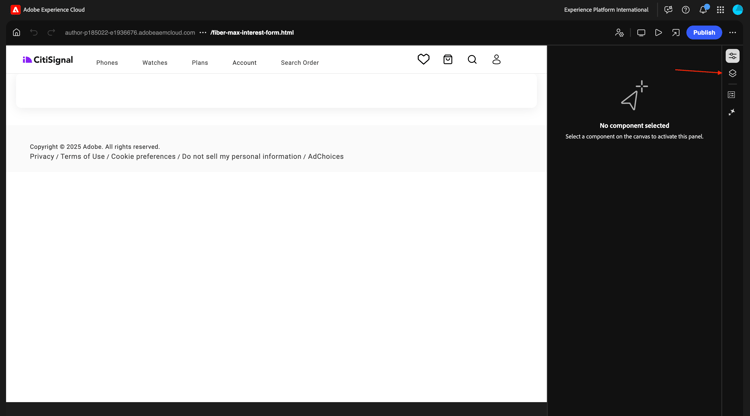
In the Content Tree, select the object Adaptive Form.
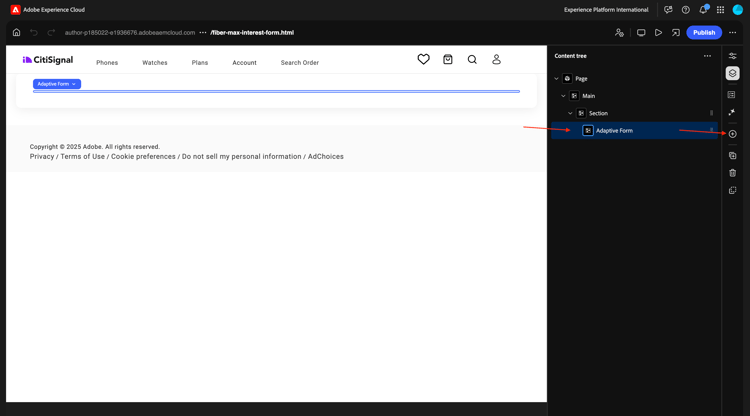
Then, click the + icon to add a new element, and select text Input.
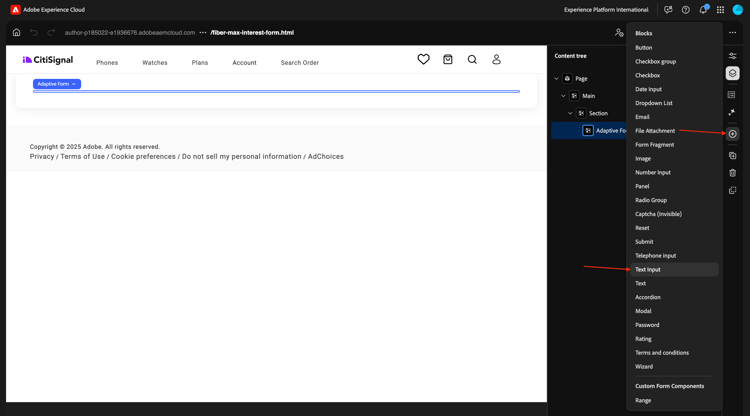
In the Content Tree, select the field Text Input.
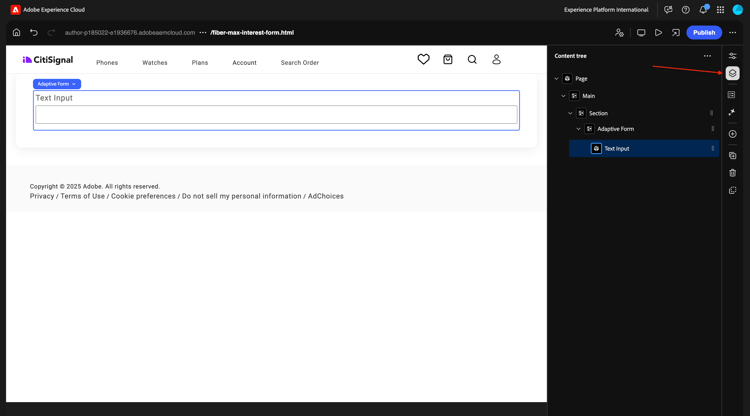
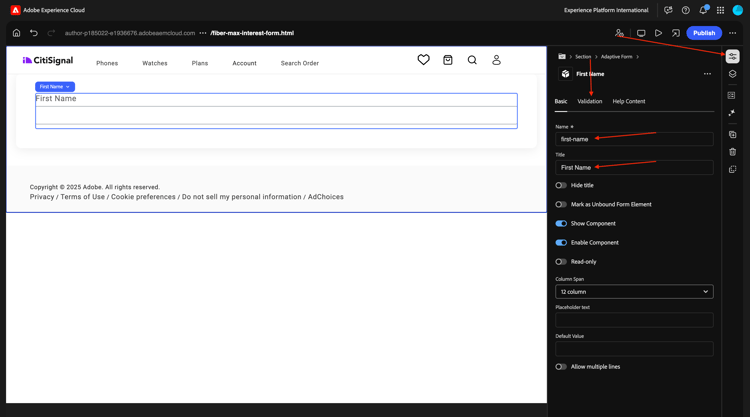
Go to the Basic view. You should see this.
Fill out the following fields:
- Name:
first-name - Title:
First Name
Then, go to Validation.
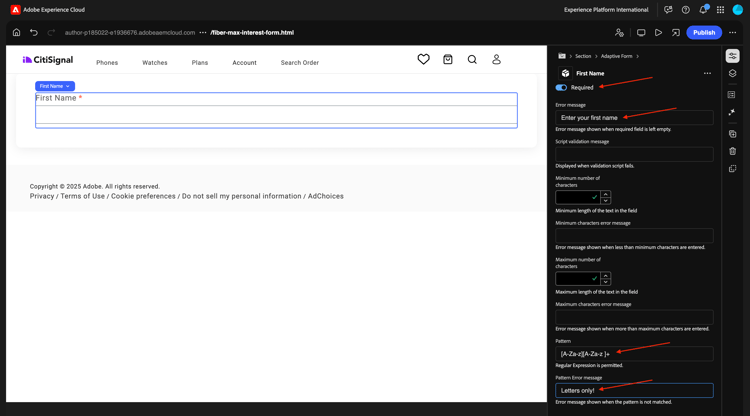
Flip the switch to make this a required field. Fill out the following fields:
- Error message:
Enter your first name - Pattern:
[A-Za-z][A-Za-z ]+ - Pattern error message:
Letters only!
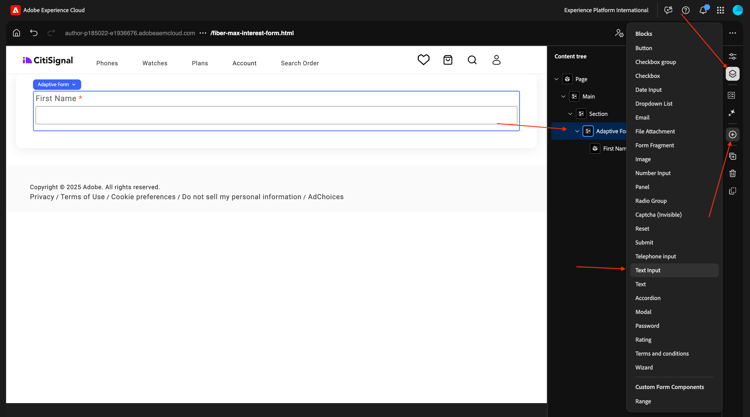
In the Content Tree, select the field Adaptive Form. Click the + icon and then select text Input.
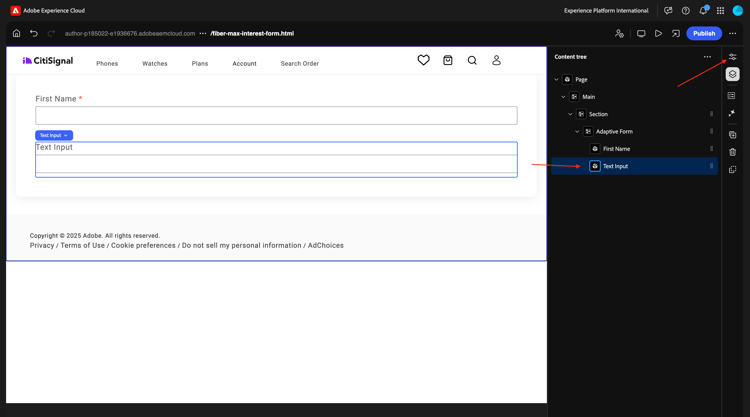
In the Content Tree, select the newly created field Text Input. Go to Properties.
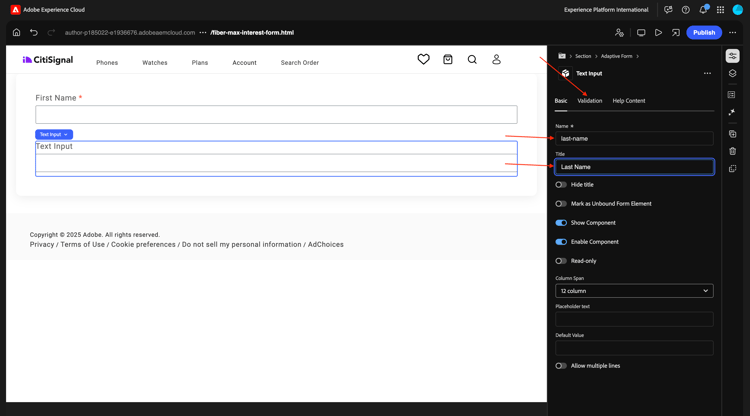
Go to the Basic view. You should see this.
Fill out the following fields:
- Name:
last-name - Title:
Last Name
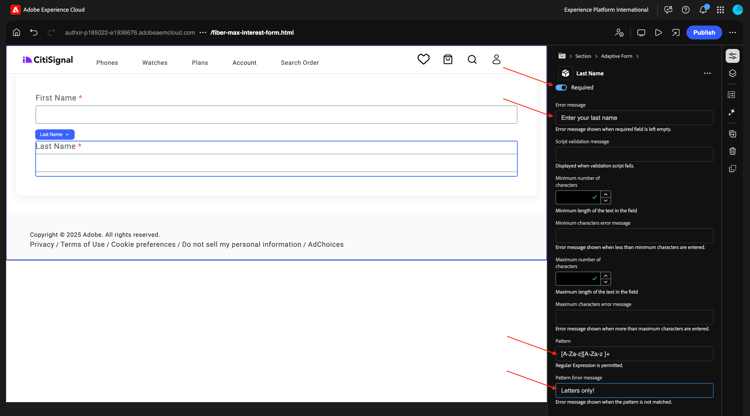
Then, go to Validation.
Flip the switch to make this a required field. Fill out the following fields:
- Error message:
Enter your last name - Pattern:
[A-Za-z][A-Za-z ]+ - Pattern error message:
Letters only!
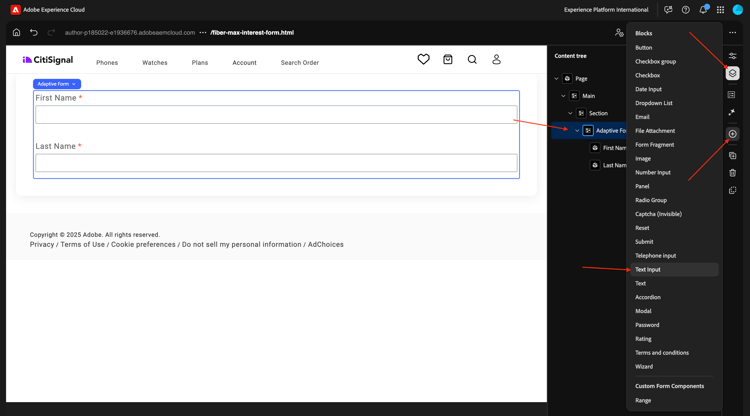
In the Content Tree, select the field Adaptive Form. Click the + icon and then select text Input.
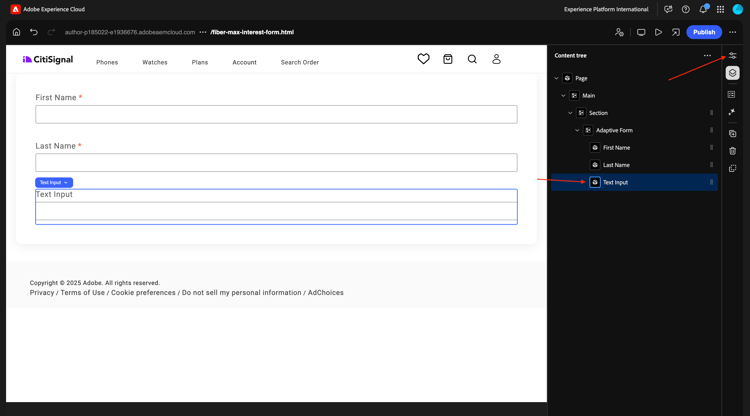
In the Content Tree, select the newly created field Text Input. Go to Properties.
Go to the Basic view. You should see this.
Fill out the following fields:
- Name:
email - Title:
Email
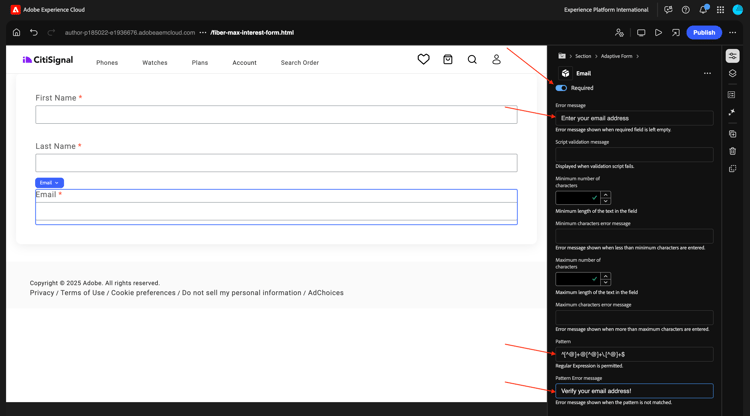
Then, go to Validation.
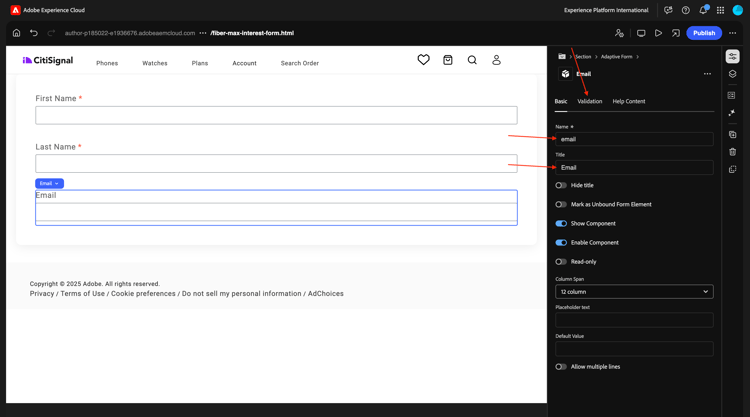
Flip the switch to make this a required field. Fill out the following fields:
- Error message:
Enter your email address - Pattern:
^[^@]+@[^@]+\.[^@]+$ - Pattern error message:
Please verify your email address!
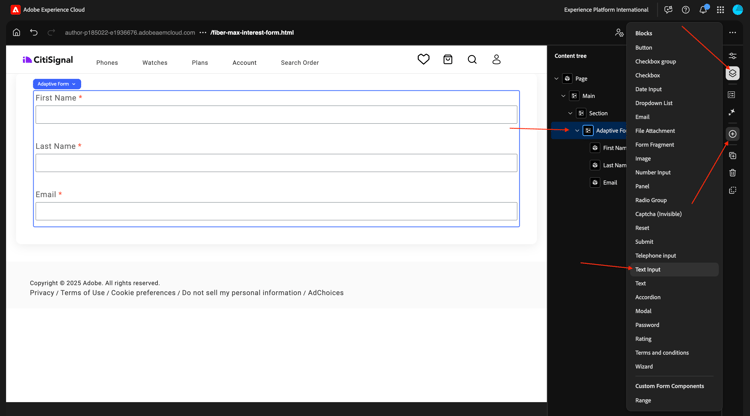
In the Content Tree, select the field Adaptive Form. Click the + icon and then select text Input.
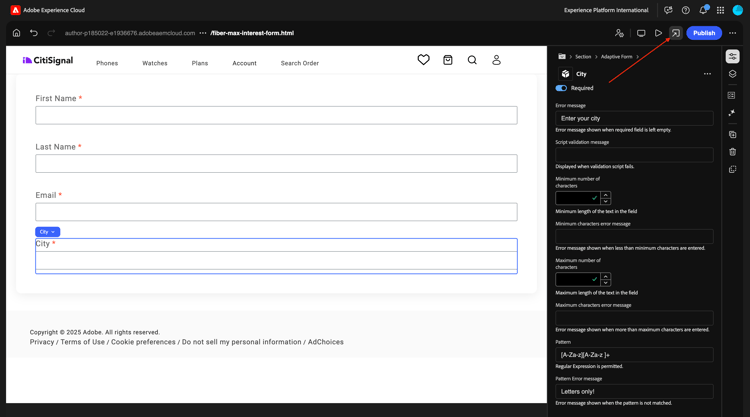
In the Content Tree, select the newly created field Text Input.
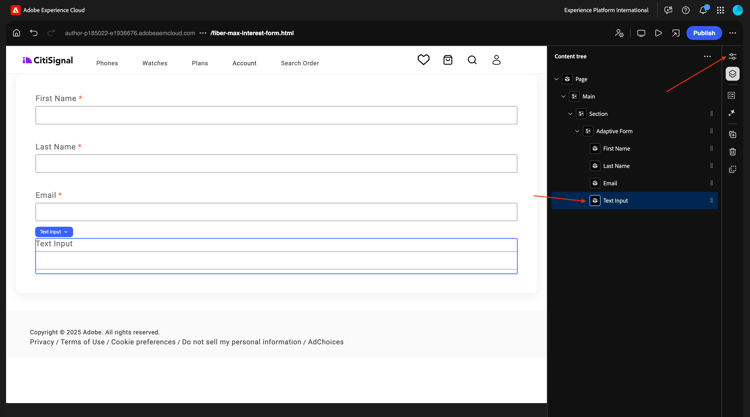
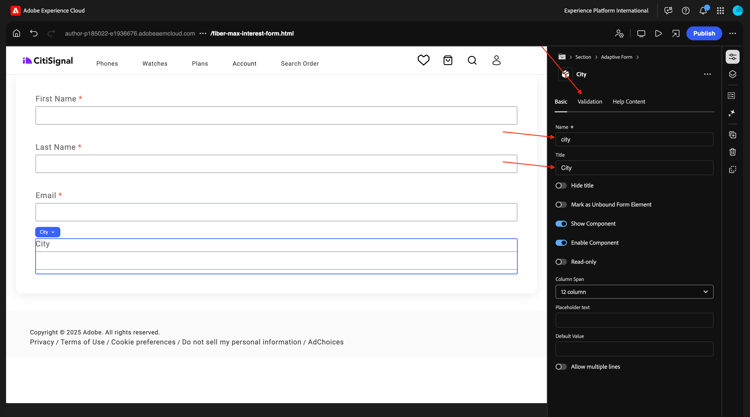
Go to the Basic view. You should see this.
Fill out the following fields:
- Name:
city - Title:
city
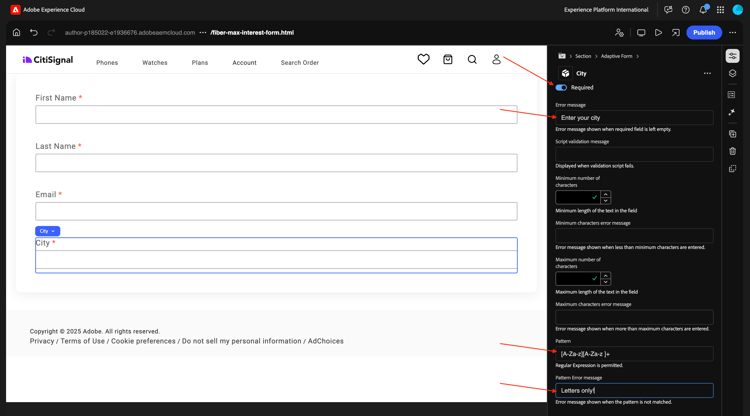
Then, go to Validation.
Flip the switch to make this a required field. Fill out the following fields:
- Error message:
Enter your city - Pattern:
[A-Za-z][A-Za-z ]+ - Pattern error message:
Letters only!
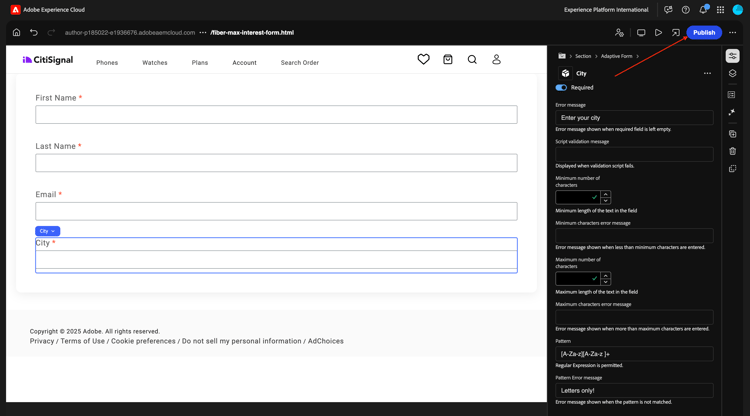
Click Publish.
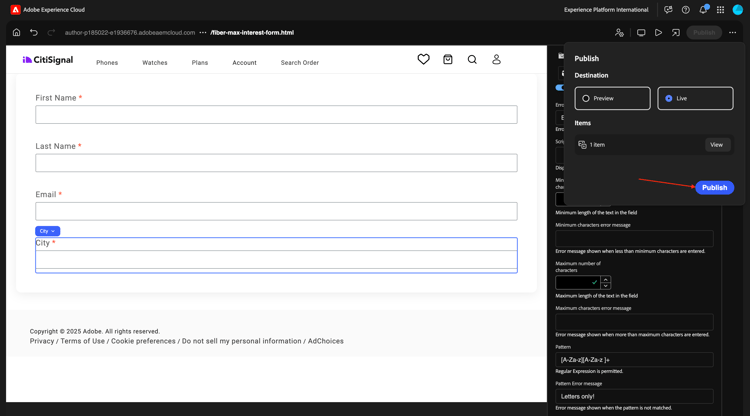
Click Publish again.
Click to open your form.
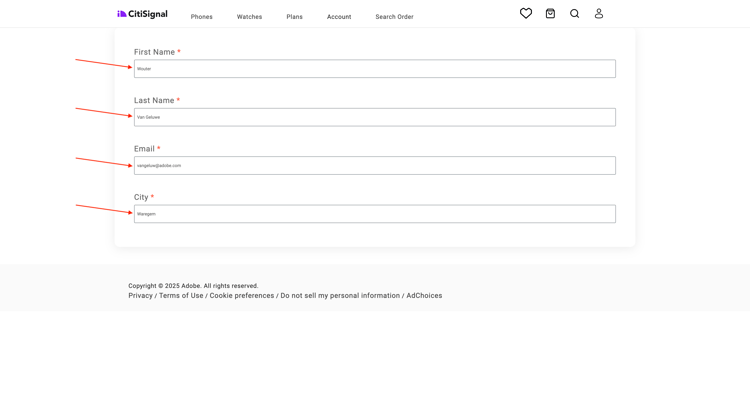
You can then fill out the form, but you can’t submit it yet.
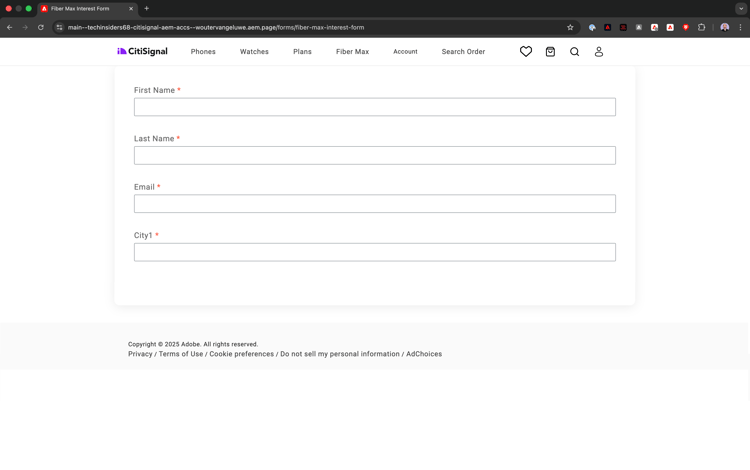
After publishing your form, it’s now also available on your Edge Delivery Services domain, which looks like this:
https://main--techinsidersXX-citisignal-aem-accs--woutervangeluwe.aem.page/forms/fiber-max-interest-form
1.3.1.3 Submit form
In order to submit your form, 2 things are required:
- a Submit button
- a Submit action
Also, in this exercise you should use a Google spreadsheet to record submissions of this form.
Google spreadsheet
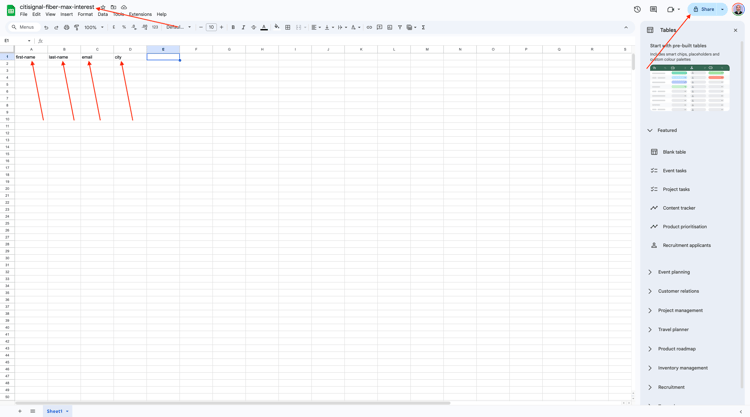
Go to https://drive.google.com and create a new blank spreadsheet.
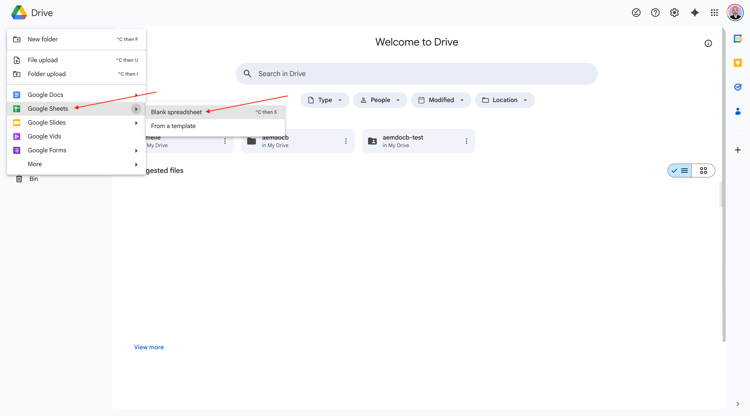
Name your file citisignal-fiber-max-interest.
In line 1, in cells A-B-C-D, enter the following field names:
- first-name
- last-name
- city
Then, click Share.
Share the file with forms@adobe.com with Editor-level access rights.
Then, click Copy link.
Click Send.
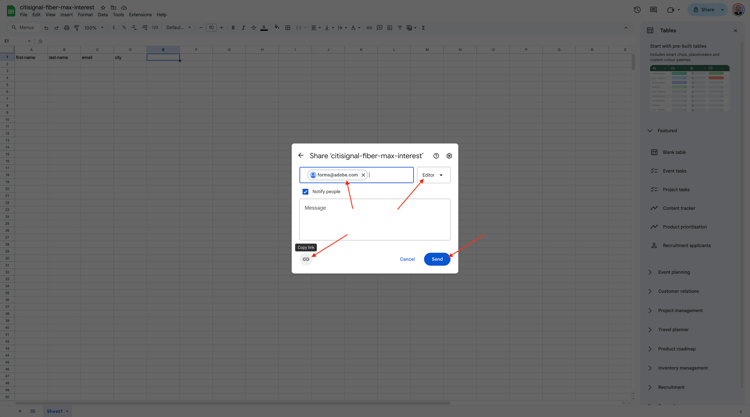
You will need to use the copied link in the next step.
Submit button
To configure the Submit button, go to Content tree, select Adaptive Form, click the + icon and then select Submit.
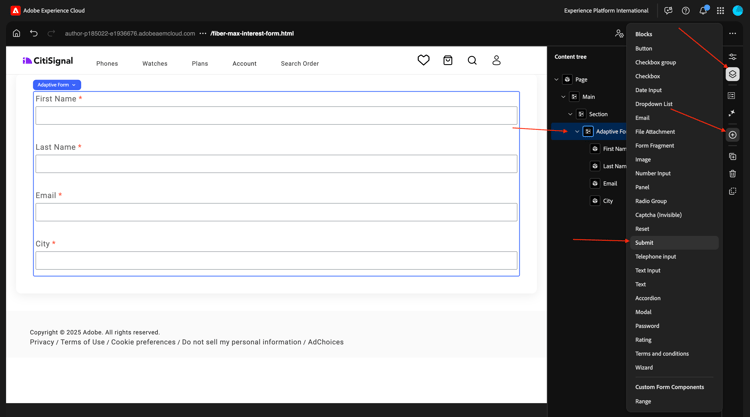
You should then see this.
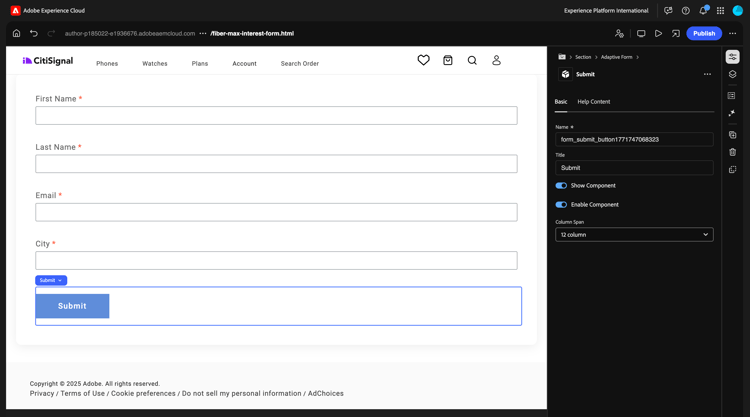
Submit action
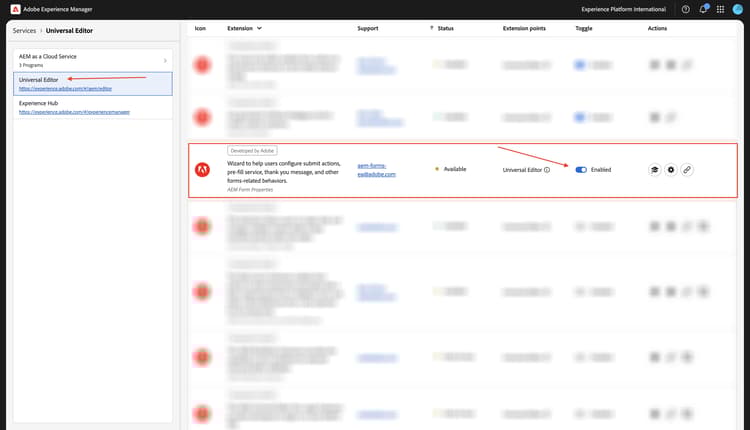
Submit actions are part of an extension for the Universal Editor.
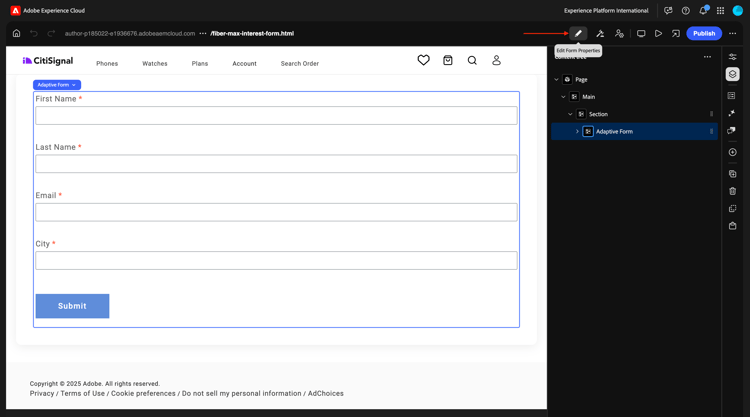
Click the Edit Form Properties icon.
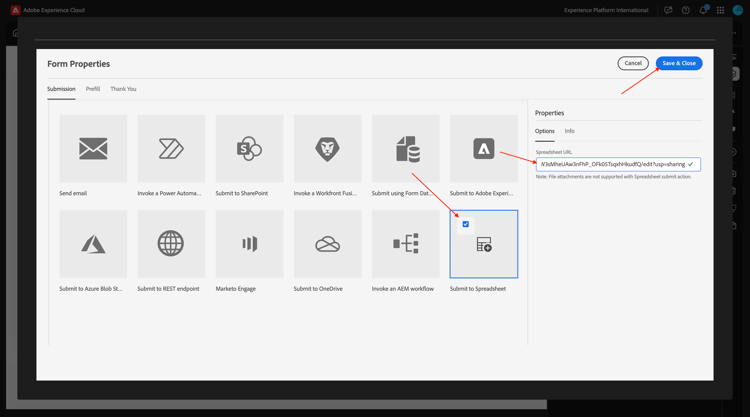
Select Submit to Spreadsheet. Paste the URL of the Google Sheet that you created earlier.
Click Save & Close.
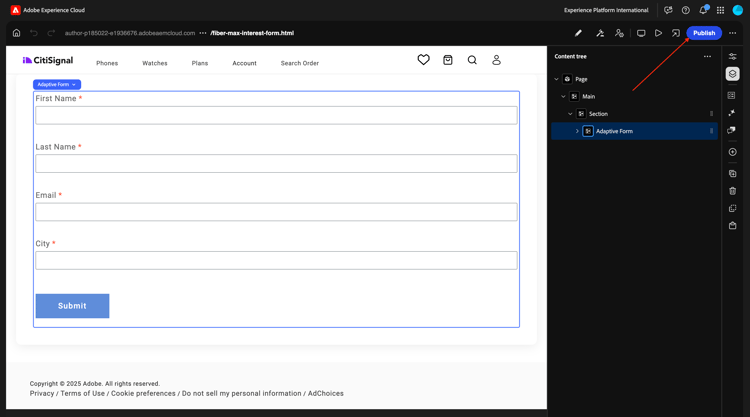
Click Publish.
Click Publish again.
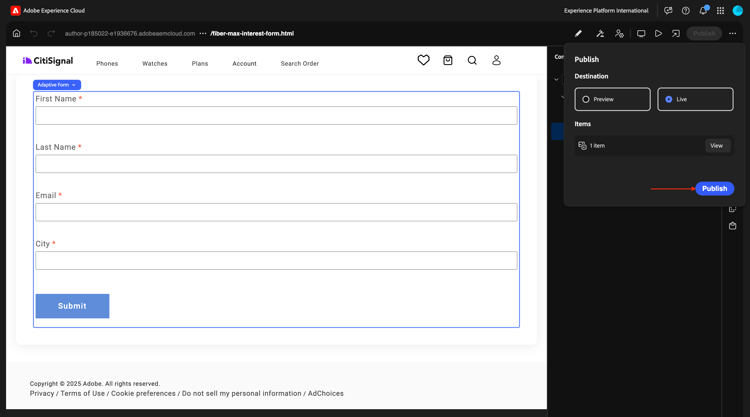
You can then refresh your site, fill out the forms and click Submit.
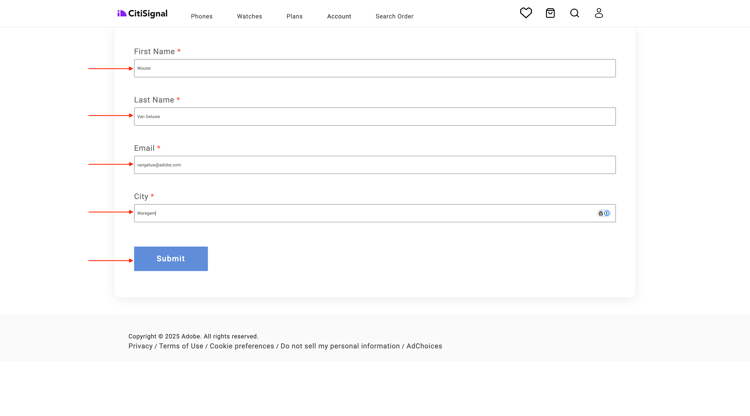
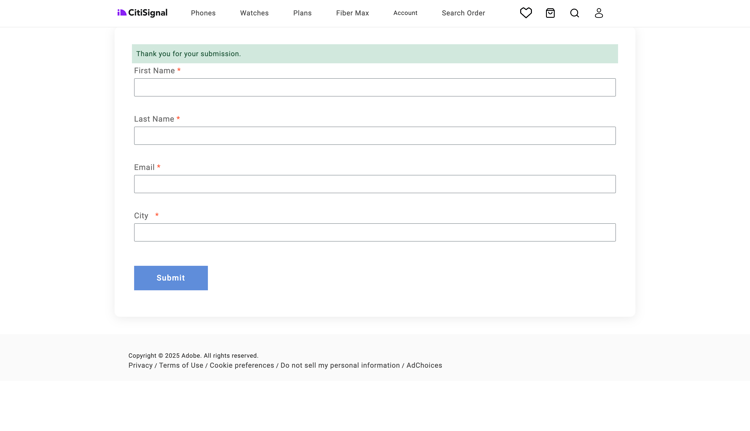
Your submission should then be successful.
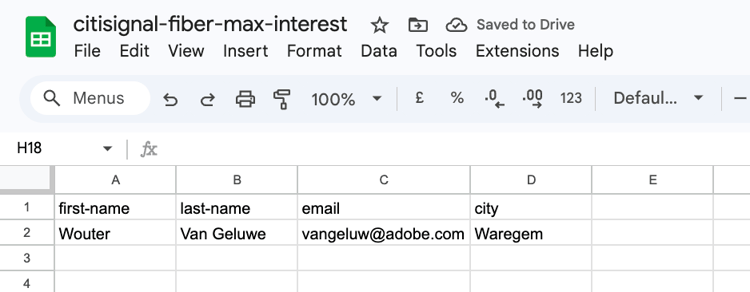
If you then have a look at your Google sheet, you should see the successful submission there as well.
You’ve now successfully finished this exercise.
Next Steps
Go Back to Adobe Experience Manager Forms with Edge Delivery Services