1.4.2 Use your dynamic media template with Adobe Journey Optimizer
1.4.2.1 Create your campaign in Adobe Journey Optimizer
Login to Adobe Journey Optimizer by going to Adobe Experience Cloud. Click Journey Optimizer.
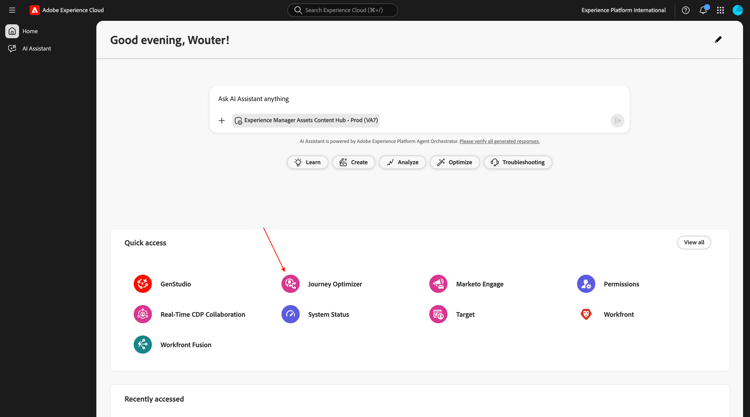
You’ll be redirected to the Home view in Journey Optimizer. First, make sure you’re using the correct sandbox. The sandbox to use is called --aepSandboxName--. You’ll then be in the Home view of your sandbox --aepSandboxName--.
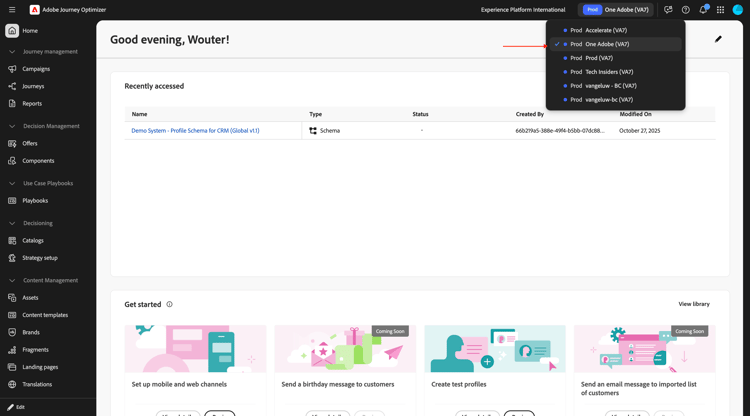
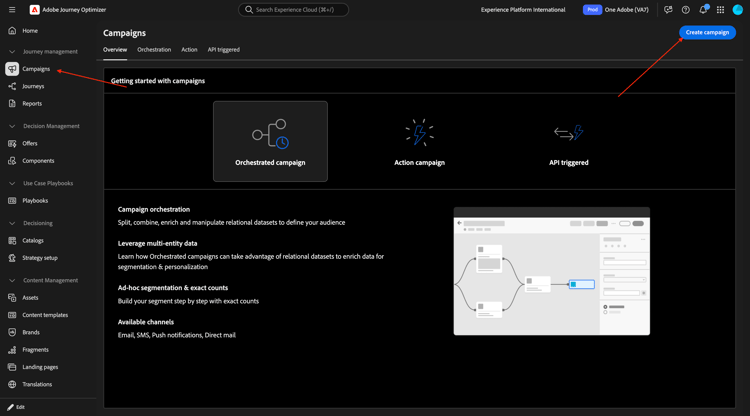
You’ll now create a campaign. Unlike the event-based journey of the previous exercise which relies on incoming experience events or audience entries or exits to trigger a journey for 1 specific customer, campaigns target a whole audience once with unique content like newsletters, one-off promotions, or generic information or periodically with similar content sent on a regular basis like for instance birthday campaigns and reminders.
In the menu, go to Campaigns and click Create campaign.
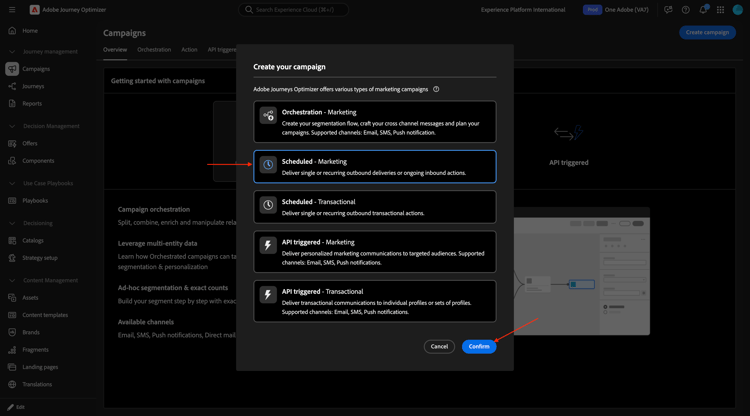
Select Scheduled - Marketing and click Create.
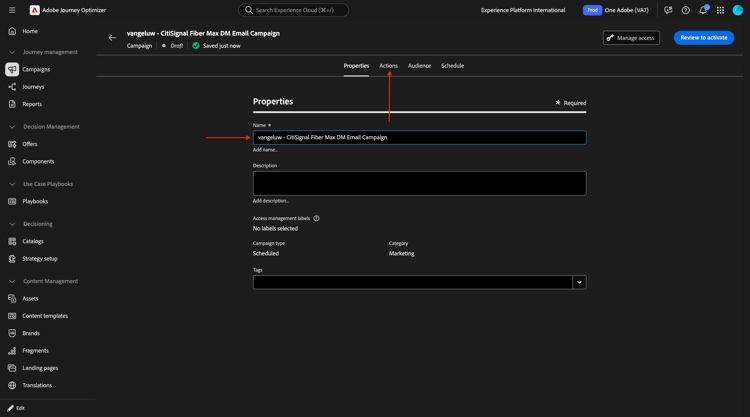
On the campaign creation screen, configure the following:
- Name:
--aepUserLdap-- - CitiSignal Fiber Max DM Email Campaign.
Click Actions.
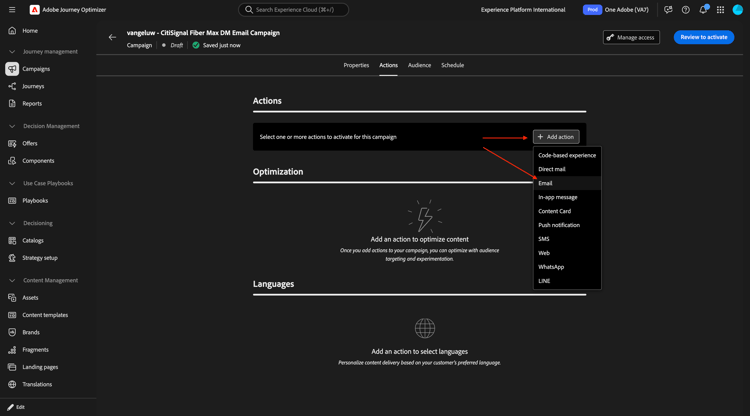
Click + Add Action and then select Email.
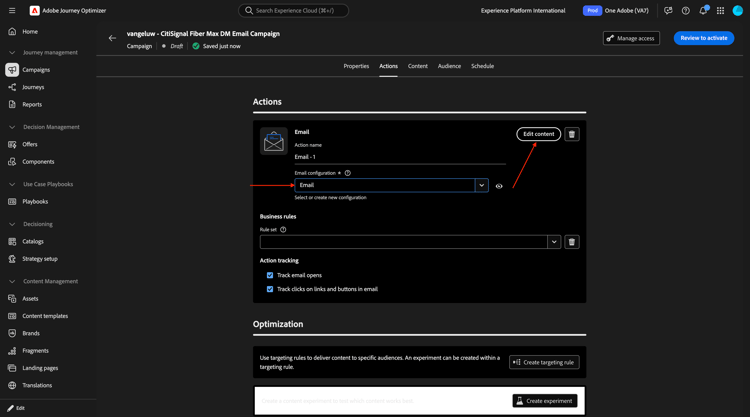
Then, select an existing Email configuration and then click Edit content.
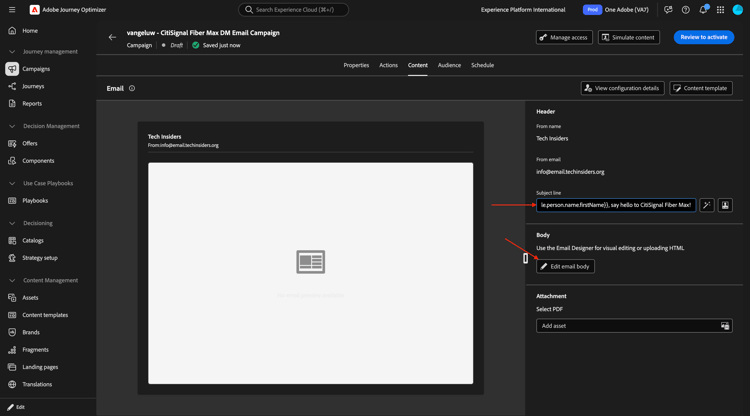
You’ll then see this. For the Subject line, use this:
{{profile.person.name.firstName}}, say hello to CitiSignal Fiber Max!
Next, click Edit content.
Select Design from scratch.
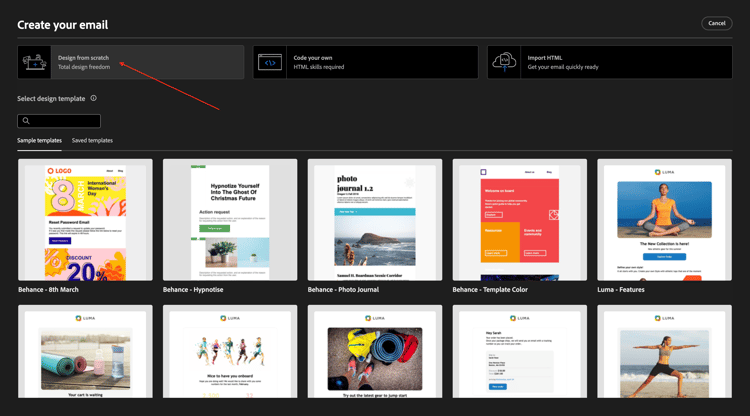
You should then see this.
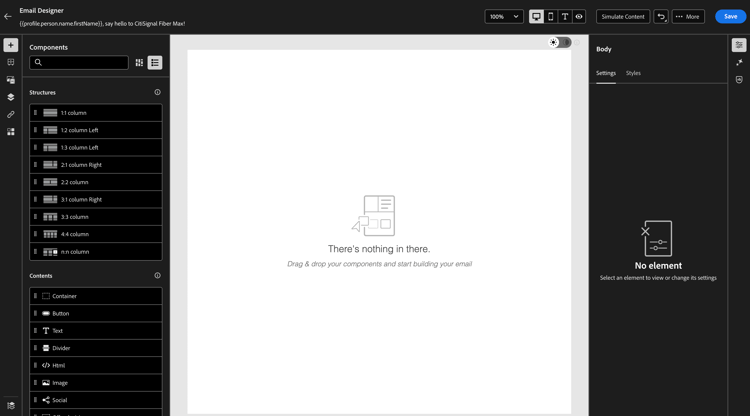
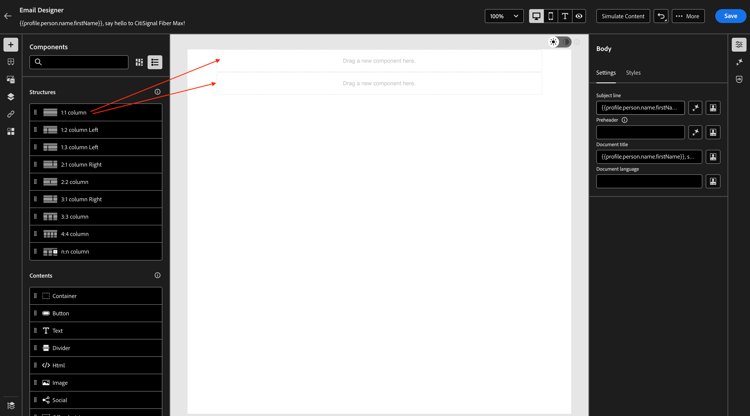
Add 2x 1:1 column to the canvas.
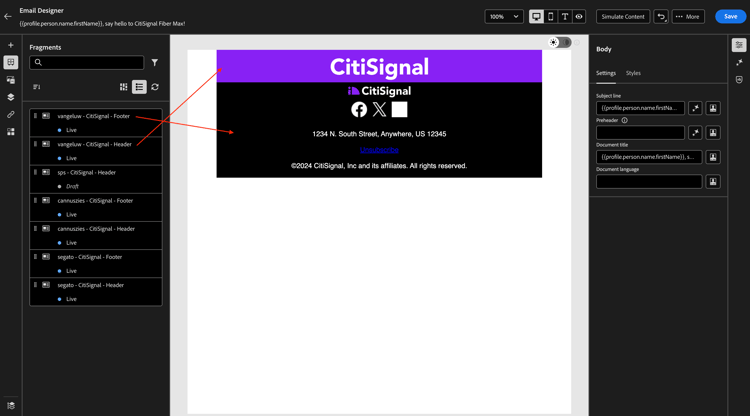
Go to Fragments, drag the header fragment to the first 1:1 column and then drag the footer fragment to the second 1:1 column.
Add a new 1:1 column in between the 2 fragments, and then add an Image into that 1:1 column. Then, click Browse.
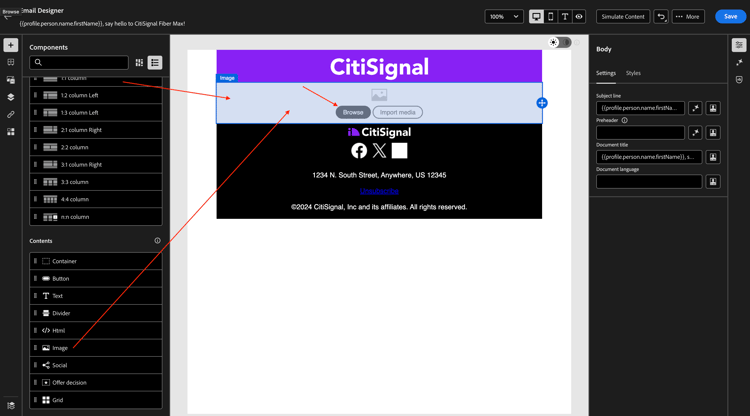
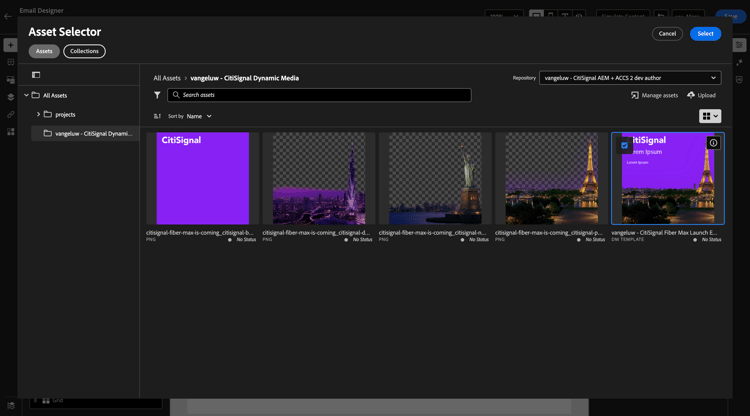
Navigate to the folder in which you stored your Dynamic Media template. Select your Dynamic Media template and then click Select.
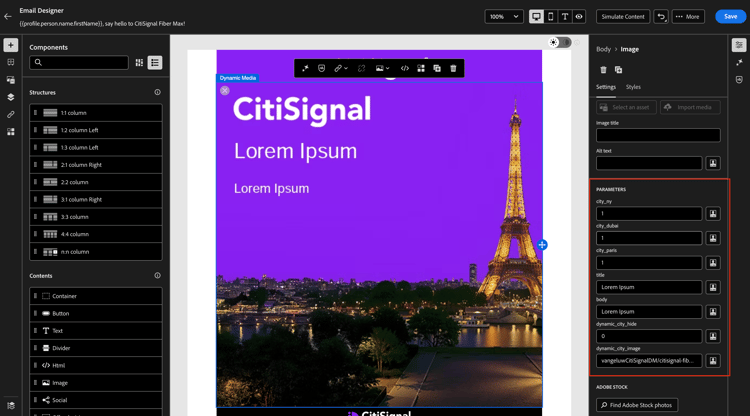
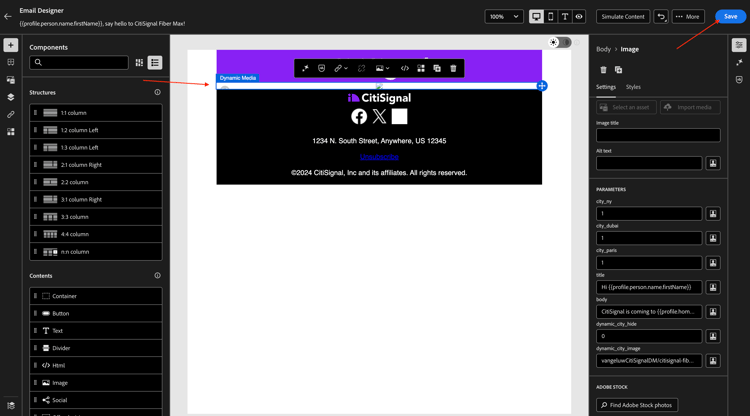
You should then see this. You also. notice the PARAMETERS which allow you to change the parameters of the dynamic media template.
1.4.2.2 Personalize the dynamic media template
As dicussed in the previous exercise, AJO now needs to dynamically decide what the values should be that become part of the Dynamic Media template.
Just like in the Preview step in the previous exercise, the fields city_paris, city_dubai and city_ny, should be set to 1 which means that these images will be hidden.
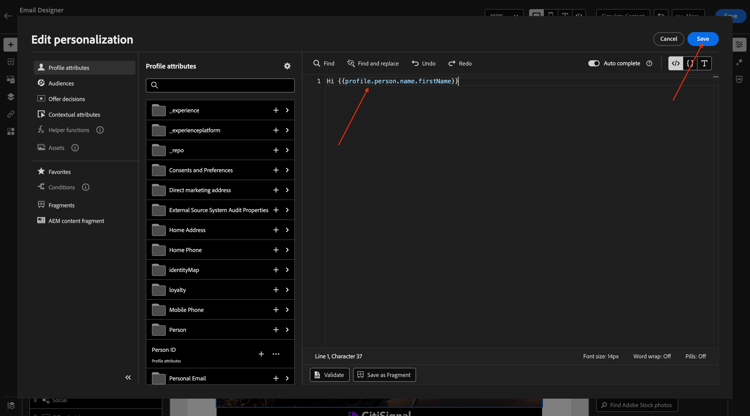
For the field title, click the personalization icon.
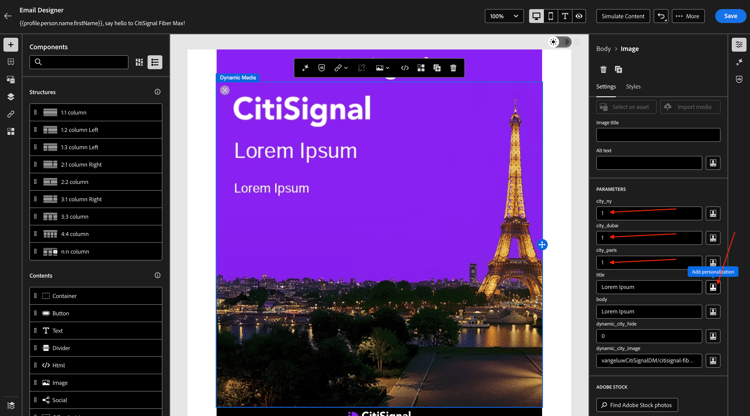
Replace the default text by this: Hi {{profile.person.name.firstName}}. Click Save.
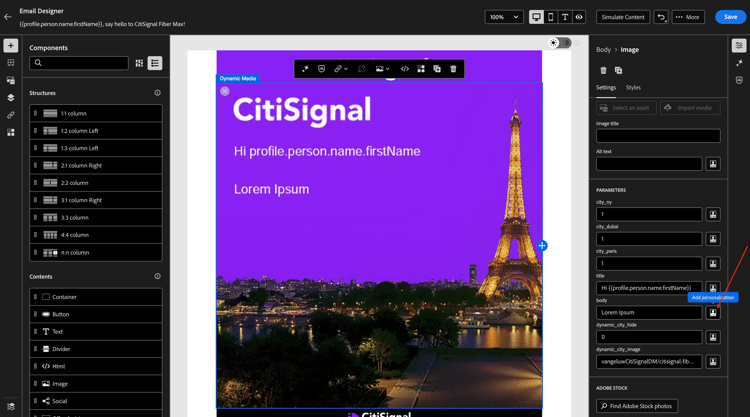
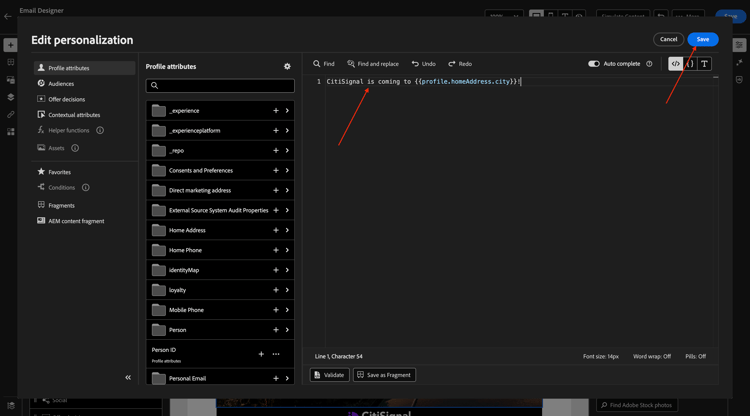
For the field body, click the personalization icon.
Replace the default text by this: CitiSignal is coming to {{profile.homeAddress.city}}!. Click Save.
Ensure that the field dynamic_city_hide is set to 0. Click the personalization icon for the field dynamic_city_image.
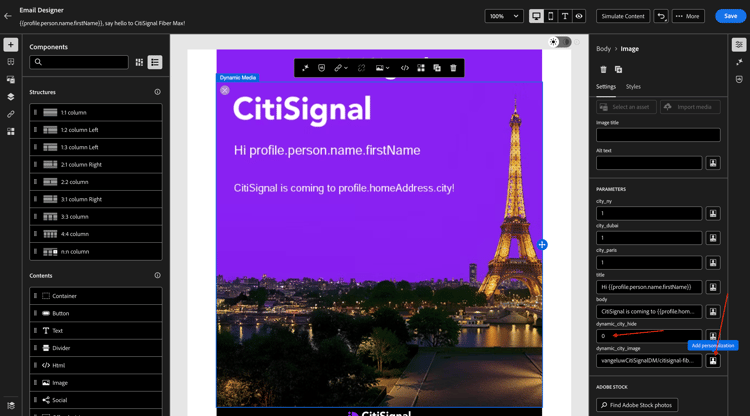
Replace the default text by this: --aepUserLdap--CitiSignalDM/citisignal-fiber-max-is-coming_citisignal-{{profile._experienceplatform.individualCharacteristics.fiber_rollout.closest_rollout_city}}-1. Click Save.
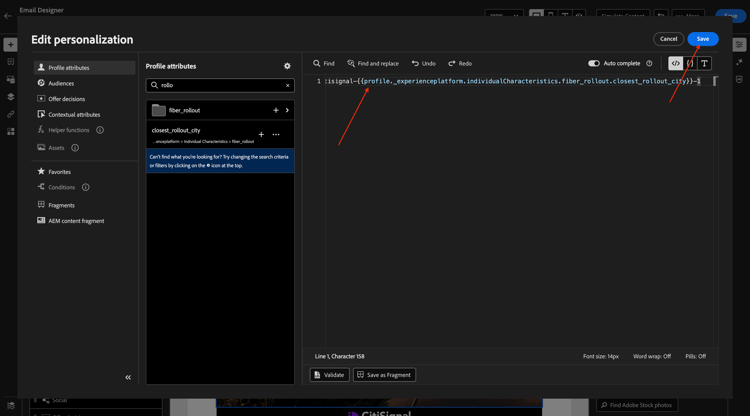
You should then see this. The image isn’t rendering here anymore which is expected as the dynamic variables aren’t available in the context of the email editor.
Click Save.
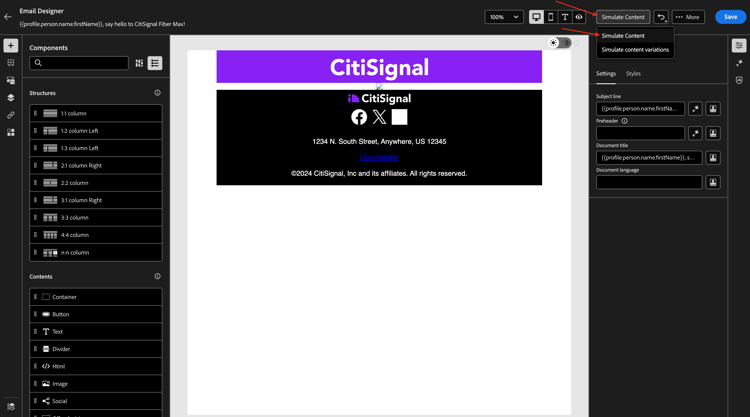
Top test your configuration, click Simulate Content and then select Simulate Content.
You should then see something like this. If you don’t have test profiles available, you can add them by going to Manage test profiles.
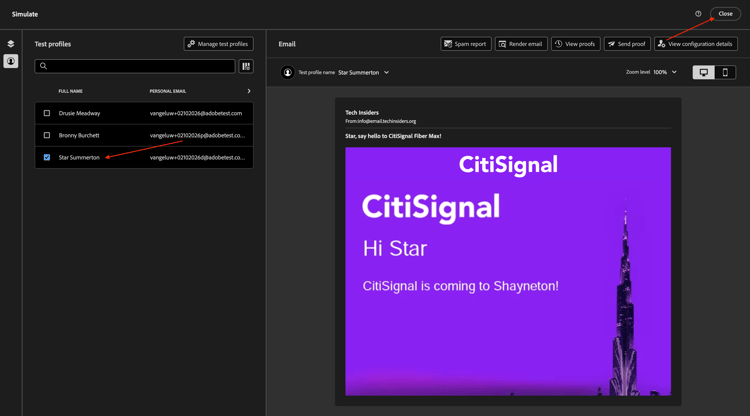
Once you have test profiles available that contain the data needed to test this use case, you can switch from one profile to another to see the changes happen dynamically.
Here’s a profile that is linked to the rollout city New York.
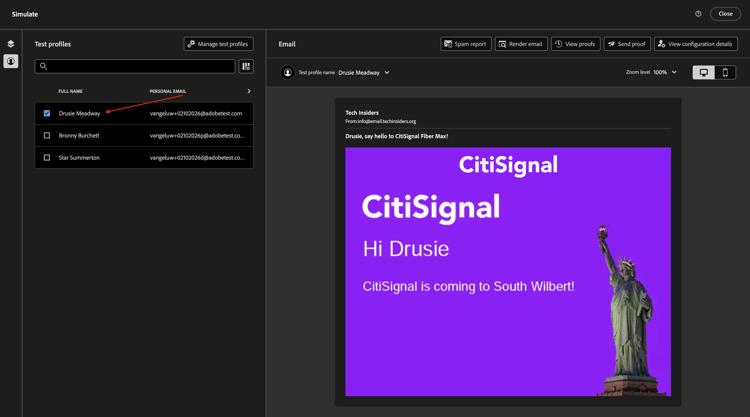
Here’s a profile that is linked to the rollout city Paris.
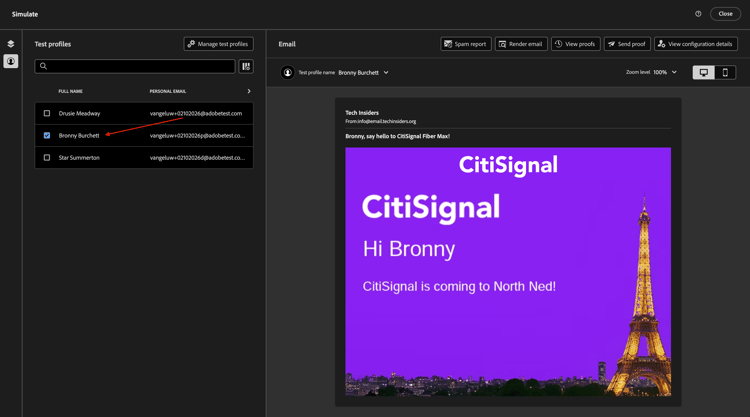
Here’s a profile that is linked to the rollout city Dubai.
Click Close.
You’ve now finished this exercise. There’s no need to publish your email campaign.