Real-time Customer Profiles and Edge segmentation
Enable the dataset and schema for Real-time Customer Profile
For customers of Real-Time Customer Data Platform and Journey Optimizer, the next step is to enable the dataset and schema for Real-Time Customer Profile. Data streaming from Web SDK will be one of many data sources flowing into Platform and you want to join your web data with other data sources to build 360-degree customer profiles. To learn more about Real-Time Customer Profile, watch this short video:
Enable the schema
To enable the schema for profile:
-
Open the schema you created,
Luma Web Event Data -
Select the Profile Toggle to turn it on
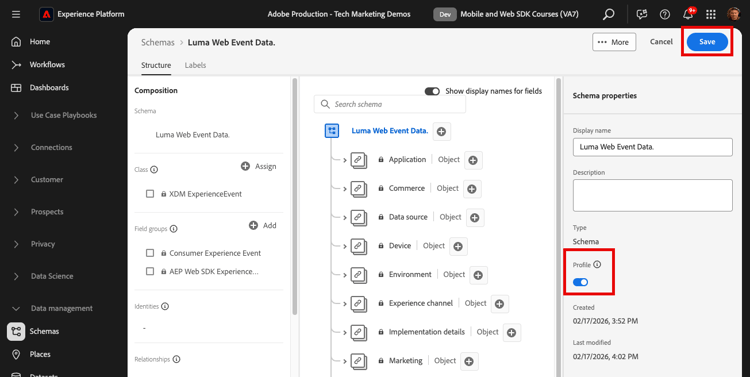
-
Select Data for this schema will contain a primary identity in the identityMap field.
-
Select Enable
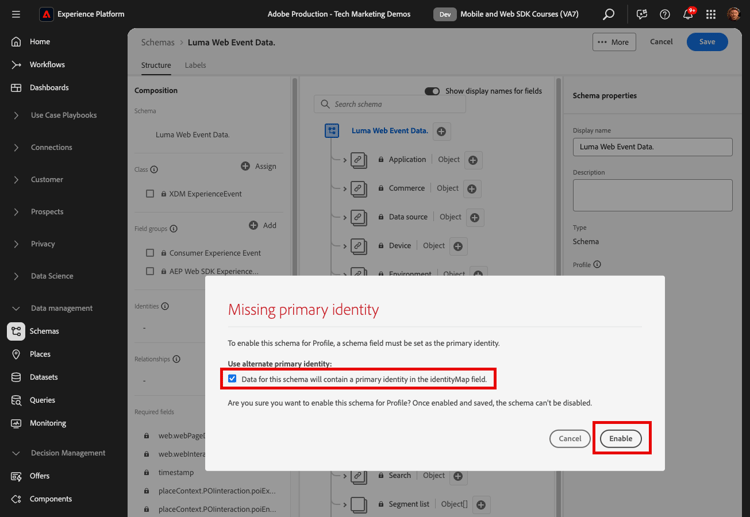
note important IMPORTANT Primary identities are required in every record sent to Real-Time Customer Profile. Each record becomes a “profile fragment” and primary identies are the keys to looking up those fragments. With some types of data, identity fields are labeled within the schema. With event data captured by Experience Platform SDKs, however, identity maps are typical, and the identity fields are not visible within the schema. This dialog is to confirm that you have a primary identity in mind and that you will specify it in an identity map when sending your data, configure it with identity graph linking rules, or both. We recommend you do both. As you know, our Luma implementation uses an identity map with the the authenticated lumaCrmId as the primary identity when available, otherwise it will default to the Experience Cloud Id (ECID). -
Select Save to save the updated schema
Now the schema is enabled for profile.
Enable the dataset
To enable the dataset:
-
Open the dataset you created,
Luma Web Event Data -
Select the Profile Toggle to turn it on
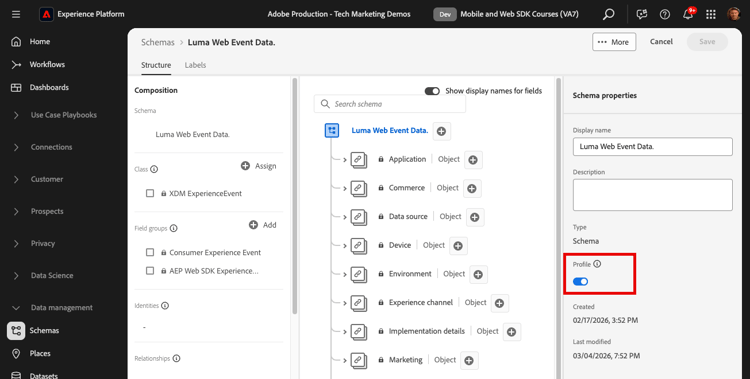
-
Confirm you want to Enable the dataset
- First, ingest some data into your datasets.
- Address any issues that arise during the data ingestion process (for example, data validation or mapping issues).
- Enable your datasets and schemas for Profile
- Re-ingest the data, if needed
Validate a profile
You can look up a customer profile in the Platform interface (or Journey Optimizer interface) to confirm that the data has landed in Real-Time Customer Profile. As the name suggests, profiles populate in real-time, so there is no delay like there was with validating data in the dataset.
First you must generate more sample data into your profile-enabled dataset:
-
Open the Luma demo website and select the Experience Platform Debugger extension icon
-
Configure the Debugger to map the tag property to your Development environment, as described in the Validate with Debugger lesson
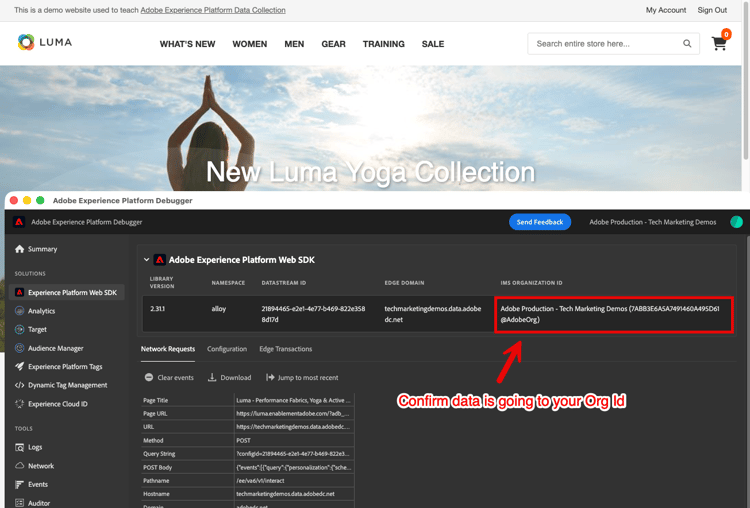
-
Browse the website. View some products and add some to your shopping cart.
-
Log into the Luma site using the credentials
test@test.com/test(If you get a message “Invalid email or password” then create an account with those credentials) -
Open the “events” row to look for some of your XDM variables
-
Search for the “identityMap” within the pop-up. Here you should see lumaCrmId with three keys of authenticatedState, id, and primary. Note how the lumaCrmId value for this login is
f660ab912ec121d1b1e928a0bb4bc61b.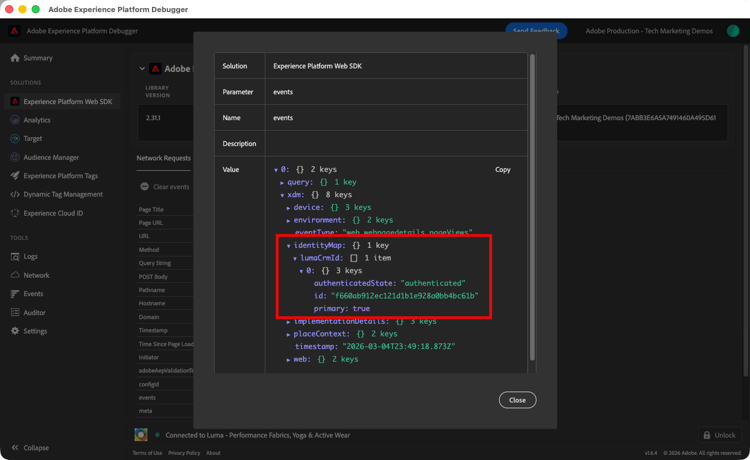
Now lets look for our profile in Experience Platform:
-
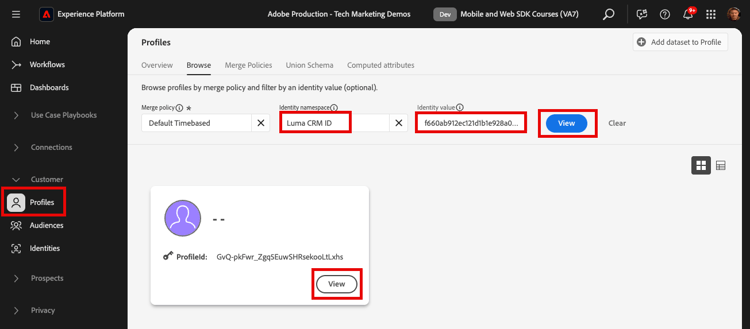
In the Experience Platform interface, select Customer > Profiles in the left-navigation
-
As the Identity namespace use
Luma CRM ID -
Copy & paste the value of the
lumaCrmIdpassed in the call that you inspected in the Experience Platform Debugger, in this casef660ab912ec121d1b1e928a0bb4bc61b -
If there is a valid value in the Profile for
lumaCRMId, a Profile ID populates in the console -
To view the full Customer Profile select View:
-
First you will see a summary of the profile. There is not much in this profile yet, but here the identities linked in the profile, the
lumaCRMIdandECID: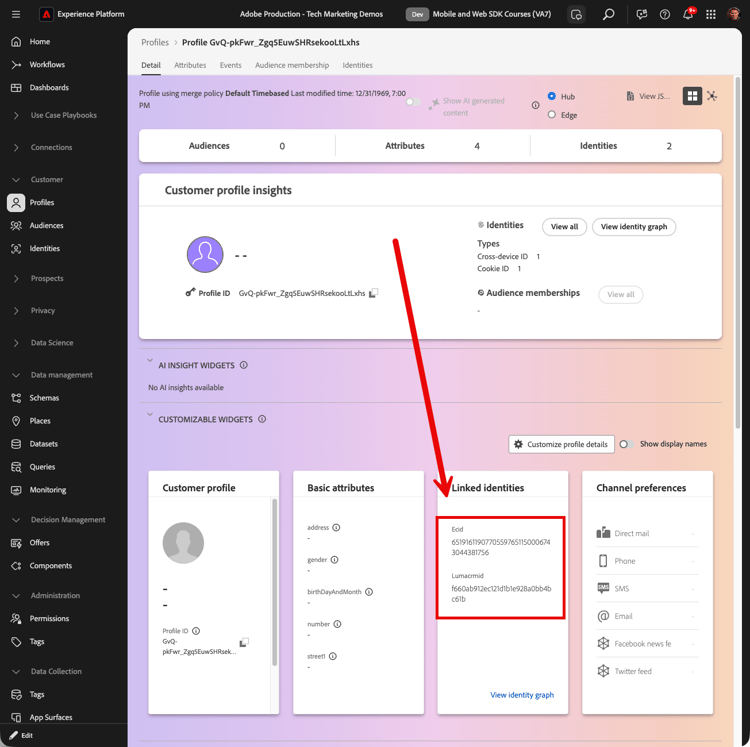
-
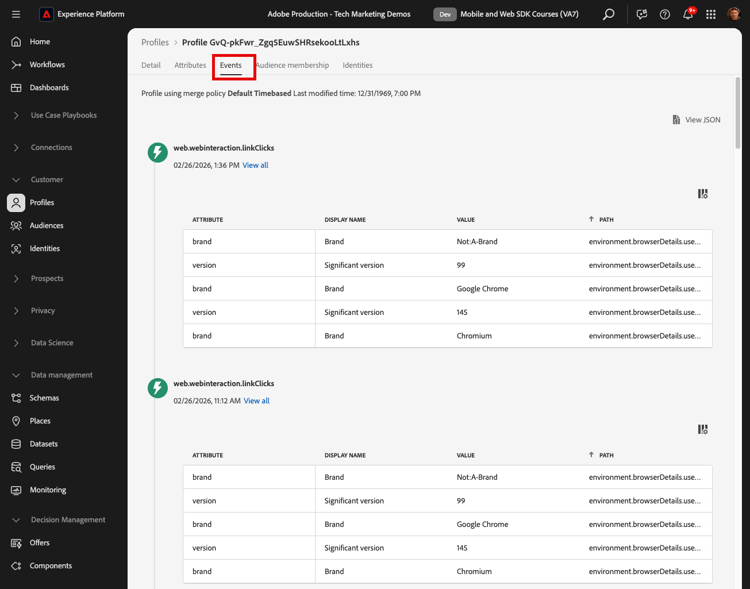
At this point, most of the profile data available is the event data from the web activity. Select Events to see the clickstream data:
Avoid profile collapse
Now let’s look at something you never want to see happen in your own implementation—graph collaps.
Understand the problem
First, we are going generate some more sample data so we can see the problem:
-
Without deleting any cookies or localStorage objects, open the Luma demo website and select the Experience Platform Debugger extension icon
-
Configure the Debugger to map the tag property to your Development environment, as described in the Validate with Debugger lesson
-
Hopefully you are still logged into the Luma site using the credentials
test@test.com/test. If not, log back in. -
Browse the website. View some products and add some to your shopping cart.
-
Now, sign out.
-
Now sign in again, creating an account as a different user (
spouse@test.com/test). What we are trying to do is replicate a “shared device” scenario, where two users share the same web browser, authenticate to the same website, and share the sameECIDvalue. -
Confirm in the Debugger that you have a different lumaCrmId,
98d73957f59c67617611d56ba7e8dbaaforspouse@test.com/test.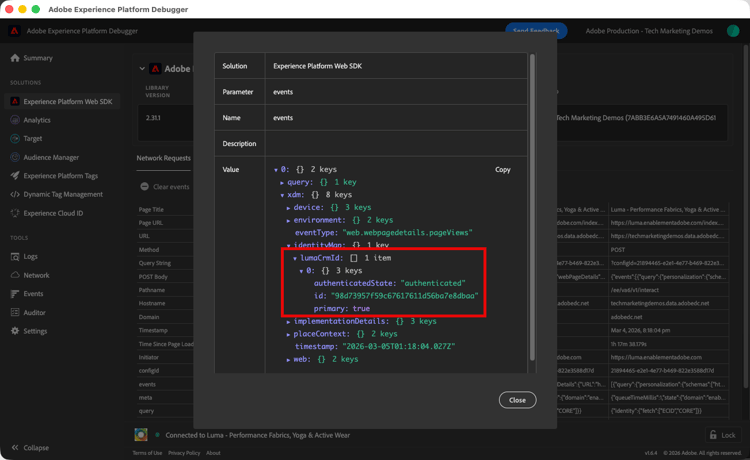
-
View some additional products
Now look up the profile again:
-
Search for
Luma CRM IDequalsf660ab912ec121d1b1e928a0bb4bc61bagain -
Note the profile is now linked to two different Luma CRM IDs
-
Select View Identity Graph
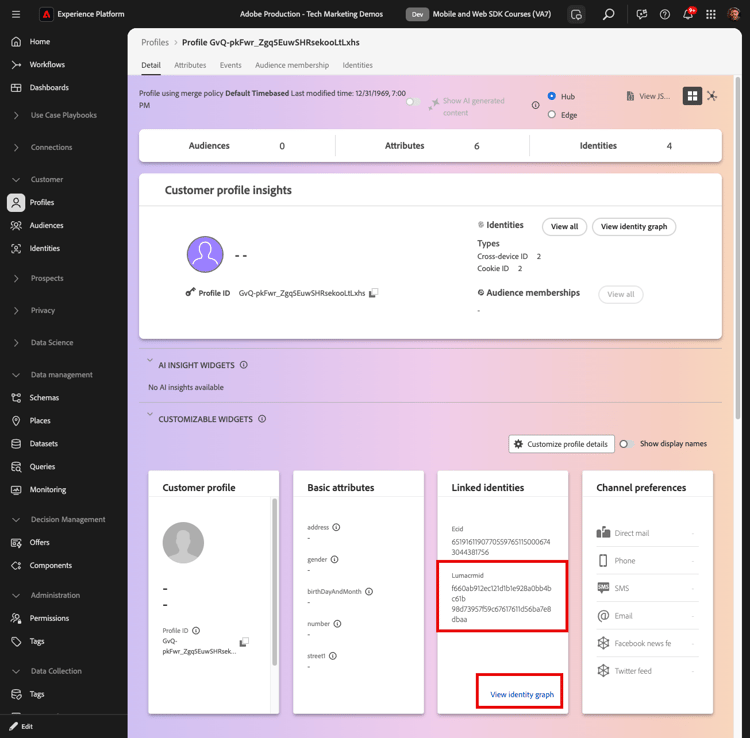
-
The identity graph helps visualize this profile in which, because of the device sharing, two
lumaCrmIdvalues are joined by a commonECIDvalue.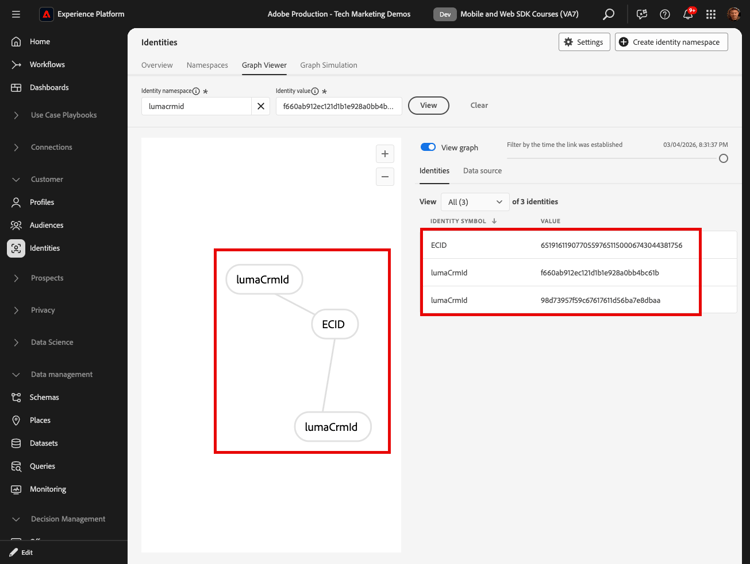
This can be a big problem for an Experience Platform implementation. Not only are both users’ event data joined in a single profile, but other types of data ingested into Platform using these lumaCrmId values will get merged, too.
Fix it with identity graph linking rules
To pre-emptively address the graph collapse issue, use the identity graph linking rules feature in Adobe Experience Platform before enabling your Web SDK implementation.
To enable the identity graph linking rules:
-
From any Identites screen, open Settings:
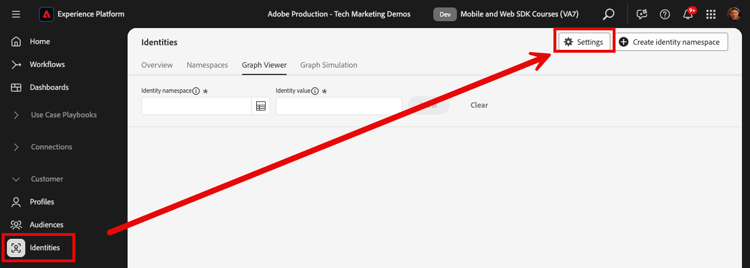
-
Review the warnings in the modal and select Proceed
-
Drag the
Luma CRM IDso it is the highest priority namespace in the list -
Check the Unique per Graph setting for the
Luma CRM ID -
Select Next
-
Review the modal and Confirm
-
Select Next to skip the simulation step
note warning WARNING Again, do not complete this workflow to enable these identity settings if you are not working in your own dedicated development sandbox. -
Enter the sandbox name and select Confirm
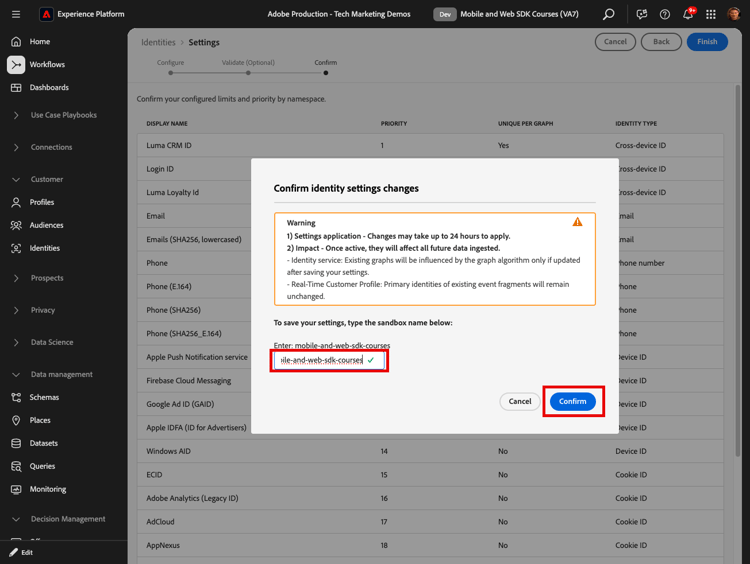
Come back to the site in 24 hours, log back in as either test@test.com or spouse@test.com and see if your profiles have been separated.
Create an Edge-evaluated audience
Completion of this exercise is recommended for customers of Real-Time Customer Data Platform and Journey Optimizer.
When Web SDK data is ingested into Adobe Experience Platform, it can be enriched by other data sources you have ingested into Platform. For example, when a user logs into the Luma site, an identity graph is constructed in Experience Platform and all other profile-enabled datasets can potentially be joined together to build Real-Time Customer Profiles. To see this in action, you will quickly create another dataset in Adobe Experience Platform with some sample loyalty data so that you can use Real-Time Customer Profiles with Real-Time Customer Data Platform and Journey Optimizer. You will then build an audience based on this data.
Create a Loyalty schema and ingest sample data
Since you have already done similar exercises, the instructions will be brief.
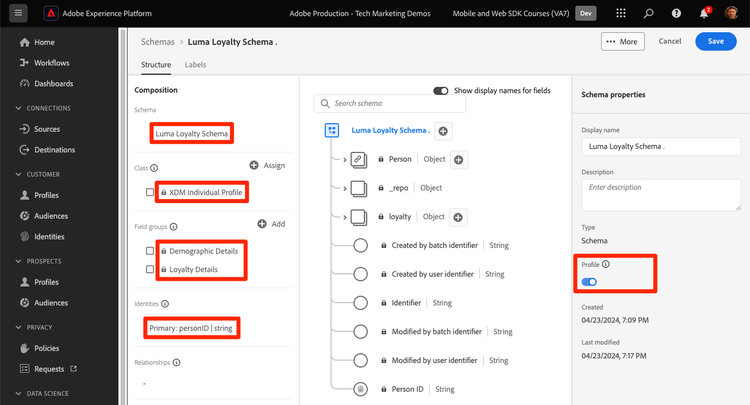
Create the loyalty schema:
-
Create a new schema
-
Choose Individual Profile as the base class
-
Name the schema
Luma Loyalty Schema -
Add the Loyalty Details field group
-
Add the Demographic Details field group
-
Select the
Person IDfield and mark it as an Identity and Primary identity using theLuma CRM IdIdentity namespace. -
Enable the schema for Profile. If you can’t find the Profile toggle, try clicking on the schema name on the top left.
-
Save the schema
To create the dataset and ingest the sample data:
-
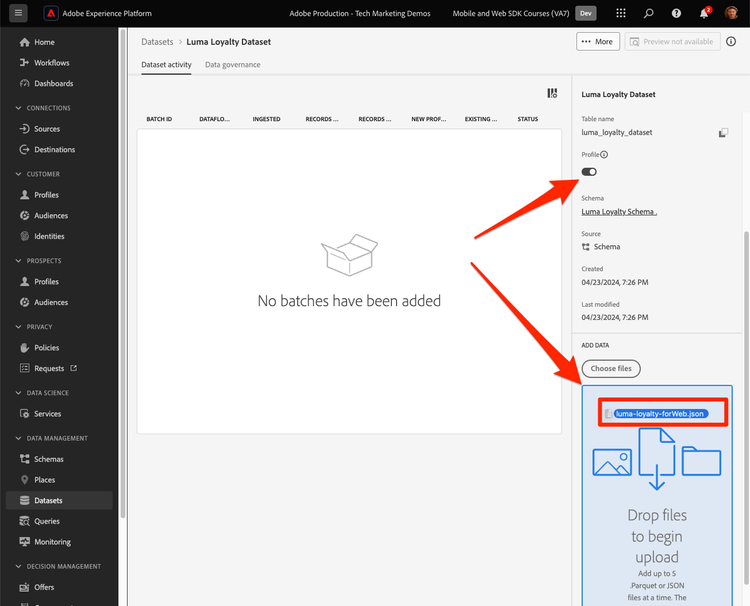
Create a new dataset from the
Luma Loyalty Schema -
Name the dataset
Luma Loyalty Dataset -
Enable the dataset for Profile
-
Download the sample file luma-loyalty-forWeb.json
-
Drag-and-drop the file into your dataset
-
Confirm that the data successfully ingested
Set an Active-on-Edge Merge Policy
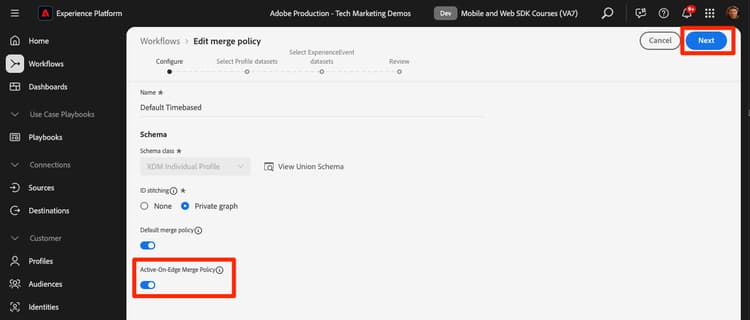
All audiences are created with a merge policy. Merge policies create different “views” of a profile, can contain a subset of datasets, and prescribe a priority order when different datasets contribute the same profile attributes. To be evaluated on the edge, an audience must use a merge policy with has the Active-On-Edge Merge Policy setting.
-
Open the Experience Platform or Journey Optimizer interface and make sure you are in the development environment you are using for the tutorial.
-
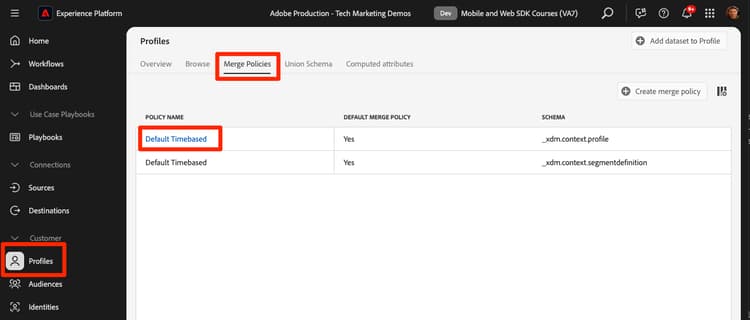
Navigate to Customer > Profiles > Merge Policies page
-
Open the Default Merge Policy (probably named
Default Timebased)
-
Enable the Active-On-Edge Merge Policy setting
-
Select Next
-
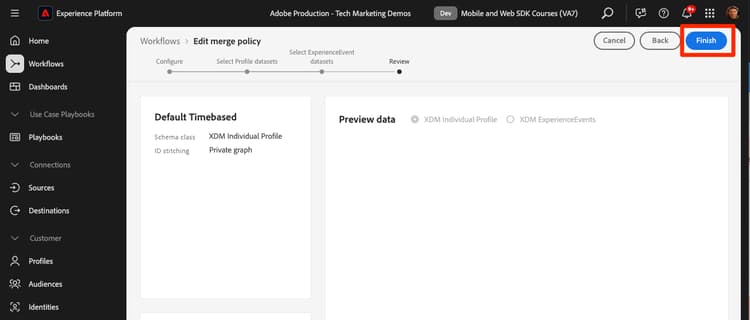
Keep selecting Next to continue through the other steps of the workflow and select Finish to save your settings
You are now able to create audiences which will evaluate on the Edge.
Create an audience
Audiences group profiles together around common traits. Build a simple audience you can use in in Real-Time CDP or Journey Optimizer:
-
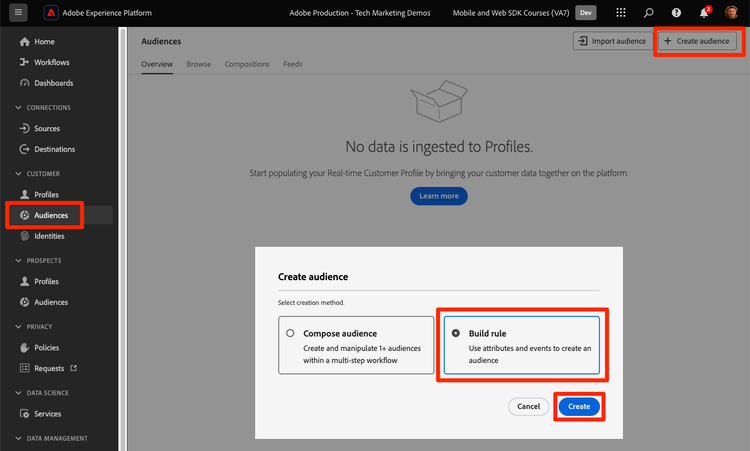
In the Experience Platform or Journey Optimizer interface, go to Customer > Audiences in the left navigation
-
Select Create audience
-
Select Build rule
-
Select Create
-
Select Attributes
-
Find the Loyalty > Tier field and drag it onto the Attributes section
-
Define the audience as users whose
tierisgold -
Name the audience
Luma Loyalty Rewards – Gold Status -
Select Edge as the Evaluation method
-
Select Save
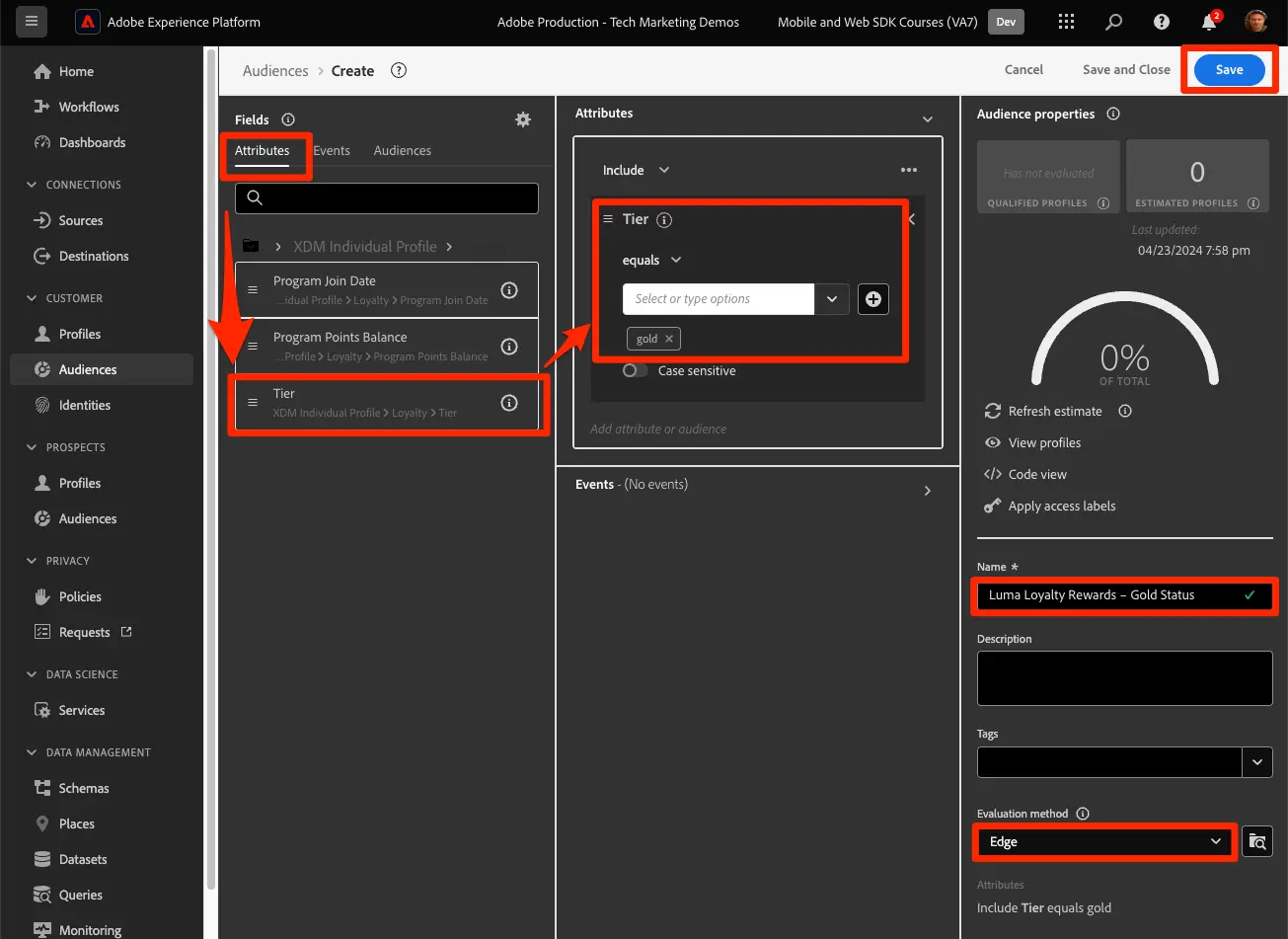
Since this is a very simple audience, we can use the Edge evaluation method. Edge audiences evaluate on the edge, so in the same request made by the Web SDK to Platform Edge Network, we can evaluate the audience definition and confirm immediately if the user will qualify.