Import leads import-leads
Import and deduplicate lead lists into your Marketo Engage database with field mapping assistance.
How to use how-to-use
-
In your My Marketo, click the CX Enterprise Coworker for Marketo Engage tile.

-
Type “Import a lead list and normalize the data” (or select it if it’s listed as a sample prompt) and click the up arrow icon.

-
You are prompted to upload the CSV file and are shown the upcoming steps.

-
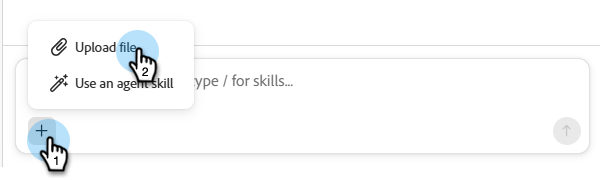
Click the + icon and select Upload file. Find and upload your CSV file.
-
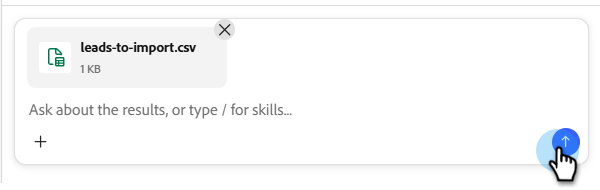
Click the up arrow icon.
-
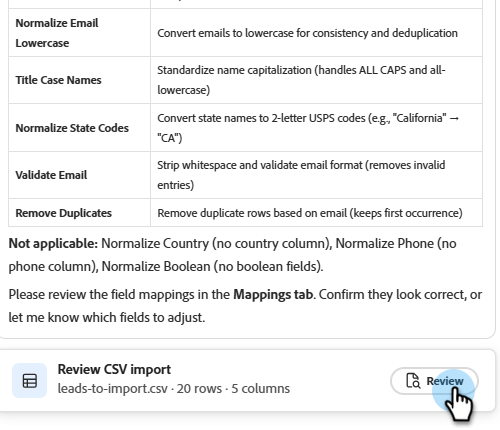
Click Review to see your list in the center console.
-
Check the available business rules to clean up your list. Enter the one you want and click the up arrow icon.
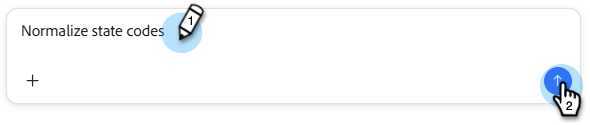
The results appear in the center console.
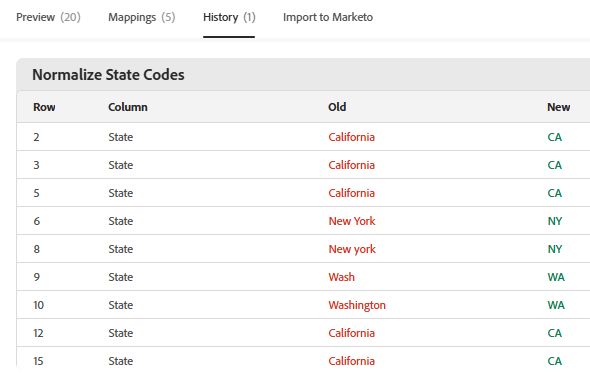
If desired, enter additional business rules.
-
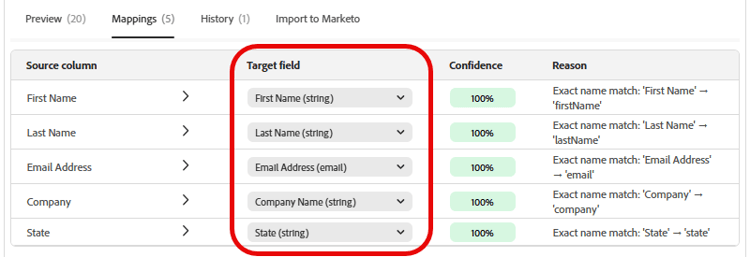
To view the mapped fields, click the Mappings tab.
-
If any fields were mapped incorrectly, fix them here by changing the Target field.
-
When ready to import your list, click the Import to Marketo tab.
-
Select the destination folder and enter a name. Check each consent box and click Begin import.
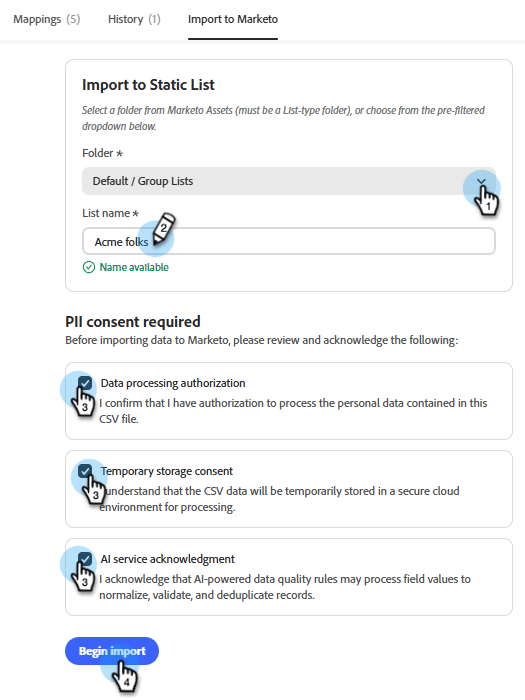
When the import is done, a verification summary appears showing leads processed, rows failed, and any warnings.