Settings and setup settings-setup
Learn how to enable permissions and use the Settings area to view connection details, define organizational rules, and set up integrations and notifications.
Permissions and roles permission-and-role
There is an Access Coworker for Marketo Engage permission and a Coworker for Marketo Engage User role, giving administrators greater control over which users can access the Coworker for Marketo Engage feature. The permission is assigned at the role level. The Coworker for Marketo Engage User role comes with the Access Coworker for Marketo Engage permission enabled by default.
Access Coworker for Marketo Engage permission access-coworker-marketo-permission
Follow the steps below to enable Access Coworker for Marketo Engage for qualifying roles that do not already have it enabled.
-
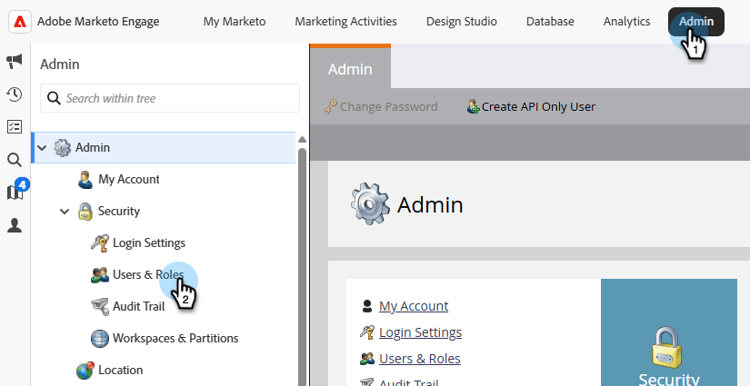
In your My Marketo, click Admin, then Users & Roles.
-
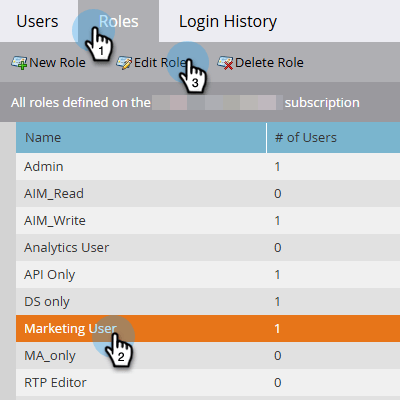
In the Roles tab, select the desired role and click Edit Role.
-
Scroll down and check the Access Coworker for Marketo Engage checkbox and click Save.

note NOTE You can use these same steps to remove the permission by unchecking the Access Coworker for Marketo Engage checkbox.
Coworker for Marketo Engage User role coworker-marketo-user-role
Follow these steps to assign a specific user to the Coworker for Marketo Engage User role.
-
In your My Marketo, click Admin, then Users & Roles.
-
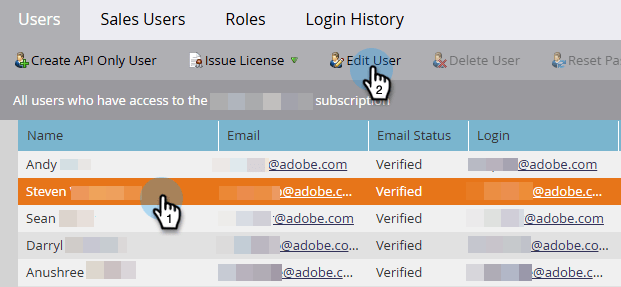
Select the desired user and click Edit User.
-
In Roles and Workspaces, select the Coworker for Marketo Engage User checkbox. If you have more than one workspace, you can specify which ones get access in the + sign drop-down. Click Save when done.

Custom role custom-role
You also have the option to create a new role and customize its permissions, adding Access Coworker for Marketo Engage, along with anything else you want, and assigning that role to specific users.
Settings settings
-
In your My Marketo, click the Coworker for Marketo Engage tile.

-
Click the gear icon.

Connection connection
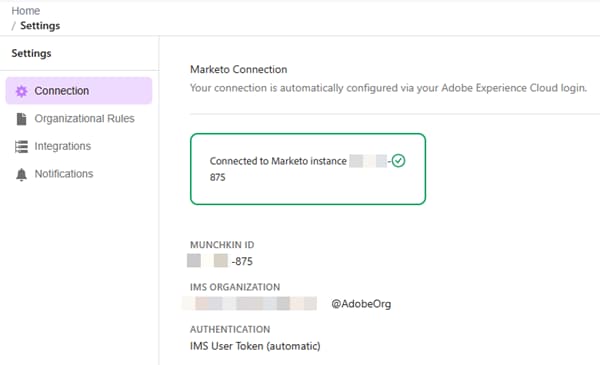
This tab does not contain editable fields. It shows account information like your Munchkin ID and IMS Organization.
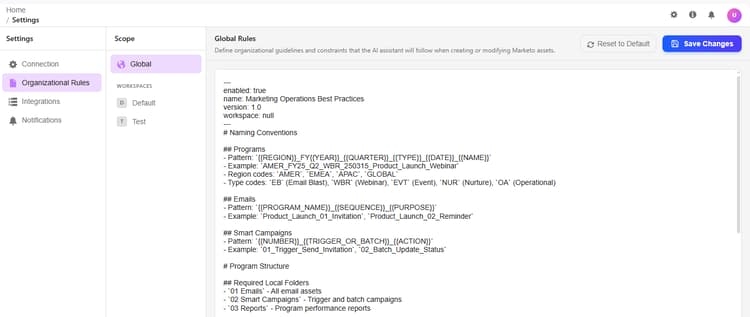
Organizational rules organizational-rules
Define organizational guidelines and constraints that the Coworker for Marketo Engage follows when creating or modifying Marketo Engage assets.
Integrations (Coming soon) integrations
Configure connections to external services and APIs.
This tab may appear in the UI, but it is not yet available for use. Please check back for updates.
Notifications (Coming soon) notifications
Manage alert preferences and notification channels.
This tab may appear in the UI, but it is not yet available for use. Please check this article for updates.