[Beta]{class="badge informative"}
Create and manage your brands create-and-manage-brands
Brand guidelines are a detailed set of rules and standards that establish a brand’s visual and verbal identity. They act as a reference to maintain consistent brand representation across all marketing and communication platforms.
Manually input and organize your brand details or upload brand guideline documents for automatic information extraction.
Access brands access
To access the brands menu in Adobe Marketo Engage, users need to be granted the relevant permission.
Users & Roles users-and-roles
-
In Admin, select Users & Roles.
-
Select the desired role.
-
Click to expand the Access Design Studio menu.
-
Select Access AI Assistant and click Save.
Create and manage your Brand create-brand-kit
To create and manage your brand guideline, you can either enter the details yourself, or upload your brand guidelines document to have the information extracted automatically.
-
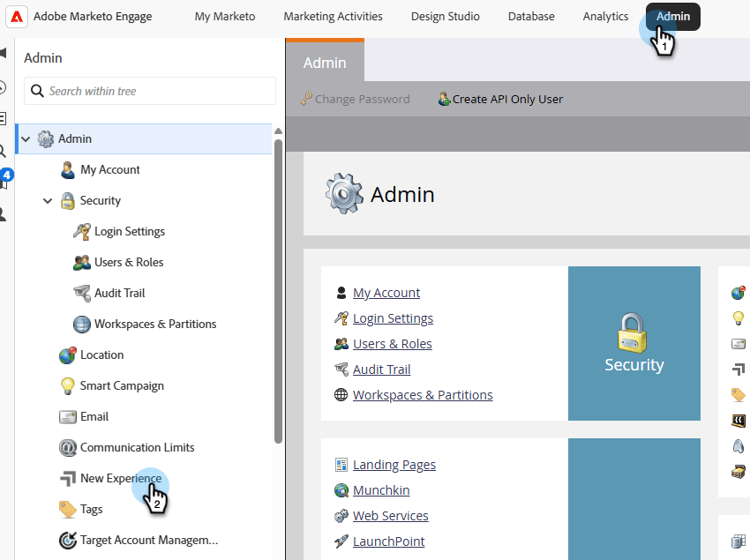
In Admin, select New Experience.
-
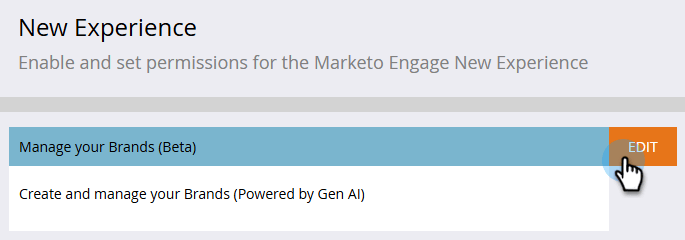
Next to Manage your Brands, click Edit.
-
Click Create brand.
-
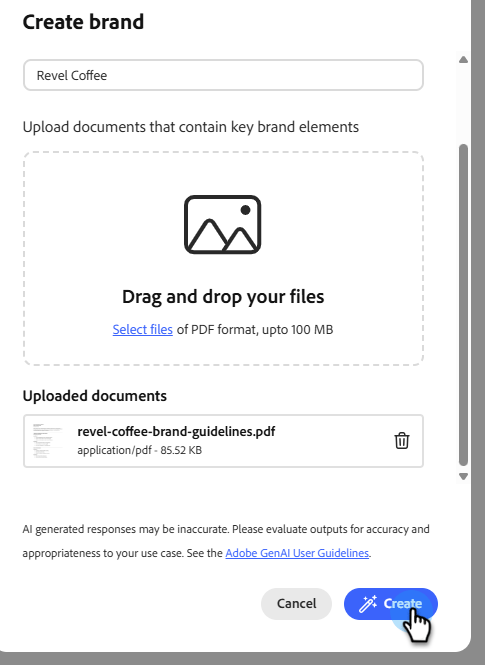
Enter a Name for your brand.
-
Drag and drop or select your PDF to upload your brand guidelines and extract automatically relevant brand information. Click Create.
The information extraction process begins. It may take several minutes to complete.
-
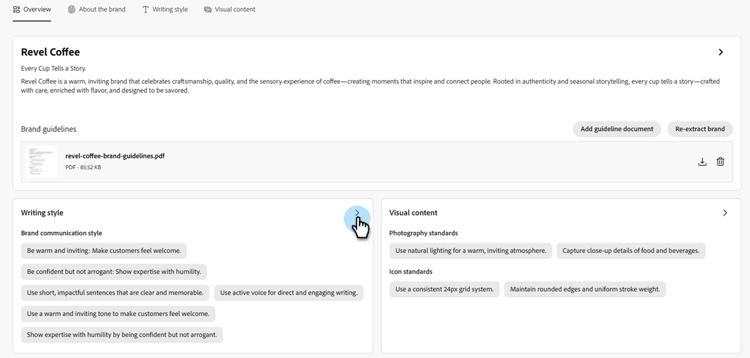
Your content and visual creation standards are now automatically populated. Browse through the different tabs to adapt the information as needed.
-
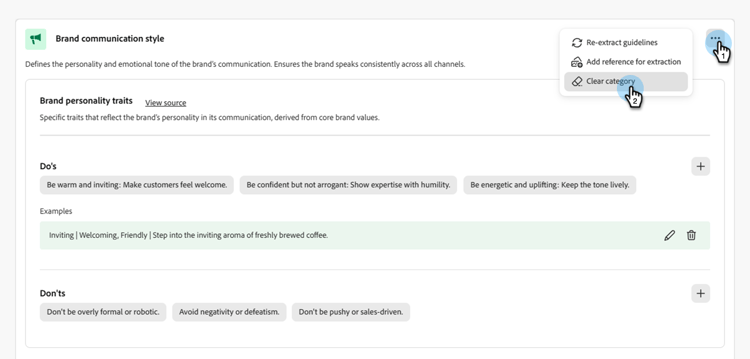
From the advanced menu of each section or category, you can add references to extract relevant brand information automatically.
To remove existing content, use the Clear section or Clear category options.
-
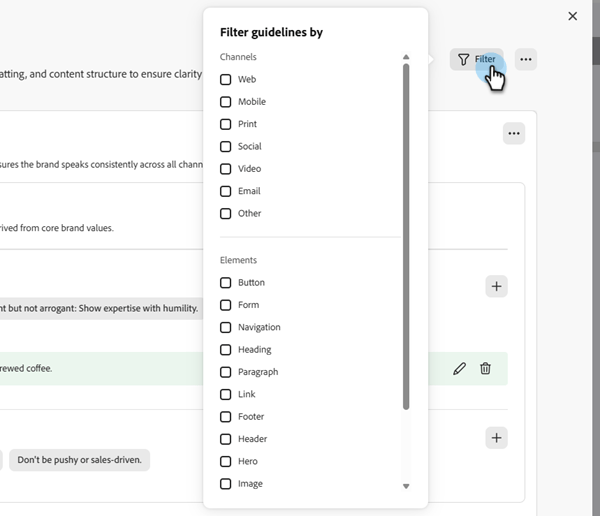
Click Filter to filter guidelines by channel or element type.
-
When done configuring, click Save, then Publish to make your brand guideline available in AI Assistant.
-
To make modifications to your published brand, click Edit brand.
note NOTE This creates a temporary copy in edit mode, replacing the live version after it is published. 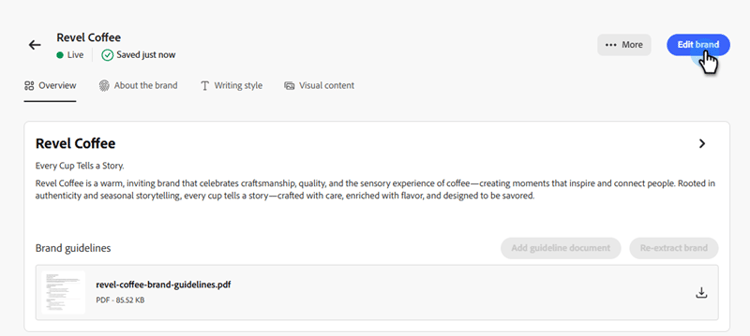
-
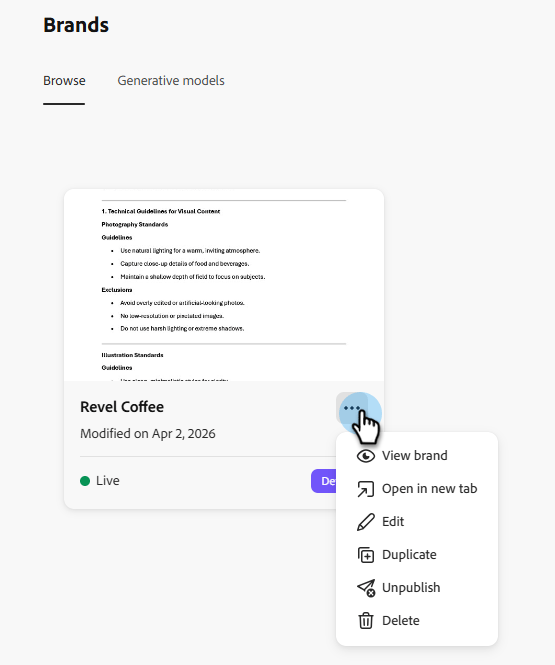
From your Brands dashboard, open the advanced menu by clicking the three dots icon to:
-
View brand
-
Edit
-
Duplicate
-
Publish
-
Unpublish
-
Delete
Your brand guidelines are now accessible from the Brand drop-down in AI Assistant menu, enabling it to generate content and assets aligned with your specifications.
Set a default brand default-brand
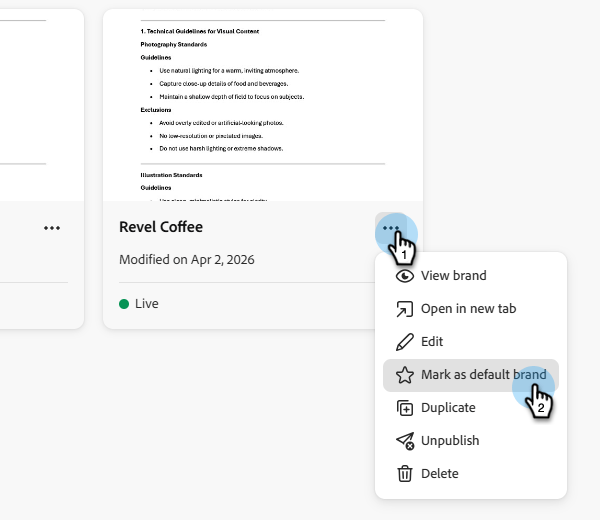
You can designate a published brand as your default to be automatically applied when generating content and calculating alignment scores during campaign creation.
To set a default brand, go to your Brands dashboard. Open the advanced menu by clicking the three dots icon and selecting Mark as default brand.