Generate content in the Email Designer generate-content
Generating content in the Marketo Engage Email Designer helps you create contemporary, performant, and intuitive emails. This is achieved through Adobe’s generative AI technology and prompt library along with Firefly for image generation that aids in creating suitable content for a particular persona/buying group, marketing journey stage, communication strategy, tone, etc. Specific brand assets can be also utilized to create content.
Set up permissions set-up-permissions
After following the prerequisite above, Marketo admins must apply access to specific users/roles before users will see the GenAI buttons.
-
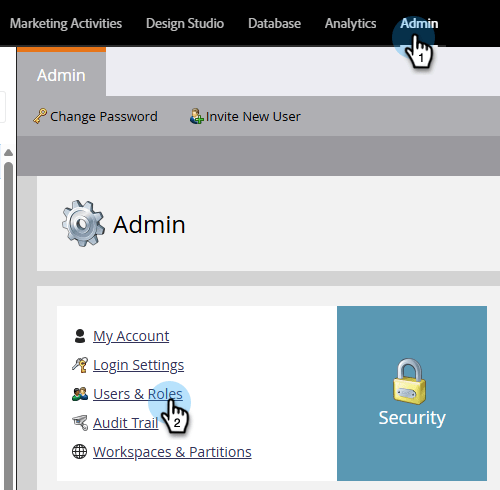
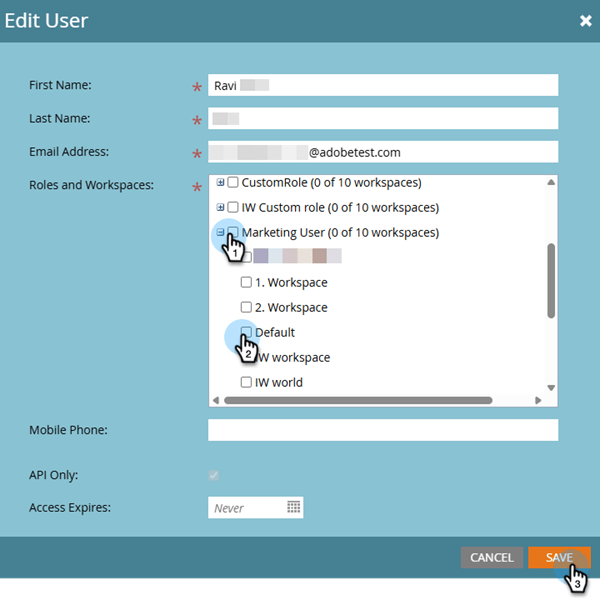
In Marketo Engage, click Admin and select Users & Roles.
-
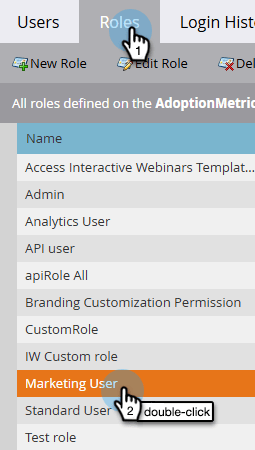
In the Roles tab, double-click on the desired role.
-
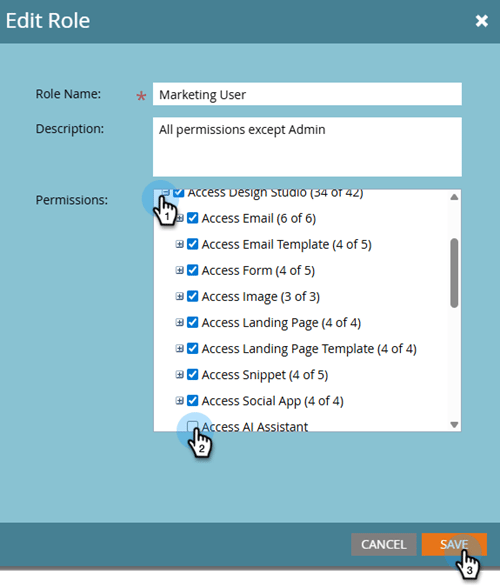
Under Access Design Studio, select the Access AI Assistant checkbox and click Save.
-
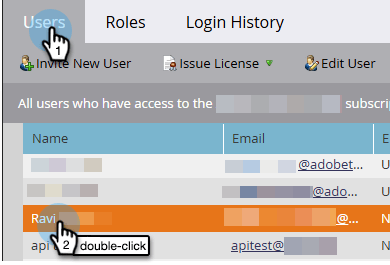
Click the Users tab and select the user you want to provide access to.
-
Select the role you chose in Step 3 and the desired workspace (if applicable). Click Save.
Use cases use-cases
- Create a subject line and/or preheader for your email
- Create content for a specific section of your email
- Create an entire email from a selected template
Create a subject line/preheader create-a-subject-line-preheader
Create a subject line, a preheader, or both.
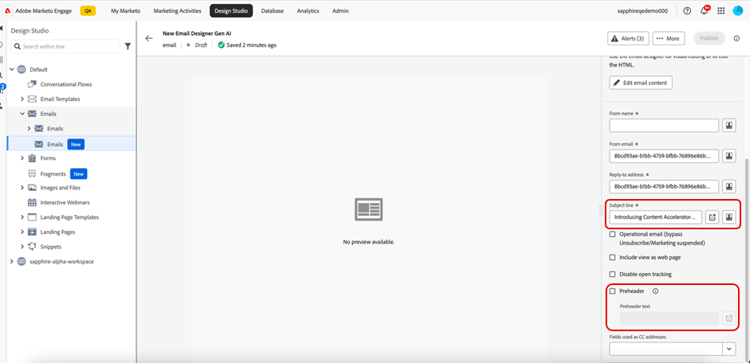
The example below illustrates subject line. For a preheader, the same steps can be followed by clicking the Preheader checkbox (seen in the image above).
When an email is created using the New Email Designer, enter a temporary subject line.
After the email has been created, the subject line is in the Details column on the right. Click the Generate content button (


Enable the Use reference content option to personalize new content based on the selected content.
Enter the prompt to customize the subject line. Enter relevant text settings and upload any brand assets that you want to use as a reference to create an appropriate subject line.

The text settings include:
Upon clicking Generate, samples appear for you to choose from:

You can also upload a brand asset to use content inside the asset as a reference to create the subject line.

To choose a variation, select its checkbox and click Select. You can also tweak it by clicking Refine. Additionally, you can provide feedback by clicking the thumbs up or thumbs down icon so the Gen-AI technology learns your preferences.
After making your selection, the Subject Line is populated in your Email Details.

Create content for a specific section of your email create-content-for-a-specific-section
After the email is created, you have the option of modifying certain sections, images or text.
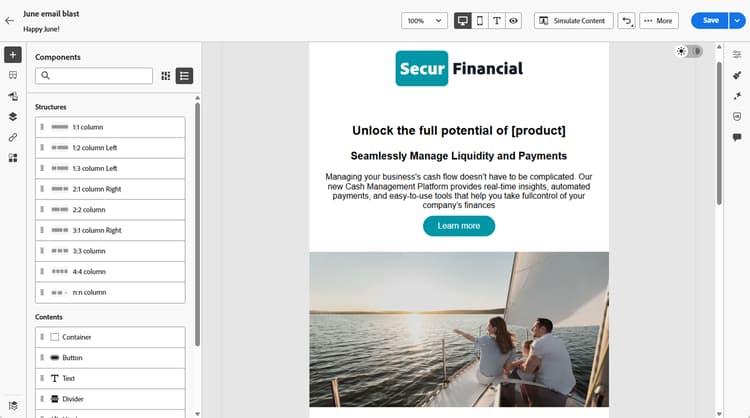
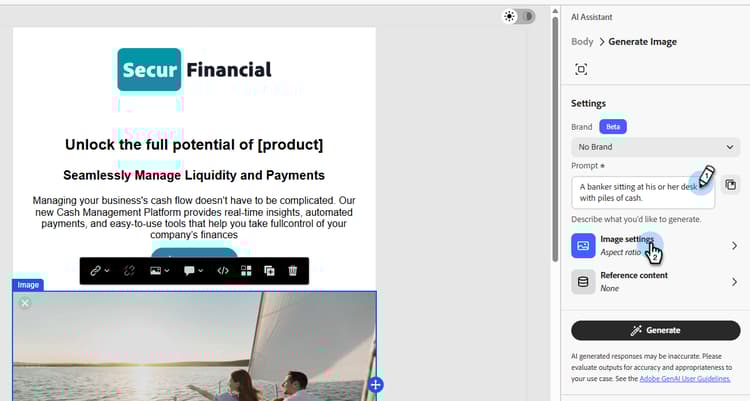
In this example, we’re using a financial template. If one or more of the existing images don’t meet your needs, you can create a new image based on your description. Select the desired image and click the Generate content icon.
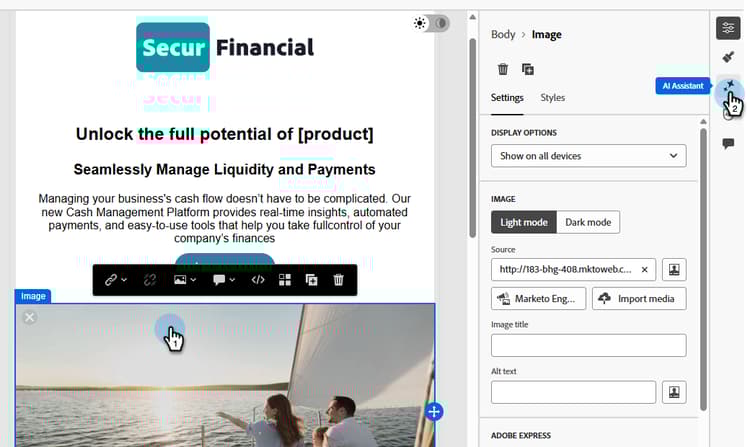
Enter the relevant details in the prompt, such as, “A banker sitting at his or her desk with piles of cash.” You can also use the prompt library (to the right of the prompt) if you are not sure what to enter. Click Image Settings.
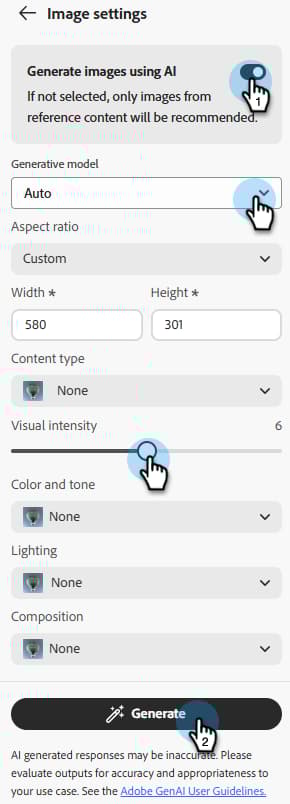
Click the toggle to enable Generate images using AI, then change any desired settings, including which model to use (Adobe Firefly or Gemini 2.5 Nano Banana). When done, click Generate.
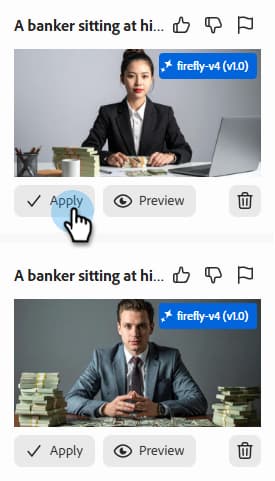
Multiple variants are created. Choose your favorite and click Apply.
Similar to image, text portions of the email can be modified as well.
Create an entire email from a selected template create-an-entire-email
This option is only available if the email is created using an existing template. It can be a standard template provided by the Email Designer, a saved template you already created, or an imported template using the Import HTML option. This option is not available if you choose Design from Scratch for your email.
Select a template, without selecting any component within the template, and click the Generate content button in the Email Designer.

Enter the relevant prompt and choose the text settings, brand assets, and any image settings you want for your email.

If you would like to generate images using Firefly, select the Image Settings and select the toggle for Generate Images using AI.

Select the desired Content Type, Color and Tone, Lighting, and Composition to create Gen-AI images for your email. Click Generate when done.

See how a variation will look in your email by clicking Preview. Choose a variation by clicking Apply.