Create an App
This guide walks you through creating your first Adobe LLM Apps — from the empty state to a fully configured project linked to your GitHub repository.
Open LLM Apps
Navigate to experience.adobe.com/llm-apps. If no app has been created yet, you see the first-load page with a prompt to create your first app.
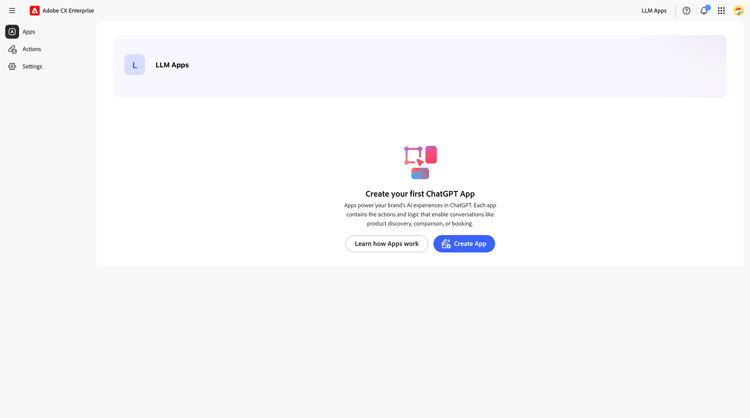
The left sidebar lets you navigate between Apps and Actions. Click Create App to start.
Fill in app details
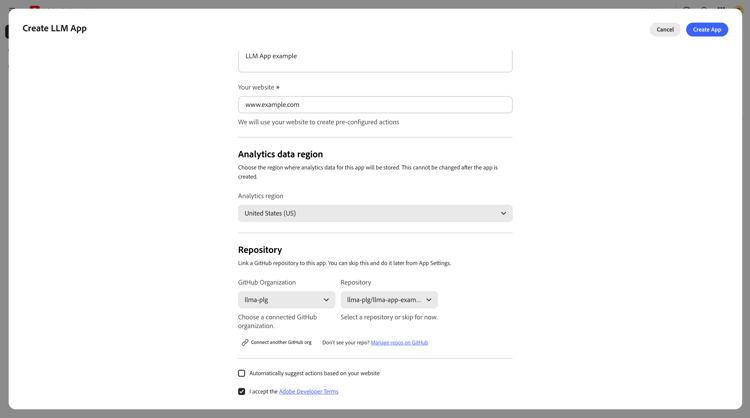
The Create App dialog opens fullscreen.
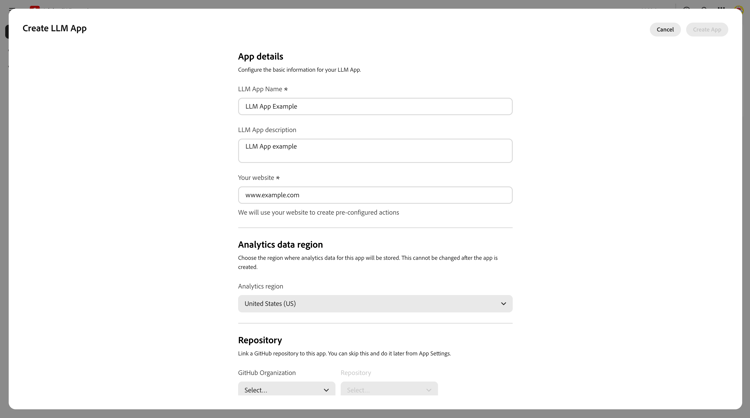
Enter the following:
- LLM App Name (required) — the display name for your app. Only letters, numbers, and spaces are allowed.
- LLM App description — a short description of what your app does. For example, Helps users discover products and book services through an LLM platform.
- Your website (required) — the URL of your brand website. LLM Apps uses this to create pre-configured actions automatically.
Select an analytics data region
Choose the region where analytics data for this app will be stored.
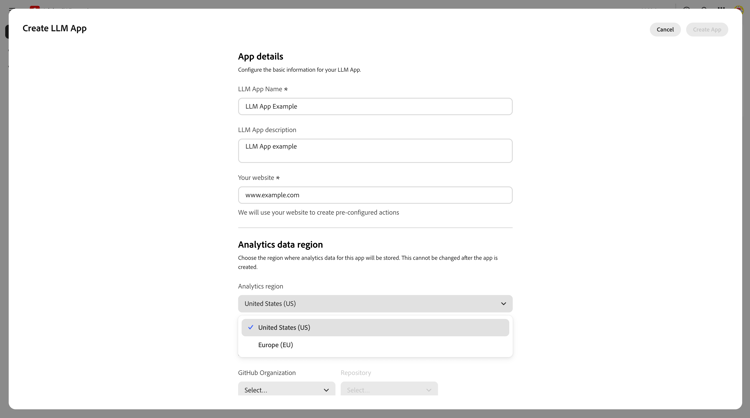
The Analytics region dropdown defaults to United States (US). The available options are United States (US) and Europe (EU). Select the region that best matches your data residency requirements before proceeding.
Link a GitHub repository
Below the app details, you can link a GitHub repository. This repository is where your action handler code lives — JavaScript functions under an actions/ folder that run on Adobe I/O Runtime when the LLM platform invokes your app.
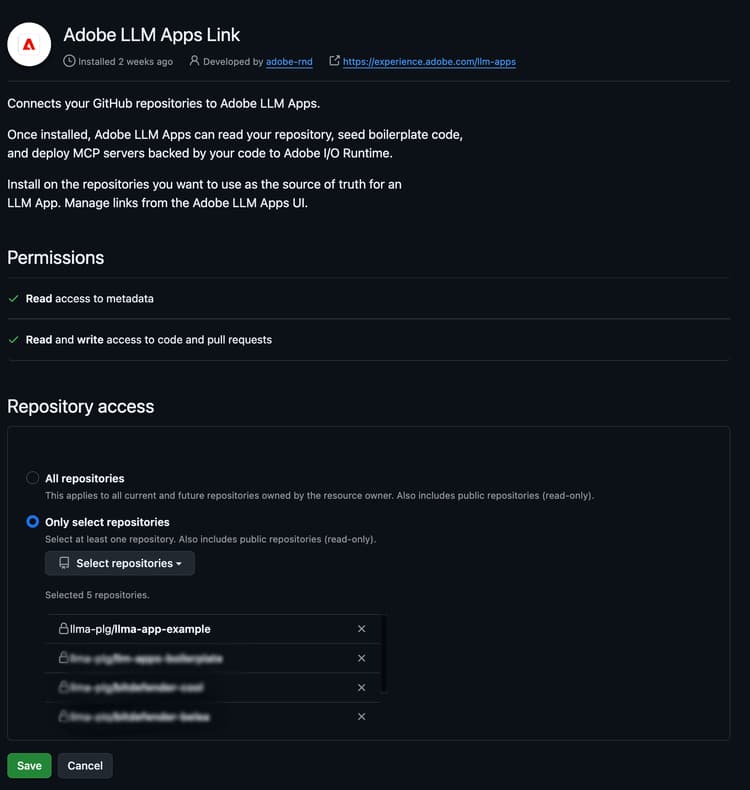
If this is your first time, no repositories appear in the list. You need to install the Adobe LLM Apps Link GitHub App on your organization:
-
Click Manage Repos on Github at the bottom of the dialog.
-
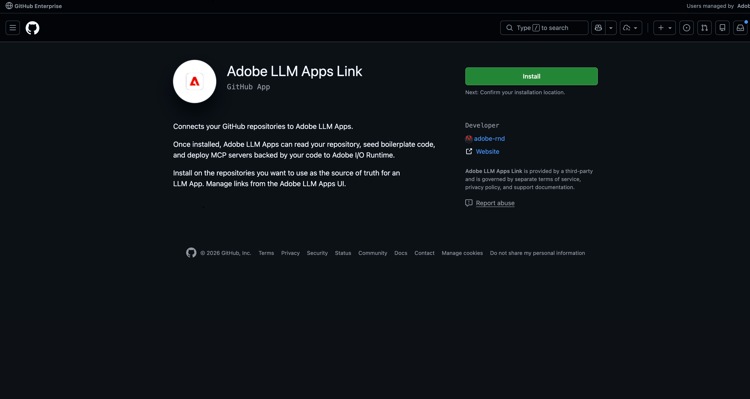
This opens the Adobe LLM Apps Link GitHub App page in a new tab.
-
Click Install and select your GitHub organization.
-
Under Repository access, choose Only select repositories and select the repository that will host the app code.
-
Click Save. Return to the Create App dialog — your repository now appears in the Select repository dropdown.
-
Pick the repository you want to use.
Create the app
Click Create App. A loading screen appears while the project is being created in Developer Console.
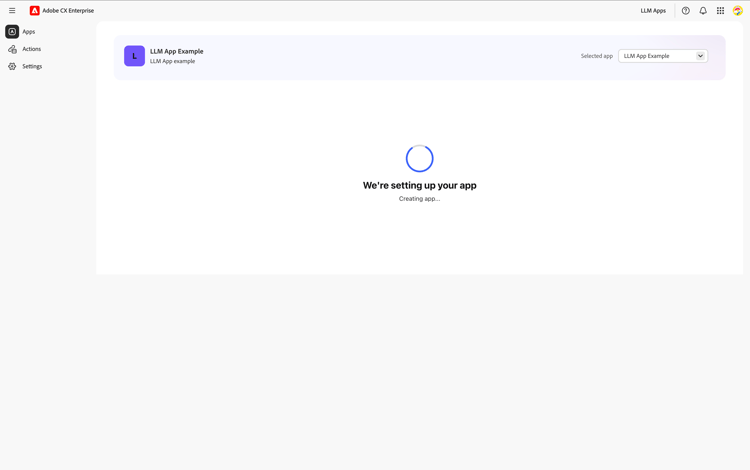
Once complete, you are redirected to the App Detail page.
The App Detail page
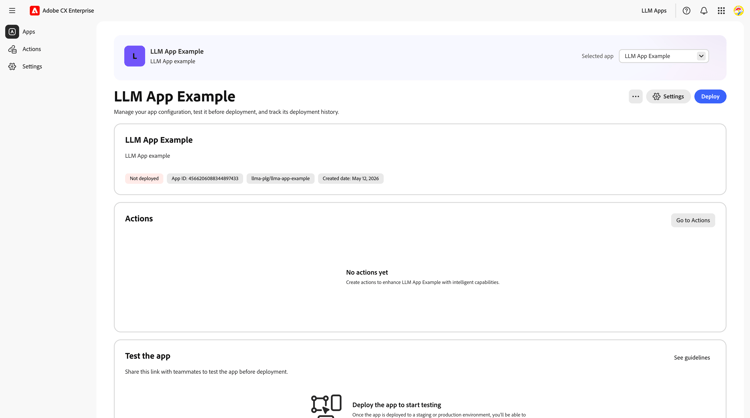
The App Detail page is the central hub for managing your app.
App banner

The colored banner at the top shows the currently selected app — including the app avatar, name, description, and a dropdown to switch between apps. The banner stays fixed at the top when you scroll.
Page title and actions

Below the banner you see the app name as a heading, with the following action buttons:
- … (more actions) — create a new app or delete the current one.
- Settings — configure the linked repository and other options.
- Deploy — deploy your app to Adobe I/O Runtime (disabled until a repository is linked).
App info card

This card summarizes your app’s key metadata: name, description, status badge (Not deployed or Deployed), App ID, and creation date. It also shows the two linked repositories:
- Handler repo — where the action handler code lives (JavaScript functions on Adobe I/O Runtime).
- EDS repo — where the widget UI lives (blocks and styles served by Edge Delivery Services).
Actions, Test the app, and Deployment history
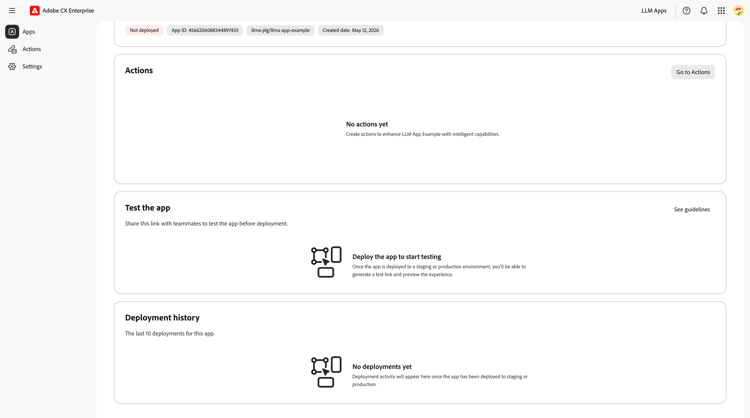
Below the info card you find three sections:
- Actions — lists the action handlers defined for your app. Click Go to Actions to navigate to the Actions page.
- Test the app — after deployment, displays the MCP server URLs for Staging and Production environments.
- Deployment history — tracks every deployment across environments with status and date.
Next steps
- Guide: Create an Action — Define an action with metadata and widget settings.