Beta Onboarding beta-onboarding
As a Beta program participant for Adobe LLM Apps, you will receive an email with two zip archives and an app configuration reference. Follow the steps below to get your app live.
Before you begin
Before diving into the steps, get familiar with the key concepts used throughout this guide. It will save you time and help everything click into place.
LLM App — your branded assistant that users interact with inside ChatGPT or other LLM platforms.
Action — a capability your app offers. For example, “Find a distributor” or “Browse products”. Each action is invoked by the LLM when the user asks a relevant question.
Action handler — the code that runs when an action is invoked. It can call your APIs, fetch live data, or return static data. The sample handlers provided by Adobe return hardcoded data so you can verify the setup end-to-end before connecting your real backend.
Widget — the visual response shown to the user — a card, carousel, table, or any custom UI rendered alongside the LLM’s text reply.
App configuration reference — a file Adobe provides that tells you exactly what to enter for each action when setting up your app.
Step 1: Push the provided archives to GitHub
Adobe provides two zip archives by email:
- Application code (
<project-name>.zip) — the action handlers that run on Adobe I/O Runtime and power your app’s logic. You will deploy these as-is to get the app working end-to-end, then update them later to connect your real backend. - EDS project (
<project-name>-eds.zip) — the frontend code for your widgets. Adobe pre-built these for you; this is your codebase to own, customize, and style to match your brand.
Create two new empty repositories on GitHub (one per archive), then unzip each archive and push it. We recommend naming each repository after the corresponding zip file — <project-name> for the application code and <project-name>-eds for the EDS project.
<your-github-org> refers to either your personal GitHub username or a GitHub organization — whichever account will own the repositories.
Application code repository — unzip the archive, initialize a local git repository, and push it to GitHub:
# Unzip and enter the folder
unzip <project-name>.zip
cd <project-name>

# Initialize and push
git init
git add .
git commit -m "first commit"
git branch -M main
git remote add origin git@github.com:<your-github-org>/<your-repo>.git
git push -u origin main
EDS repository — repeat the same steps for the EDS archive, pointing to the second repository:
unzip <project-name>-eds.zip
cd <project-name>-eds

git init
git add .
git commit -m "first commit"
git branch -M main
git remote add origin git@github.com:<your-github-org>/<your-eds-repo>.git
git push -u origin main
Step 2: Create an LLM App
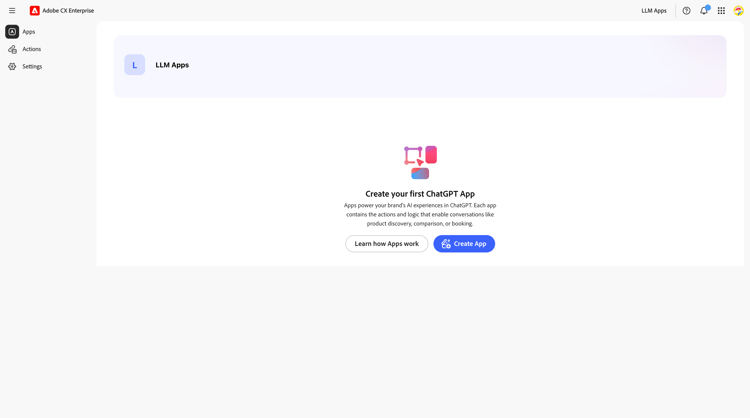
Navigate to experience.adobe.com/llm-apps/ and click Create LLM App.
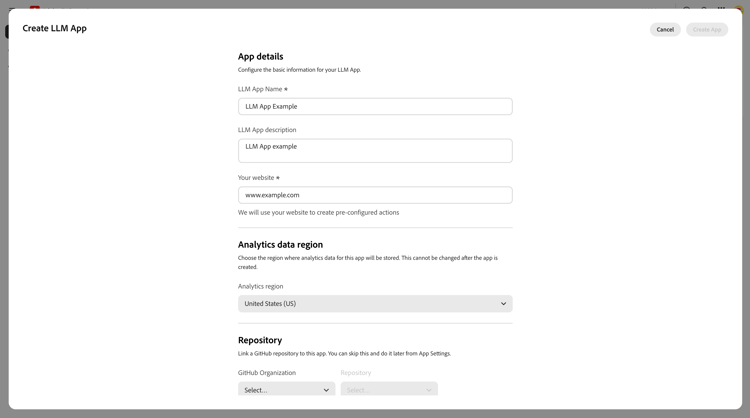
Fill in the App details using the values from the App details section in your app configuration reference:
- LLM App Name
- LLM App Description
- Your website
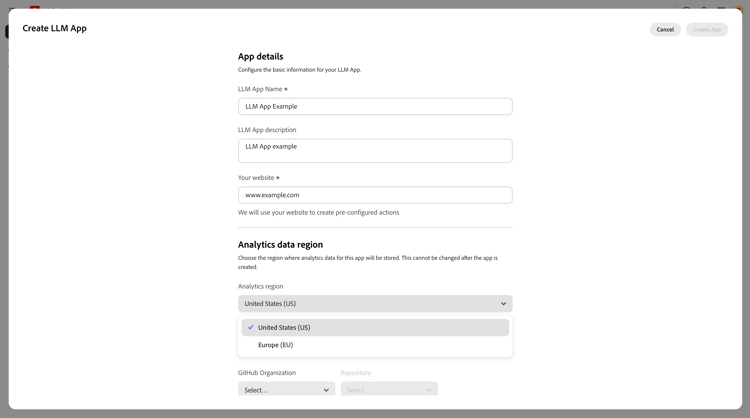
Under Analytics data region, select the region where analytics data will be stored. This cannot be changed after the app is created.
Under Repository, select the GitHub organization and the application code repository you pushed earlier.
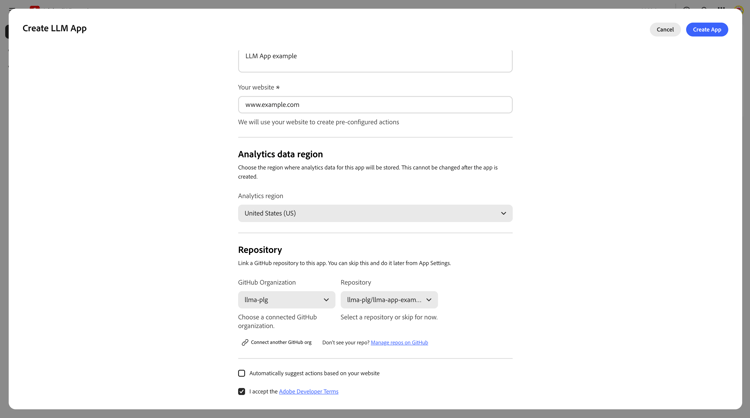
Leave Automatically suggest actions based on your website unchecked — you will configure actions manually.
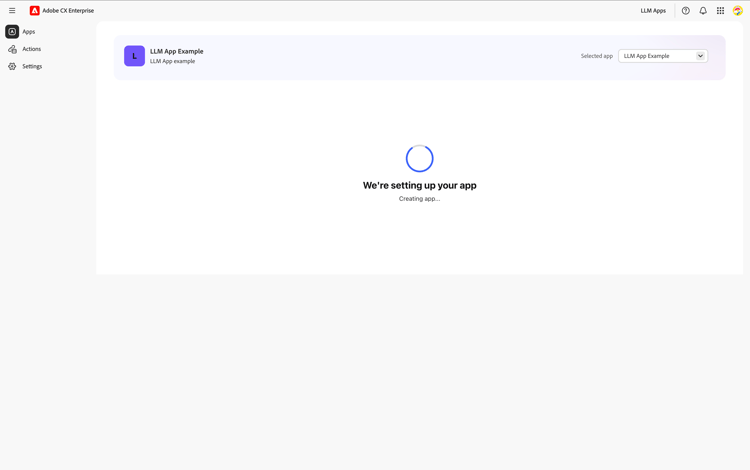
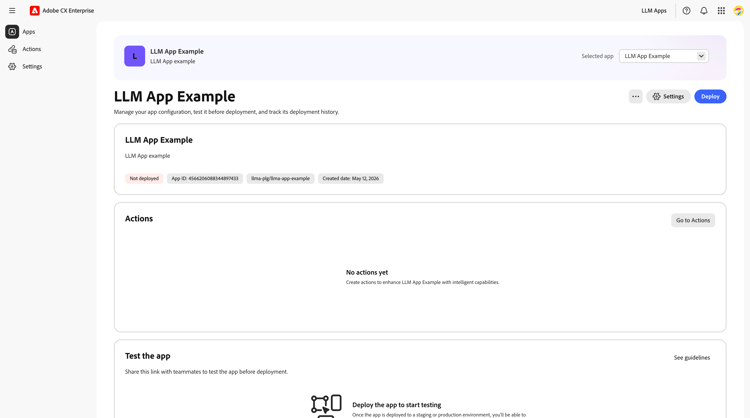
Accept the Adobe Developer Terms, then click Create App.
Step 3: Get your widgets live
In this step you set up the EDS project Adobe provided and publish it through DA.live — Adobe’s authoring and CDN layer. Each published document becomes the widget shown to the user when an action is invoked.
Step 3.1: Connect the EDS repo to DA.live
- Go to github.com/apps/aem-code-sync. If the app is not yet installed, click Install. If it is already installed, click Configure and add
<your-eds-repo>to the list of repositories it can access. - After installation, you land on an AEM Code Sync registered confirmation page. Under What’s next → Create your content, click the DA.live link.
- On the Demo content screen, select None and click Make something wonderful.
- You are taken to the DA.live Author view for your site.
Step 3.2: Create a DA.live document for each action
In DA.live you need to create one document per action. Once published, each document becomes the widget shown to the user when that action is invoked.
For each action:
- In DA.live, create a new document at the root of your site and name it as specified in your app configuration reference (see DA.live documents section).
- In the document, use the left sidebar and click Block to insert a new block.
- Set the block header to the block name specified in your app configuration reference (see DA.live documents section).
- Publish the document using the Publish button (the paper plane icon in the top toolbar).
Once published, each document is accessible at https://main--<your-eds-repo>--<your-github-org>.aem.live/<document-name>. This URL is what you will enter in the Widget URL field when configuring each action in Step 4.
Step 3.3: Configure CORS headers for the EDS site
To allow LLM platforms to load your widgets cross-origin, you need to add an Access-Control-Allow-Origin header to your EDS site.
Go to the HTTP Headers Editor at tools.aem.live/tools/headers-edit/index.html.
- Enter your Organization (
<your-github-org>) and Site (your EDS repository name) and click Fetch. You will be prompted to authenticate and authorize access to your site. - Under path
/**, click Add Header. - Set the header name to
Access-Control-Allow-Originand the value to*. - Click Save.
For full documentation on custom HTTP headers in AEM Edge Delivery Services, see aem.live/docs/custom-headers.
After saving the headers, trigger a code sync to propagate the changes to all files:
curl -X POST "https://admin.hlx.page/code/<your-github-org>/<your-eds-repo>/main/*"
Step 4: Add Actions
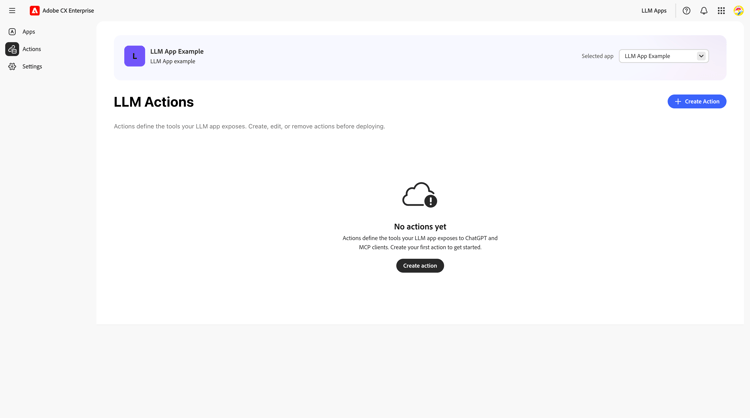
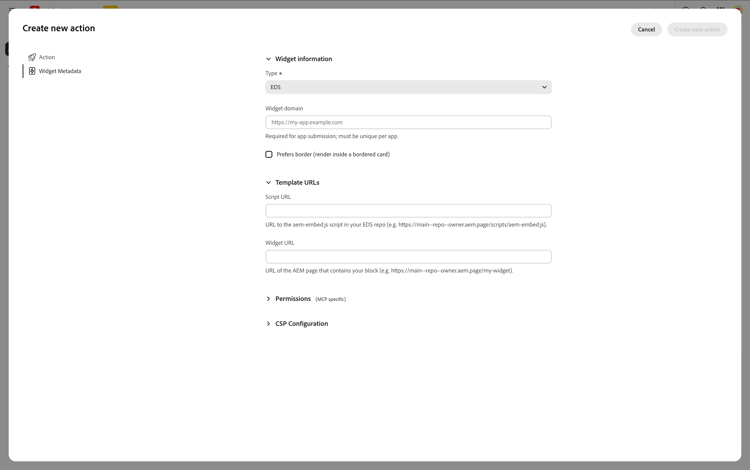
In the LLM Apps UI, open your app and navigate to Actions in the left sidebar. Click + to create a new action. Repeat for every action described in your app configuration reference (see Action 1, Action 2, Action 3 sections).
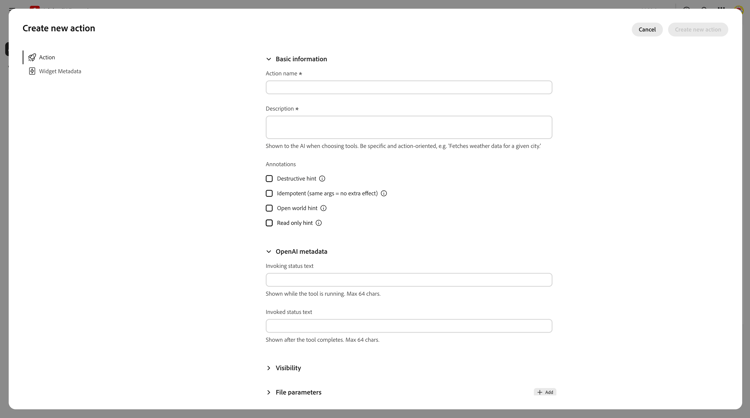
Action tab
- Action name and Description — used by LLM platforms to decide when to invoke the action. Use the exact values from the Action tab section in your app configuration reference.
- Input parameters — name, type, and description for each parameter. Use the values from the Action tab section in your app configuration reference.
Widget Metadata tab
- Type — select EDS.
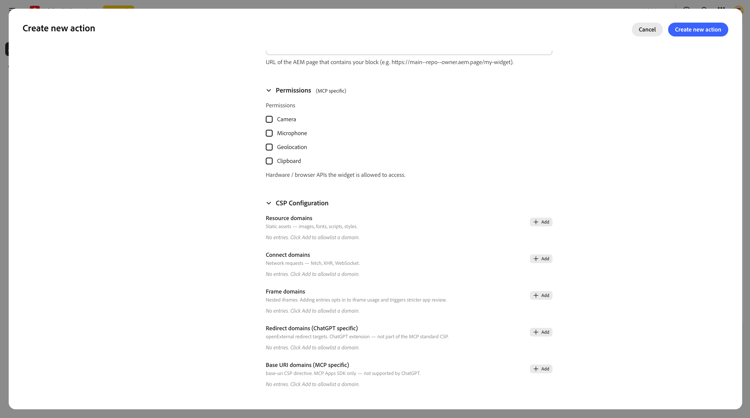
Expand CSP Configuration and fill in:
- CSP — Connect domains — use the values from the Widget Metadata tab section in your app configuration reference.
- CSP — Resource domains — use the values from the Widget Metadata tab section in your app configuration reference.
Widget Builder tab
Under Widget source, select Use an existing widget, then fill in:
- Script URL — use the value from the Widget Metadata tab section in your app configuration reference.
- Widget URL — use the value from the Widget Metadata tab section in your app configuration reference.
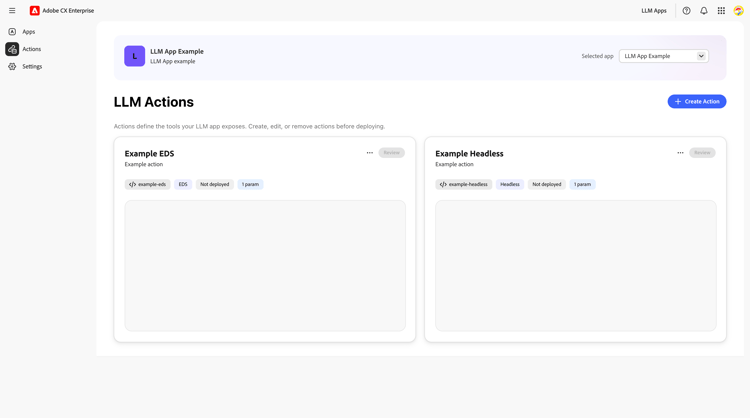
Click Create action. The action appears as a card on the Actions page with an EDS badge and parameter count.
Step 5: Deploy
Once all actions are configured, go to the App Detail page and click Deploy in the top-right corner.
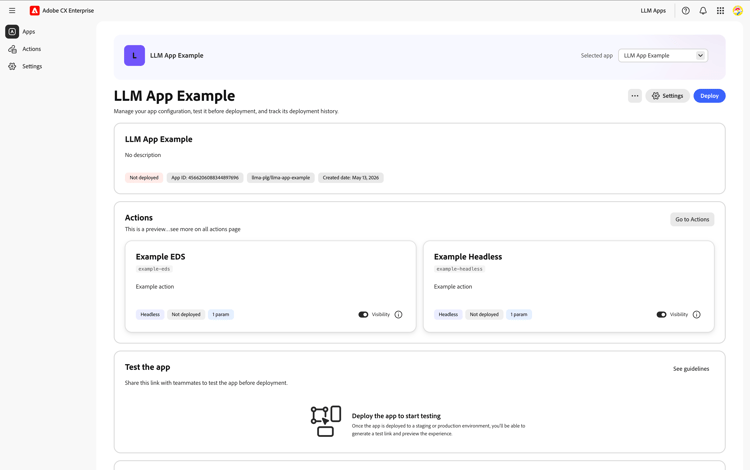
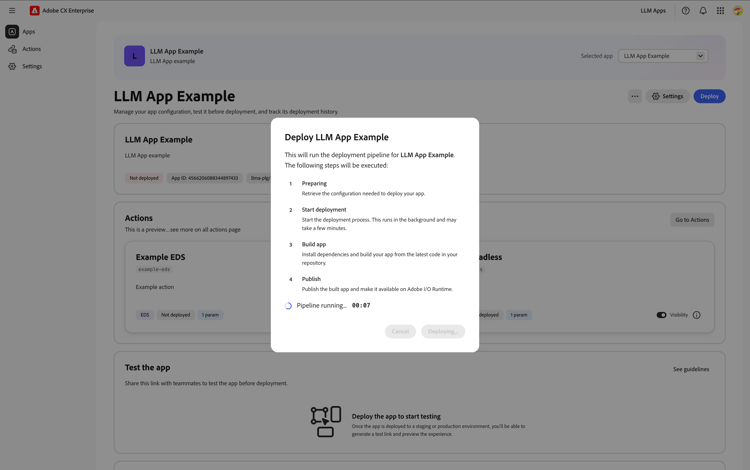
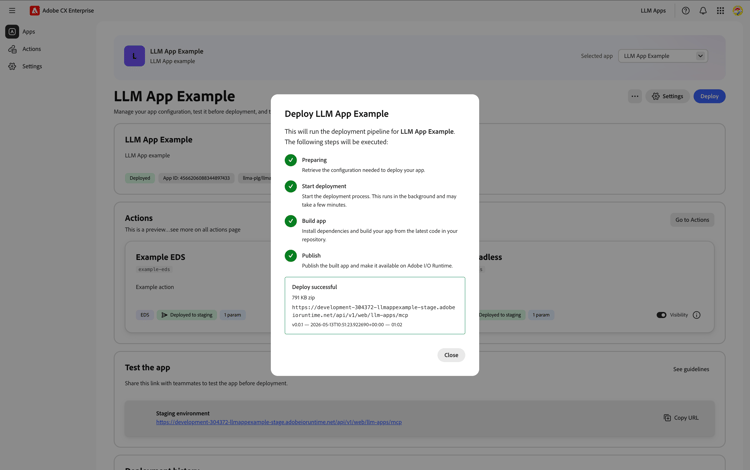
Select the target environment and click Deploy. The pipeline runs through four steps: preparing credentials, starting deployment, building your app from the repository, and publishing to Adobe I/O Runtime.
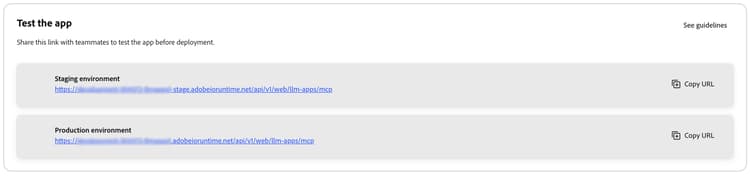
When complete, scroll to the Test the app section on the App Detail page and copy the MCP server URL — you will need it to register your app in ChatGPT.
Step 6: Add the app to ChatGPT
Adding custom apps to ChatGPT requires a Pro, Business, or Enterprise subscription. Free and Plus plans do not support custom MCP apps.
-
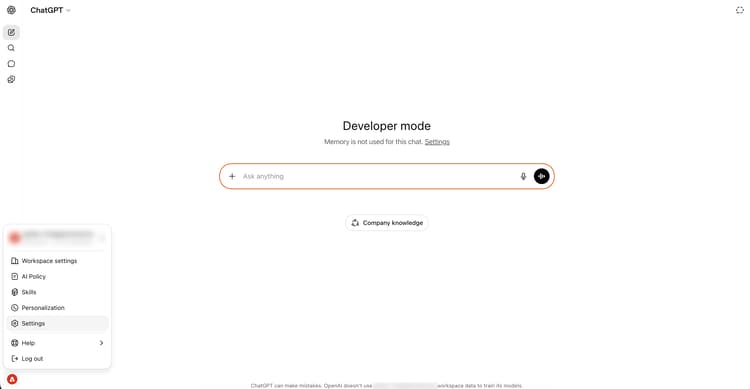
In ChatGPT, click your profile avatar and go to Settings.
-
Select Apps in the sidebar, click Advanced settings, and enable Developer mode.
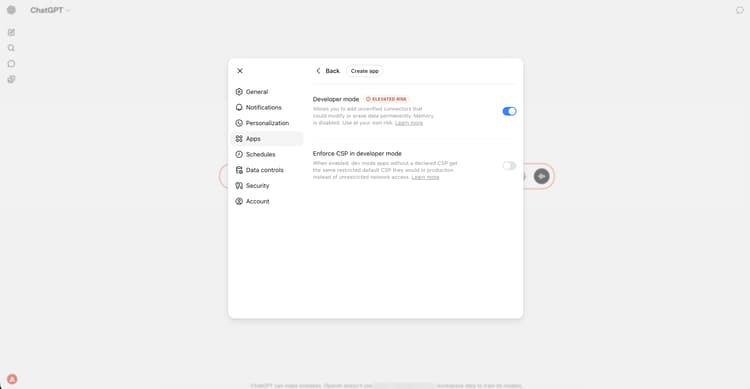
-
Go to Settings → Apps and click Create app.
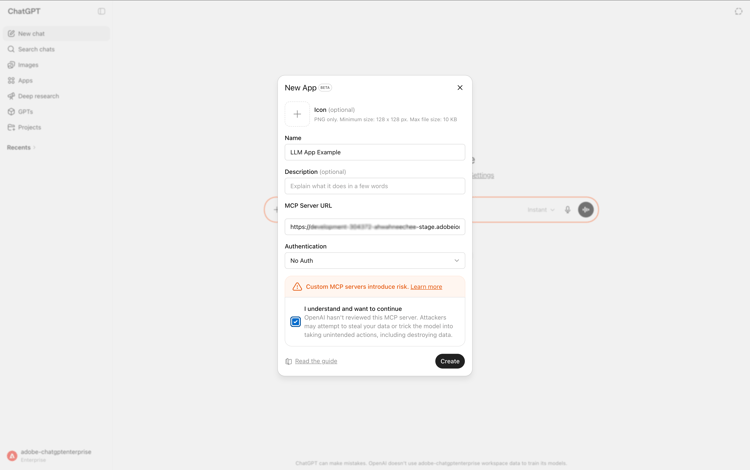
-
Paste the MCP server URL copied from LLM Apps, set Authentication to No Auth, check the acknowledgement checkbox, and click Create.
Your app appears under Enabled apps with a DEV badge.
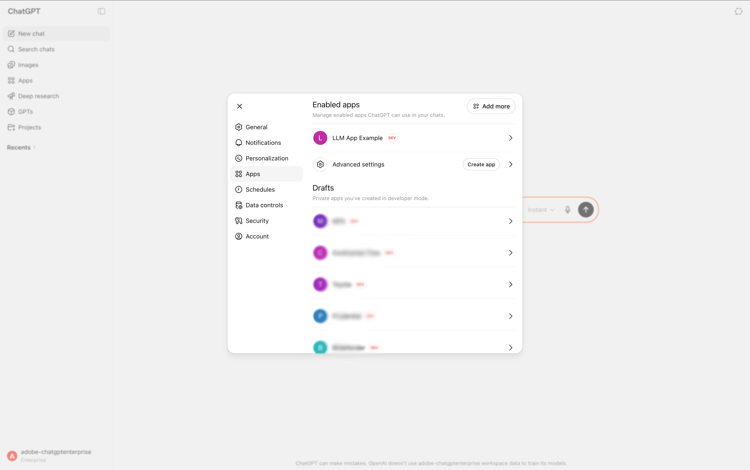
Start a new conversation, attach your app using the + button or by typing @ followed by your app name, and ask a question that matches one of your configured actions.
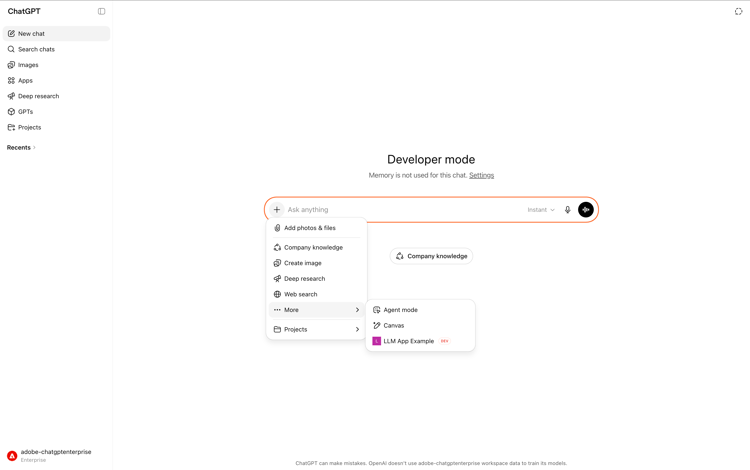
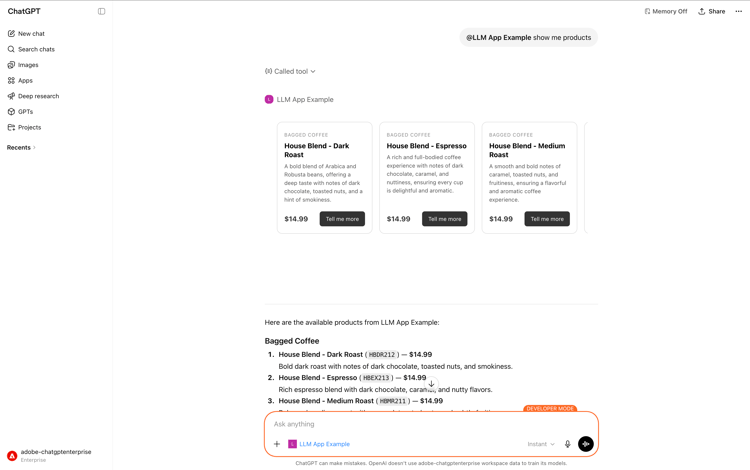
What’s next
The sample app you deployed uses hardcoded data. To turn it into a production-ready experience:
- Connect your APIs — Update the action handlers in your application code repository to call your real APIs, databases, or services. Each handler lives at
actions/<action-name>/index.js. - Review and refine your widgets — Open your EDS project, adjust the block styles and layout to match your brand, and verify the widget renders correctly with live data.
- Redeploy — Once your handlers and widgets are updated, push your changes to GitHub and click Deploy in the LLM Apps UI to publish the new version.
- Submit for publishing — When you are satisfied with the experience, submit your app for review through the ChatGPT plugin or connector publishing process. Adobe does not control this process — refer to the LLM platform’s documentation for submission requirements and timelines.