FTP connector in Adobe Learning Manager
Introduction
FTP (File Transfer Protocol) is a standard network protocol used to transfer files between a client and a server over the internet or a local network. It enables users to upload, download, and manage files on a remote server. For secure file transfers, variants like SFTP (SSH File Transfer Protocol) and FTPS (FTP Secure) are commonly used. FTP is widely adopted in enterprise environments for automating data exchange between systems, such as syncing user or training data between Adobe Learning Manager and external platforms.
This document offers step-by-step guidance for integration administrators on setting up and using the FTP connector in Adobe Learning Manager. The FTP connector enables automated data exchange between Learning Manager and external systems using secure file transfer protocols.
You’ll learn how to configure FTP connections, map data fields, schedule automated user imports or exports, and monitor synchronization activity. This guide supports smooth and secure integration with external learning platforms or HR systems. You can import internal users and xAPI statements, and export user skills, learner transcripts, and xAPI data.
Integration administrators must generate CSV files for migrating users, user data, or learning content, and upload them to designated folders in the Adobe Learning Manager FTP account. Adobe Learning Manager then reads, merges, and imports the data based on a defined schedule.
Perform these operations either on demand or by setting up a schedule that meets your organization’s needs.
Benefits of FTP integration
- Reduces manual effort and human error in data management.
- Integrates data from multiple external sources simultaneously.
- Supports both on-demand and scheduled data operations.
- Allows detailed field mapping between different system formats.
Prerequisites
Before configuring the FTP connector, ensure your environment meets these requirements:
- Integration administrator role with FTP connector permissions.
- Stable internet connection with adequate bandwidth for file transfers.
- Firewall configuration allowing FTP traffic on required ports.
- Required port access, depending on your security requirements
Permission and access
Make sure you have the following:
- Access to generate and manage SSH keys (if using SSH authentication).
- Permission to create and update CSV files in the specified FTP folders.
Key capabilities
Data import and export with the FTP connector
The FTP connector in Adobe Learning Manager simplifies data exchange between external systems and your Adobe Learning Manager account. It supports scheduled and on-demand import or export operations, reducing manual effort and ensuring accurate, up-to-date information.
This method supports integration with multiple external systems. If different systems generate separate CSV files, Adobe Learning Manager merges the data and imports it as a single batch.
Import data into Adobe Learning Manager
User data import
Upload structured CSV files to designated FTP folders to import internal user data. Adobe Learning Manager reads and processes these files based on your configured schedule to keep user information current.
Multi-source integration
If you’re using multiple external systems, each system can generate its own CSV file. Adobe Learning Manager merges the files and processes the data as a single batch, making it easier to manage user records from different sources.
xAPI import
The connector also supports xAPI (Experience API) statements. Import these from third-party learning systems to track and report on learning activities across multiple platforms.
Export data from Adobe Learning Manager
Learner data export
Export user data such as skill progress, course completions, and performance metrics to a designated FTP location. Use this data for external reporting or analysis.
Learner transcripts
Generate and export detailed transcripts with course completions, certifications, and learning paths to support compliance and credential verification.
Attribute mapping
Map CSV file columns to Adobe Learning Manager user attributes. You can reuse and update the mapping configuration as needed, making it easy to adapt to changes in data requirements.
Scheduling and automation
Schedule import and export tasks to run at regular intervals, such as daily, weekly, or at custom intervals. This ensures consistent data updates without manual effort.
Configure the FTP connector
Configure the FTP connector to establish secure data synchronization between Adobe Learning Manager and external systems.
To configure the FTP connector:
-
Log in as an integration admin.
-
Select Adobe Learning Manager FTP and then select Getting started.
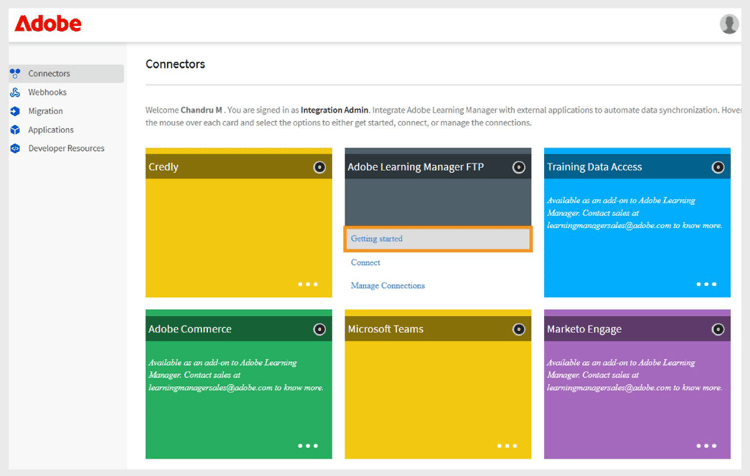
Adobe Learning Manager FTP connector interface showing the Getting Started button -
Select Next to proceed with the FTP connector setup wizard.
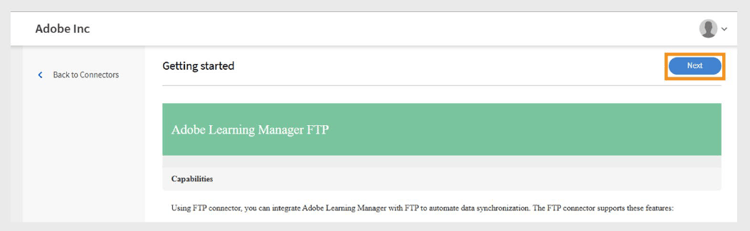
Configuration page displays the Next button to proceed with the FTP connector setup
Configure the authentication
Adobe Learning Manager supports three authentication methods, each with different security levels and complexity requirements.
Basic authentication
This method uses traditional username and password credentials for FTP access. While simpler to implement, it provides lower security than SSH-based alternatives.
-
Select Create basic authentication using a password.
-
Type the FTP username and password in the fields provided. Verify credentials are entered correctly before proceeding.
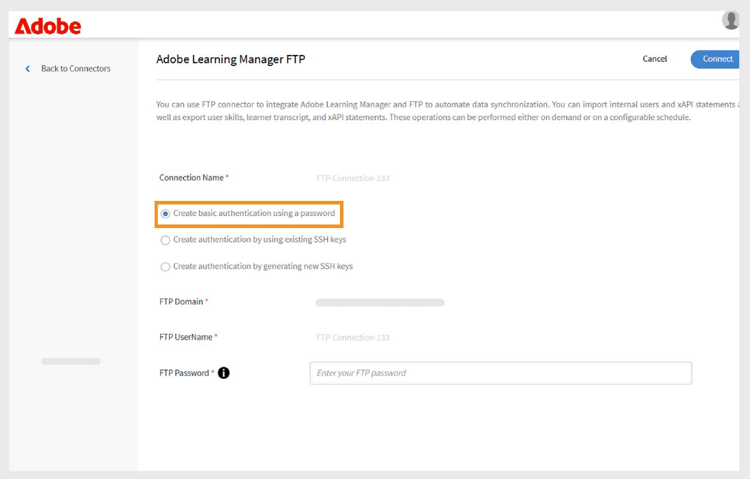
FTP authentication form with fields for username and password, showing basic authentication option selected
Existing SSH key authentication
Use this method if you already have established SSH key pairs for secure authentication.
-
Select Create authentication by using existing SSH keys.
-
Copy and paste your public key content into the provided text field. Ensure the public key format is correct (typically begins with ssh-rsa or ssh-ed25519).
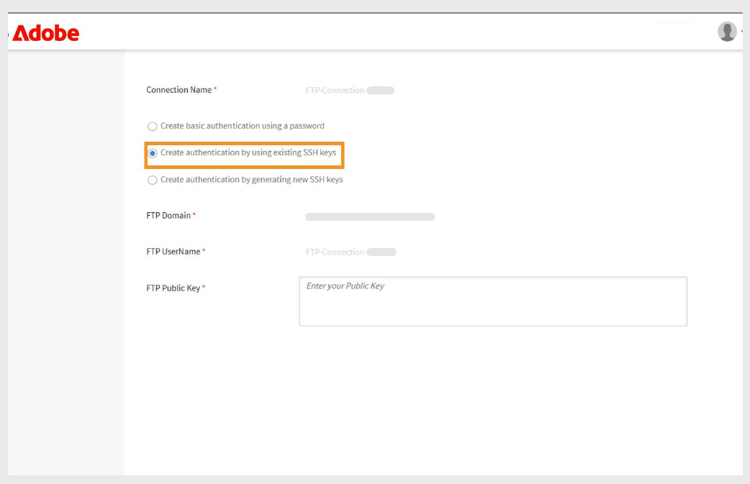
SSH key authentication interface with text field for public key input
Generate a new SSH key
Use this option to create a new SSH key pair specifically for this FTP connection.
-
Select Create authentication by generating new SSH key.
-
Select Generate SSH Key to create a new key pair. Securely download and store the generated private key. The public key will be automatically configured for the FTP connection.
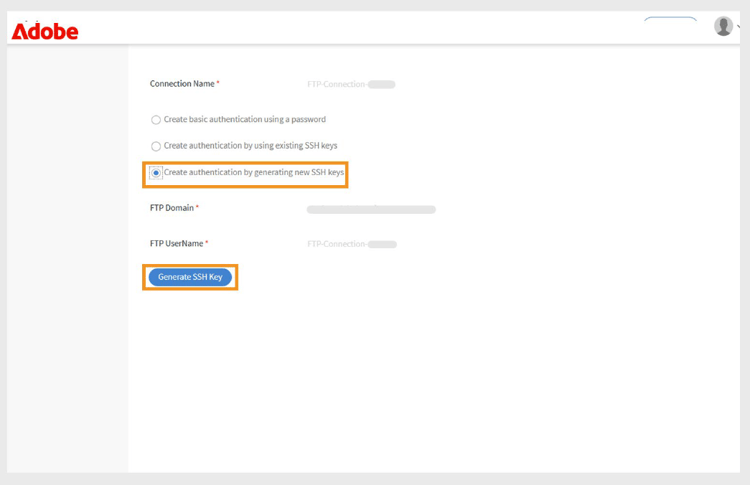
SSH key generation screen with Generate SSH Key button and other configuration options
Connect to FTP using FileZilla
FileZilla is an optional tool for FTP connection management. It can be used when you need to manually upload files, verify directory structures, or troubleshoot connection issues outside of the automated Adobe Learning Manager processes.
FileZilla installation and setup
FileZilla is a free, open-source FTP client that provides a user-friendly interface for file transfer operations.
To connect your FTP to FileZilla:
-
Download and install FileZilla from the official website.
-
Open FileZilla.
-
Select File and then select Site Manager.
-
Select New Site.
-
Type the following details:
- FTP Domain: The address of the FTP server you want to connect to, for example ftp.example.com. You can find your host domain on the FTP Connector page in Adobe Learning Manager.
- Port: The default FTP port is 21. However, Adobe Learning Manager uses Port 22 for secure connections.
- FTP Username: The login name required to access the FTP server.
- FTP Password: The password linked to your FTP username.
-
Select Connect.
-
Once connected, you can transfer files by dragging and dropping between local (left) and remote (right) panels.
Use the FTP connector in Adobe Learning Manager
Import internal users using FTP connector
The user import functionality allows automated synchronization of employee data from HR systems and other external sources into Adobe Learning Manager.
Map attributes
Attribute mapping creates the connection between your external data and the supported data structure of Adobe Learning Manager, ensuring data lands in the correct fields. This step is mandatory.
To map attributes:
-
Select Internal Users in the FTP connector page.
-
Select Column Mapping.
-
In the Map Attributes page:
- The left side shows the required fields in Adobe Learning Manager.
- The right side shows the CSV column names. Initially, this side contains empty dropdowns.
- Select Choose CSV to upload a sample CSV file. This populates the right-side dropdown with the column names from your CSV. Refer to this article.
- Map each Adobe Learning Manager field with the corresponding CSV column.
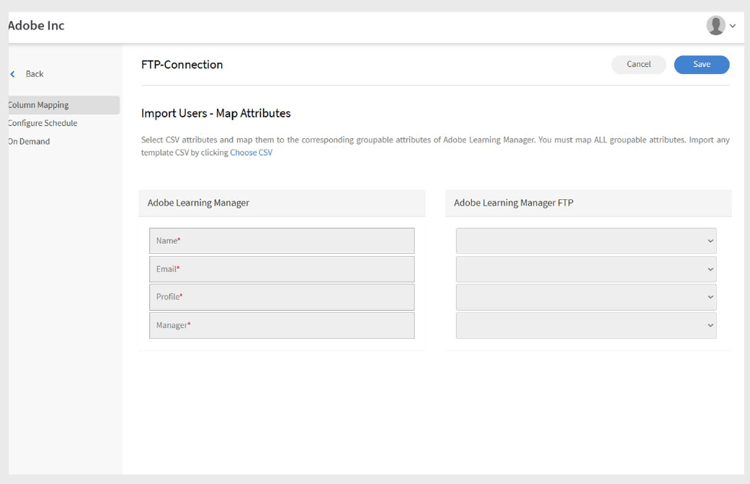
Attribute mapping interface showing Adobe Learning Manager fields on the left and CSV column dropdowns on the right -
Select Save to complete the mapping.
After saving, the configured account appears as a data source in the Administrator app. Admins can then schedule an import or trigger a manual sync.
Import xAPI statements
xAPI statement import allows detailed learning activity tracking by bringing external learning data into Adobe Learning Manager.
Configure source
xAPI source configuration establishes the connection between external learning systems and Adobe Learning Manager’s activity tracking.
To configure a source:
-
Navigate to the xAPI configuration section.
-
Select Add a new Configuration in the configuration list.
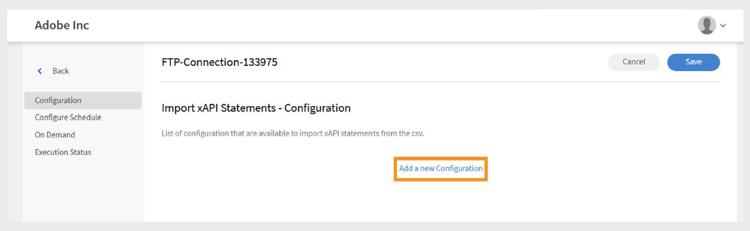
Configuration management page with Add a new Configuration button and existing configuration list -
Type the Name and Source File Name:
- Name: Descriptive identifier for this xAPI source (for example, LMS Integration or External Training System).
- Source File Name: Exact filename that will be uploaded to your FTP folder (must match exactly, including file extension).
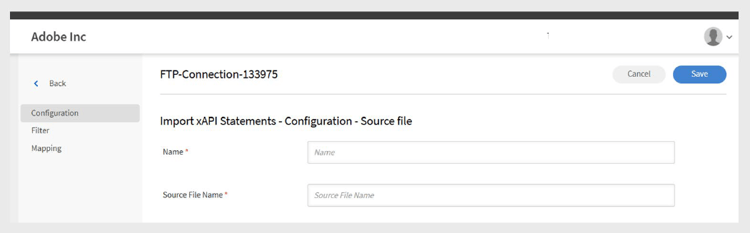
Configuration form showing name field and source file name field -
Select Save to create the basic configuration.
Add filters (optional)
Filters allow you to selectively import xAPI statements based on specific criteria.
To add a filter for source:
-
Select Filter on the left pane.
-
Select Add new filter.
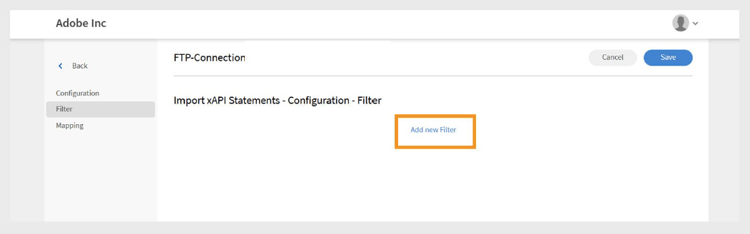
Filter configuration page with Add new filter button -
Configure the following:
- Name: Descriptive name for the filter rule.
- Condition: Comparison operator (equals, contains, greater than, etc.).
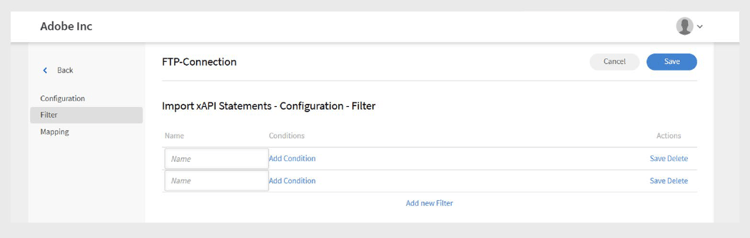
Filter creation dialog showing name field and conditions -
Select Add new Filter to add more filters.
-
Select Save or Delete as needed under the Actions column.
-
After adding filters, select Save.
Map fields
To map the fields:
-
Select Mapping on the left pane.
-
On the Mapping page, you will see JSON field paths on the left and CSV column names on the right.
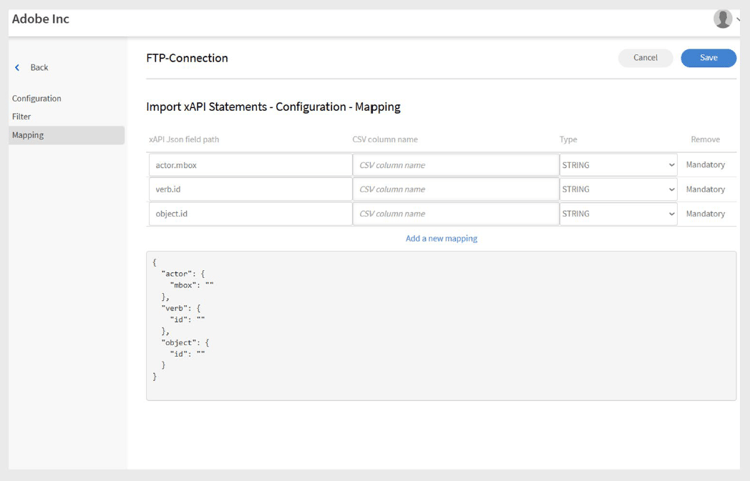
Add a mapping for the import source -
By default, map the following required fields:
- actor.mbox: This represents the email address of the learner (the actor performing
the action). It uniquely identifies who did the activity. - verb.id: This is the identifier for the action performed by the learner, such as
completed, attempted, or passed. It specifies the learner’s action. - object.id: This indicates the learning object or activity the learner interacted with,
such as a course, module, or learning path.
- actor.mbox: This represents the email address of the learner (the actor performing
-
Select Add a new Mapping to map additional fields.
-
For each field, select the appropriate data type (string, number, Boolean, or date).
-
Select Save to complete the mapping.
Schedule the import
Automated scheduling ensures consistent data synchronization without manual intervention,
maintaining current learning activity records.
To schedule the import:
-
Select Configure Schedule in the left pane.
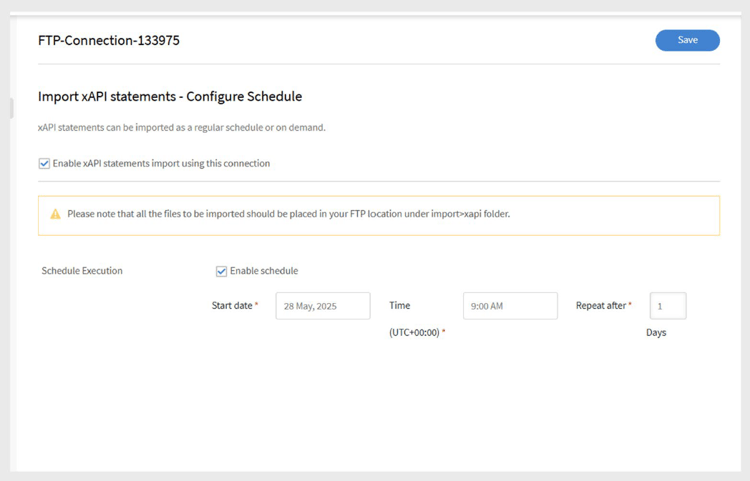
Schedule configuration page showing enable options and timing controls -
Select Enable xAPI statements import using this connection.
-
Select Enable schedule to set up automatic imports.
-
Set the following parameters:
- Start Date: When scheduled imports should begin.
- Time: Time of day for import execution.
- Repeat after: How often imports should run (daily, weekly, custom intervals).
-
Select Save.
Run on demand (optional)
On-demand execution provides immediate data imports outside of regular scheduled operations.
When to use on-demand imports:
- Testing new configurations before scheduling
- Processing urgent or time-sensitive data updates
- Handling one-time data migrations or corrections. Troubleshooting import issues
To manually import xAPI statements:
-
Select On Demand on the left pane.
-
Select Execute.
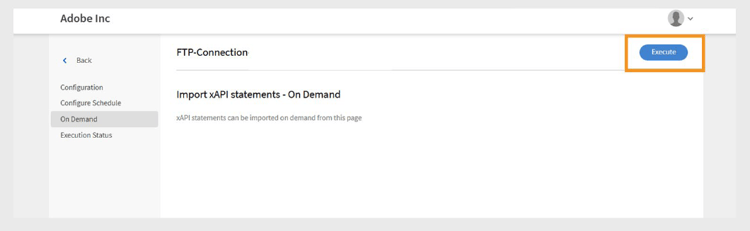
On-demand execution page with Execute button
View execution status
Status monitoring allows proactive management of import operations and quick identification of issues.
To view the execution status:
-
Select Execution Status to see a list of all import runs.
-
The page shows:
-
Start Date: When the import operation began.
-
Duration: Total time required for processing.
-
Type of import: Whether the import was scheduled or on-demand.
-
Current Status: Real-time status information.
- In Progress: Import currently running
- Completed: Successful completion with record counts
- Failed: Error occurred with diagnostic information
-
Troubleshoot import failure
The execution status section provides a comprehensive summary of all import tasks in chronological order, allowing administrators to monitor operations and quickly identify issues.
Status Indicators:
- Success: Import completed without errors.
- Warning Sign: Indicates failures or issues during execution.
- In Progress: Import operation currently running.
- Pending: Import scheduled but not yet started.
When failures occur, the system displays warning indicators next to failed import runs. Select the Error report link to download detailed error reports.