Custom FTP connector in Adobe Learning Manager
Introduction
The Custom FTP Connector in Adobe Learning Manager enables secure, automated data exchange between Adobe Learning Manager and your organization’s FTP (SFTP) server. With this integration, administrators can import user data from external systems and export learner transcripts or skill data on a scheduled basis. This setup streamlines data synchronization, reduces manual work, and supports seamless integration with third-party HR or reporting systems. Configuration requires coordination with your IT team and assistance from Adobe’s Customer Success Manager (CSM).
Supported capabilities
The custom FTP connector supports the following actions:
Data import
The user import process automatically fetches employee data from your FTP server and imports it into Adobe Learning Manager. This is useful when integrating multiple systems that generate CSV files containing user data.
- Place the CSV files in the designated import folder on your FTP server.
- Adobe Learning Manager detects the files, merges them if needed, and imports the user data based on the defined schedule.
Refer to the Scheduling section to learn how to automate this process.
Attribute mapping
As an integration administrator, you can map the columns in your CSV file to groupable attributes in Adobe Learning Manager.
- Mapping is a one-time setup.
- The same mapping is used for subsequent imports.
- You can reconfigure mappings if your data structure changes.
Data export
Adobe Learning Manager allows you to export:
- User skills
- Learner transcripts
These report files are placed in the export folder on your FTP and can be consumed by third-party systems for reporting, analytics, or other downstream processes.
Scheduling reports
Integration administrators can schedule both:
- User imports
- Learner transcript exports
Scheduling ensures that your Adobe Learning Manager environment stays up to date with your source systems. You can configure daily syncs or custom intervals as needed.
Set up the Custom FTP connector
To configure the Custom FTP connector:
-
Log in to Adobe Learning Manager as an integration administrator.
-
Hover over the Custom FTP tile and select Connect.
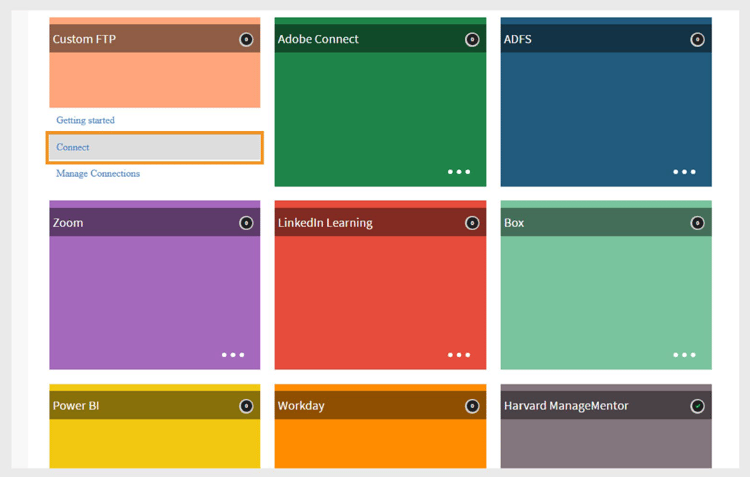
Select Connect to configure Custom FTP connector
Choose authentication method
You can configure the Custom FTP connection using one of two authentication types:
Basic authentication account
-
Type the following details:
- Your FTP domain
- FTP Username
- FTP Password
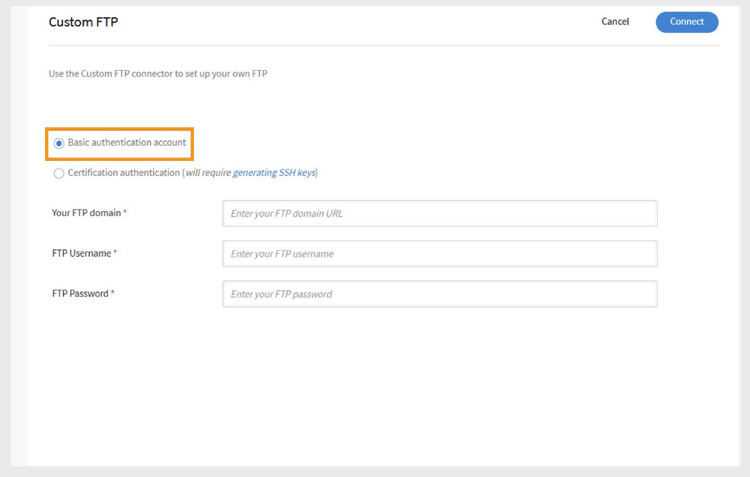
Type the FTP domain, username, and password for the configuration. -
Select Connect.
Certificate authentication
If your FTP server supports SSH key authentication:
-
Select Generate SSH Key.
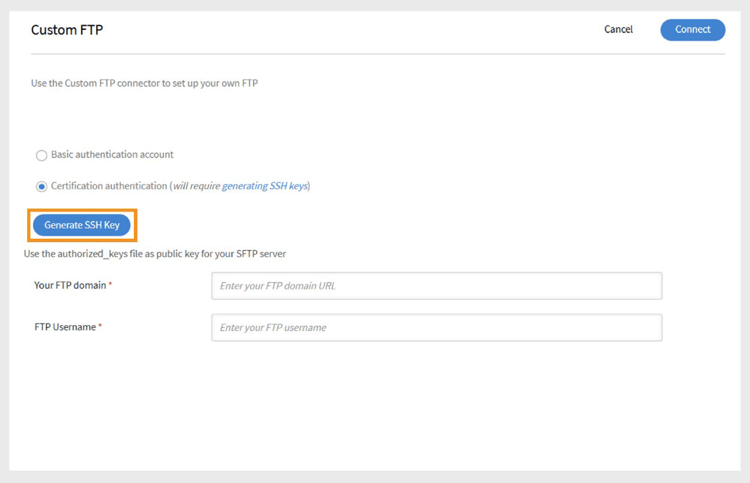
Select Generate SSH Key to download the key -
The public key will be downloaded to your machine.
-
Add this key to your FTP server’s authorized keys list.
-
Type the following details:
- Your FTP domain
- FTP Username
-
Select Connect.
Post-connection setup
Once the connection is established:
- Adobe Learning Manager automatically creates folders for import and export on your FTP server.
- You can start importing and exporting data based on your schedule and mapping settings.