Box connector in Adobe Learning Manager
Introduction
The Box connector in Adobe Learning Manager enables seamless integration with external systems by automating the import and export of user and learning data through CSV files. External systems can place CSV files into designated folders in the Adobe Learning Manager-managed Box account, where they are automatically processed based on a defined schedule.
With this connector, administrators can:
- Import internal users from CSV files.
- Export user skill data and learner transcripts to external systems.
- Import xAPI activity statements from supported third-party systems.
The connector supports attribute mapping, scheduled synchronization, and on-demand execution— helping organizations maintain up-to-date user and learning data across platforms.
Configure Box connector
To set up the Box Connector in Adobe Learning Manager:
-
Log in to Adobe Learning Manager as an integration administrator.
-
Hover over the Box tile.
-
Select Connect.
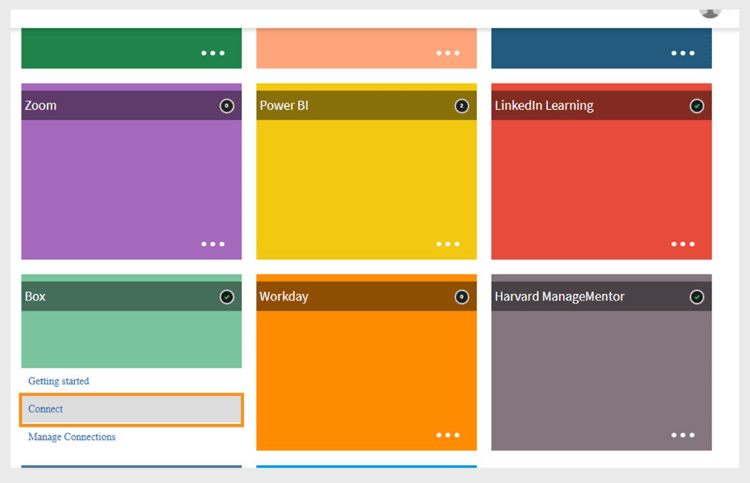
Select Connect to configure Box connectorSelect Connect to configure Box connector -
Type the email address of the person who will manage the Adobe Learning Manager Box account for your organization.
-
Select Connect.
Activate the account
- Adobe Learning Manager sends a password reset link to the provided email ID.
- The user must reset the password before accessing the Box account for the first time.
In the Overview page, select from the following actions:
- Import Internal Use
- Import xAPI Activity Report
- Export User Skills
- Export Learner Transcript
- Export xAPI Activity Report
Once connected, the Box Connector will be ready to sync data between Adobe Learning Manager and your external systems.
Import internal users
The user import functionality allows automated synchronization of employee data from HR systems and other external sources into Adobe Learning Manager.
Map attributes
Attribute mapping creates the connection between your external data and the supported data structure of Adobe Learning Manager, ensuring data lands in the correct fields. This step is mandatory.
To map attributes:
-
Select Internal Users in the Box connector page.
-
Select Column Mapping.
-
In the Map Attributes page:
- The left side shows the required fields in Adobe Learning Manager.
- The right side shows the CSV column names. Initially, this side contains empty dropdowns.
- Select Choose CSV to upload a sample CSV file. This populates the right-side dropdown with the column names from your CSV. Refer to this article to get sample CSVs.
- Map each Adobe Learning Manager field with the corresponding CSV column.
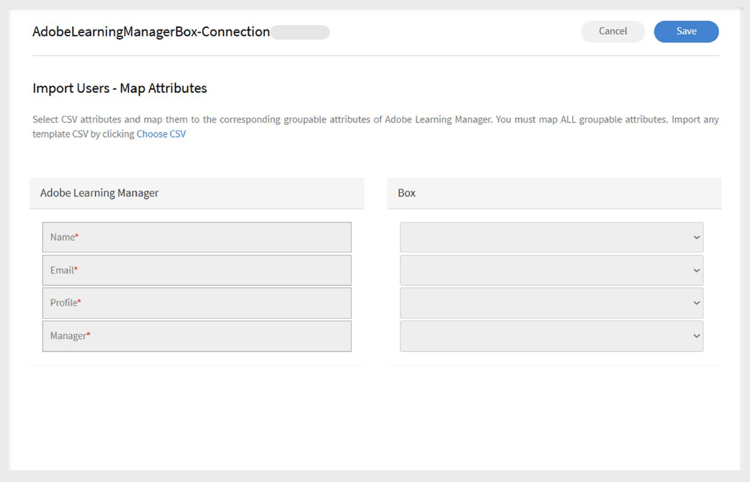
Attribute mapping interface showing Adobe Learning Manager fields on the left and CSV column dropdowns on the right -
Select Save to complete the mapping.
After saving, the configured account appears as a data source in the Administrator app. Admins can then schedule an import or trigger a manual sync.
Import xAPI statements
xAPI statement import allows detailed learning activity tracking by bringing external learning data into Adobe Learning Manager.
Configure source
xAPI source configuration establishes the connection between external learning systems and Adobe Learning Manager’s activity tracking.
To configure a source:
-
Navigate to the xAPI configuration section.
-
Select Add a new Configuration in the configuration list.
-
Type the Name and Source File Name.
- Name: Descriptive identifier for this xAPI source (for example, LMS Integration or External Training System).
- Source File Name: Exact filename that will be uploaded to your Box folder (must match exactly, including file extension).
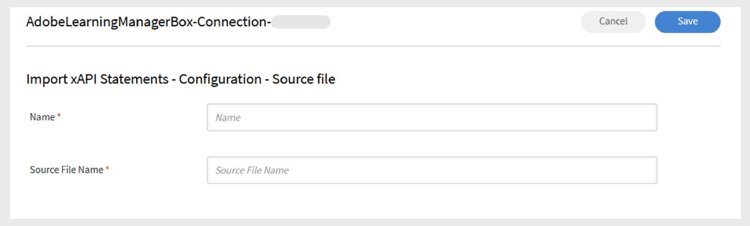
Configuration form showing name field and source file name field -
Select Save to create the basic configuration.
Add filters (optional)
Filters allow you to selectively import xAPI statements based on specific criteria.
To add a filter for source:
-
Select Filter on the left pane.
-
Select Add new filter.
-
Configure the following:
- Name: Descriptive name for the filter rule.
- Condition: Comparison operator (equals, contains, greater than, etc.).
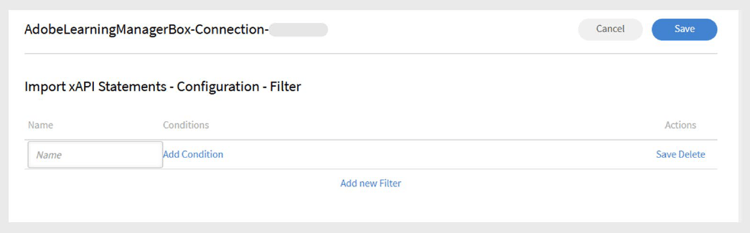
Filter creation dialog showing Name and Conditions fields -
Select Add new Filter to add more filters.
-
Select Save or Delete as needed under the Actions column.
-
After adding the filters, select Save.
Schedule the import
Automated scheduling ensures consistent data synchronization without manual intervention, maintaining current learning activity records.
To schedule the import:
-
Select Configure Schedule in the left pane.
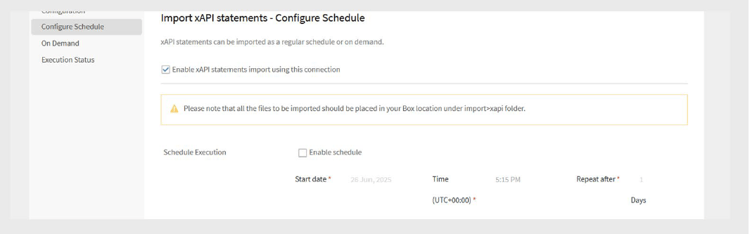
Schedule configuration page showing enable options and timing controls -
Select Enable xAPI statements import using this connection.
-
Select Enable schedule to set up automatic imports.
-
Set the following schedule parameters:
- Start Date: When scheduled imports should begin.
- Time: Time of day for import execution.
- Repeat after: How often imports should run (daily, weekly, custom intervals).
-
Select Save.
Run on demand (optional)
On-demand execution provides immediate data imports outside of regular scheduled operations.
When to use on-demand imports:
- Testing new configurations before scheduling.
- Processing urgent or time-sensitive data updates.
- Handling one-time data migrations or corrections.
- Troubleshooting import issues.
To manually import xAPI statements:
- Select On Demand on the left pane.
- Select Execute.
View execution status
Status monitoring allows proactive management of import operations and quick identification of issues.
To view the execution status:
-
Select Execution Status to see a list of all import runs.
-
The status page shows:
-
Start Date: When the import operation began
-
Duration: Total time required for processing
-
Type of import: Whether the import was scheduled or on-demand
-
Current Status: Real-time status information
- In Progress: Import currently running
- Completed: Successful completion with record counts
- Failed: Error occurred with diagnostic information
-