Create a theme
Two ways to create a custom theme, both of which add the result to your Custom themes list:
-
Build from scratch using the Create option in the toolbar - configure the color palette, fonts, and other properties, then Save as new.
-
Import a customized JSON file - export an existing theme as JSON, edit it in a text or code editor, then import it back in.
Need more control?
For per-element typography (lesson names, topic names, block headings, captions), color-token-level customization, and full JSON schema access - the kind of control a platform or brand team typically wants, see Advanced theme customization.
Create a theme from scratch
-
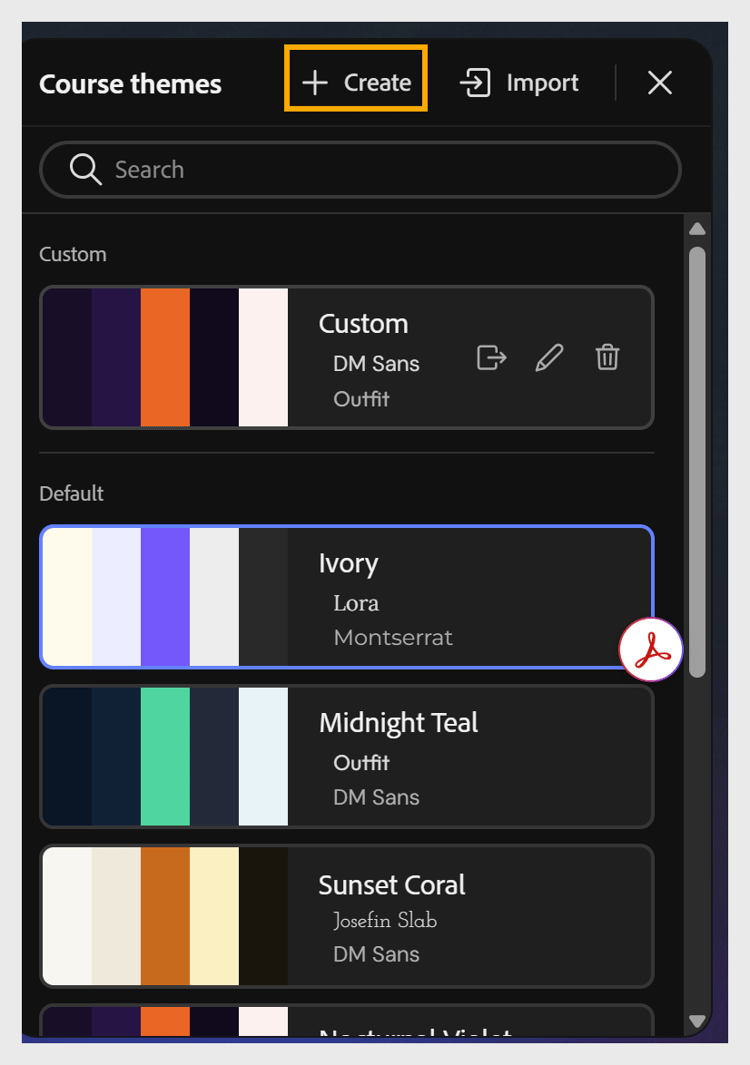
Select Create from the toolbar to open the Course themes panel.
-
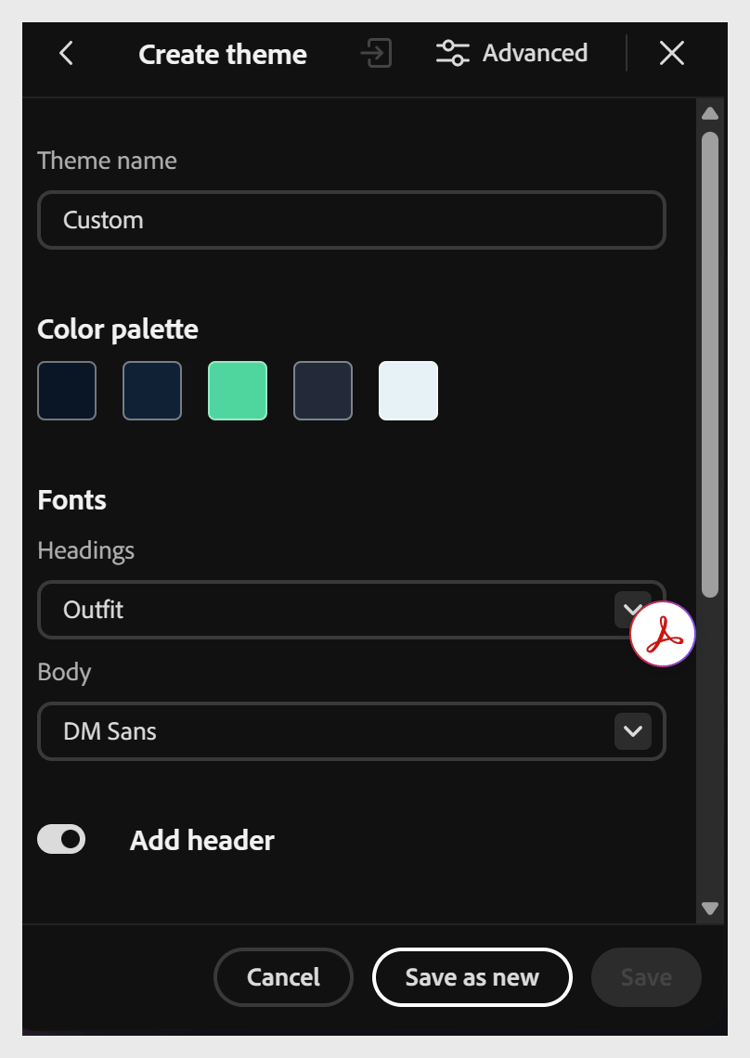
Configure the theme’s color palette, fonts, and other properties as needed.
-
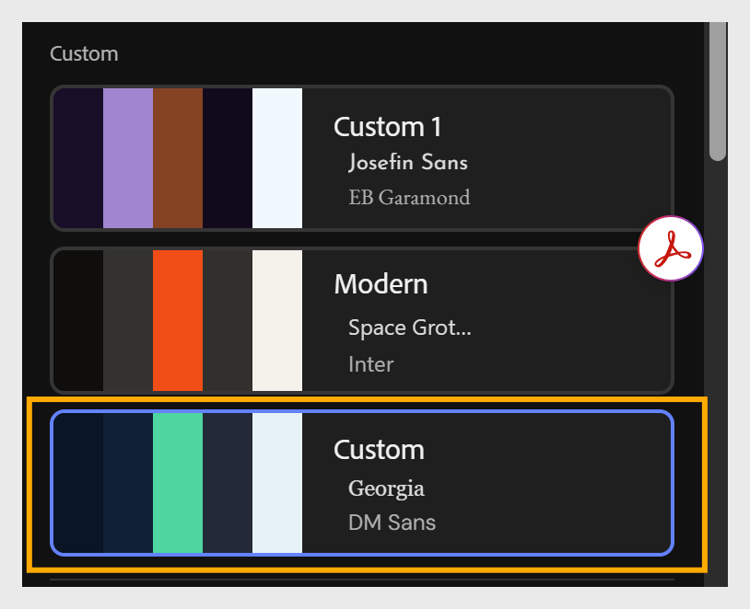
Select Save as new to add the theme to your Custom themes list.
Create a theme by importing JSON
-
Select Themes from the toolbar to open the Course themes panel.
-
Hover over the theme you want to use as a base, and select Export to download it as a JSON file.
-
Open the JSON file in a text or code editor, and update its properties, such as radius, spacing, color palette, or fonts.
-
Save the JSON file.
-
In Content Composer, select Import from the Course themes panel.
-
Choose the updated JSON file from your computer.
-
Select Save as new to add the theme to your Custom themes list.