Advanced theme customization in Content Composer
Customize advanced theme properties in the app
Use advanced theme properties for more granular control over individual elements, such as lesson names, topic names, block headings, subheadings, captions, and paragraphs.
-
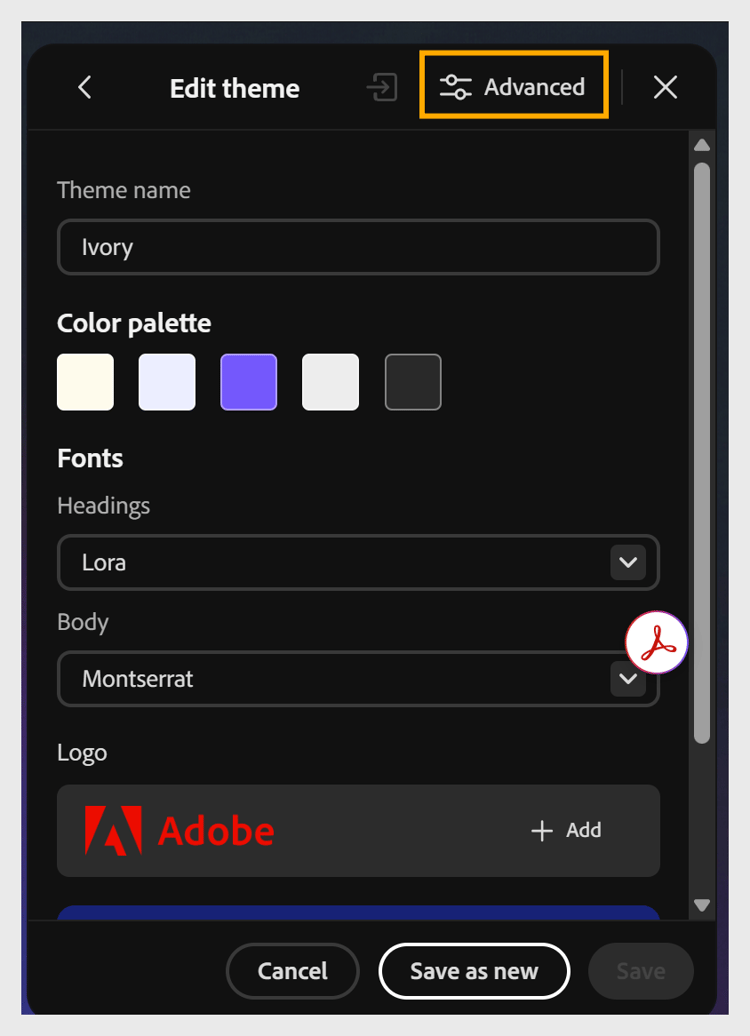
Select Themes, hover over the applied theme, select Edit, then select Advanced.
-
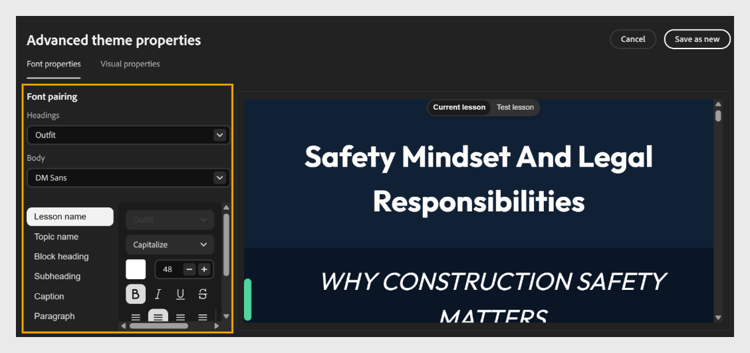
In the Font properties panel, set the Font pairing for your course:
-
Select the Headings dropdown and choose a font for all headings.
-
Select the Body dropdown and choose a font for body text.
-
-
Set the list of elements: Lesson name, Topic name, Block heading, Subheading, Caption, and Paragraph; select the element you want to customize.
-
In the Visual properties panel, you can adjust the layout and spacing across the course.
-
Set the amount of spacing between elements, using the content density options.
-
To set Card/image corner radius, drag the slider or enter a value to set the roundness of cards and images. For example, set the radius to 17 px.
-
Select Lesson to change the background color or image of a lesson.
-
Select Topic to set the background color or border of a topic.
-
Select Header/Footer to set the header and properties.
Content Composer automatically previews your changes in the canvas as you make them.
-
-
For the selected element, customize its properties as needed:
-
Choose a font style, such as Capitalize.
-
Set the font size using the + and - controls.
-
Choose a font color.
-
Apply formatting, such as Bold, Italic, Underline, or
Strikethrough. -
Set the text alignment.
-
-
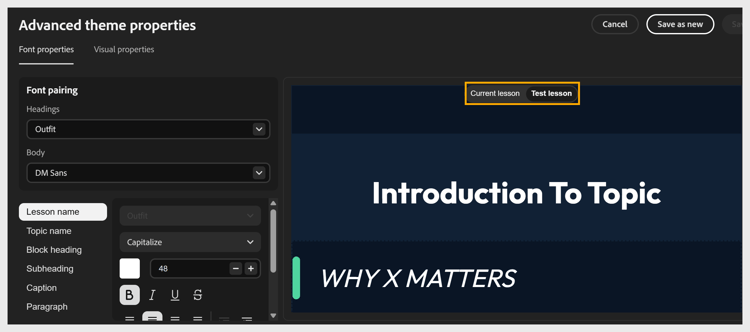
Preview your changes in the canvas on the right. Use the Current lesson and Test lesson tabs to check how your changes appear across different lessons.
-
Select Save as new or Save.