On this page: Learn how to set up web subdomains in Adobe Journey Optimizer by using a subdomain already delegated to Adobe or configuring a new one to publish assets content for your web experiences.
Get started with web subdomains gs-web-subdomains
When authoring web experiences, if you add content coming from the Adobe Experience Manager Assets library, you must set up the subdomain that will be used to publish this content.
You can use a subdomain that is already delegated to Adobe, or you can configure another subdomain. Learn more about delegating subdomains to Adobe in this section.
Web subdomain configuration is common to all environments. Therefore:
-
To access and edit web subdomains, you must have the Manage Web Subdomains permission on the production sandbox.
-
Any modification to a web subdomain will also impact the production sandboxes.
You can create several web subdomains, but only the default subdomain will be used. You can change the default web subdomain, but only one can be used at a time.
Access and manage web subdomains access-web-subdomains
To access subdomains for web experiences, follow these steps:
-
Browse to the Administration > Channels menu, then select Web settings > Web subdomains. All the subdomains set up with the current sandbox are displayed.

-
You can filter on the user who delegated each subdomain or one the delegation status (Draft, Processing, Success or Failed).
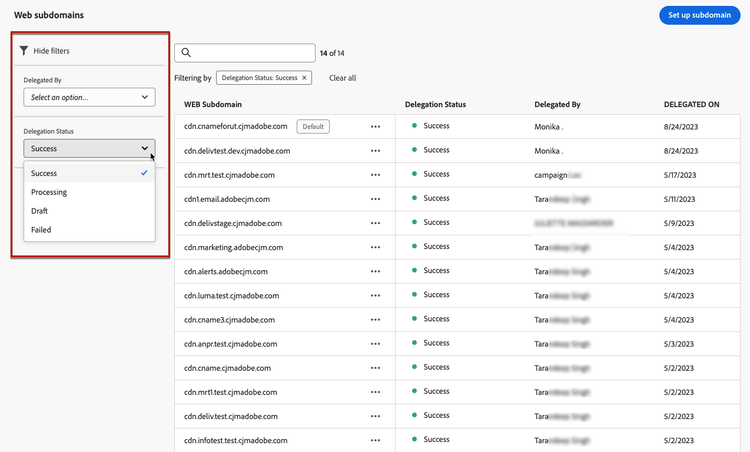
-
The Default badge is displayed next the subdomain that is currently used as default. To change the default subdomain, select Set as default from the More actions button next to the desired subdomain.
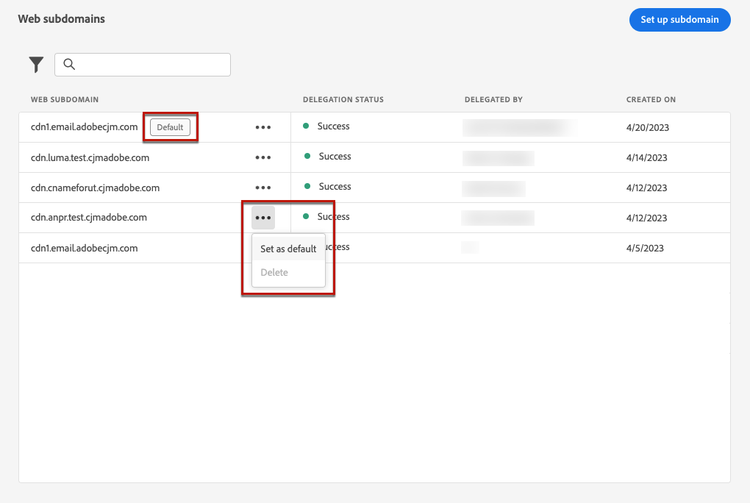
You can change the default web subdomain, but only one can be used at a time.
Use an existing subdomain web-use-existing-subdomain
To use a subdomain that is already delegated to Adobe, follow the steps below:
-
Access the Administration > Channels menu, then select Web settings > Web subdomains.
-
Click Set up subdomain.
-
Select the Use delegated subdomain option from the Configuration type section and choose a delegated subdomain from the list.
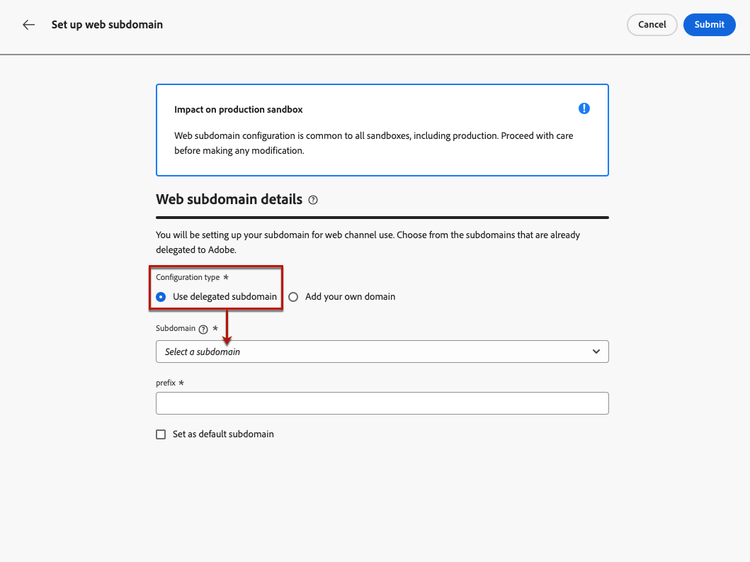
note NOTE You cannot select a subdomain that is already used as web subdomain. -
The prefix that will display in your web URL is automatically added. You cannot change it.
-
To set this subdomain as default, select the corresponding option.
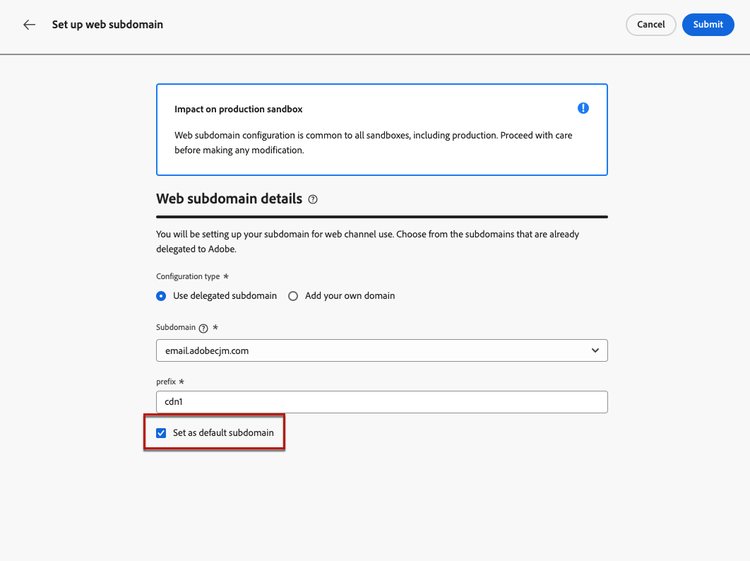
Only the default subdomain will be used.
-
Click Submit. The subdomain gets the Success status. It is ready to be used for your web experiences.
In very rare occasions, a subdomain setup could fail. In this case, you can delete the Failed subdomain to clean up the list using the Delete button from the More actions icon.
Configure a new subdomain web-configure-new-subdomain
By default, Journey Optimizer allows you to delegate up to 10 subdomains in total (combining email, landing page, and web channels). However, depending on your license contract, you may be able to delegate up to 3000 subdomains. Reach out to your Adobe contact to learn more about the number of subdomains you are entitled to.
To configure a new subdomain, follow the steps below:
-
Access the Administration > Channels menu, then select Web settings > Web subdomains.
-
Click Set up subdomain.
-
Select Add your own domain from the Configuration type section.
-
Specify the subdomain to delegate.
note caution CAUTION -
You cannot use an existing web subdomain.
-
Capital letters are not allowed in subdomains.
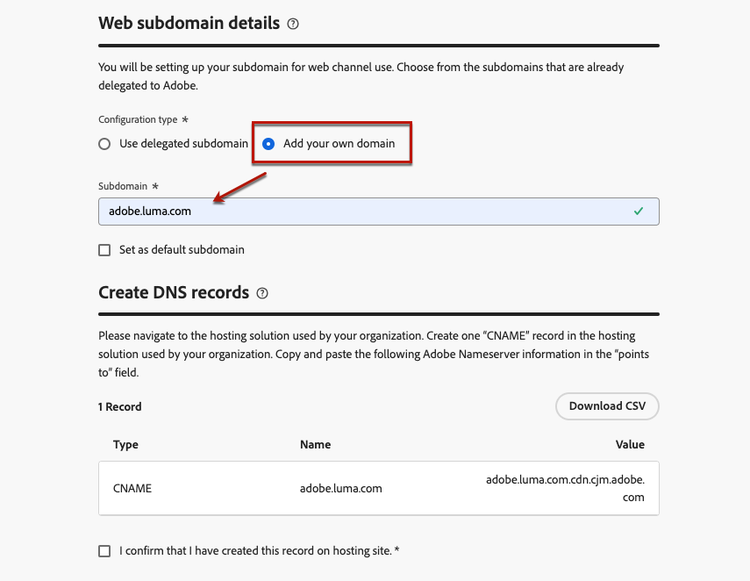
Delegating an invalid subdomain to Adobe is not allowed. Make sure you enter a valid subdomain which is owned by your organization, such as marketing.yourcompany.com.
Multi-level subdomains (of the same parent domain) are supported. For example, you can use ‘web.marketing.yourcompany.com’.
-
-
To set this subdomain as default, select the corresponding option.
note NOTE Only the default subdomain will be used. -
The record to be placed in your DNS servers displays. Copy this record, or download a CSV file, then navigate to your domain-hosting solution to generate the matching DNS record.
-
Make sure that DNS record has been generated into your domain-hosting solution. If everything is configured properly, check the box “I confirm…”, then click Submit.
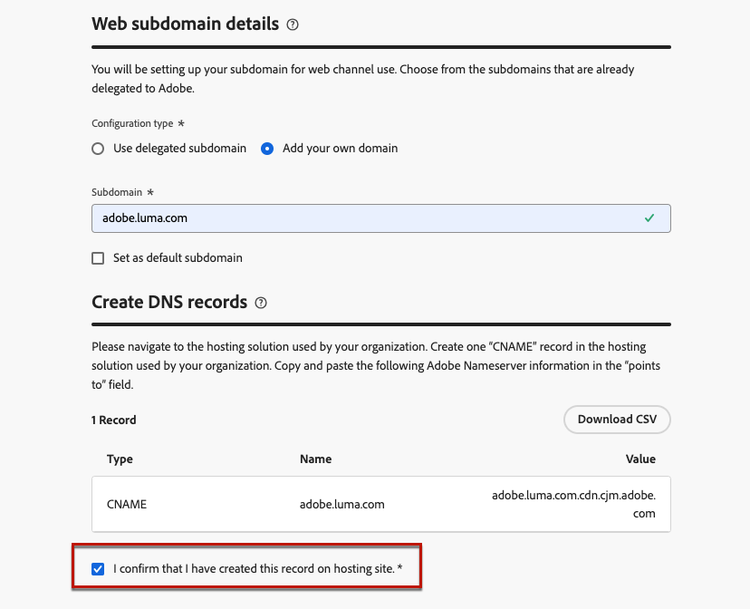
When you configure a new web subdomain, it always points to a CNAME record.
-
Once the subdomain delegation has been submitted, the subdomain displays in the list with the Processing status. For more on subdomains’ statuses, refer to this section.
Before being able to use that subdomain to send web messages, you must wait until Adobe performs the required checks, which can take up to 4 hours.
-
Once the checks are successful, the subdomain gets the Success status. It is ready to be used to create web channel configurations.
Note that the subdomain will be marked as Failed if you fail to create the validation record on your hosting solution.
Undelegate a subdomain undelegate-subdomain
If you wish to undelegate a web subdomain, reach out to your Adobe representative with the subdomain you want to undelegate.
If the web subdomain was a new delegated subdomain, you can delete the CNAME DNS record that you created for the web subdomain from your hosting solution (but do not delete the original email subdomain if any).
After you request is handled by Adobe, the undelegated domain is no longer displayed on the subdomain inventory page.
This section contains structured knowledge intended to support interpretation, retrieval, and question answering related to this topic.
For complete understanding, this information should be combined with the documentation on this page. Neither source is intended to stand alone; the page describes the feature, while this section provides additional context that helps disambiguate terminology, intent, applicability, and constraints.
- TL;DR: This page explains how to set up web subdomains in Journey Optimizer, either by using a subdomain already delegated to Adobe or by configuring a new one, to publish Adobe Experience Manager Assets content for web experiences.
Intents:
- Access and manage web subdomains from Administration > Channels > Web settings > Web subdomains
- Use a subdomain already delegated to Adobe for web experiences
- Configure a new subdomain by generating the matching DNS record
- Set or change the default web subdomain
- Filter subdomains by delegating user or delegation status
- Undelegate a web subdomain
Glossary:
- Web subdomain: A subdomain set up to publish content coming from the Adobe Experience Manager Assets library for web experiences (product-specific)
- Default subdomain: The single web subdomain currently in use, marked with the Default badge (product-specific)
- Use delegated subdomain: Configuration type option that selects a subdomain already delegated to Adobe (product-specific)
- Add your own domain: Configuration type option that delegates a new subdomain by generating a matching DNS record (product-specific)
- Manage Web Subdomains: The permission required, on the production sandbox, to access and edit web subdomains (product-specific)
Guardrails:
- To access and edit web subdomains, you must have the Manage Web Subdomains permission on the production sandbox.
- Web subdomain configuration is common to all environments, and any modification also impacts the production sandboxes.
- You can create several web subdomains, but only the default subdomain is used, and only one can be used at a time.
- Journey Optimizer allows you to delegate up to 10 subdomains in total (covering both email and web channels); depending on your license contract you may be able to delegate up to 3000 subdomains.
- Capital letters are not allowed in subdomains.
- You cannot use an existing web subdomain, and you cannot select a subdomain that is already used as a web subdomain.
- When configuring a new subdomain, Adobe’s required checks can take up to 4 hours before the subdomain can be used to send web messages.
- Multi-level subdomains of the same parent domain are supported (for example, web.marketing.yourcompany.com).
- A new web subdomain always points to a CNAME record.
- To undelegate a web subdomain, reach out to your Adobe representative.
Terminology:
- Canonical name: Web subdomain — Acronym: n/a — variants: web subdomains, delegated subdomain
- Synonyms: “Use delegated subdomain” = “use a subdomain that is already delegated to Adobe”
- Do not confuse: “Use delegated subdomain” (select an already-delegated subdomain) ≠ “Add your own domain” (configure and delegate a new subdomain)
- Do not confuse: “Draft” ≠ “Processing” ≠ “Success” ≠ “Failed” (delegation statuses)
FAQ:
- Q: How many web subdomains can be active at once? — You can create several, but only the default subdomain is used and only one can be used at a time.
- Q: What permission do I need to manage web subdomains? — The Manage Web Subdomains permission on the production sandbox.
- Q: How long does configuring a new subdomain take? — Adobe’s required checks can take up to 4 hours before the subdomain can be used to send web messages.
- Q: What are the delegation statuses? — Draft, Processing, Success, and Failed; only a Success subdomain is ready to be used.
- Q: How do I remove a web subdomain? — To undelegate it, reach out to your Adobe representative; a Failed subdomain can be deleted from the More actions menu to clean up the list.
- Q: Are subdomain modifications isolated to one environment? — No, web subdomain configuration is common to all environments and any modification also impacts the production sandboxes.