Edit email templates with the advanced HTML editor email-template-expert-mode
The advanced HTML editor is an expert mode that lets you view and edit the raw source code of email content templates directly from the Journey Optimizer Email Designer interface.
This capability lets you insert advanced expressions—such as conditions—directly in the source. When you switch back to the visual (Desktop) view, the content is re-rendered so you can check how it looks and continue editing in either view.
Guardrails guardrails
When you use the advanced HTML editor, the following guardrails protect content compatibility and set expectations.
-
The advanced HTML editor does not validate your code. It does not check syntax errors or broken layouts. Review your content carefully before saving.
-
Future system updates may overwrite changes you make to default markup. Your changes may not persist.
-
The Adobe support team cannot troubleshoot or resolve issues caused by custom code and manual changes. Keep a backup of your content in case you need to revert.
-
You cannot simulate content in advanced HTML view. Switch to Desktop view to preview your content.
-
To ensure content compatibility, you cannot save in advanced HTML view. Switch back to Desktop view when you are ready to save your changes.
Switch to advanced HTML view switch-to-html-view
To open the advanced HTML editor and edit your template source, follow these steps.
-
Open or create an email template and open the Email Designer to edit the content.
-
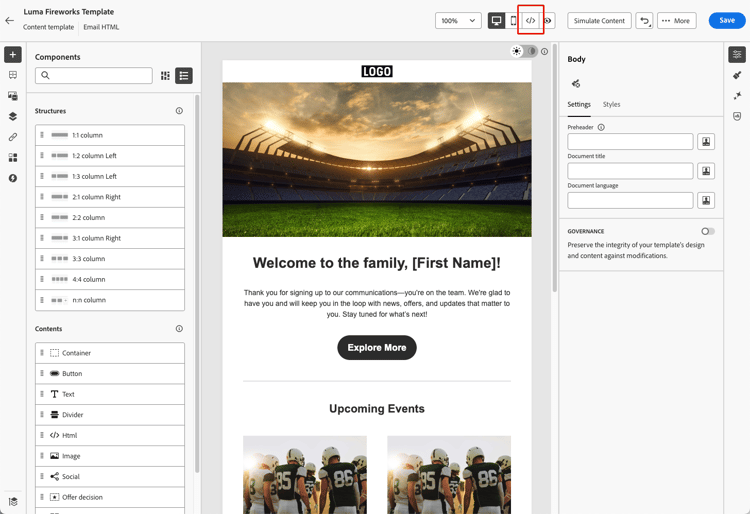
Click the HTML button in the top-right corner of the screen.
-
The first time you open the advanced HTML editor, a warning message is displayed. Review it carefully and click OK to continue. Learn more
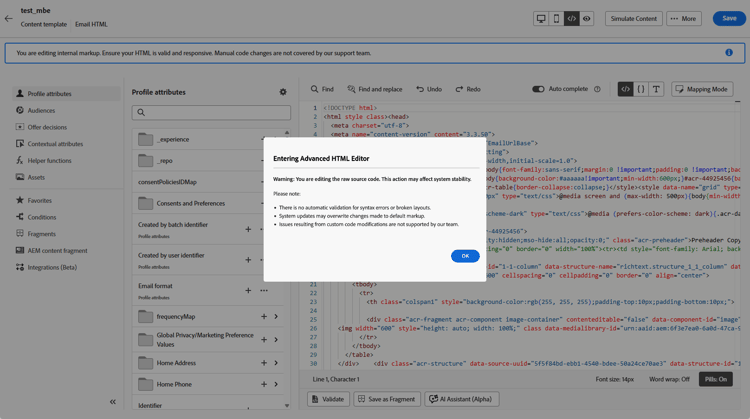
note note NOTE This warning appears only the first time you open the advanced HTML editor and resets each month. -
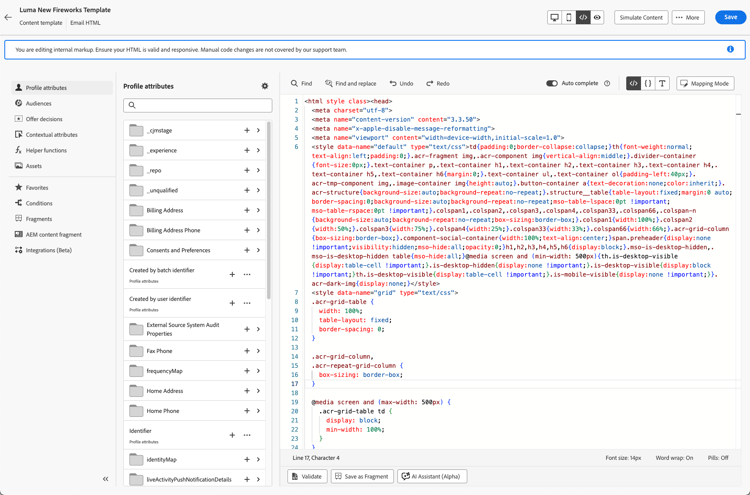
The advanced HTML editor displays.
-
Add the desired changes to your email content.
note warning WARNING Make sure to enter correct HTML and CSS code as there is no syntax validation process and no support is provided by Adobe. Learn more -
Content simulation and saving are not available in advanced HTML view for compatibility reasons. Switch back to Desktop view to preview your content and save your changes.
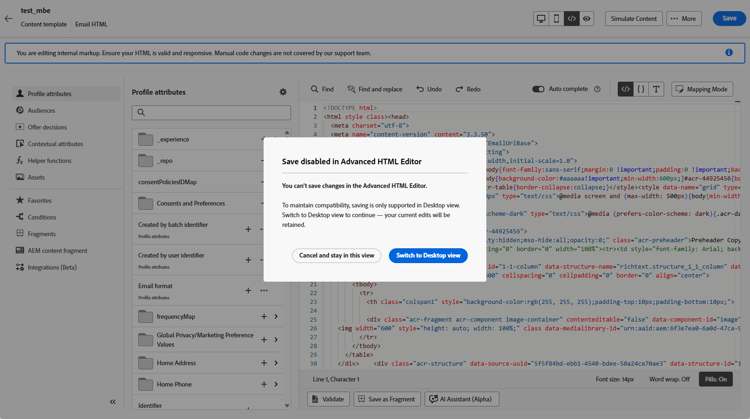
note note NOTE Your edits are preserved when you switch views.