On this page: Learn how to access, search, organize into folders, edit, delete, and export content templates across sandboxes in Adobe Journey Optimizer.
Prerequisites prerequisites
To access and manage content templates, ensure the following:
- Content Templates permission: Your role must include the Manage content templates permission (under the Content Management resource). Without it, the Content Templates menu is not visible in the left navigation. Learn how to manage permissions
- Sandbox scope: Content templates are sandbox-specific. Templates created in one sandbox are not available in another. Ensure you are in the correct sandbox before searching for a template.
- HTML templates (deprecated): Starting March 2025, HTML-type content templates are deprecated. Existing HTML templates remain accessible but new ones cannot be created.
Access content templates access
To access the content template list, select Content Management > Content Templates from the left menu.
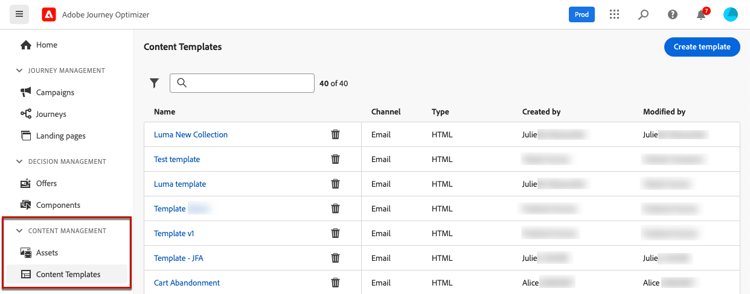
All the templates created on the current sandbox—either from a journey or a campaign using the Save as template option, or from the Content Templates menu—are displayed. Learn how to create templates
The pane on the left allows you to organize content templates into folders. By default, all templates are displayed. When selecting a folder, only the templates and folders included in the selected folder are displayed. Learn more
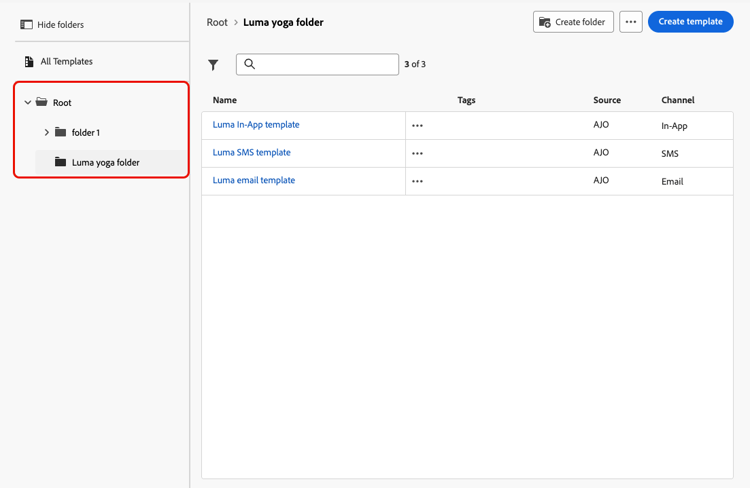
To find a specific item, start typing a name in the search field. When a folder is selected, the search applies to all content templates or folders in the first level of hierarchy of that folder.
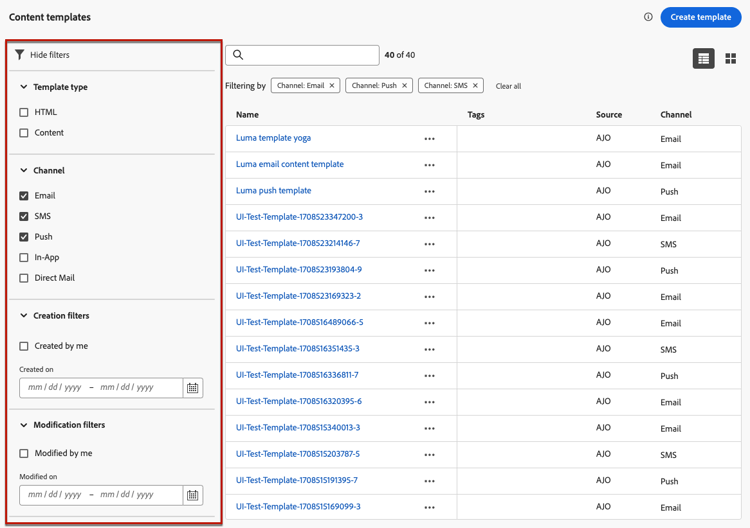
You can sort content templates by:
- Type
- Channel
- Creation or modification date
- Tags - Learn more about tags
You can also choose to display only the items created or modified by you.
Use folders to manage content templates folders
To easily navigate your content templates, use folders to organize them more effectively into a structured hierarchy. This enables you to categorize and manage the items according to your organization’s needs.
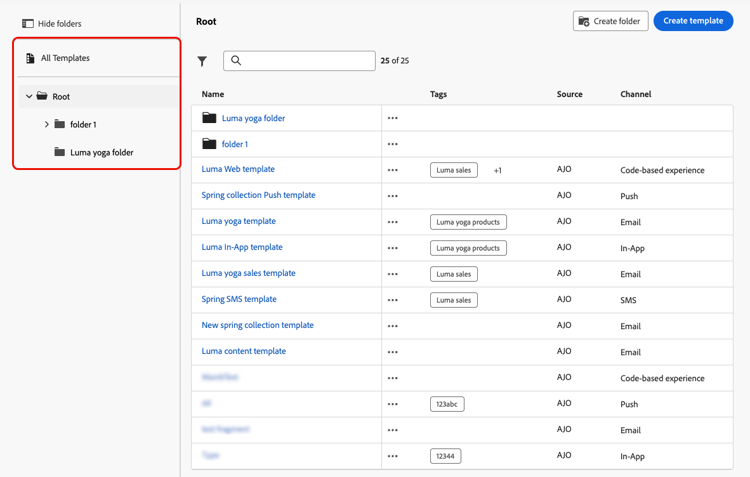
-
Click the All content templates button to display all the items previously created without the folder grouping.
-
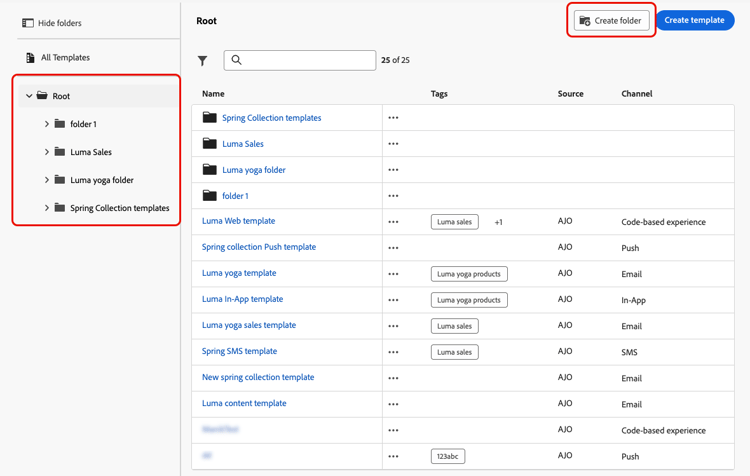
Click the Root folder to display all the folders created.
note NOTE If you have not created folders yet, all the content templates are displayed. -
Click any folder inside the Root folder to display its content.
-
Upon clicking the Root folder or any other folder, the Create folder button displays. Select it.
-
Type a name for the new folder and click Save. The new folder displays on top of the content template list inside the Root folder, or inside the folder currently selected.
-
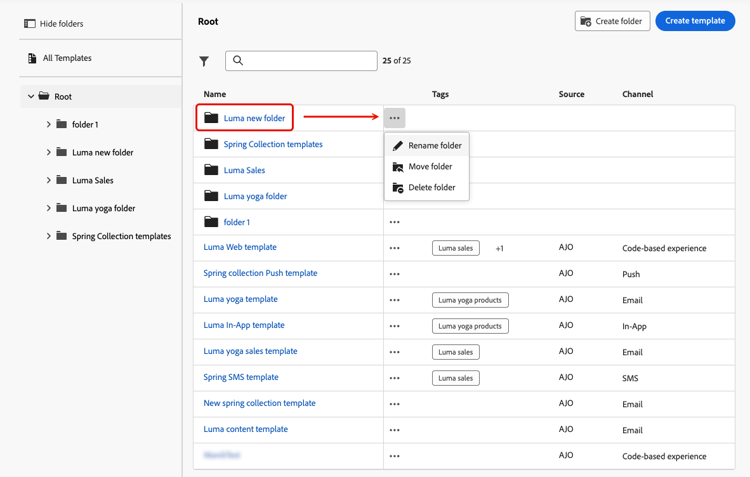
You can click the More actions button to rename or delete the folder.
-
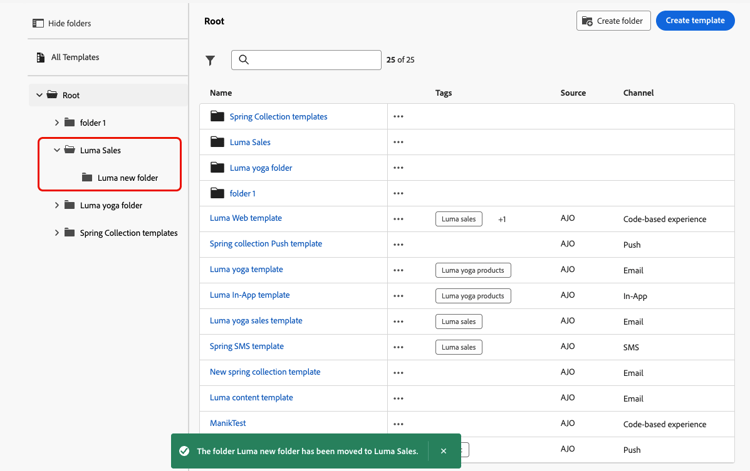
Using the More actions button, you can also move the content template to another existing folder.
-
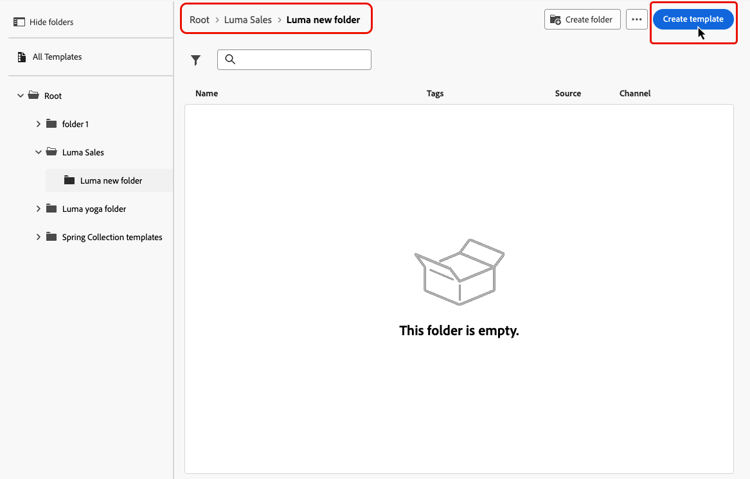
Navigate to the folder that you just created. Each new content template you create from here is saved into the current folder.
Edit and delete content templates edit
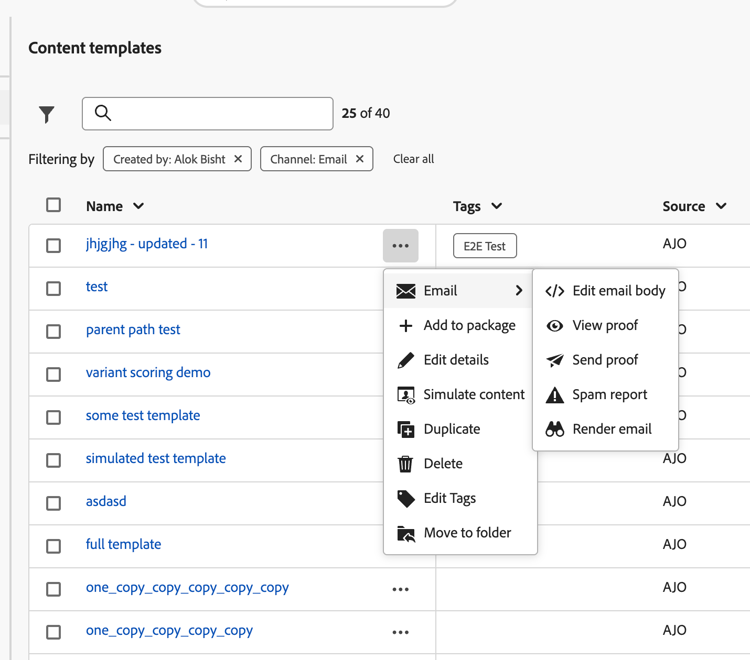
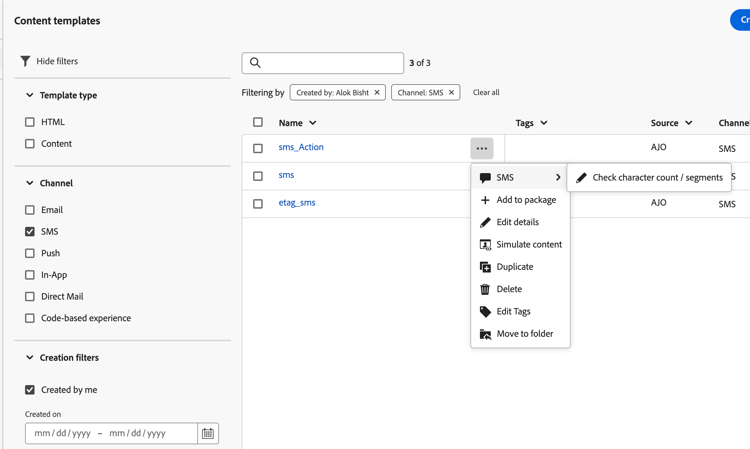
From the More actions button next to each template, you can access the following shortcuts and actions:
- Edit details: Edit the template name, description, and tags.
- Simulate content: Preview and test the template content.
- Delete: Delete the template.
Additional shortcuts are available depending on the channel, access the drop-down below to learn more:
- Edit email body: Open the email designer to modify the template content.
- View proof: View a proof of the email template.
- Send proof: Send a proof of the template to designated recipients.
- Spam report: Analyze the template against spam filters.
- Render email: Preview how the email renders across different email clients.
- Check character count/segments: Check the character count and number of segments used by the message.
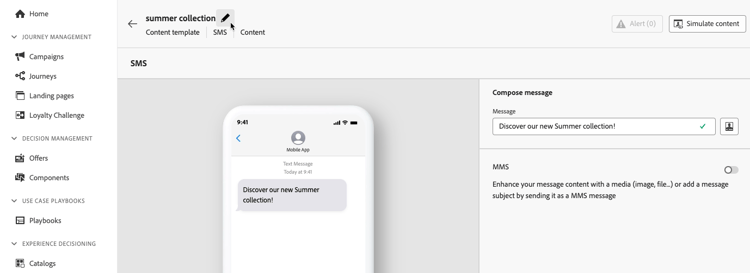
To edit a template’s full content, click the desired item from the list and make the desired changes. You can also edit the content template properties by clicking the edit button next to the template’s name.
Bulk actions bulk-actions-templates
You can select multiple templates at once and apply bulk operations to all of them. Available operations include adding items to a package, moving them to a folder, editing tags, managing access, and archiving. Learn more about bulk actions →
You can also sort the template list by clicking most column headers, and resize columns by dragging the column border to fit the data you need.
[limited Availability]{class="badge informative"} display templates as thumbnails template-thumbnails
Select the Grid view mode to display each template as a thumbnail.
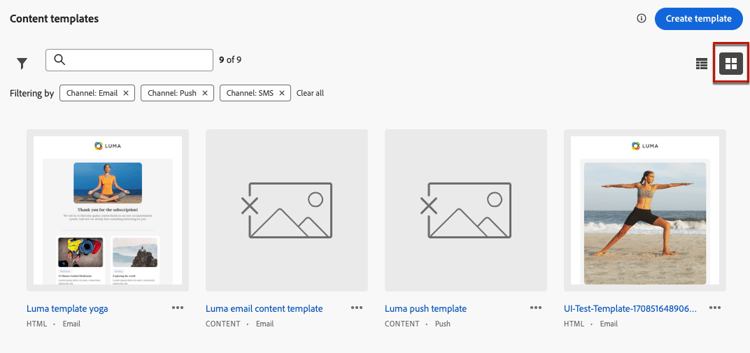
When you update content, wait a few seconds for the changes to reflect in the thumbnail.
Troubleshooting troubleshooting
Export content templates to another sandbox export
Journey Optimizer allows you to copy a content template from one sandbox to another. For example, you can copy a template from your Stage sandbox environment to your Production sandbox.
The copy process is carried out via a package export and import between the source and target sandboxes. Detailed information on how to export objects and import them into a target sandbox is available in this section: Copy objects to another sandbox