On this page: Learn how to find, license, and insert Adobe Stock images, including similar photos, directly from the Email Designer in Adobe Journey Optimizer.
Get started with Adobe Stock get-started-stock
The Adobe Stock and Adobe Journey Optimizer Email Designer integration plugin provides customers an easy way to navigate, license, and save imagery for use in message authoring.
Adobe Stock provides access to millions of high-quality, curated, royalty-free photos, videos, illustrations, and vector graphics. You can choose to purchase a credit pack to license assets or only buy one Standard or Extended license for the needed asset. Adobe Stock also provides a free collection of assets.
With Adobe Journey Optimizer, you can upload images to your emails directly from Adobe Stock and add it to your Assets folder using the Find Adobe Stock photos option. In addition, the Find Similar Stock photos option helps you find images that match the content, color, and composition of the asset used in your delivery.
Permissions stock-permissions
The Find Adobe Stock photos and Find Similar Image options are available to users with access to an AEM Assets Essentials Product Profile.
For more on this, refer to Experience Manager Assets documentation.
Insert an image from Adobe Stock add-stock-image
To add images from Adobe Stock to your content, follow the steps below:
-
From the Content components section of the Email Designer, drag and drop an Image.
-
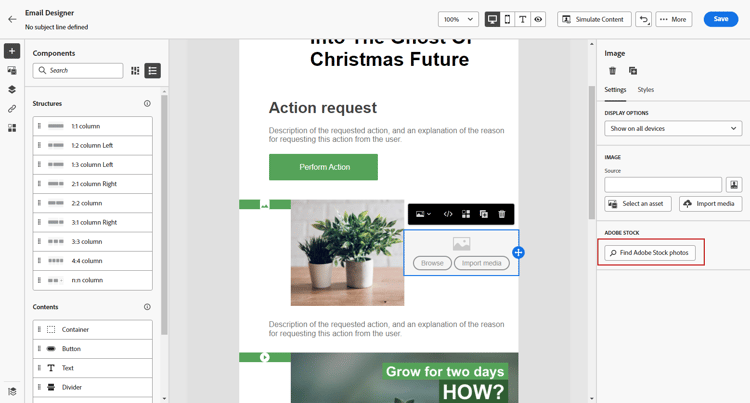
Click the Find Adobe Stock photos button on the left side of the Email Designer.
-
Browse through the library or enter a term in the search field.

-
Select the chosen image and click Save.
If the image you selected is not licensed, you must get the license.
Find similar photos similar-stock-image
You can replace any existing image in your email content by a photo from Adobe Stock. Note that this option is available for all images: licensed/unlicensed Stock images and images from your Assets folder.
To browse similar photos, follow the steps below:
-
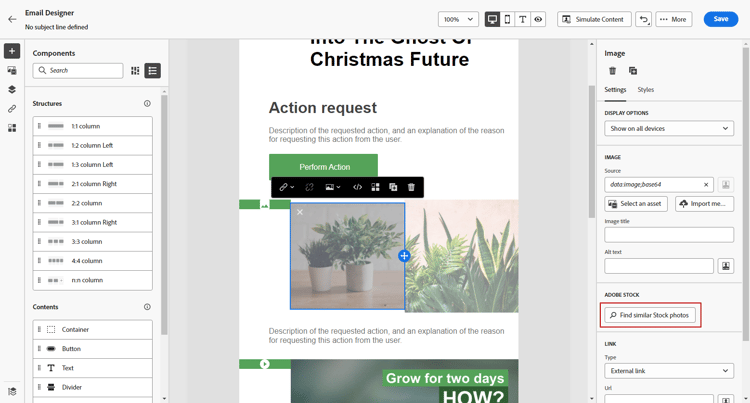
Select the image to replace.
-
Click the Find similar Stock photos button to display assets in Adobe Stock which match the content, color, and composition of the image.
-
Select the chosen image and click Save.
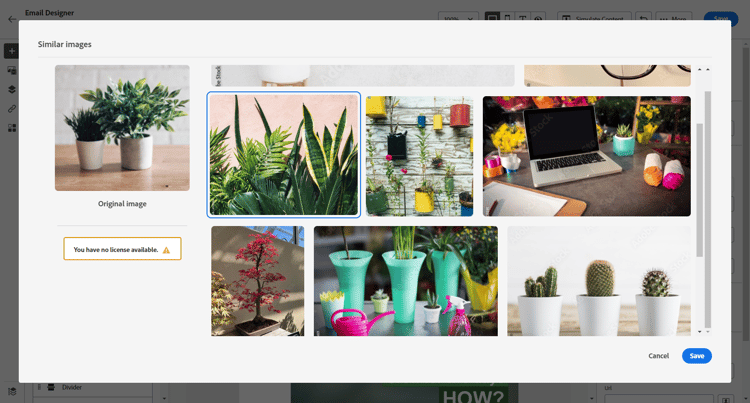
If the image you selected is not licensed, you must get the license.
-
Customize your image, if needed, with the Settings and Styles tabs. Learn more about components settings.
Get the license from Adobe Stock license-stock-image
If your image is already licensed, it is represented by the

To license and download your image, follow the steps below:
-
Select it and click the License Adobe Stock image icon.
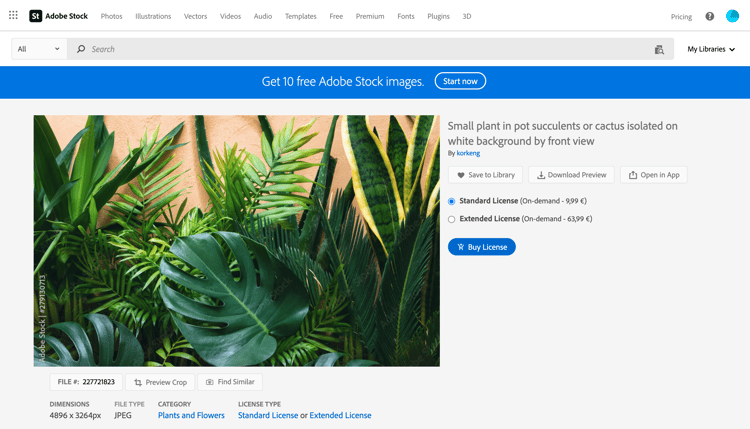
You are then redirected to the Adobe Stock website to buy the license.
-
From the Adobe Stock website, you need to purchase your asset to be able to download the image and remove the watermark.
This purchase depends on your Adobe Stock plan or subscription. Note that if you have multiple Adobe Stock accounts, you will be redirected to the last used Stock ID. In this case, make sure you are signed in to the correct account before licensing your asset.
For more about Adobe Stock plans and prices in Adobe Stock documentation.
note warning WARNING If an email including an unlicensed image is sent, the image keeps its unlicensed form with the watermark. -
Once your purchase has been completed, you can now head back to your email in Adobe Journey Optimizer and select Import stock image to import your licensed image to your assets.
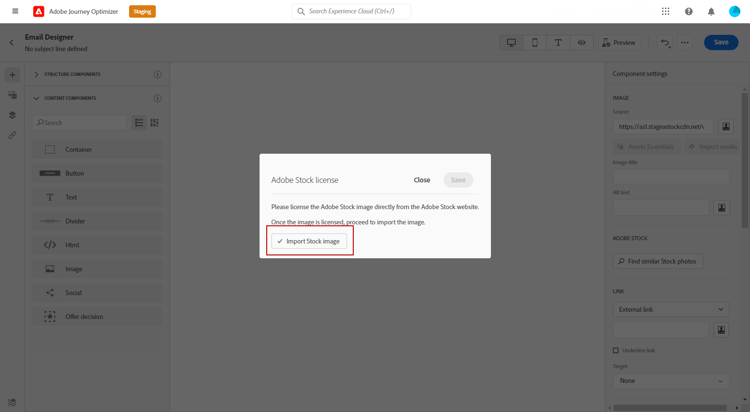
-
Select in which folder to store your asset. For more information on Experience Manager Assets, refer to this page.
Related topics stock-related-topics
This section contains structured knowledge intended to support interpretation, retrieval, and question answering related to this topic.
For complete understanding, this information should be combined with the documentation on this page. Neither source is intended to stand alone; the page describes the feature, while this section provides additional context that helps disambiguate terminology, intent, applicability, and constraints.
- TL;DR: This page explains how to find, license, and insert Adobe Stock images, including similar photos, directly from the Email Designer in Adobe Journey Optimizer.
Intents:
- Insert an Adobe Stock image into email content from the Email Designer
- Find similar Stock photos that match the content, color, and composition of an existing image
- License an Adobe Stock image and import it into the Assets folder
- Understand the permissions required to use the Adobe Stock options
Glossary:
- Find Adobe Stock photos: Option to navigate or search the Adobe Stock library and add an image to the Assets folder from the Email Designer (product-specific)
- Find Similar Stock photos: Option that finds images matching the content, color, and composition of a selected image; available for all images (licensed/unlicensed Stock images and images from the Assets folder) (product-specific)
- License Adobe Stock image: Icon/action that redirects to the Adobe Stock website to buy a license for an unlicensed image (product-specific)
- Import stock image: Option to import a licensed image into your assets after purchase (product-specific)
- Standard / Extended license: The two per-asset license types you can buy for a needed asset, as an alternative to a credit pack (product-specific)
Guardrails:
- The Find Adobe Stock photos and Find Similar Image options are available to users with access to an AEM Assets Essentials Product Profile.
- If an email including an unlicensed image is sent, the image keeps its unlicensed form with the watermark.
- Licensing and purchase depend on your Adobe Stock plan or subscription.
- With multiple Adobe Stock accounts, you are redirected to the last used Stock ID; sign in to the correct account before licensing.
Terminology:
- Canonical name: Adobe Stock integration — Acronym: n/a — variants: Adobe Stock plugin, Adobe Stock images
- Synonyms: “Find Similar Stock photos” = “Find Similar Image”
- Do not confuse: “Find Adobe Stock photos” (browse or search the library) ≠ “Find Similar Stock photos” (match the content, color, and composition of an existing image)
- Do not confuse: “License Adobe Stock image” (buy the license on the Adobe Stock website) ≠ “Import stock image” (bring the licensed image into your assets)
FAQ:
- Q: What access do I need to use the Adobe Stock options? — Access to an AEM Assets Essentials Product Profile.
- Q: What happens if I send an email with an unlicensed image? — The image keeps its unlicensed form with the watermark.
- Q: Can I replace an existing image with a similar Stock photo? — Yes; select the image and click Find similar Stock photos, which works for licensed/unlicensed Stock images and images from the Assets folder.
- Q: How do I license and use an image? — Select it, click the License Adobe Stock image icon, purchase on the Adobe Stock website, then select Import stock image to bring the licensed image into your assets.