On this page: Learn how marketers apply configured integrations to personalize email, SMS, and push content and chain one API call to another for richer, dynamic messaging.
Before you use external integrations in your content, confirm an administrator has configured and activated each integration (endpoint, authentication, policies, response payload, and activation) as described in Work with Integrations.
You can add up to 3 integrations per Fragment and up to 5 on the message. Integrations that come only from fragments do not count toward the 5.
Apply integration personalization to your content apply-integration-personalization
As a marketer, you can use configured integrations to personalize your content. Follow these steps:
-
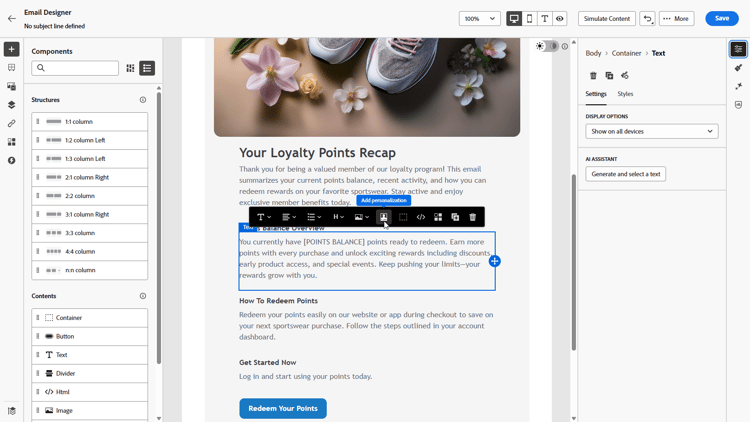
Access your campaign content and click Add personalization from your Text or HTML Components.
-
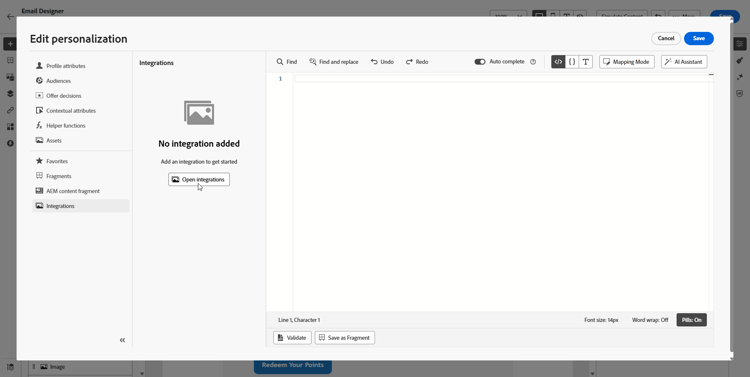
Navigate to the Integrations section and click Open integrations to view all active integrations.
Note that Journey Optimizer Fragments are available with Integrations but support outbound channels only. Once a fragment is published, adding and saving new integrations is disabled to avoid impact on existing journeys and campaigns.
-
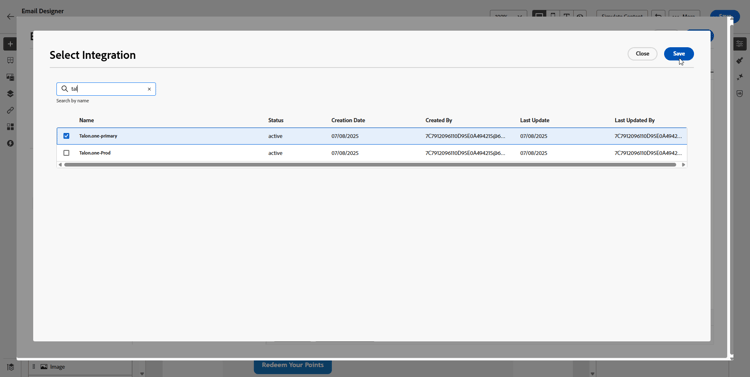
Select an integration and click Save.
-
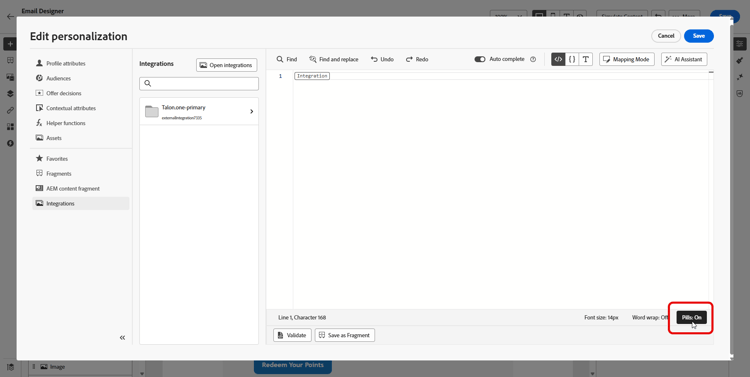
Enable the Pills mode to unlock the advanced integration menu.
-
When you author integration personalization, the Integrations helper includes a
requiredfield that defines how failures or missing data interact with default content:-
required=true(default): Rendering stops for that message. The send is excluded withExternalDataLookupExclusion, and that exclusion is recorded in the message feedback dataset. -
required=false: The result variable is set tonulland rendering continues. Use default text, fallbacks, or conditional logic in your template so profiles do not receive empty content when the integration does not return data.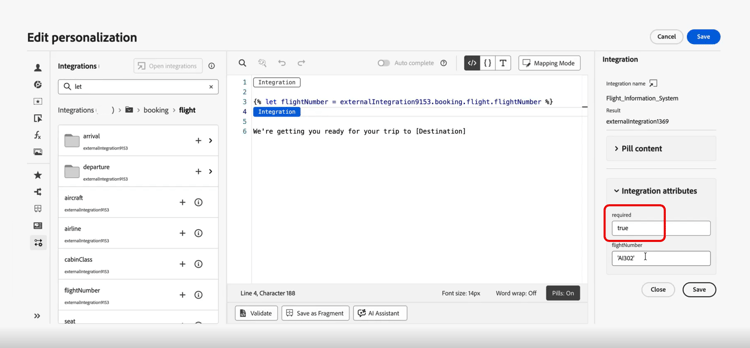
-
-
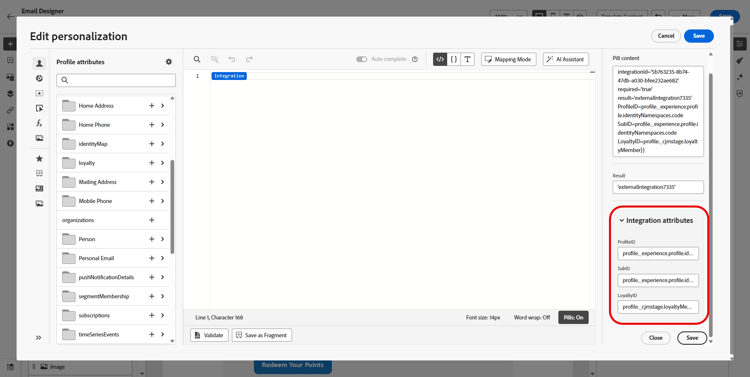
To complete your integration setup, define your integration attributes, which were previously specified during configuration.
You can assign values to these attributes using either static values, which remain constant, or profile attributes, which dynamically pull information from user profiles.
-
Once integration attributes are defined, you can now use the integration fields in your content for personalized messaging by clicking the

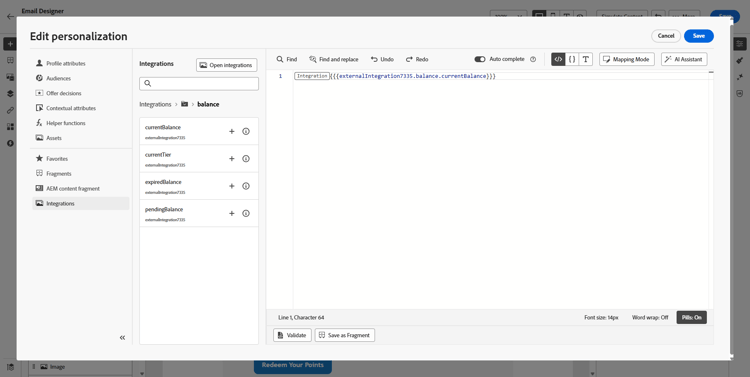
note NOTE Tokens in your template must use only fields the administrator exposed in the integration configuration. For example, {{weatherResponse.temperature}}is valid whentemperatureis exposed;{{weatherResponse.humidity}}is rejected in the editor ifhumiditywas not exposed. -
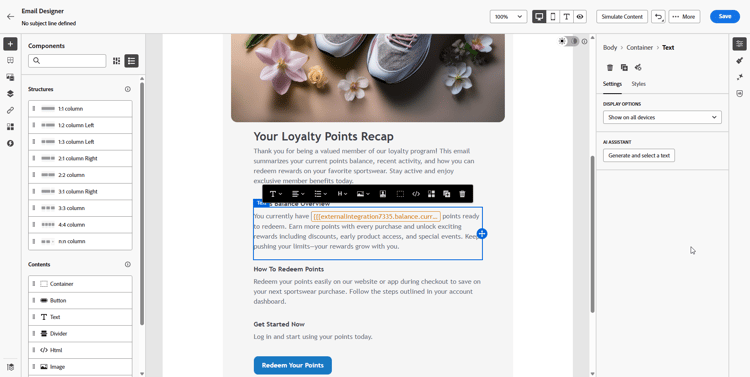
Click Save.
Your integration personalization is now successfully applied to your content, ensuring each recipient receives a tailored, relevant experience based on the attributes you have configured.
Map one API call to another map-integration-chain
You can chain integrations so one call’s results feed the next, for example, path segments, headers, or query parameters. The calls run in order in the same message, which supports richer personalization without custom code.
Before you start, make sure that:
- An administrator has configured and activated every integration you need. See Configure your Integration.
- Variable path placeholders, headers, and query parameters are set up in the integration configuration with marketer-facing labels.
- The administrator exposed the response fields you need in each integration’s Response payload so they appear when authoring.
The example below uses a reservation integration that returns a flight number from the profile’s booking, then a flight information integration that uses that number for live status (delays, destination). You map the second integration’s inputs to the first call’s response.
-
Open your message or fragment and open the personalization editor.
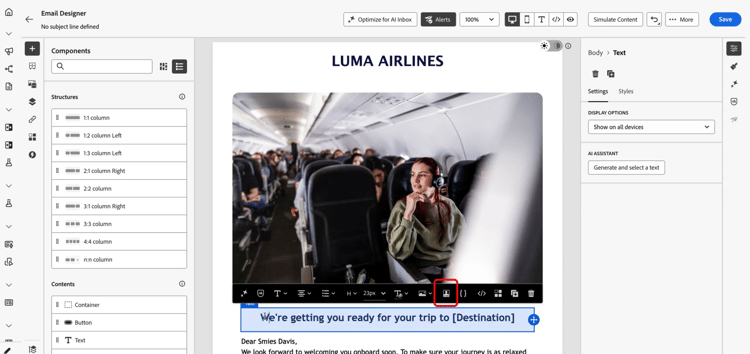
-
In Integrations, click Open integrations.
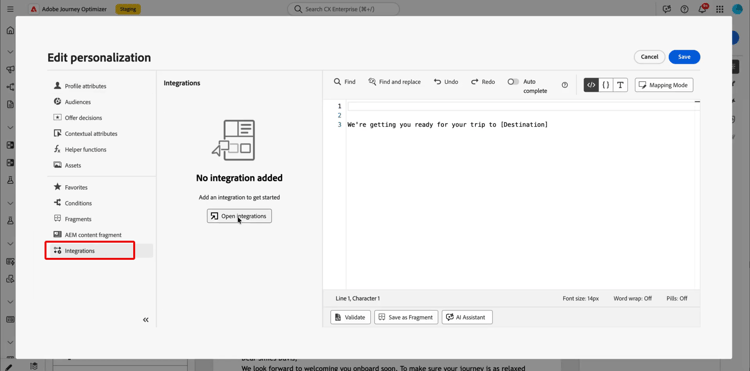
-
Add the integration whose response will feed the next call, for example, reservation or booking data that includes the flight identifier.
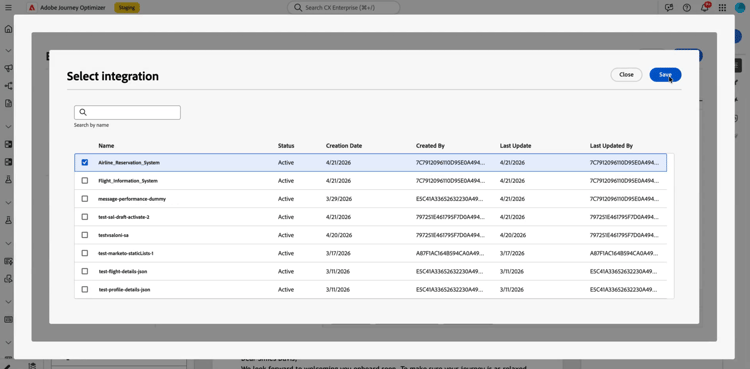
-
(Optional) Open the Helper function menu and add a helper, for example, the
Letfunction, if you want to bind a named variable to the reservation response.note NOTE Only fields exposed in the administrator-defined Response payload are available. You cannot reference properties that were not exposed in configuration. -
If you use a helper variable, map that variable to the field the reservation integration returns for downstream use, for example, the flight number in the passenger or booking payload.
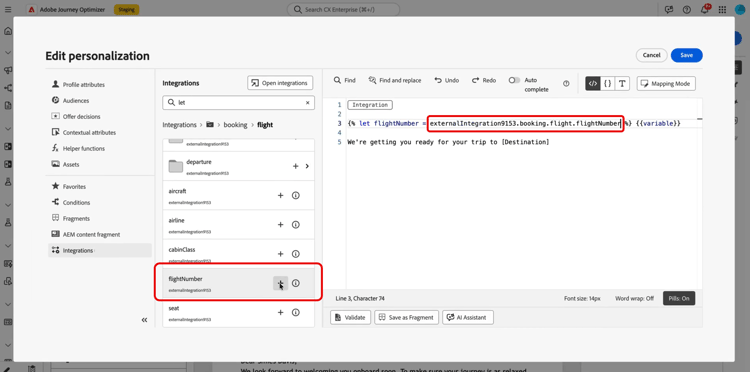
-
From the Open integrations menu, add the second integration, for example, flight status.
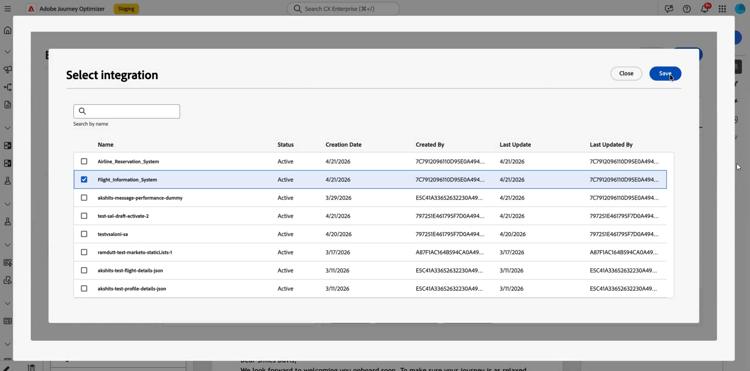
-
In the second integration, open Integrations attributes. For each input that must reuse data from the first call, such as a path variable, header, or query parameter, select a mapping source from the first integration response.
In the Pills experience, you can map first-call output directly to second-call input without a
Letstatement. If you usedLet, you can map through that variable instead.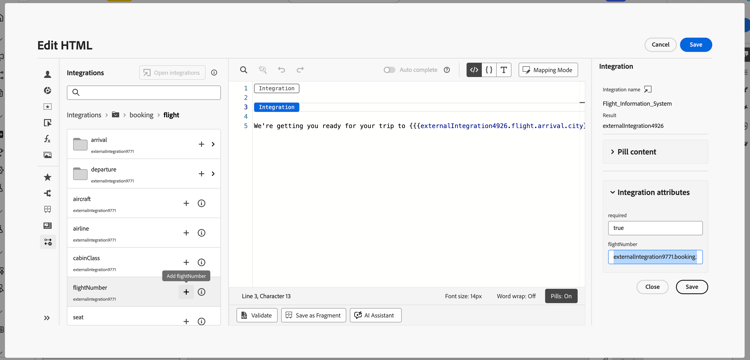
-
Insert tokens from the second integration into your content with the
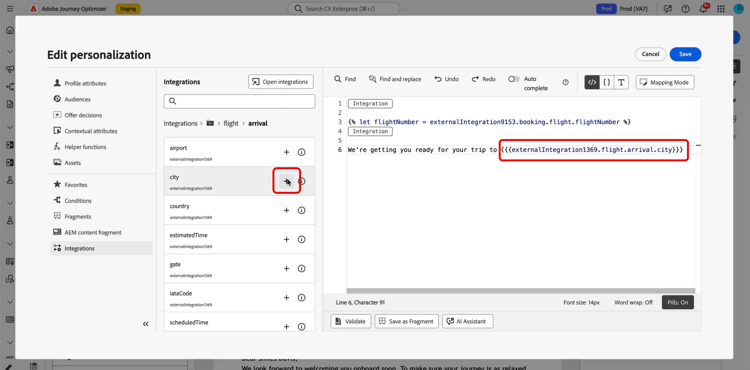
-
Save your content.
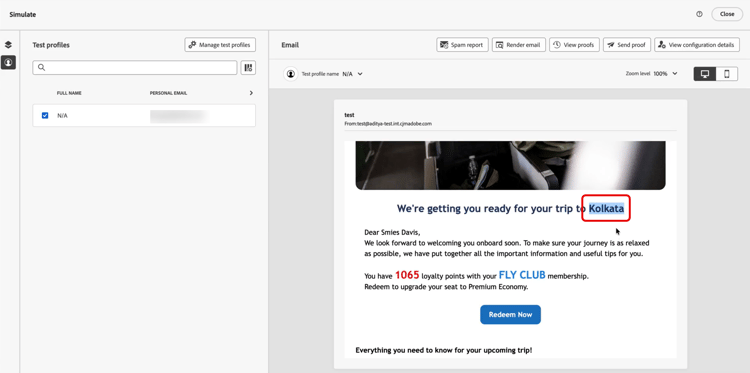
On Simulation or send, Journey Optimizer runs integrations in order: the first call uses your configured profile context, and its result builds the second request. Whether a given integration runs at simulation or send time depends on your setup and channel.
Use Adobe Target Recommendations in your content use-adobe-target-in-templates
This section explains how to use Integrations in Adobe Journey Optimizer to fetch personalization data from Adobe Target at send time and use it in your message content, whether authored in a template or inline. It assumes the Target Delivery API has already been configured as an integration.
For configuration steps, see Work with Integrations and the Adobe Target Recommendations sample.
The Target Delivery API returns a prefetch.mboxes array. Each mbox includes an options object with content and type fields. The type value determines how you use content in your template. Open the tab that matches your mbox response, then follow the steps to use that data in your message.
When type is json, the content field is a JSON string. Parse it before you access nested fields. The example below shows a typical Delivery API response for a JSON mbox.
| code language-json |
|---|
|
Use three helpers in sequence to fetch, extract, and parse the Target response.
-
Fetch the Target response. Call your configured Target integration with
externalDataLookup. SetintegrationNameto the Name of that integration (replace the example placeholdertarget_recommendations). Use theresultparameter to name the template variable that holds the full Delivery API payload—for example,targetResponse.You can also select the integration directly from the Integrations menu in the left navigation of the personalization editor. See Apply integration personalization to your content.
code language-handlebars {{externalDataLookup integrationName="target_recommendations" result="targetResponse"}} -
Extract a specific mbox using valueAtPath.
valueAtPathextracts an element from an array by its 0-based index and assigns it to a template variable. Use theidxparameter to specify which element to access.code language-handlebars {{valueAtPath targetResponse.prefetch.mboxes idx=0 result="summerOffer"}}table 0-row-2 1-row-2 2-row-2 3-row-2 Parameter Description pathPath to the array (positional, no keyword) idx0-based index for array access (optional) resultVariable name to store the extracted value note NOTE If idxis out of bounds, rendering throws an exception. Guard invalid indexes with{%#if idx >= 0 and idx < count(targetResponse.prefetch.mboxes)%}when the index may be invalid. PQL expressions cannot be used as the path. Available since release 2025.9.0. -
Parse the JSON string using parseJson. The mbox
options.contentfield is a raw JSON string.parseJsonconverts it into a structured object whose fields can then be accessed directly in the template.code language-handlebars {{parseJson jsonStr=summerOffer.options.content result="summerOfferContent"}}table 0-row-2 1-row-2 2-row-2 Parameter Description jsonStrPath to the string field containing valid JSON resultVariable name to store the parsed object note NOTE If the JSON string is invalid or the reference is null, resultis set tonull— no rendering error is thrown. Test with your actual Target response to confirm the content is valid JSON. Available since: 2026.6.0 -
Access the data. Once parsed, use dot notation to access fields from
summerOfferContent. To render a list of recommendations:code language-handlebars {{externalDataLookup integrationName="target_recommendations" result="targetResponse"}} {{valueAtPath targetResponse.prefetch.mboxes idx=0 result="summerOffer"}} {{parseJson jsonStr=summerOffer.options.content result="summerOfferContent"}} Strategy: {{summerOfferContent.strategy}} {{#each summerOfferContent.recommendations as |rec|}} {{rec.name}} — {{rec.price}} {{/each}}
When type is html, the content field is a ready-to-render HTML string. You do not need to parse it. The example below shows a typical Delivery API response for an HTML mbox.
| code language-json |
|---|
|
Fetch and extract the mbox, then render content directly. Skip parseJson.
| code language-handlebars |
|---|
|
| note |
|---|
| NOTE |
Use triple braces {{{...}}} to render HTML content as-is. Double braces {{...}} will escape HTML entities and render raw tag strings instead of the HTML. |
How-to video video
This video shows how Integrations connect Adobe Journey Optimizer to external APIs so you can pull live data and content into outbound channels, Email, SMS, and Push, for more relevant personalization.
This section contains structured knowledge intended to support interpretation, retrieval, and question answering related to this topic.
For complete understanding, this information should be combined with the documentation on this page. Neither source is intended to stand alone; the page describes the feature, while this section provides additional context that helps disambiguate terminology, intent, applicability, and constraints.
- TL;DR: This page explains how marketers apply configured external integrations to personalize email, SMS, and push content, chain one API call’s response into another, and use Adobe Target Delivery API responses in message templates.
Intents:
- Apply a configured integration to personalize Text or HTML content via Add personalization
- Control fallback behavior with the required field when an integration fails or returns no data
- Chain integrations so one call’s response feeds the next call’s inputs
- Map first-call output to second-call input using Pills mode or a Let helper
- Use Adobe Target Recommendations by fetching, extracting, and parsing the Target Delivery API response
- Render JSON or HTML mbox content with the externalDataLookup, valueAtPath, and parseJson helpers
Glossary:
- required field: An Integrations helper field that defines how failures or missing data interact with default content (product-specific)
- Pills mode: A mode that unlocks the advanced integration menu and lets you map first-call output directly to second-call input without a Let statement (product-specific)
- externalDataLookup: The helper that calls a configured integration and stores its full response in a named result variable (product-specific)
- valueAtPath: The helper that extracts an element from an array by its 0-based index and assigns it to a template variable (product-specific)
- parseJson: The helper that converts a raw JSON string field into a structured object for direct field access (product-specific)
- Simulation: The mode in which Journey Optimizer runs chained integrations in order, alongside send (product-specific)
Guardrails:
- You can add up to 3 integrations per Fragment and up to 5 on the message; integrations that come only from fragments do not count toward the 5.
- Journey Optimizer Fragments are available with Integrations but support outbound channels only.
- Once a fragment is published, adding and saving new integrations is disabled to avoid impact on existing journeys and campaigns.
- An administrator must have configured and activated each integration (endpoint, authentication, policies, response payload, and activation) before use.
- Tokens in a template must use only fields the administrator exposed in the integration configuration; unexposed fields are rejected in the editor.
- With required=true (default), rendering stops for that message, the send is excluded with ExternalDataLookupExclusion, and the exclusion is recorded in the message feedback dataset; with required=false, the result variable is set to null and rendering continues.
- For valueAtPath, if idx is out of bounds, rendering throws an exception; PQL expressions cannot be used as the path. Available since release 2025.9.0.
- For parseJson, if the JSON string is invalid or the reference is null, result is set to null and no rendering error is thrown. Available since 2026.6.0.
Terminology:
- Canonical name: External integrations for personalization — Acronym: n/a — variants: Integrations, integration personalization
- Synonyms: “required=true” = “default”
- Do not confuse: “required=true” (rendering stops, send excluded) ≠ “required=false” (result set to null, rendering continues)
- Do not confuse: JSON content (type is json; parse content with parseJson) ≠ HTML content (type is html; render content directly with triple braces)
FAQ:
- Q: How many integrations can I add? — Up to 3 per Fragment and up to 5 on the message; fragment-only integrations do not count toward the 5.
- Q: What happens if an integration returns no data? — With required=true the message rendering stops and the send is excluded (ExternalDataLookupExclusion, recorded in the message feedback dataset); with required=false the result is null and rendering continues, so use fallbacks or conditional logic.
- Q: Can I feed one integration’s response into another? — Yes; chain integrations so calls run in order in the same message, mapping first-call output to second-call input in Pills mode or through a Let variable.
- Q: How do I use an Adobe Target JSON mbox response? — Fetch it with externalDataLookup, extract the mbox with valueAtPath, then parse options.content with parseJson before accessing nested fields.
- Q: How do I render an Adobe Target HTML mbox response? — Fetch and extract the mbox, then render content directly with triple braces; skip parseJson.