Insert countdown timer countdown
Create urgency and maximize conversions with Dynamic Media countdown timers that update in real-time when recipients open your emails. This feature is ideal for flash sales, limited-time offers, and time-sensitive promotions.
For example, as a marketer for a retail brand, you’re running a 48-hour flash sale. By using the countdown timer in your promotional emails:
- Recipients who open immediately see “47 hours remaining”
- Recipients who open 24 hours later see “23 hours remaining”
- Recipients who open after the sale ends see “Time’s up!”
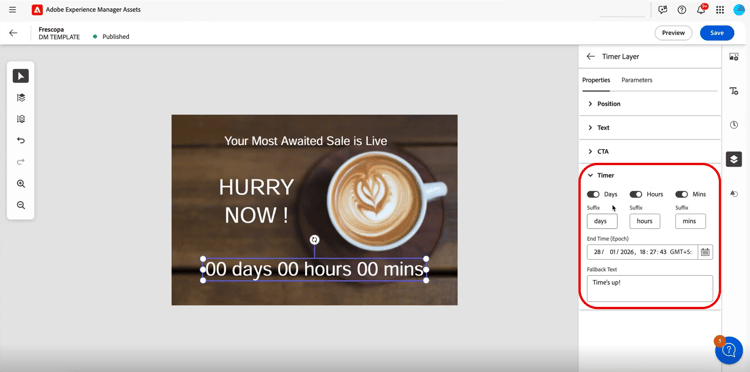
For more information on how to add countdown timers to your Dynamic Media template in Adobe Experience Manager, refer to this document.
-
In Adobe Experience Manager, create a Dynamic Media template and add a countdown timer component to it.
-
In Journey Optimizer, create a new campaign or open an existing one, then access the Email Designer.
-
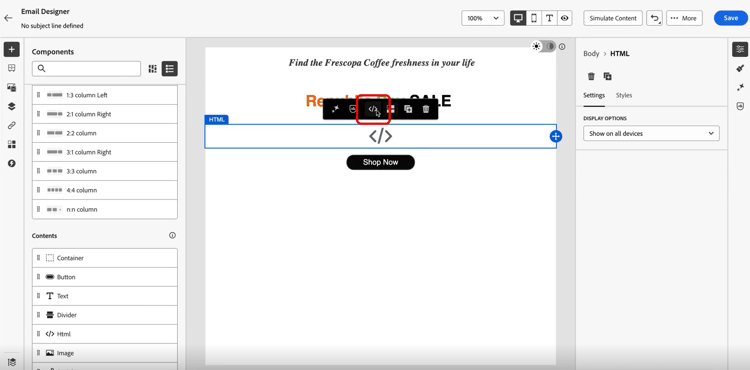
Drag and drop an HTML or Asset component into your email content.
-
Hover over the component and click Show the source code (for HTML components) or Browse (for Asset components).
-
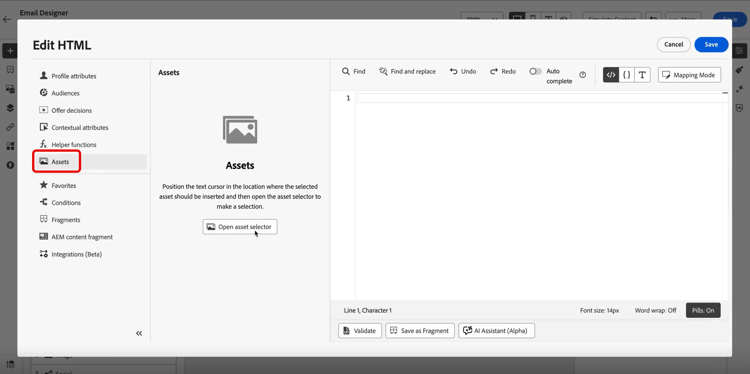
From the Edit HTML menu, navigate to Assets and click Open asset selector to browse and select your published Dynamic Media template.
-
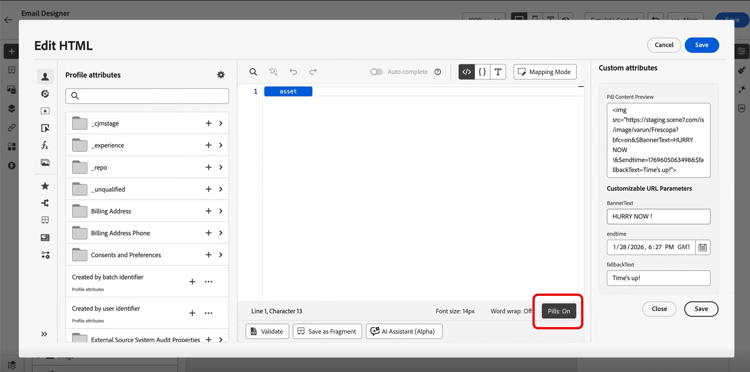
Enable the pills experience by toggling Pills to On. This improves readability by hiding long attribute paths.
-
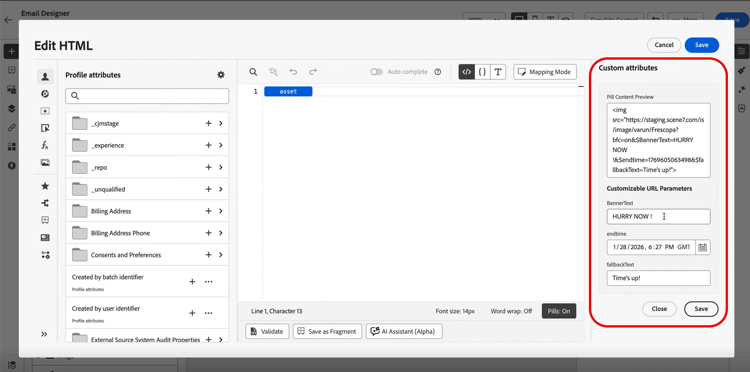
In the Custom attributes menu, configure any customizable URL parameters as needed for your template.
Click Save when finished.
-
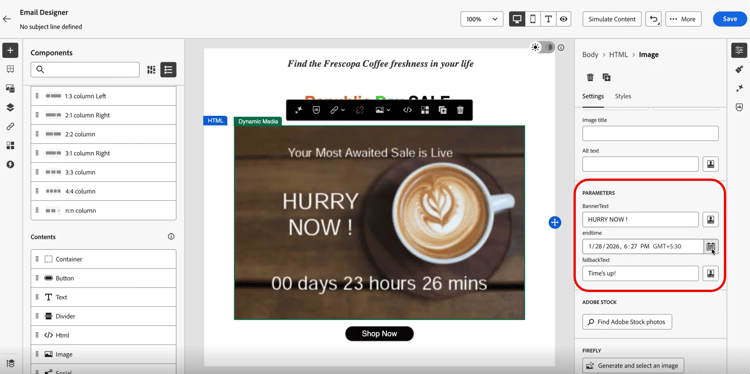
Alternatively, you can also access the parameters of the Dynamic Media template by selecting the asset in the Email Designer, then accessing the Settings menu.
Configure the following:
- Banner text: The text displayed with your timer
- End time: The date and time when the countdown expires. Enter the time in GMT (Greenwich Mean Time) only. The system does not accept other time zones.
- Fallback text: The message shown after the timer ends
-
Click Preview to view the timer with real-time countdown updates and verify your configuration.
When recipients open the email, they see the accurate time remaining for your flash sale. If they reopen the email later, the countdown automatically updates to reflect the current time remaining. After the end date, the default message appears automatically.