On this page: Learn how to access and use Adobe Experience Manager Content Advisor to discover assets, dynamic media, and Content Fragments through AI-powered semantic search directly in Journey Optimizer authoring workflows.
Adobe Experience Manager Content Advisor replaces deterministic discovery with standardized intent-driven discovery from a unified surface. It enables unified, AI-powered discovery of Assets, Dynamic media and Content Fragments directly within Journey Optimizer authoring workflows, improving marketer productivity and campaign efficiency.
➡️ Learn more about Adobe Experience Manager Content Advisor in Adobe Experience Manager documentation
Available capabilities
For Assets asset-features
Adobe Experience Manager Content Advisor provides the following asset capabilities:
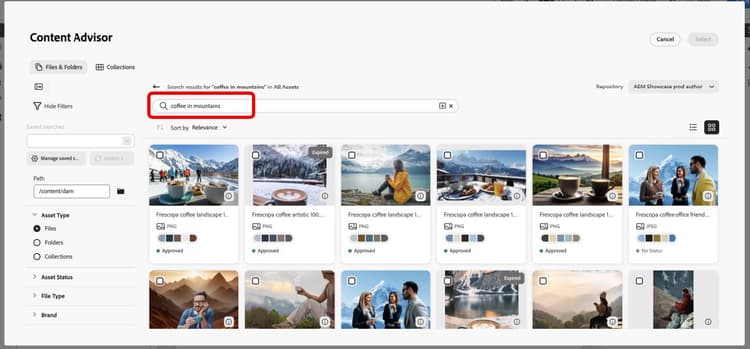
Search for assets using natural language instead of exact keywords or file names. Describe what you need in plain language, for example, “coffee in the mountains”, and the AI surfaces contextually relevant assets based on meaning and content, not just text matches. Multi-lingual search is also supported, so you can query in your preferred language and still find the right assets regardless of the language in which they were tagged or named.
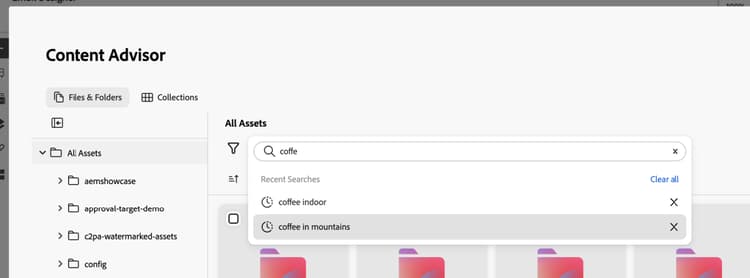
Access your recent searches to quickly reuse keywords and contexts. This saves time when working on similar campaigns or when you need to refine previous searches.
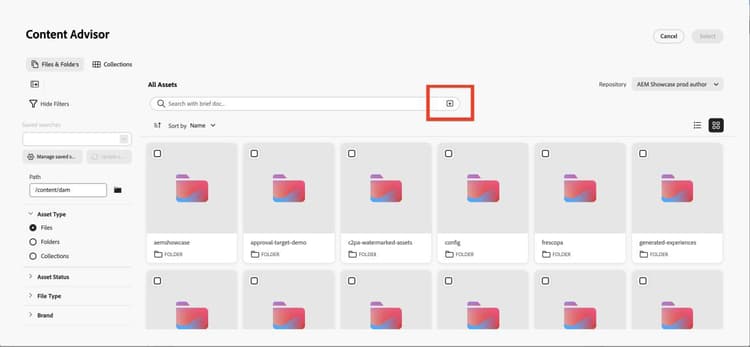
Upload a marketing brief document to automatically surface assets that align with your campaign context. The AI analyzes your brief and suggests relevant assets based on the content and requirements described in the document.
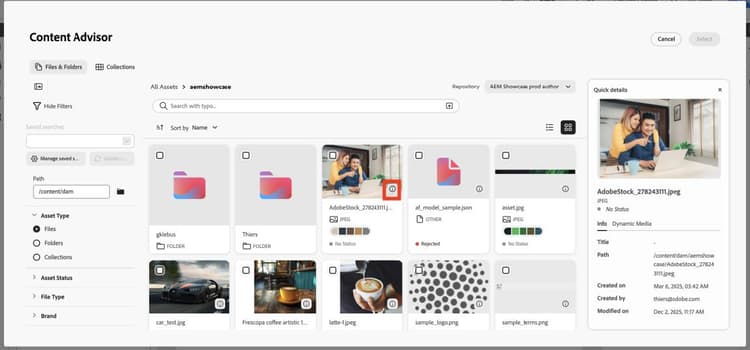
View detailed metadata and properties for any asset using the Info icon. This includes asset dimensions, file size, creation date, tags, and other relevant information to help you make informed decisions.
Access dynamic renditions, smart crops, and on-the-fly modifications based on repository configuration.
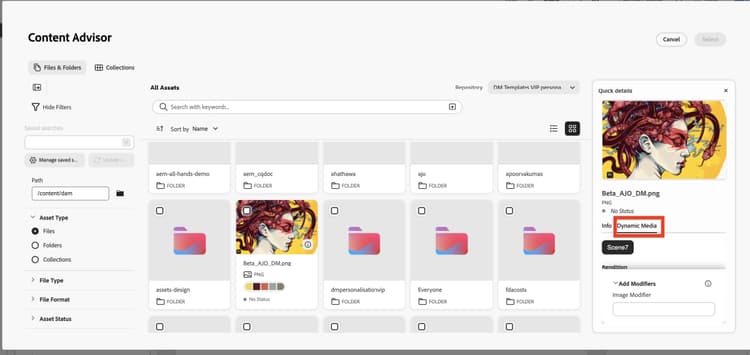
The Dynamic Media panel provides access to dynamic renditions, smart crops, and on-the-fly modifications. You can enter modifiers directly in the panel to create custom renditions.
Availability
Dynamic Media availability depends on your repository configuration:
-
Scene7: Available for published assets (except Video and PDF). Learn more on Dynamic Media Scene7 modifiers
-
OpenAPI: Available for approved assets (except Video). Learn more on Dynamic Media with OpenAPI modifiers
-
Both Scene7 and OpenAPI: Available when both configurations exist and the asset meets the criteria.
Stack selection
The buttons you see depend on your repository configuration:
- Scene7 button only: Repository has Scene7 configuration and asset is published to Dynamic Media.
- OpenAPI button only: Repository has OpenAPI configuration and asset is approved.
- Both buttons: Repository has both configurations and asset is both published and approved.
For Content Fragment content-fragment-features
Adobe Experience Manager Content Advisor provides the following Content Fragment features:
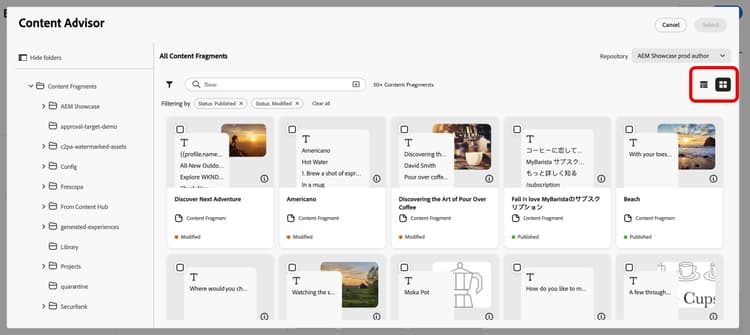
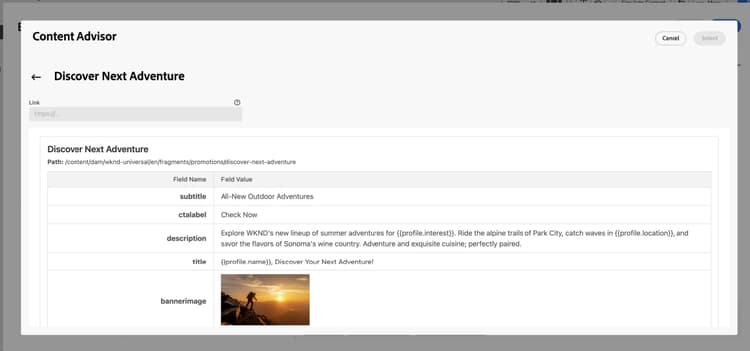
Switch between thumbnail and table views to browse Content Fragments in the format that works best for your workflow. Thumbnail view provides visual context, while table view shows detailed information in a structured format.
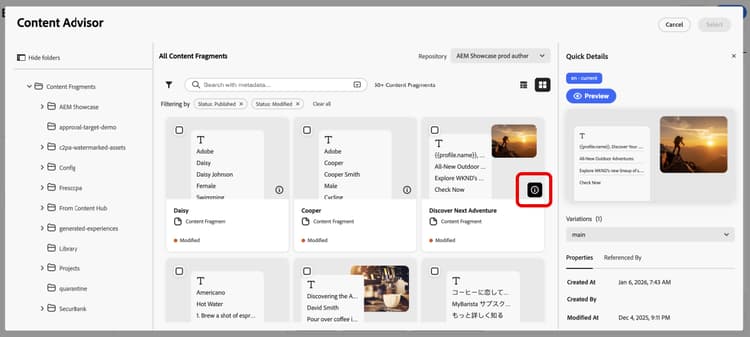
Click the Info icon to open a right panel displaying fragment variations, properties, and Referenced By details. The Referenced By section shows all Adobe Experience Manager entities where the fragment is used, with links to view these references directly in Adobe Experience Manager.
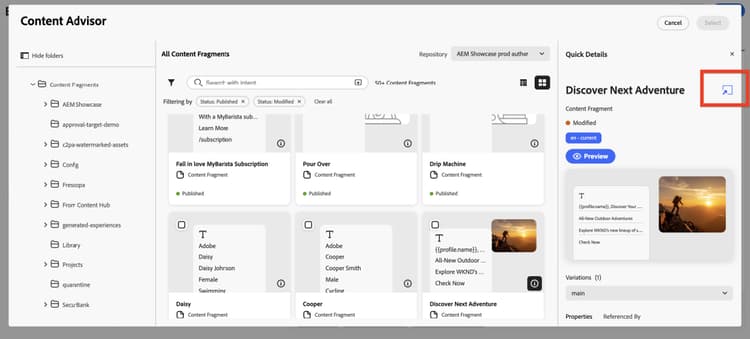
Quickly open any Content Fragment directly in Adobe Experience Manager for editing using the icon next to the title. This seamless integration lets you switch between Journey Optimizer and Adobe Experience Manager without losing context.
Preview the JSON structure of Content Fragments in a clean, organized tabular format. This helps you understand the fragment’s data structure and verify content before using it in your campaigns.
Access Adobe Experience Manager content advisor access
To access Adobe Experience Manager Content Advisor in Journey Optimizer, follow these steps:
-
Create a campaign in Adobe Journey Optimizer and add a channel action, for example Email.
-
Click Edit Content, then click Edit Email Body to open the content editor.
-
Drag and drop an HTML or Text component into your email content.
-
Hover over the component and click Show the source code (for HTML components) or Add Personalization (for Text components).
-
In the Personalization Editor, choose your content entry point:
-
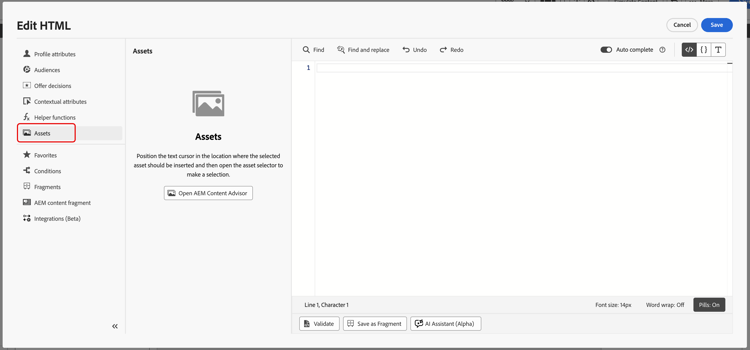
To add an asset, click Assets then Open AEM Content Advisor.
-
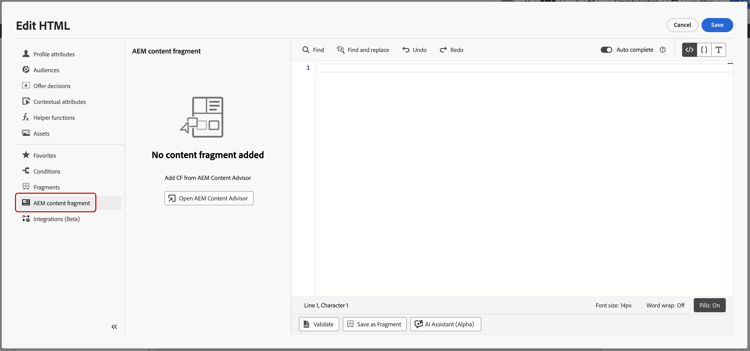
To add an Adobe Experience Manager Content Fragment, click AEM Content Fragment then Open AEM Content Advisor.
-
-
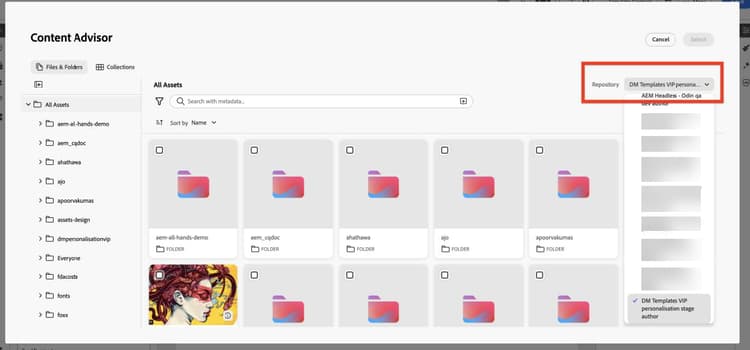
Select your Adobe Experience Manager repository.
-
Browse and select the asset or content fragment you want to use, then insert it into your content.
This section contains structured knowledge intended to support interpretation, retrieval, and question answering related to this topic.
For complete understanding, this information should be combined with the documentation on this page. Neither source is intended to stand alone; the page describes the feature, while this section provides additional context that helps disambiguate terminology, intent, applicability, and constraints.
- TL;DR: This page explains how to use Adobe Experience Manager Content Advisor to discover Assets, Dynamic media, and Content Fragments through AI-powered semantic search directly within Journey Optimizer authoring workflows.
Intents:
- Search for assets using natural language semantic search, including multi-lingual queries
- Reuse recent searches or upload a marketing brief to surface relevant assets
- Access dynamic renditions, smart crops, and on-the-fly modifications from the Dynamic Media panel
- Browse Content Fragments in thumbnail or table view and inspect variations, properties, and Referenced By details
- Open a Content Fragment directly in Adobe Experience Manager or preview its JSON structure
- Open Content Advisor from the Personalization Editor for Assets or AEM Content Fragments
Glossary:
- Content Advisor: A unified, AI-powered discovery surface for Assets, Dynamic media, and Content Fragments inside Journey Optimizer authoring workflows (product-specific)
- AI semantic search: Natural-language search that surfaces contextually relevant assets based on meaning and content rather than exact keywords or file names (product-specific)
- Upload brief: An option to upload a marketing brief document so the AI surfaces assets aligned with the campaign context (product-specific)
- Dynamic Media panel: A panel providing dynamic renditions, smart crops, and on-the-fly modifications, where modifiers can be entered to create custom renditions (product-specific)
- Referenced By: An Info panel section showing all Adobe Experience Manager entities where a Content Fragment is used, with links to view them in Adobe Experience Manager (product-specific)
Guardrails:
- Dynamic Media with Scene7 configuration is available for published assets except Video and PDF.
- Dynamic Media with OpenAPI configuration is available for approved assets except Video.
- Cross-organization repository access is limited to repositories to which you have access.
- The Dynamic Media buttons shown (Scene7 only, OpenAPI only, or both) depend on the repository configuration and whether the asset is published and/or approved.
Terminology:
- Canonical name: Adobe Experience Manager Content Advisor — Acronym: n/a — variants: AEM Content Advisor, Content Advisor
- Synonyms: “Scene7” = “Scene7 configuration”
- Do not confuse: “Scene7” (available for published assets, except Video and PDF) ≠ “OpenAPI” (available for approved assets, except Video)
FAQ:
- Q: What can I discover with Content Advisor? — Assets, Dynamic media, and Content Fragments, through AI-powered semantic search within Journey Optimizer authoring workflows.
- Q: Can I search in a language other than English? — Yes; multi-lingual search is supported, so you can query in your preferred language regardless of the language the assets were tagged or named in.
- Q: How do I open Content Advisor? — In the Personalization Editor, click Assets then Open AEM Content Advisor, or click AEM Content Fragment then Open AEM Content Advisor, then select your repository.
- Q: What does the Info panel show for a Content Fragment? — Fragment variations, properties, and Referenced By details, which link to the Adobe Experience Manager entities where the fragment is used.
- Q: Why do I see different Dynamic Media buttons for different assets? — The buttons depend on the repository configuration and whether the asset is published (Scene7) and/or approved (OpenAPI).