On this page: Explore practical use cases for Generate Content in Adobe Journey Optimizer, from reusing existing content and refining text variations to generating images, applying style references, and working across supported languages.
Use existing content
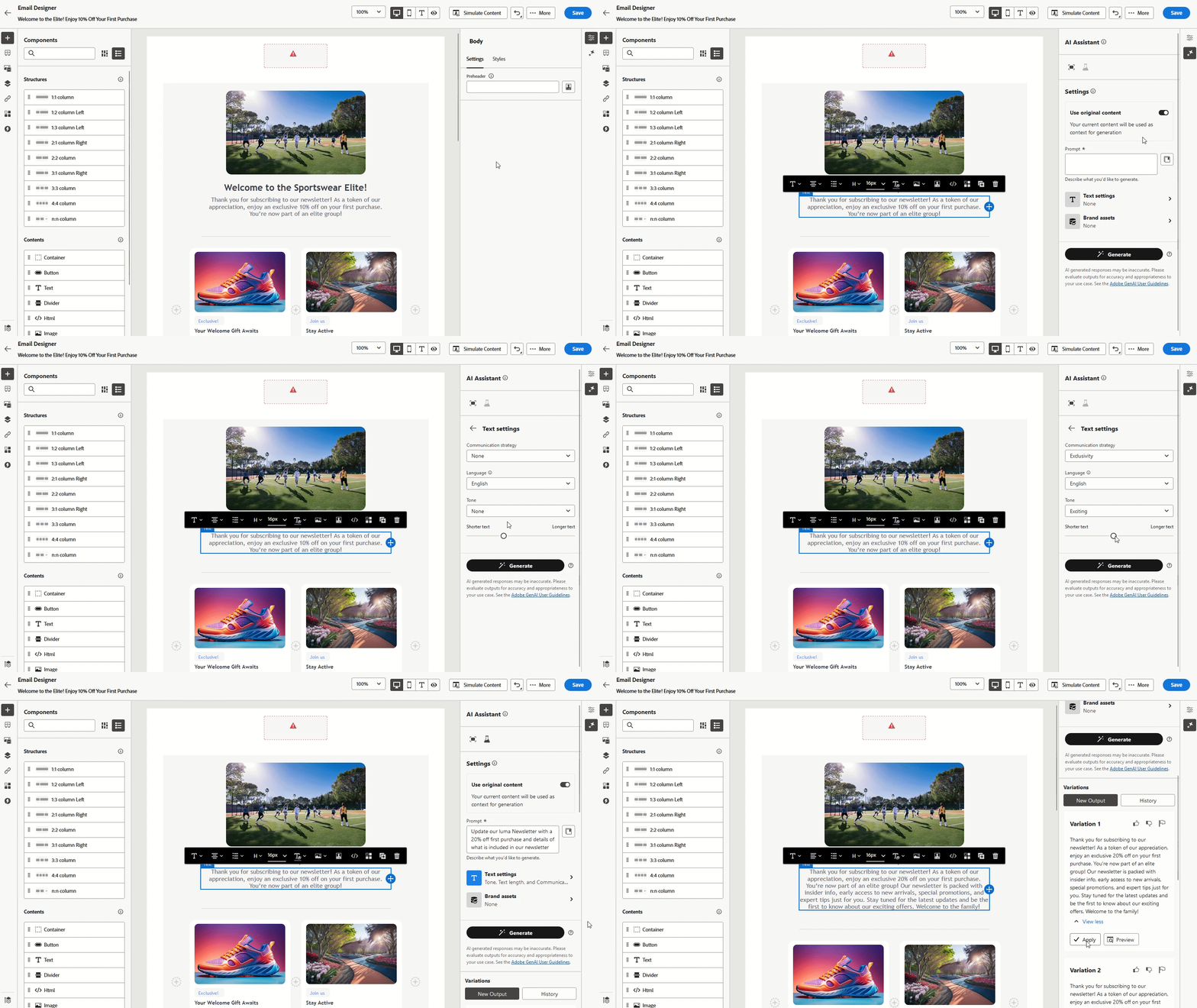
Generate variations from the content and context already in your campaign so they remain consistent with your message and audience.
-
After setting up your campaign, select Edit content.
-
Open the Generate Content section.
-
Turn on the Use original content feature within Generate Content to tailor new content according to your campaign details, including the campaign name and targeted audience.
-
Adjust the content by specifying your request in the Prompt box and customize the settings as necessary.
-
When you are satisfied with the prompt, click Generate.
-
Explore the available Variations and click Preview to see the selected variation in full screen.
When you have defined your content, audience and schedule, you are ready to prepare your email campaign. Learn more
Refine variation refine
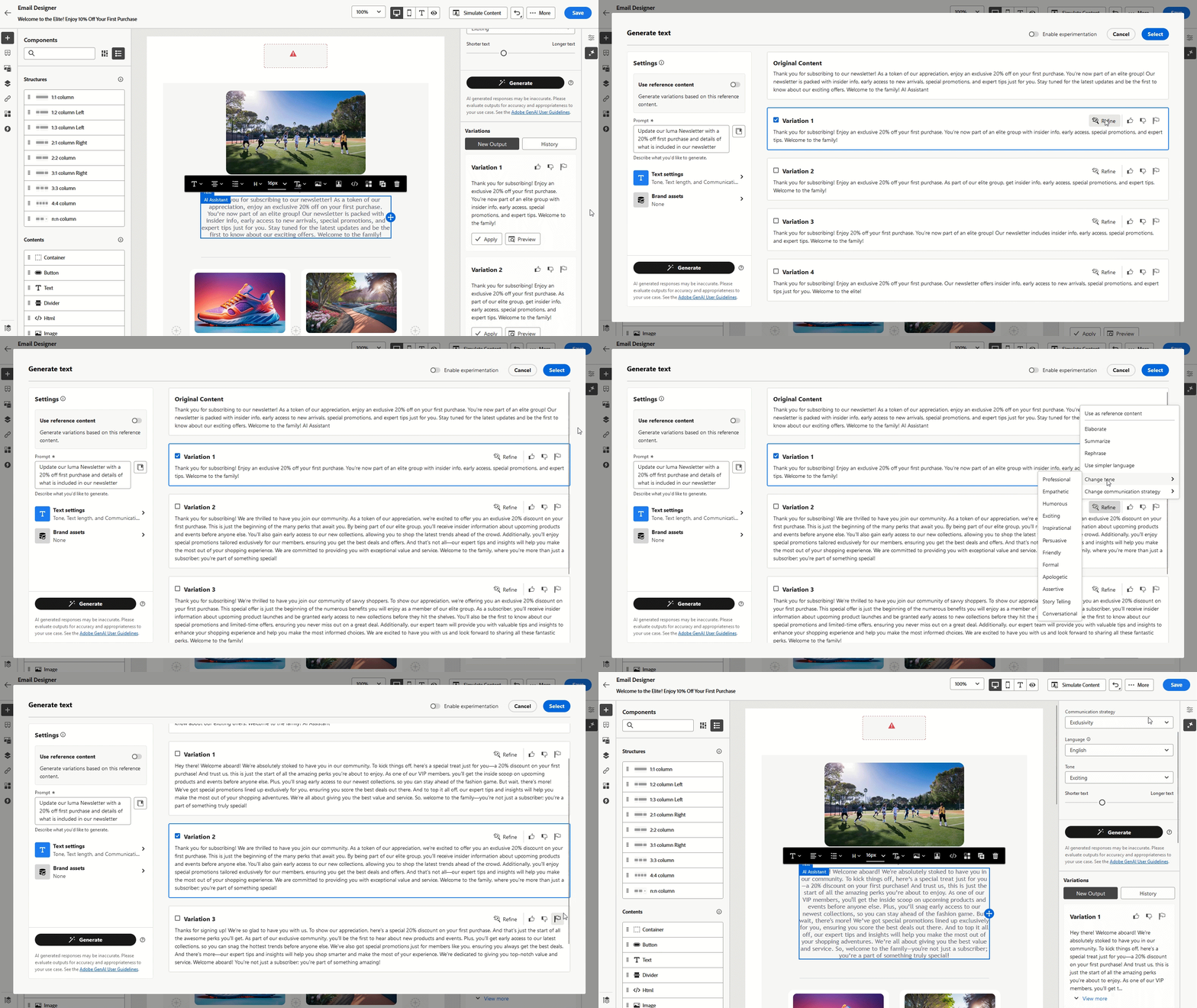
Adjust an AI-generated variation in place, tone, length, wording, and strategy, before you select the final text.
-
Once your campaign is set up and configured, click Edit content.
-
Open the Generate Content menu.
-
Adjust the content by entering your desired request in the Prompt box and modify the settings as necessary.
-
When you are ready, click Generate.
-
Review the generated Variations and select Preview to see a full-screen view of the chosen option.
-
In the Preview window, go to the Refine option for further customization, including:
-
Use as reference content: The selected variation will act as a reference to generate more content.
-
Elaborate: Let AI expand on certain points, offering more depth and detail for better engagement.
-
Summarize: For lengthy information, use AI to create concise summaries that are easier for email recipients to digest.
-
Rephrase: Generate Content can present your message in different ways, helping to keep the content fresh for a variety of audiences.
-
Use simpler language: Use AI to simplify the language and ensure the message is clear and accessible to all readers.
Additionally, you can adjust the Tone and Communication strategy of your content.
-
-
When you have found the right content, click Select.
Generate Similar image
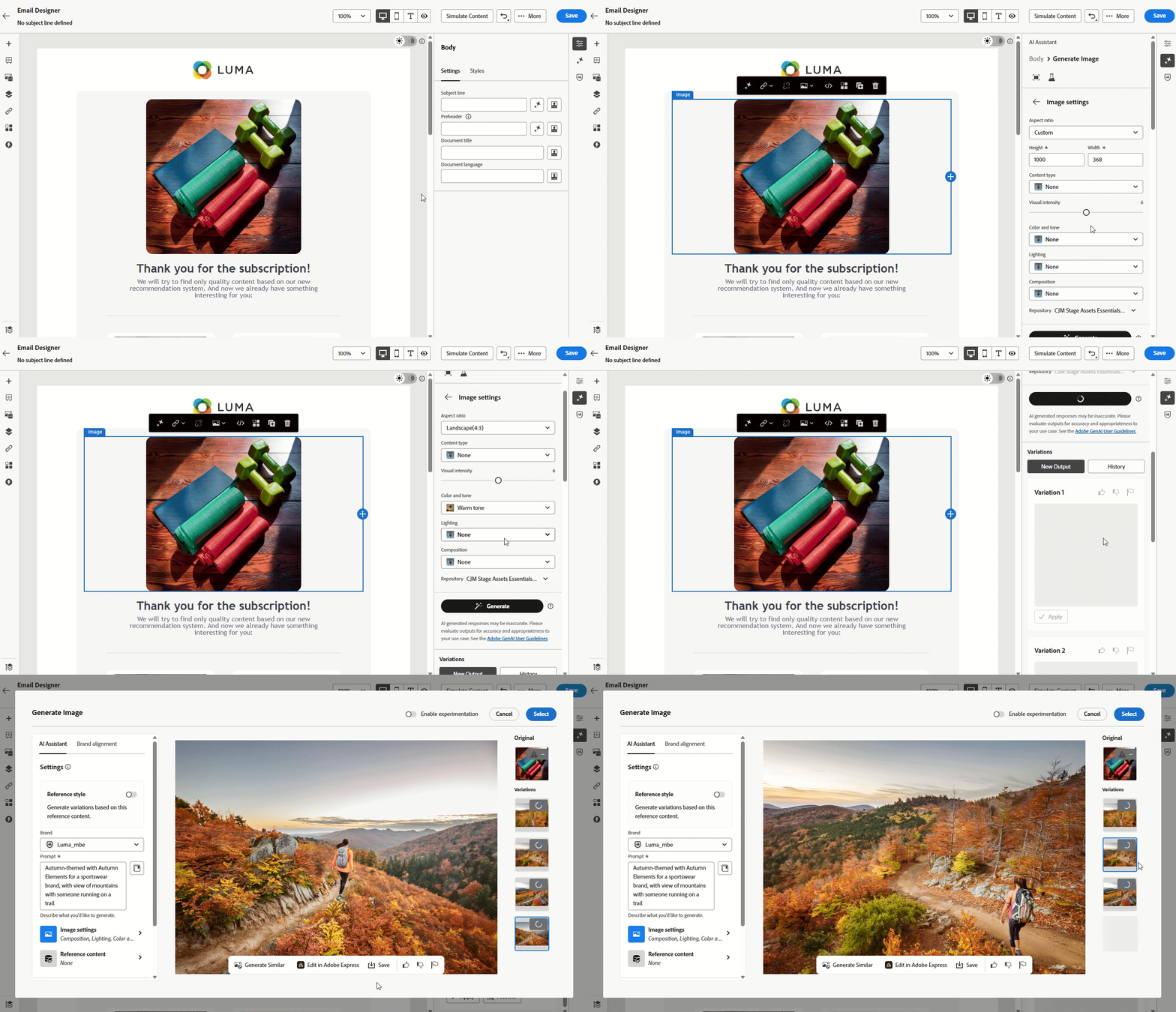
When an image is almost suitable, generate additional options that preserve the same overall look and theme.
-
After setting up your campaign, select Edit content.
-
Open the Generate Content section.
-
Adjust the content by specifying your request in the Prompt box and customize the settings as necessary.
-
When you are satisfied with the prompt, click Generate.
-
Browse the Variation suggestions to find the desired Asset.
Click Preview to view a full-screen version of the selected variation.
-
Choose Generate Similar to explore image variations that closely resemble the current option, offering alternative designs with a similar theme.
-
Click Select once you found the appropriate content.
Upload a style reference
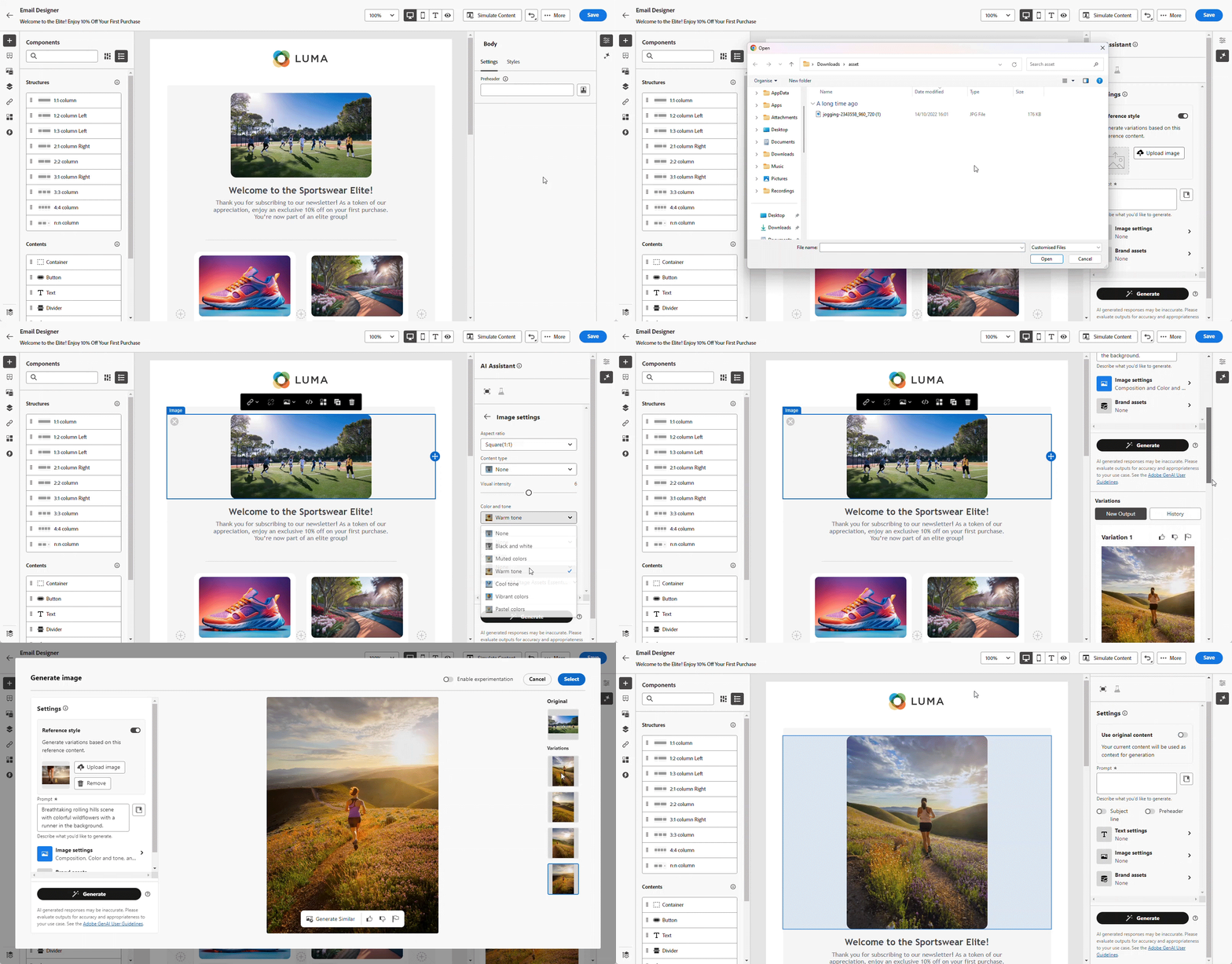
Upload a reference image so that new visuals follow a desired style, palette, or composition.
-
After setting up and configuring your email campaign, click Edit content.
-
Choose the asset you want to modify using Generate Content.
-
From the right-pane menu, choose Generate Content.
-
Turn on the Reference style option so Generate Content can generate new content using the reference material.
-
Click Upload image to include an image that adds context to your variation.
-
Refine the content by specifying what you want to generate in the Prompt box and adjust the settings as needed.
-
When you are satisfy with your prompt, click Generate.
-
Review the Variation suggestions to locate the asset you prefer.
-
Select Preview to see the chosen variation in full-screen.
-
Once you find the suitable content, click Select.
Generate content across supported languages languages
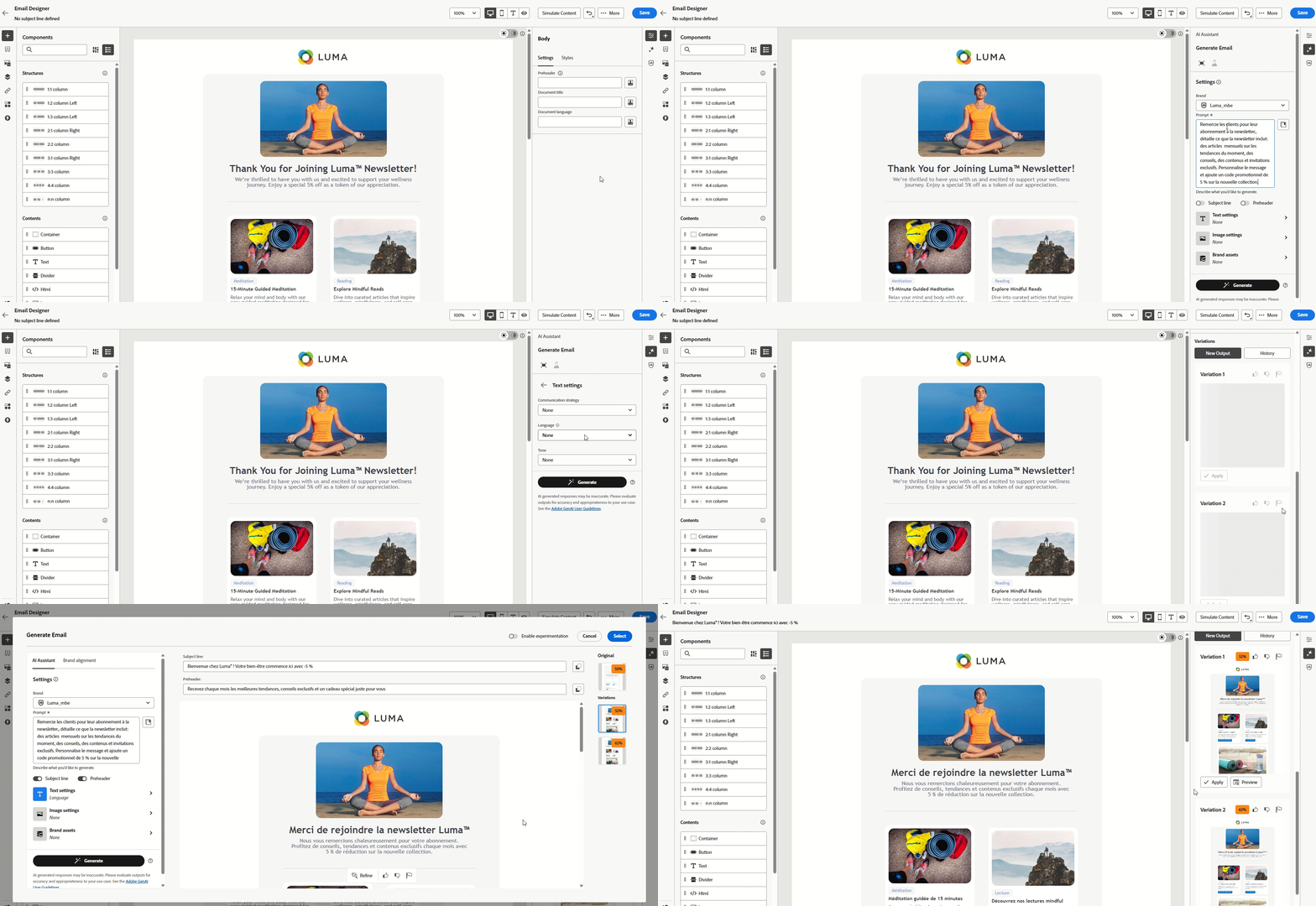
Produce text in the languages supported by Generate Content by combining your prompt with explicit language settings.
-
Once your campaign is set up and configured, click Edit content.
-
Open the Generate Content menu.
-
Adjust the content by entering your desired request in the Prompt box in French, Spanish, German, Italian, Japanese, Swedish, Dutch or Norwegian.
-
Tailor your prompt with the Text settings option and select the desired Languages for your generated content.
-
Further personalize your prompt as needed and click Generate.
-
Review the Variation suggestions in your selected language.
-
Once you find the suitable content, click Select.
Use reference content for generation
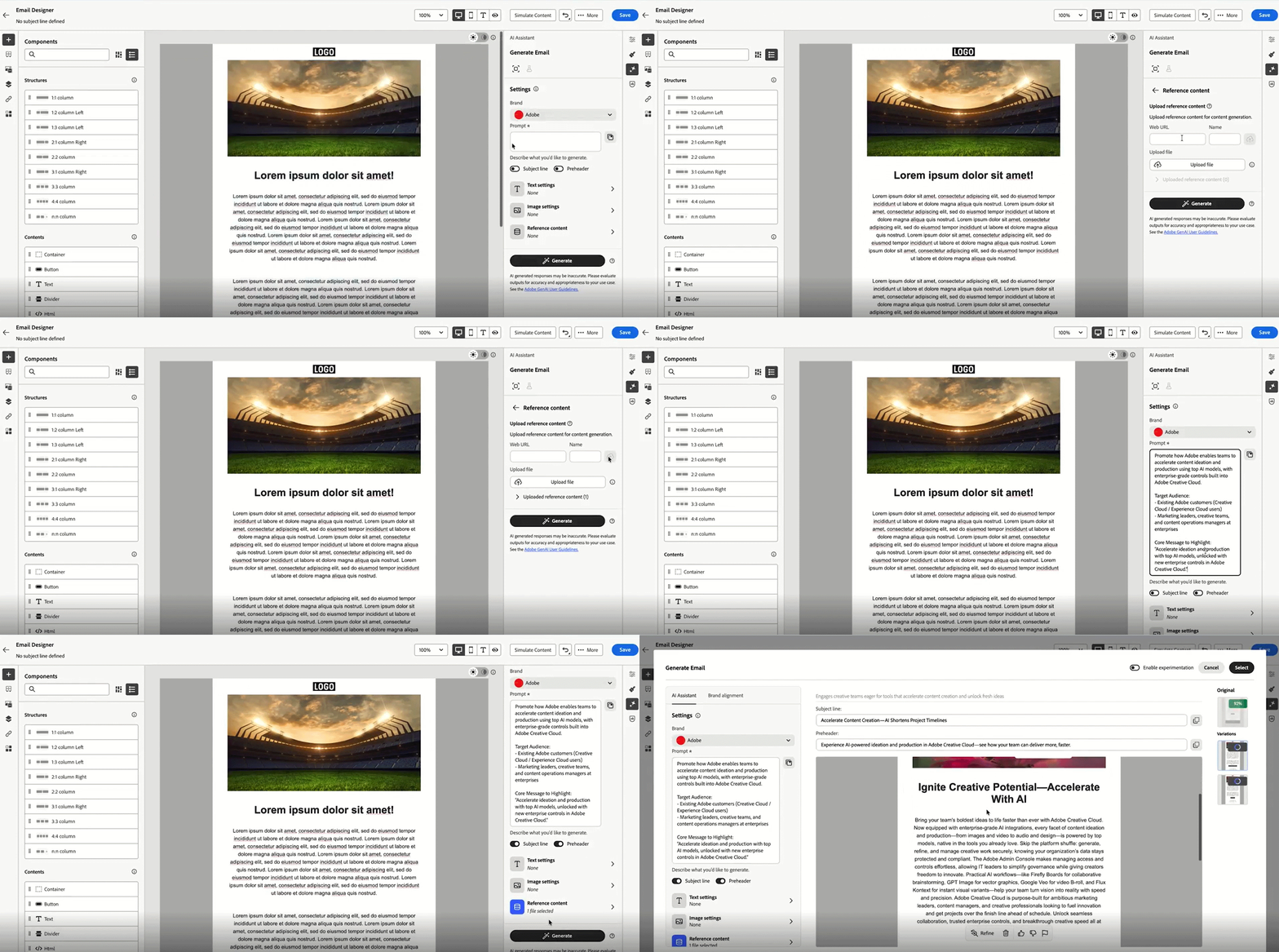
You can give Generate Content more context by adding reference content, a web page or uploaded files, so generated copy and suggestions stay closer to your source material.
-
When your campaign is ready, click Edit content.
-
Open Generate Content.
-
Describe what you want in the Prompt field.
-
In Reference content, enter the page URL and a name that identifies it.
-
Click

-
To use a file instead, choose Upload file option and select your document. Supported formats include .pdf, .png, .jpg, .jpeg, .zip, .md, .doc, .txt, and .docx.
-
In Uploaded reference content, enable or disable individual references, or delete any you no longer need.
-
Adjust your prompt if needed, then click Generate.
-
Review Variation suggestions and click Select on the variation you want to use.
Use your generative model generative-model
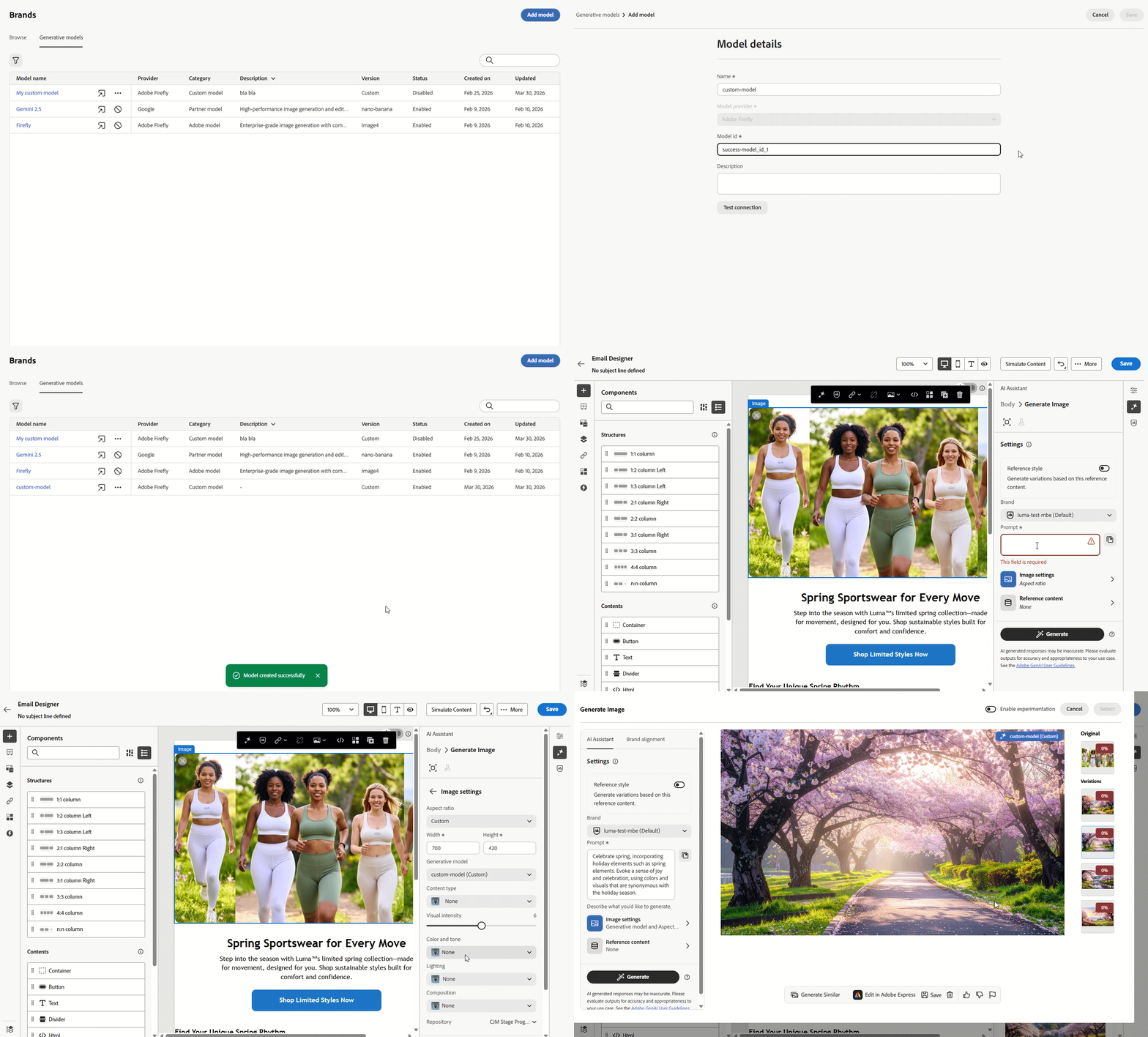
Register a custom generative model and route image generation through it from Generate Content.
-
From the Brands menu, open the Generative Models tab and click Add model.
-
Enter a Name for the model and the Model ID.
-
Optionally, enter a Description to distinguish this model in the list.
-
Click Test connection to verify the model configuration, then click Save. The model is added to the models list.
-
From the campaign, click Edit content.
-
Select the asset to be modified with Generate Content and open the Generate Content.
-
Specify your request in the Prompt field and adjust the remaining settings as appropriate.
-
Open Image settings and select the Generative model you previously configured.
-
Adjust the prompt as necessary, then click Generate.
-
Review the Variation suggestions in the selected language and click Select once a suitable variation is identified.
Use Gemini as generative model for text-overlay image
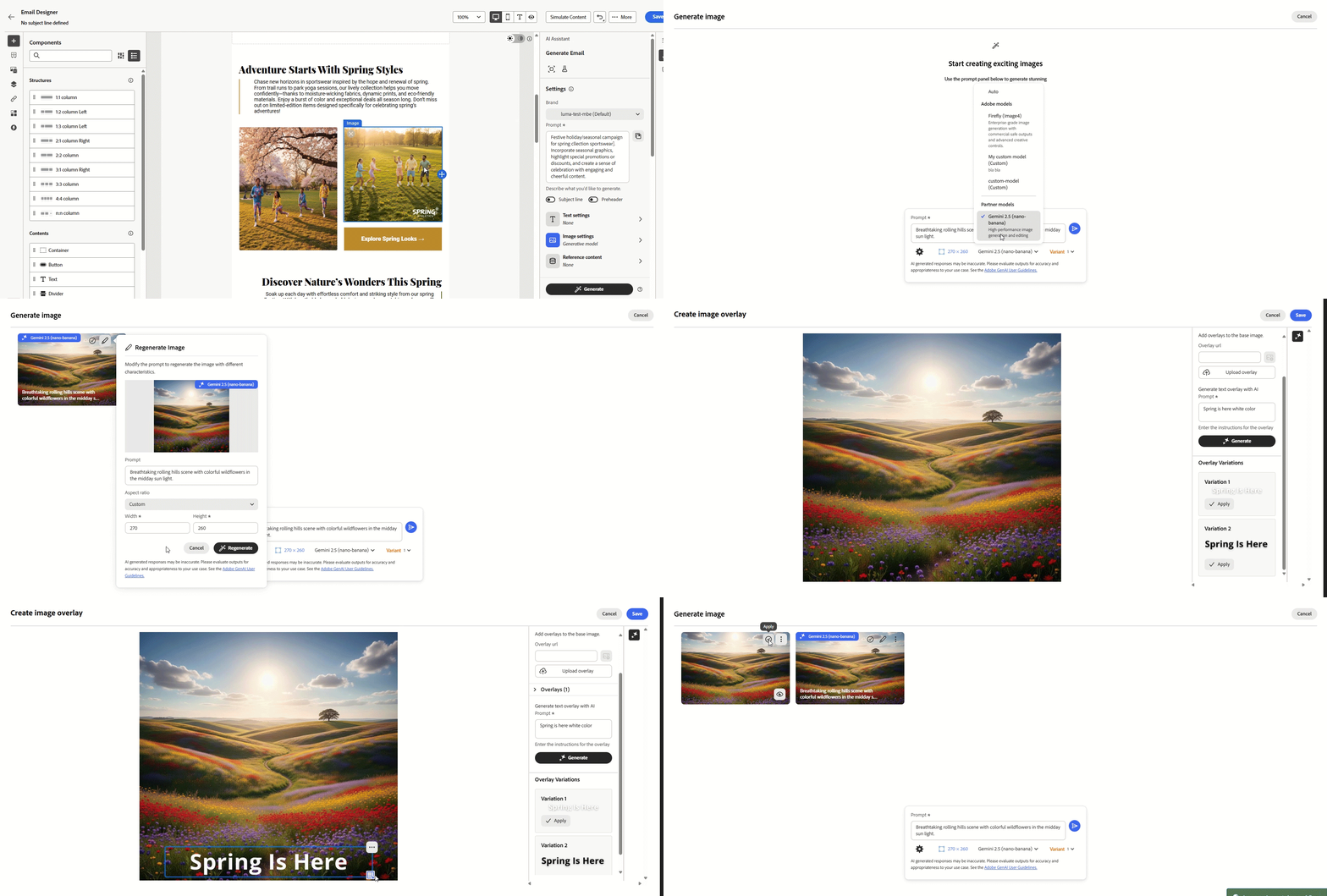
With Gemini 2.5 selected as the generative model, you can produce image variants in Generate Content, add text overlays from a URL, a file, or an AI-generated prompt, then position overlays before applying a final variation.
-
When your campaign is ready, click Edit content.
-
Select the asset to use as the base image and open Generate Content.
-
Click Open settings to adjust image generation options.
-
Under Generative model, select Gemini 2.5 (nano-banana).
-
Enter your request in the Prompt field.
-
Choose how many variants you want, then click Generate.
-
After generation, preview variants or refine settings to regenerate. From the advanced menu you can also:
- Create an image overlay
- Generate Similar
- Crop image
- Save to AEM assets
- Delete
-
Select Create an image overlay. Add an overlay from a URL, upload a file, or use Generate text overlay with AI and describe the overlay in the Prompt.
-
Click Generate.
-
Review Overlay Variations and click Apply.
-
Position the overlay on the image as needed. From the advanced menu you can:
- Delete overlay
- Move forward
- Move backward
- Duplicate
-
When the text overlay looks right, click Save, then click Apply on the variation you want to use.
Use Image settings mode image-mode
The Mode option under Image settings controls how images are sourced from your Digital Asset Management library and generated content.
-
After setting up your campaign, select Edit content.
-
Open the Generate content section.
-
Adjust the content by specifying your request in the Prompt box and customize the settings as necessary.
-
Choose your Mode in the Image settings menu:
- Balanced: AI uses matching image from your Digital Asset Management library first. When that is not enough to cover the visuals you need, it generates images with AI.
To use this, enable Use images from DAM, then choose a folder from your Digital Asset Management library to set your DAM path. - DAM (Digital Asset Management): AI looks for a matching image in your Digital Asset Management library and uses it as part of the generated content. If no match is found, add reference content or images manually before you generate.
Choose a folder from your Digital Asset Management library to set your DAM path. - Creative (default): AI creates images with generative AI and does not pull images directly from your Digital Asset Management library.

- Balanced: AI uses matching image from your Digital Asset Management library first. When that is not enough to cover the visuals you need, it generates images with AI.
-
Click Generate and browse the Variation suggestions to find the desired Asset.
-
Click Preview to view a full-screen version of the selected variation.
-
If the image is coming from your library, click the Image options to browse through your other relevant assets.

-
Click Apply to change your asset.
-
If AI does not find a matching image in your Digital Asset Management library, the variation shows a placeholder image. Add reference content or upload an image manually, then generate again.
