On this page: Configure and use the Marketo Engage custom action so you can sync person and custom object data from your journeys into Marketo Engage.
Embark on a journey of seamless data integration with Marketo Engage. A specific custom action is available in your journeys to integrate Adobe Journey Optimizer and Marketo Engage. This custom action supports the ingestion of two key data types:
- Persons (Profiles): Marketo transforms profiles into actionable insights.
- Custom Objects: Tailor your data with custom objects, such as products, for a personalized marketing approach.
Prerequisites prerequisites
The following prerequisites apply to this integration:
- The customer instance of Marketo Engage must be IMS-enabled
- Marketo Engage instance and Adobe Experience Platform/Journey Optimizer instance must be in the same organization
- The customer must be provisioned with MktoSync: Ingestion Service access
Configure the action configure-marketo-action
In Journey Optimizer, you must configure a custom action for Marketo Engage. Follow these steps:
-
Select Configurations in the ADMINISTRATION menu section.
-
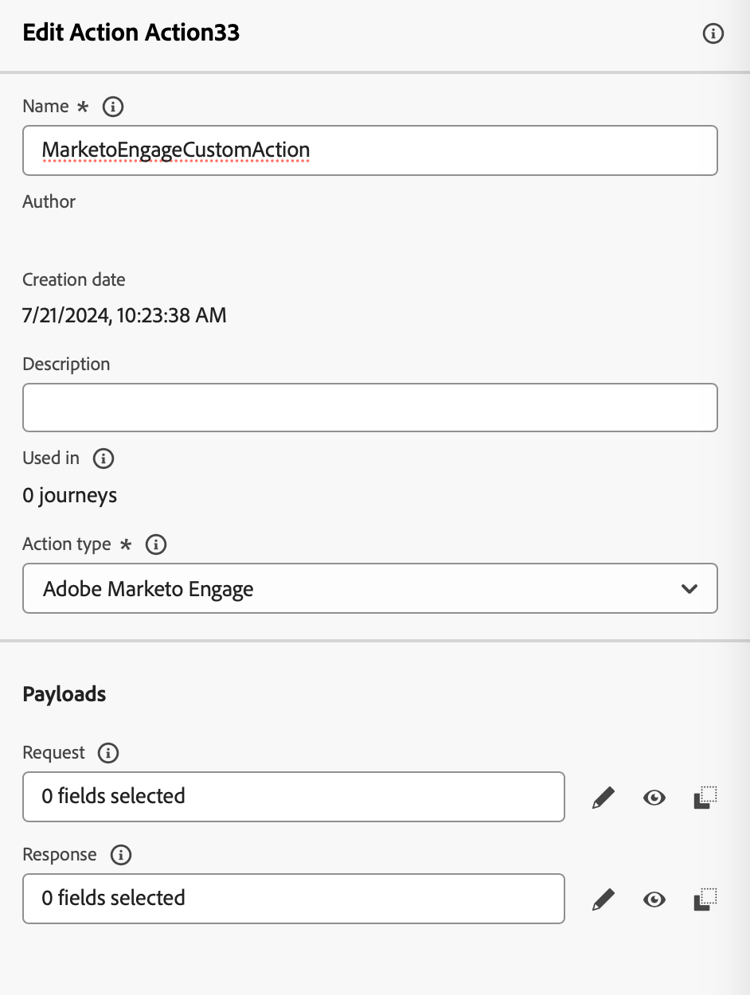
In the Actions section, click Create Action. The action configuration pane opens on the right side of the screen.
-
Enter Name, Description, and select Adobe Marketo Engage as Action type
-
Click the Edit payload icon for your Request and Response payloads.
-
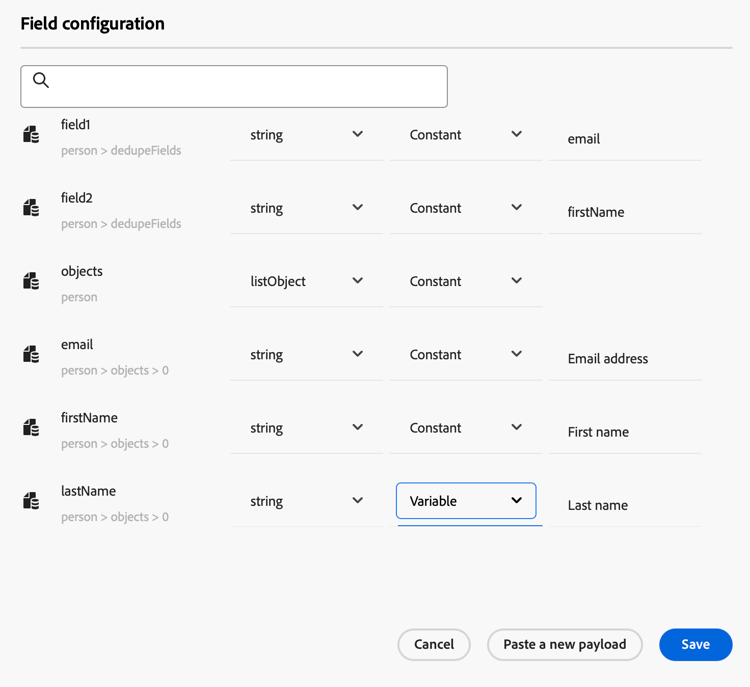
For both, compose your payload and paste it in the dedicated popup.
-
Inspect and configure payload values
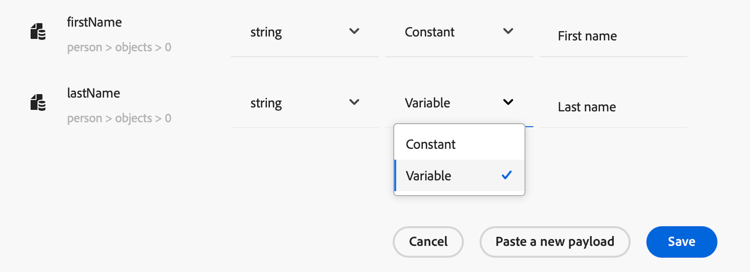
Note: To pass values dynamically, for each field change Constant to Variable.
-
Click Save in the Field configuration screen, then Save your custom action.
You can now use your custom action on your journey canvas.
Payload syntax payload-syntax
Person
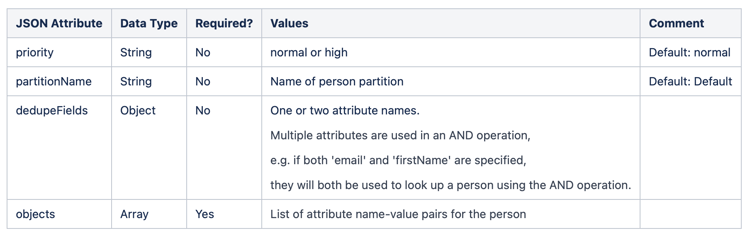
CustomObject

Payload Example for Person
{
   "munchkinID": "388-KKG-245",
   "person": {
    "priority": "normal",
    "partitionName": "XYZ",
    "dedupeFields": {
      "field1": "email",
      "field2": "firstName"
    },
    "objects": [
      {
        "email": "Email address",
        "firstName": "First name",
        "lastName": "Last name"
      }
    ]
  }
}
Payload Example for Custom Object
{
  "munchkinID": "388-KKG-245",
  "customObject": {
    "priority": "normal",
    "objectName": "products",
    "objects": [
      {
        "email": "Email Address",
        "productName": "Product Name",
        "productQty": "Product Quantity",
        "priceTotal": "Price Total"
      }
    ]
  }
}
Use the action engage-using
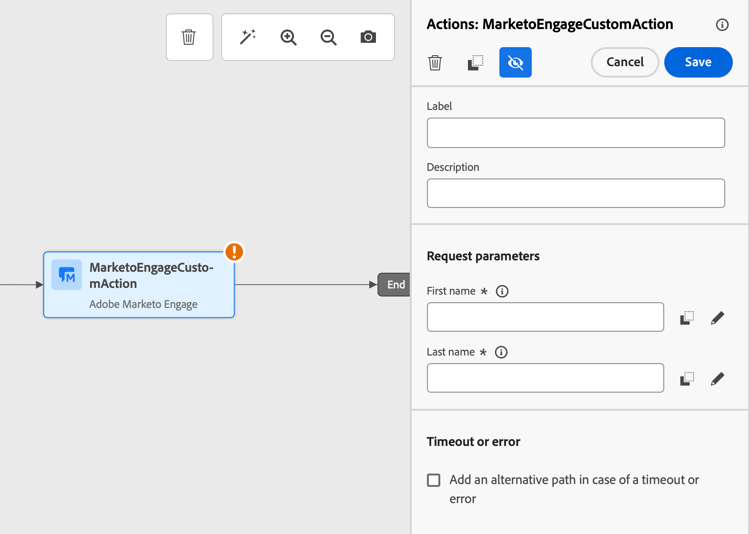
For each action configured, a Marketo Engage action activity is available in the journey designer palette.
To use it, follow these steps:
-
Drag the custom action onto the journey canvas.
-
Enter the label and the description of this action.
-
In the Request parameters section, click the Edit icon for each of the parameters and select the dynamic values that you have configured in the payload.
This section contains structured knowledge intended to support interpretation, retrieval, and question answering related to this topic.
For complete understanding, this information should be combined with the documentation on this page. Neither source is intended to stand alone; the page describes the feature, while this section provides additional context that helps disambiguate terminology, intent, applicability, and constraints.
- TL;DR: This page explains how to configure and use the Marketo Engage custom action so you can sync person and custom object data from your journeys into Marketo Engage.
Intents:
- Understand which data types the Marketo Engage custom action supports
- Verify the prerequisites required for the integration
- Configure a Marketo Engage custom action from the Configurations administration menu
- Compose the Request and Response payloads and pass values dynamically
- Use the Marketo Engage action activity on the journey canvas
Glossary:
- Marketo Engage custom action: A specific custom action available in your journeys to integrate Adobe Journey Optimizer and Marketo Engage (product-specific)
- Persons (Profiles): One of the two supported data types; Marketo transforms profiles into actionable insights (product-specific)
- Custom Objects: One of the two supported data types, such as products, used for a personalized marketing approach (product-specific)
- munchkinID: A field included in the Person and Custom Object payloads (product-specific)
- Constant / Variable: The setting changed per field so values can be passed dynamically in the payload (product-specific)
Guardrails:
- The customer instance of Marketo Engage must be IMS-enabled.
- The Marketo Engage instance and the Adobe Experience Platform/Journey Optimizer instance must be in the same organization.
- The customer must be provisioned with MktoSync: Ingestion Service access.
- This custom action supports the ingestion of two data types: Persons (Profiles) and Custom Objects.
- To pass values dynamically, each field must be changed from Constant to Variable.
Terminology:
- Canonical name: Adobe Marketo Engage — Acronym: n/a — variants: Marketo Engage, Marketo Engage action, Marketo Engage custom action
- Do not confuse: “Persons (Profiles)” ≠ “Custom Objects” (the two supported data types)
- Do not confuse: “Request” payload ≠ “Response” payload (both are edited when configuring the action)
FAQ:
- Q: What data can the Marketo Engage custom action sync? — It supports the ingestion of two data types: Persons (Profiles) and Custom Objects, such as products.
- Q: What are the prerequisites for this integration? — The Marketo Engage instance must be IMS-enabled, the Marketo Engage and Adobe Experience Platform/Journey Optimizer instances must be in the same organization, and the customer must be provisioned with MktoSync: Ingestion Service access.
- Q: Which action type do I select when configuring the custom action? — Select Adobe Marketo Engage as the Action type.
- Q: How do I pass values dynamically in the payload? — For each field, change Constant to Variable.
- Q: How do I use the action in a journey? — For each configured action a Marketo Engage action activity is available in the journey designer palette; drag it onto the canvas and, in the Request parameters section, select the dynamic values configured in the payload.