[Limited availability]{class="badge informative"}
Migrate an email subdomain from CNAME to custom delegation migrate-cname-to-custom
On this page: Learn how to migrate an email or landing page subdomain from CNAME delegation to custom delegation in Adobe Journey Optimizer by deleting the existing DNS records, uploading your SSL certificate, completing the feedback loop, and creating the new DNS records.
If your subdomain is currently set up with CNAMEs, you can migrate it to the Custom delegation method to meet your company’s security policies. This gives you full ownership and control over your subdomains and certificates within Journey Optimizer. Learn more on custom subdomains
As part of this process, you need to:
- Delete the existing DNS records from your hosting solution
- Upload the SSL certificate obtained from the Certificate Authority
- Complete the Feedback Loop steps by verifying domain ownership and reporting email address
- Create a new set of DNS records generated by Adobe into your hosting platform
To migrate your subdomain, follow the steps below.
Before you begin before-you-begin
Before you start the migration process, review the important information below.
-
Make sure that the Custom delegation method is enabled for your organization (this capability is currently in Limited Availability—contact your Adobe representative to gain access). Learn more
-
Ensure that no active channel configurations are using this subdomain. The migration process will interrupt their functionality.
note NOTE If you deactivate a channel configuration before starting the migration, you can change it back to the active state after the migration workflow is completed. -
Ensure that no active campaigns or journeys are using a channel configuration linked to this subdomain as this may cause delivery disruption.
-
Be aware that downtime begins as soon as you enter the migration flow. The subdomain moves to Draft during the process and is unavailable until setup is complete.
-
Consequently, it is recommended to perform the pre-migration steps before starting the migration process—in order to have your SSL certificate ready and reduce downtime. Learn more
Start the migration start-migration
Follow the steps below to start migrating a given subdomain.
-
Go to Administration > Channels > Email settings > Subdomains.
-
Select a subdomain set up with CNAMEs and open it.
-
You can use the Pre-migration CSR Generation section to generate the CSR for sending it to the Certificate Authority and have the SSL certificate ready when the migration process starts. Learn how
note important IMPORTANT The pre-migration steps are optional at this stage but strongly recommended. Completing them before starting the migration reduces downtime and helps ensure a smooth transition. 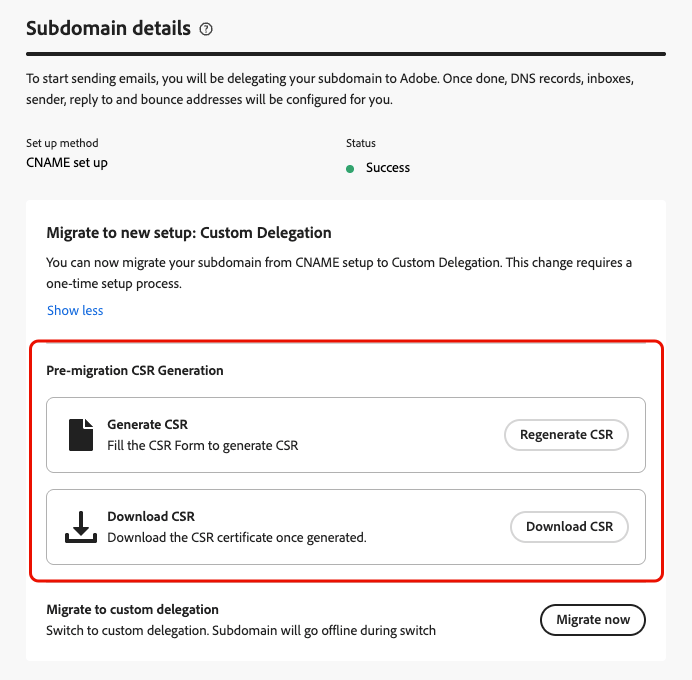
-
Select Migrate now in the dedicated section.
-
Review the information displayed.
note warning WARNING Downtime begins as soon as you enter the migration flow, so make sure it does not impact your active campaigns and journeys. -
Click Yes. The subdomain moves to Draft status and is unavailable until setup is complete.
Generate and send the CSR to the certificate authority send-csr-to-ca
To complete the migration, you need a SSL certificate issued by a Certificate Authority (CA). To receive this SSL certificate, you must first generate a Certificate Signing Request (CSR) and send it to the CA.
Whether you have already started the migration process or not, follow the steps below to generate and send your new CSR.
-
Click Regenerate CSR.
-
Fill the form that displays and regenerate the Certificate Signing Request (CSR).
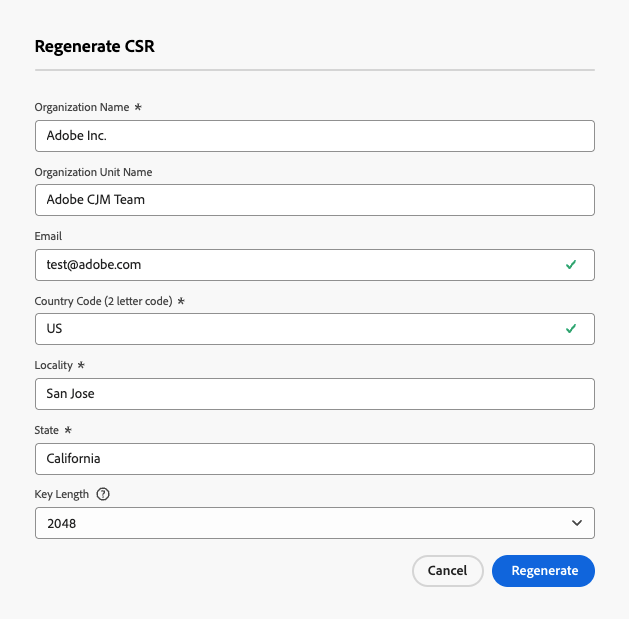
note NOTE The key length can be 2048 or 4096-bit only. It cannot be changed after the subdomain is submitted. -
Click Download CSR and save the form to your local computer.
-
Send it to the Certificate Authority (CA) to get your SSL certificate.
note NOTE The downloaded CSR already includes both data.subdomain.comandcdn.subdomain.comas Subject Alternative Names (SANs) — no manual SAN additions are required before submitting to your CA. For instance, if you are delegatingexample.adobe.com, the CSR covers bothdata.example.adobe.comandcdn.example.adobe.com.Once signed, the CA will issue a single certificate covering both the Data domain and the CDN subdomain.
Delete existing DNS records delete-dns
After starting the migration process, you need to delete the existing DNS records from your hosting solution. Follow the steps below.
-
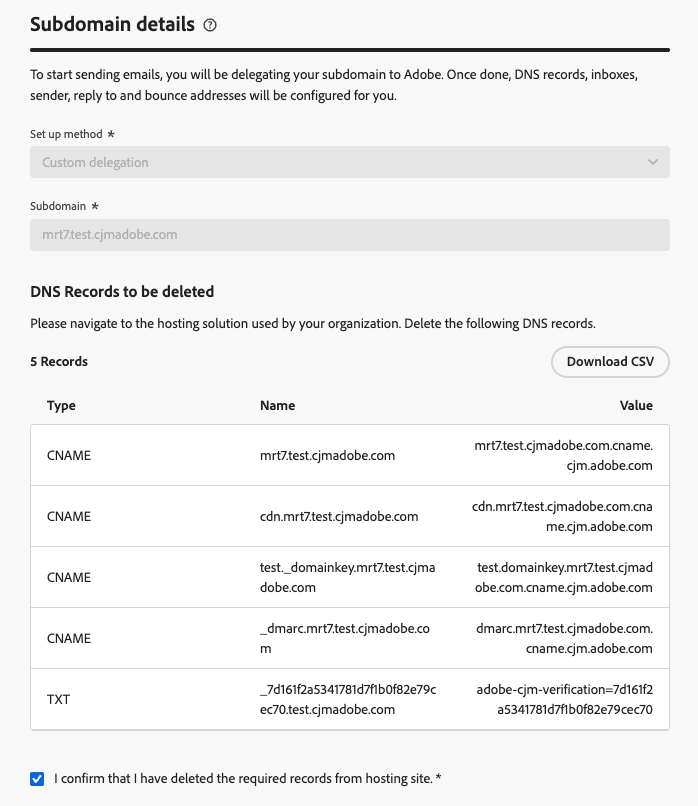
The list of records currently configured in your DNS servers displays.
-
Navigate to your domain hosting solution and delete the existing CNAME entries from your DNS hosting.
-
Make sure that all the DNS records have been deleted. Once done, check the box “I confirm that I have deleted the required records from hosting site”.
Upload the SSL certificate upload-ssl-certificate
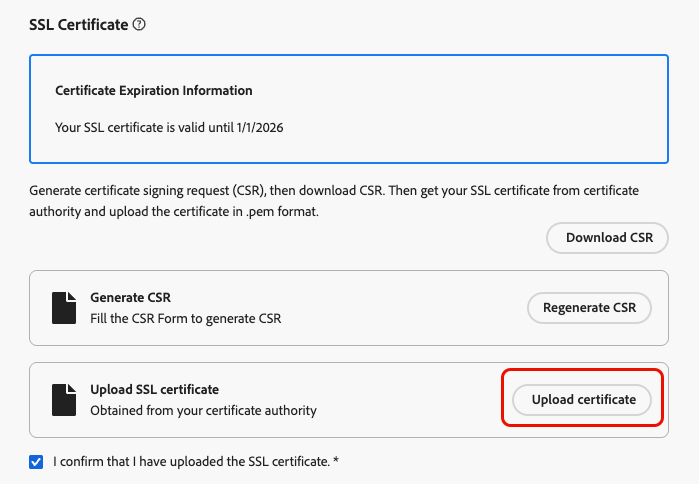
In the SSL Certificate section, you need to upload a new SSL certificate to Journey Optimizer.
Before that, verify the following:
-
If you have already sent your CSR to the Certificate Authority as part of the pre-migration steps, make sure you have received your SSL certificate.
-
If you haven’t already done so, follow the steps to generate, download and send the CSR.
-
Once you have retrieved your SSL certificate, click Upload certificate.
-
Upload the SSL certificate to Journey Optimizer in .pem format with the complete certificate chain. Here is a sample of a .pem file format:
code language-none -----BEGIN CERTIFICATE----- MIIDXTCCAkWgAwIBAgIJALc3... (base64 encoded data) -----END CERTIFICATE----- -
Check the box “I confirm that I have uploaded the SSL certificate”.
Complete feedback loop feedback-loop
Then, complete the feedback loop steps to verify domain ownership and reporting email address.
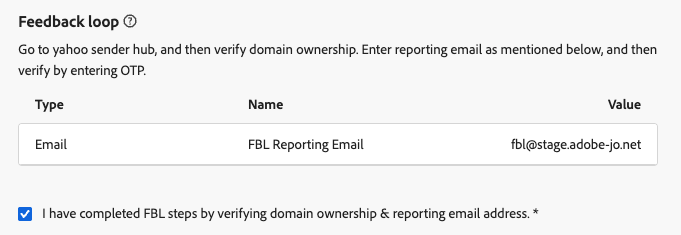
The process is the same as when setting up a new custom subdomain. Follow the steps detailed on the Set up a custom subdomain page.
Create a new set of DNS records create-dns-records
To complete the migration process, create a new set of DNS records generated by Adobe in your hosting platform.
-
After completing the feedback loop steps, click the Continue button at the top right of the screen.
This step verifies that the previous records were deleted and that the SSL certificate was uploaded correctly. If any errors occur, refer to the troubleshooting checklist.
-
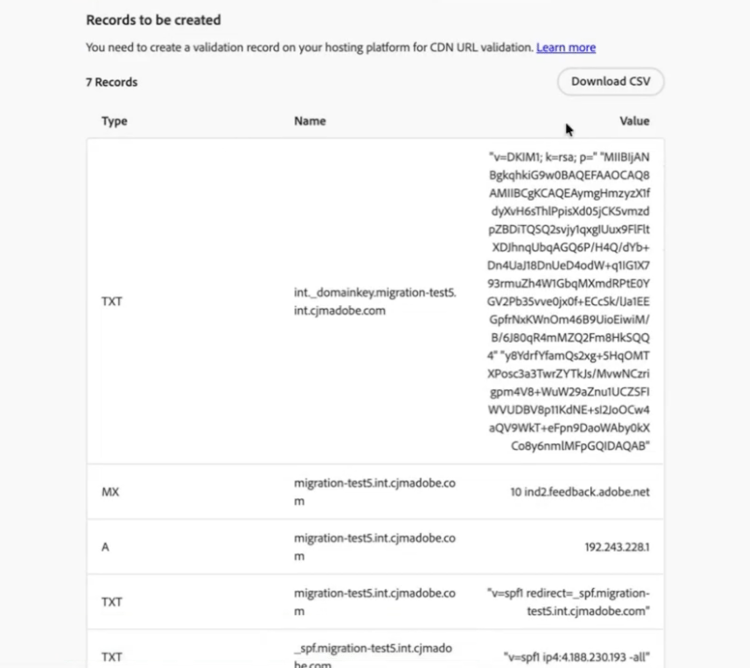
If all validations are successful, the Records to be created section displays.
-
Create all the required records in your hosting platform.
-
Once all records are created, click Submit.
note NOTE If all the listed records are not created, an error displays. Make sure to create all the required records.
After submitting, you must wait until Adobe performs the required checks, which can take up to 3 hours. Learn more
Once the subdomain is active again, no changes are needed to existing channel configurations that use it—they continue to work as before.
Troubleshooting checklist troubleshooting
If errors occur while trying to submit your custom subdomain, perform the troubleshoothing actions listed below.
- Resource could not be validated. The DNS still exists and need to be deleted. — Make sure to delete all the records from your hosting solution. Learn how
- Resource could not be validated. Please upload your SSL certificate and try again. — The SSL certificate was not uploaded. Make sure to upload it. Learn how
- The certificate contains unexpected domains in its Subject Alternative Names (SAN). — Make sure to upload the correct SSL certificate. Learn how
- The certificate is missing the following required domains in its Subject Alternative Names (SAN). — Make sure to upload the correct SSL certificate. Learn how
See also