On this page: Learn how to author single-page applications in Adobe Journey Optimizer by defining views in the Web SDK implementation, discovering them in the web designer with browse mode, and applying modifications to selected views.
About views about-views
Single-page applications (SPAs) can now be authored in the web designer visual editor. This allows you to select which specific views you want to apply your web page modifications to.
Learn how to author single-page applications in this video
A view can be defined as a whole site or a group of visual elements on a site, such as the home page, the entirety of the products site or the delivery preferences frame on all the checkout pages.
One-time developer setup is needed to define the views in the Adobe Experience Platform Web SDK implementation. This enables you to create and run Adobe Journey Optimizer web campaigns on SPAs.
Define views in the Web SDK implementation define-views
XDM views can be leveraged in Adobe Journey Optimizer to empower marketers to run web personalization and experimentation campaigns on SPAs via the web visual editor. Learn more
To be able to access and author views in the Journey Optimizer user interface, make sure you follow the steps listed in this section.
Discover views in the web designer discover-views
Once SPAs setup is done in the Adobe Experience Platform Web SDK implementation, you need to navigate through all the views of your website that you want to apply modifications to. Follow the steps below.
-
Create a web journey or campaign and access the web designer.
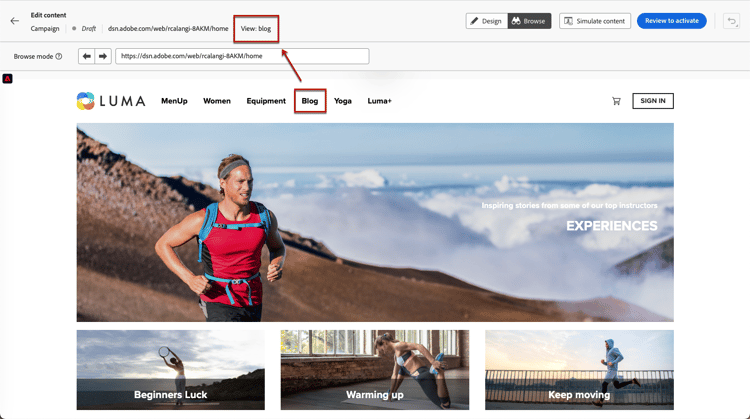
The view you are currently in is displayed on top left.

-
Swap to Browse mode. Learn more

-
Navigate between the different pages of the website to discover them all. The view name displayed on top changes when you go through another page.
Apply modifications to other views apply-modifications-views
Once you added a modification while being in a specific view, you can apply it to other selected views. Follow the steps below.
-
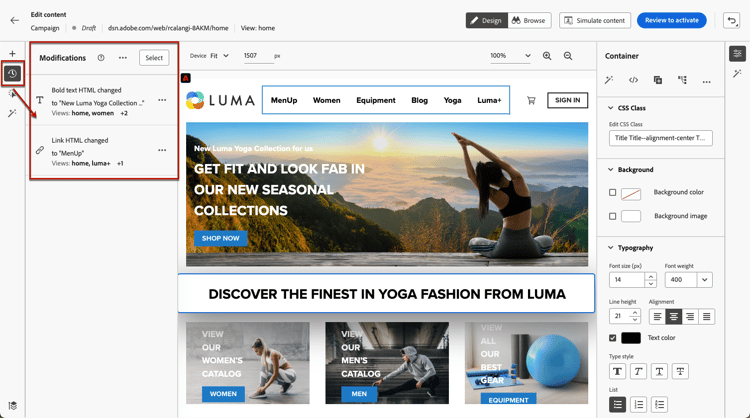
Select the Modifications icon to display the corresponding pane on the left.
-
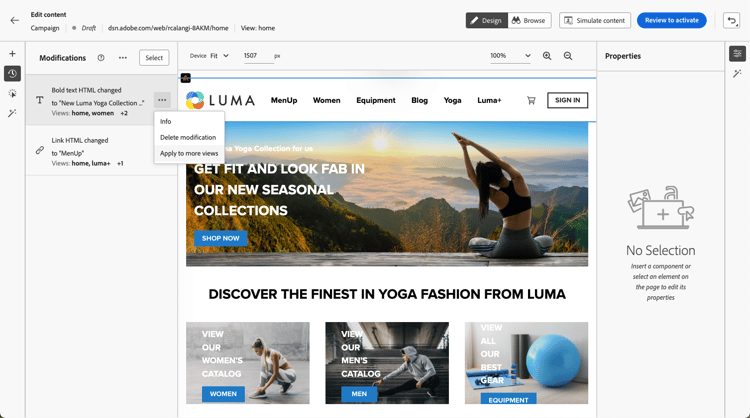
Select any modification and click the More actions button next to it. Select Apply to more views.
-
Select the views you want to apply your changes to.

-
Click Apply.
-
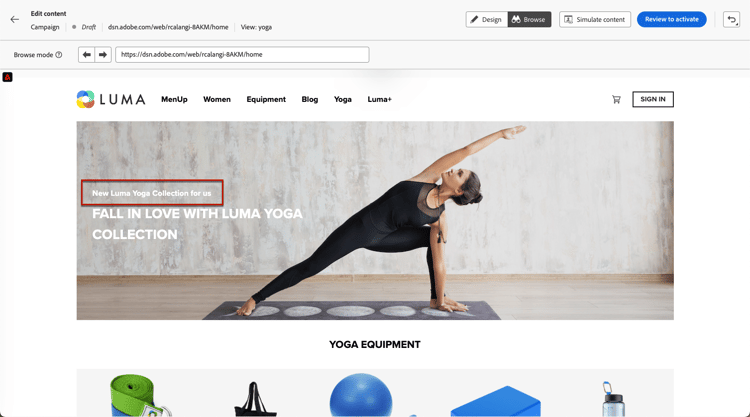
Swap to Browse mode to check the modifications are applied on the desired pages.
How-to video video
This video explains how to:
- Discover SPA views using Browse mode
- Perform authoring on the current view
- Apply website modifications to multiple views or to all views that were discovered
- Do bulk actions on modifications
This section contains structured knowledge intended to support interpretation, retrieval, and question answering related to this topic.
For complete understanding, this information should be combined with the documentation on this page. Neither source is intended to stand alone; the page describes the feature, while this section provides additional context that helps disambiguate terminology, intent, applicability, and constraints.
- TL;DR: This page explains how to author single-page applications in the Journey Optimizer web designer by defining views in the Web SDK implementation, discovering them with Browse mode, and applying modifications to selected views.
Intents:
- Author single-page applications (SPAs) in the web designer visual editor
- Define views in the Adobe Experience Platform Web SDK implementation
- Discover views in the web designer using Browse mode
- Apply a modification made in one view to other selected views
- Perform bulk actions on modifications across views
Glossary:
- View: A whole site or a group of visual elements on a site, such as the home page, the entirety of the products site, or the delivery preferences frame on all the checkout pages (product-specific)
- Browse mode: A web designer mode used to navigate through the pages of a website to discover its views (product-specific)
- Apply to more views: A More actions option that applies a selected modification to other selected views (product-specific)
- Modifications pane: The left-side pane displaying modifications, from which more actions can be taken on each modification (product-specific)
Guardrails:
- A one-time developer setup is needed to define the views in the Adobe Experience Platform Web SDK implementation before views can be authored.
- If you have not discovered views using Browse mode, you will not be able to select them for applying your modifications.
- Applying a modification to other views requires first adding a modification while in a specific view.
Terminology:
- Canonical name: View — Acronym: n/a — variants: SPA view
- Synonyms: “single-page application” = “SPA”
- Do not confuse: “Browse mode” (used to discover and navigate to views) ≠ “Apply to more views” (action that applies a modification to other selected views)
FAQ:
- Q: How do I discover the views of my website? — Access the web designer, swap to Browse mode, and navigate between the different pages; the view name displayed on top changes as you go through each page.
- Q: Why can I not select views to apply my modifications to? — You must first discover the views using Browse mode; otherwise you cannot select them.
- Q: How do I apply a modification to other views? — In the Modifications pane, select the modification, click More actions, choose Apply to more views, select the target views, and click Apply.
- Q: What is the prerequisite for authoring SPAs? — A one-time developer setup to define the views in the Adobe Experience Platform Web SDK implementation.