On this page: Set up your push credentials and Live activity channel configuration so you can authorize Adobe Journey Optimizer to deliver real-time updates to your iOS app.
Before sending Live activities, you must configure your Adobe Journey Optimizer environment. To perform this:
Step 1: Add your app push credentials in Journey Optimizer (optional) push-credentials-launch
The mobile app push credential registration is required to authorize Adobe to send push notifications on your behalf.
Step 1 is optional if your push credentials have already been configured, as these can be reused for the Live activity channel configuration. If no credentials are defined, you must create new push credentials for your app. Refer to the steps detailed below:
-
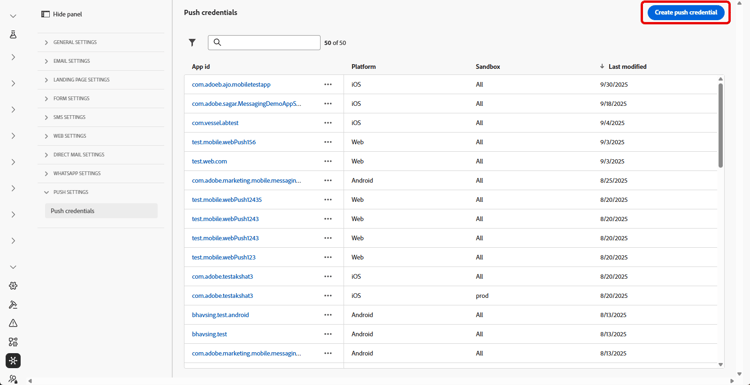
Access the Channels > Push settings > Push credentials menu.
-
Click Create push credential.
-
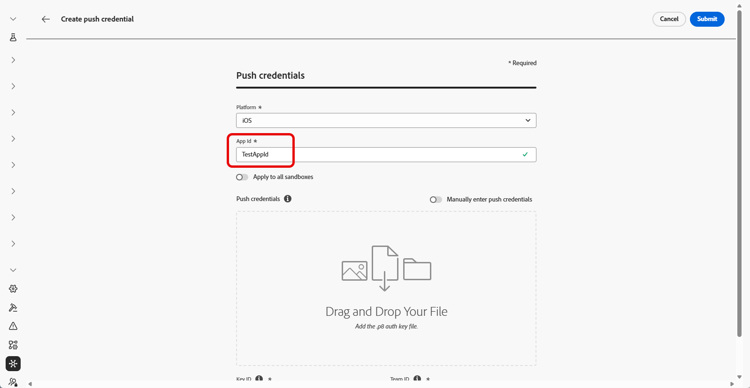
From the Platform drop-down, select the Operational system:
-
Enter the mobile app App ID.
-
Enable the Apply to all sandboxes option to make these Push credentials available across all sandboxes. If a specific sandbox has its own credentials for the same Platform and App ID pair, those sandbox-specific credentials will take precedence.
-
Switched on the Manually enter push Credentials button to add your credentials.
-
Drag and drop your .p8 Apple Push Notification Authentication Key file. This key can be acquired from the Certificates, Identifiers and Profiles page.
-
Provide the Key ID. This is a 10 character string assigned during the creation of p8 auth key. It can be found under Keys tab in Certificates, Identifiers and Profiles page.
-
Provide the Team ID. This is a string value which can be found under the Membership tab.
-
Click Submit to create your app configuration.
Step 2: create your live activity configuration config-live-activity
-
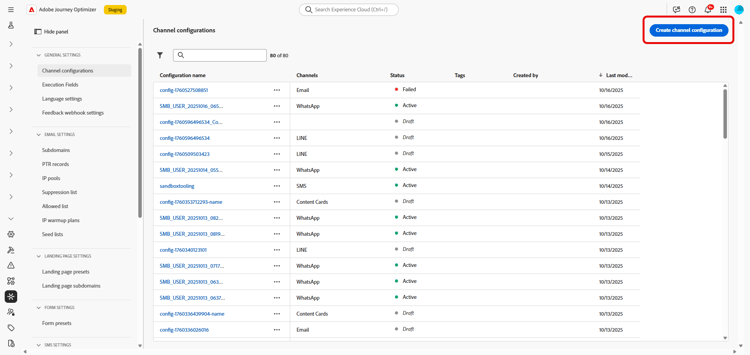
In the left rail, browse to Administration > Channels and select General settings > Channel configurations. Click the Create channel configuration button.
-
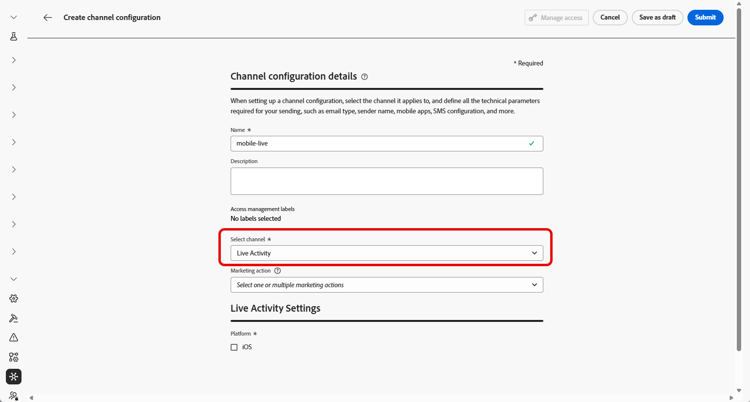
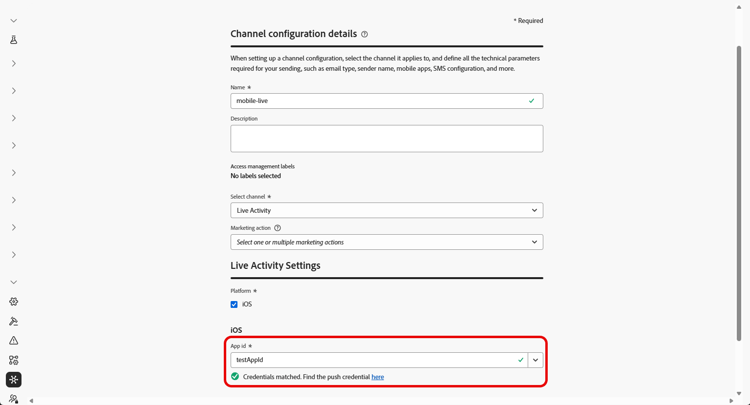
Enter a name and a description (optional) for the configuration, then select the Live activity channel.
note NOTE Names must begin with a letter (A-Z). It can only contain alpha-numeric characters. You can also use underscore _, dot.and hyphen-characters. -
Select Live activity as your channel.
-
Select Marketing action(s) to associate consent policies to the messages using this configuration. All consent policies associated with the marketing action are leveraged in order to respect the preferences of your customers. Learn more
-
Choose iOS as your Platform.
-
Select from the drop-down the same App id as for your push credential configured above or choose an existing one.
-
Once all the parameters have been configured, click Submit to confirm. You can also save the channel configuration as draft and resume its configuration later on.
-
Once the channel configuration has been created, it displays in the list with the Processing status.
note NOTE If the checks are not successful, learn more on the possible failure reasons in this section. -
Once the checks are successful, the channel configuration gets the Active status. It is ready to be used to deliver messages.
You can now start integration with Adobe Experience Platform Mobile SDK to enable real-time, dynamic updates on the Lock Screen and Dynamic Island.
➡️ Learn more on Adobe Experience Platform Mobile SDK integration