On this page: Learn how to stop open tracking for individual recipients who opted out, while keeping it active for everyone else. You record the preference on the customer profile, then turn on Honor open tracking consent in your email channel configurations.
Previously, email open tracking could only be enabled or disabled for an entire campaign, and the same setting applied to all recipients. Journey Optimizer now supports recipient-level control through email open tracking consent. Open tracking can remain enabled for a campaign while being disabled for recipients who have explicitly opted out. The opt-out is determined from the preferences recorded at the email channel level or at the level of an individual email address, and it does not affect the recipient’s eligibility to receive the email.
To configure email open tracking consent, complete the following steps:
- Populate and maintain tracking preferences on customer profiles in Adobe Experience Platform through your existing consent data ingestion process.
- Enable Honor open tracking consent in the email channel configurations that must apply those preferences.
To learn more about CNIL expectations for tracking pixels, see CNIL guidance on email tracking pixels.
Understand open tracking consent understand-consent
Consent fields consent-fields
Preferences live in the Consents and Preferences field group of the XDM Individual Profile class, under the consents object. Adobe defines and maintains the field, including tracking.email.open, so you do not need to create custom fields.
Learn more about the Consents and Preferences field group
You can store the preference at two levels, which mirror the structure of existing marketing consent:
consents.marketing.email.valconsents.idSpecific[namespace][emailAddress].marketing.email.valconsents.tracking.email.open.valconsents.idSpecific[namespace][emailAddress].tracking.email.open.val- Channel-level preferences cover every email address on the profile. For example, setting
consents.tracking.email.open.valto"n"opts the customer out of open tracking for all of their addresses. - Identity-level preferences sit in the
idSpecificmap. The first key is an identity namespace known to Experience Platform Identity Service. The second key is the identity value, such as an email address. Journey Optimizer uses the namespace and address selected for the delivery.
You do not need to fill in both levels. Choose the one that matches how your organization collects the preference.
Each open object contains the following properties:
val"n" records an explicit opt-out and "y" records an explicit opt-in. Values must be lowercase.timereasonHow preferences are applied how-applied
For a supported delivery with the Honor open tracking consent option enabled, Journey Optimizer checks the channel-level preference and the preference of the identity selected for delivery. An explicit lowercase "n" at either level prevents open tracking.
"n""y" or absent"n""y""y" or absent"y" or absentKeep the following in mind:
- Only an explicit
"n"disables open tracking. A"y", a missing value, or any other value, such as"dn","p", or"u", leaves the existing open tracking behavior of the message unchanged. Map the choices you collect to valid schema values deliberately. - A missing value is not a recorded opt-in. If your policy allows tracking only after affirmative permission, review the additional controls you need with your privacy team.
- An identity-level
"y"never overrides a channel-level"n". When a person changes their choice, update the correct level and make sure no other opt-out remains in effect.
Before you begin before-you-begin
Limitations limitations
- The feature controls email open tracking only. It does not affect click tracking, unsubscribe preferences, third-party tracking, or other remote images in an email.
- Marketing consent and eligibility rules remain separate. Allowing tracking does not make an ineligible message eligible, and denying tracking does not unsubscribe a recipient or exclude them from delivery.
- The preference is evaluated when a message is prepared for a supported delivery. A subsequent change to the preference does not modify emails that were already delivered, and it does not delete tracking data that was previously collected.
- High-throughput transactional messaging is excluded.
- The option relies on the preferences you populate on profiles. It does not collect or backfill those choices.
- Turning the option off restores the previous open tracking behavior. It is not a way to enforce an opt-out.
For data model definitions, see Consents and Preferences. Review your collection experience and operating policy with your privacy and legal teams.
Who does what responsibilities
Your organization is also responsible for the consent collection experience, privacy notices, the choice of lawful basis, and data retention. Enabling the option does not collect consent, and it does not create a preference center control for you.
Populate customer preferences populate-preferences
Start by deciding whether each preference you collect applies to all of a person’s email addresses or to one specific address. Then update your existing source-to-XDM mappings so they write to the matching tracking field.
The examples below show how to record an opt-out at each level.
They are partial profile data, not complete ingestion payloads. When building your own payload, keep the following in mind:
- Include the required schema fields, the profile identifier, and the envelope expected by your ingestion method.
- The
idSpecificentries only define the scope of a preference. They do not replace the identity fields that identify the profile. - Follow the update behavior of your connector, and preserve existing marketing preferences, other consent fields, and other identity entries.
This fragment turns off open tracking for every email identity on the profile:
| code language-json |
|---|
|
This fragment applies only when the delivery uses the given namespace and address:
| code language-json |
|---|
|
Email and alex@example.com are placeholders. Use the real namespace code and address of the identity used for delivery. When a profile holds several addresses, such as a personal one and a work one, a preference set for one address does not carry over to the other. Check your execution address settings to make sure the address that receives the message is the one whose preference you update.
Choose an ingestion method ingestion-methods
Write the values to your existing Profile-enabled consent dataset, using one of the supported ingestion paths:
For the first import, include every open tracking opt-out you have already recorded. After that, update profiles whenever a customer changes their choice.
Verify the merged profile verify-profile
Confirm both that ingestion succeeded and that the resulting profile is correct:
- Check that the records were ingested without mapping or validation errors.
- In Adobe Experience Platform, from the Profiles menu, look up test profiles by a known identity namespace and value, and inspect their attributes.
- Confirm that the values appear at the new tracking paths, under the exact identity keys you expect.
- Review the applicable merge policy. Another dataset must not override the intended preference. Be aware that the
timeproperty by itself does not guarantee that a value wins a merge conflict. - Confirm that later changes reach the profile before a delivery relies on them. An upload or API acknowledgement alone does not prove that the new value is available for sending.
Learn more in the Profile UI guide and the merge policies overview pages.
Enable the option in email channel configurations enable-option
Once the profile data is validated, turn on the option in each email channel configuration that should apply it.
Before enabling the option, note that:
- Honor open tracking consent option is off by default.
- It is not available for high-throughput transactional email configurations.
- While the option is off, the tracking preferences have no effect on existing open tracking behavior.
- Turning the option on never enables open tracking for a message that already has it disabled.
-
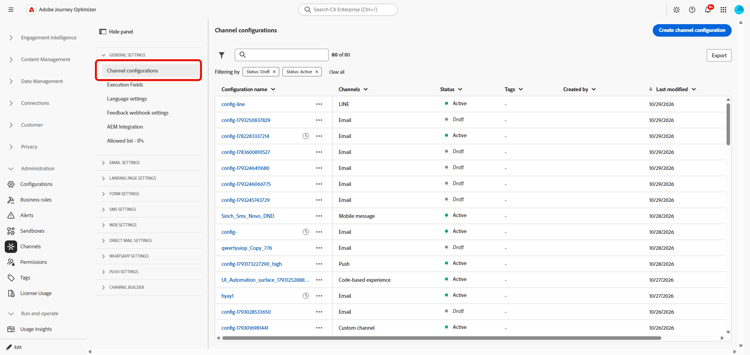
In Journey Optimizer, access Channels > General settings > Channel configurations.
-
Open the email channel configuration to update or create a new one if needed.
-
From the Open tracking section, enable Honor open tracking consent.

-
Save or submit the configuration.
-
Confirm that your journeys and campaigns use this configuration. Repeat these steps for each relevant configuration and sandbox.
note tip TIP For the safest rollout, enable the option first, then create and publish a new campaign that uses the updated configuration. Validate the behavior with controlled test profiles before sending to production audiences.
Apply the option to existing messages existing-messages
You can turn on Honor open tracking consent at any time. You do not need to edit the email activities in your journeys and campaigns. What you need to do for messages that already exist depends on the message type.
Validate before going live validate
After you verify the merged profile data, use controlled test profiles to validate the send behavior for each case:
- a channel-level opt-out
- an identity-specific opt-out
- conflicting channel-level and identity-level choices
- recipients who allow tracking or have no preference
For profiles with several email addresses, verify the address that is actually selected for delivery. Check that eligible messages are still delivered, and that recipients who opted out have no active Journey Optimizer open tracking in the test messages.
Before enabling production configurations, make sure that:
- existing opt-outs have been imported,
- ongoing updates work,
- merged profiles contain the expected values, and
- the channel configuration has Honor open tracking consent turned on, with a newly created campaign used for the first test.