On this page: Learn how to use the Fork flow control activity in an Orchestrated campaign to create multiple outbound transitions that run several activities in parallel.
The Fork activity is a Flow control component that lets you create multiple outbound transitions, enabling several activities to run in parallel.
Configure the Fork activity fork-configuration
Follow these steps to configure the Fork activity:
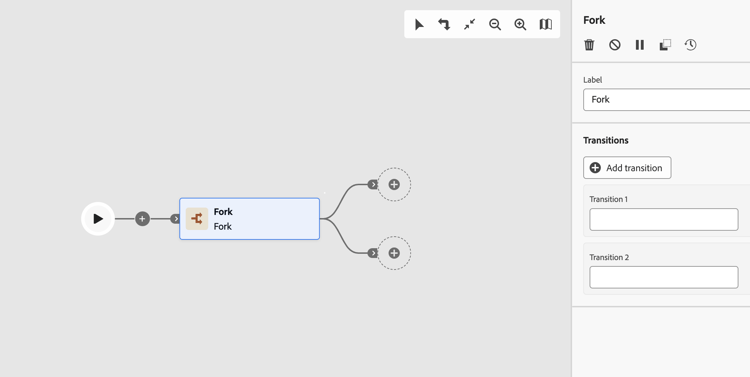
-
Add a Fork activity to your Orchestrated campaign.
-
Define a Label.
-
Assign a label to each outbound transition. By default, two transitions are provided.
-
To remove a transition, click the

-
If needed, click Add transition to add an additional outbound transition.
Examples fork-examples
Here is a typical use of the Fork activity: targeting the same audience with two different email channels — one Marketing and one Transactional — to compare delivery behavior.
After a Build audience activity selects the target population, a Fork creates two parallel branches:
- Branch 1 connects to a Marketing email channel activity. Messages follow standard business rules and are sent only to opted-in profiles.
- Branch 2 connects to a Transactional email channel activity. Messages bypass business rules and are delivered to all profiles regardless of opt-in status.
This pattern is useful for understanding how channel category settings affect delivery behavior, and for sending different message types to the same audience in a single campaign run.