On this page: Learn how to use the Combine targeting activity in an Orchestrated campaign to segment your inbound population through union, intersection, or exclusion operations.
The Combine activity is a type of Targeting activity that enables you to segment your inbound population effectively. It allows you to merge multiple populations, exclude specific segments, or retain only the data shared across several targets.
The following segmentation options are available:
-
Union: merges the results of multiple activities into a single unified target.
-
Intersection: retains only the elements that are common across all inbound populations.
-
Exclusion: removes elements from one population based on specified criteria.
Configure the Combine activity combine-configuration
Follow these common steps to start configuring the Combine activity:
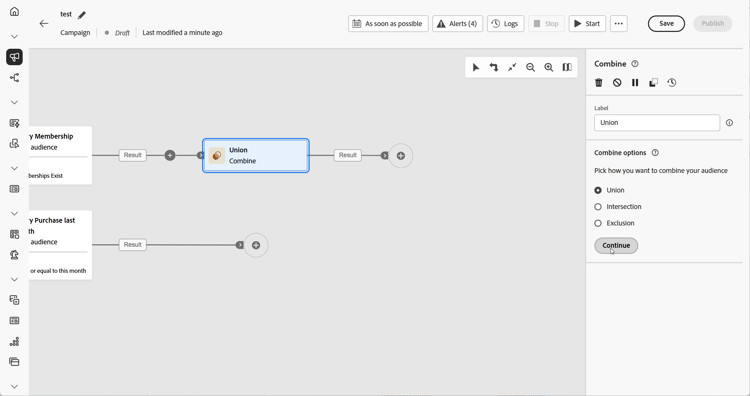
- Add multiple activities such as Build audience activities to form at least two different execution branches.
- Add a Combine activity to any of the previous branches.
- Select the segmentation type: union, intersection or exclusion.
- Click Continue.
- In the Sets to join section, check all the previous activities you wish you join.
Union combine-union
Within the Combine activity, you can configure a Union by selecting a Reconciliation type to determine how duplicate records are managed:
-
Keys only (default): retains a single record when multiple inbound transitions share the same key. This option is only applicable when the inbound populations are homogeneous.
-
A selection of columns: allows you to specify which columns are used for data reconciliation. Select Add attribute.
In the following example, a Combine activity is used with a Union to merge the results of two queries, Loyalty Members and Purchasers, into a single, larger audience that includes all profiles from both segments.

Intersection combine-intersection
In the Combine activity, you can configure an Intersection. For this, you need to follow the extra steps below:
-
Select the Reconciliation type to define how duplicates are handled:
-
Keys only (default): retains a single record when multiple inbound transitions share the same key. This option is only applicable when the inbound populations are homogeneous.
-
A selection of columns: allows you to specify which columns are used for data reconciliation. Select Add attribute.
-
-
Enable Generate completement if you wish to process the remaining population. The complement contains the union of all inbound activity results, excluding the intersection. An additional outbound transition is added to the activity.
The following example illustrates the use of the Intersection between two query activities. It is used to identify profiles who are Loyalty Members and have made a purchase within the last month.

Exclusion combine-exclusion
In the Combine activity, you can configure an Exclusion. For this, you need to follow the extra steps below:
-
In the Sets to join section, choose the Primary set, which represents the main population. Records found in the other sets are excluded from this primary set.
-
When needed, you can adjust inbound tables to align targets from different dimensions. To exclude a target from another dimension, it must first be brought into the same targeting dimension as the main population. To do this, click Add a rule and define the conditions for changing the dimension. Reconciliation is then done using either an attribute or a join.
-
Enable Generate completement if you wish to process the remaining population. The complement contains the union of all inbound activity results, excluding the intersection. An additional outbound transition is added to the activity.
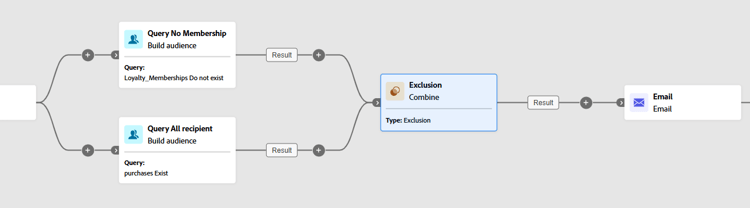
The following Exclusion example shows two queries configured to filter profiles who purchased a product. The profiles who do not have a loyalty membership are then excluded from the first set.
This section contains structured knowledge intended to support interpretation, retrieval, and question answering related to this topic.
For complete understanding, this information should be combined with the documentation on this page. Neither source is intended to stand alone; the page describes the feature, while this section provides additional context that helps disambiguate terminology, intent, applicability, and constraints.
- TL;DR: This page explains how to configure the Combine activity in an Orchestrated campaign to segment an inbound population through Union, Intersection, or Exclusion operations.
Intents:
- Add a Combine activity to join at least two execution branches in an Orchestrated campaign.
- Merge multiple populations into a single target using Union.
- Keep only the elements common to all inbound populations using Intersection.
- Remove elements from one population based on specified criteria using Exclusion.
- Choose a reconciliation type (Keys only or A selection of columns) to handle duplicates in a Union or Intersection.
- Process the remaining population after an Intersection or Exclusion by enabling Generate completement.
Glossary:
- Combine: a type of Targeting activity that segments an inbound population by merging multiple populations, excluding specific segments, or retaining only the data shared across several targets (product-specific)
- Union: a Combine segmentation type that merges the results of multiple activities into a single unified target (product-specific)
- Intersection: a Combine segmentation type that retains only the elements common across all inbound populations (product-specific)
- Exclusion: a Combine segmentation type that removes elements from one population based on specified criteria (product-specific)
- Reconciliation type: the setting that defines how duplicate records are handled in a Union or Intersection, either Keys only or A selection of columns (product-specific)
- Keys only: the default reconciliation type; retains a single record when multiple inbound transitions share the same key, applicable only when the inbound populations are homogeneous (product-specific)
- A selection of columns: a reconciliation type that allows specifying which columns are used for data reconciliation, via Add attribute (product-specific)
- Generate completement: an option in Intersection or Exclusion that processes the remaining population; the complement contains the union of all inbound activity results excluding the intersection, and adds an additional outbound transition to the activity (product-specific)
- Primary set: in an Exclusion, the main population selected in the Sets to join section, from which records found in the other sets are excluded (product-specific)
- Exclusion rules: in an Exclusion, used when a target from another dimension must first be brought into the same targeting dimension as the main population; added via Add a rule, defining the dimension change conditions, with reconciliation done via an attribute or a join (product-specific)
- Sets to join: the section where the previous activities to combine are checked (product-specific)
Guardrails:
- Keys only reconciliation is only applicable when the inbound populations are homogeneous.
Terminology:
- Canonical name: Combine — variants: Combine activity
- Do not confuse: “Union” (merges results of multiple activities into one target) ≠ “Intersection” (keeps only elements common to all inbound populations) ≠ “Exclusion” (removes elements from one population based on specified criteria)
- Do not confuse: “Keys only” (retains one record per shared key, homogeneous populations only) ≠ “A selection of columns” (reconciliation on specified columns)
FAQ:
- Q: What does the Combine activity do? — It segments an inbound population by merging multiple populations, excluding specific segments, or retaining only the data shared across several targets.
- Q: What are the three segmentation types in the Combine activity? — Union, Intersection, and Exclusion.
- Q: What is the default reconciliation type for a Union or Intersection? — Keys only, which retains a single record when multiple inbound transitions share the same key.
- Q: When is Keys only applicable? — Only when the inbound populations are homogeneous.
- Q: What does Generate completement do? — It processes the remaining population in an Intersection or Exclusion; the complement contains the union of all inbound activity results excluding the intersection, and adds an additional outbound transition.
- Q: What is the Primary set in an Exclusion? — The main population chosen in the Sets to join section, from which records found in the other sets are excluded.
- Q: How do you exclude a target from a different dimension in an Exclusion? — Click Add a rule in the Exclusion rules section and define the dimension change conditions; reconciliation is then done via an attribute or a join.
Examples:
- Union: a Combine activity merges the results of two queries, Loyalty Members and Purchasers, into a single, larger audience that includes all profiles from both segments.
- Intersection: a Combine activity identifies profiles who are Loyalty Members and have made a purchase within the last month.
- Exclusion: two queries are configured to filter profiles who purchased a product; profiles who do not have a loyalty membership are then excluded from the first set.
Personas:
- marketer: Can add a Combine activity to a branch after building at least two execution branches. Can select Union, Intersection, or Exclusion as the segmentation type, then check previous activities in the Sets to join section. The page states that Keys only reconciliation is only applicable when the inbound populations are homogeneous. Where: “Configure the Combine activity”.
Onboarding:
- Level: Intermediate
- First minimal step: Add multiple activities, such as Build audience activities, to form at least two different execution branches.
- Success check: The Union merges the results of two queries, Loyalty Members and Purchasers, into a single, larger audience that includes all profiles from both segments.