Lesson 3 - Create a Web In-app Campaign
Now that you have created mobile experiences for the app, in this lesson, you create one of the experiences you have seen on the Fréscopa website. You create a web in-app campaign. You design and customize a your message and define a trigger that fires the message.
Learning objectives
- Know how to create a Web In-app campaign.
- Trigger an in-app message.
Exercise 3.1 Create a web in-app campaign
In this exercise you create the campaign and define which web page the in-app message appeara on.
-
In Journey Optimizer, in the left navigation, under JOURNEY MANAGEMENT select Campaigns.
-
Click Create Campaign.

-
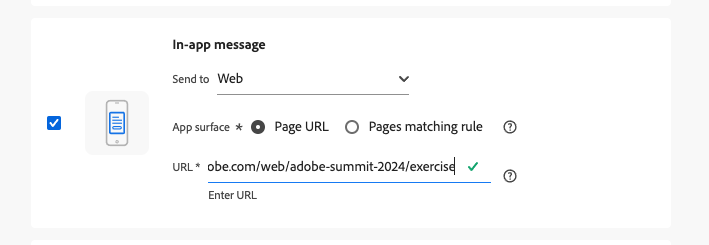
On the Create Campaign page, in the Action section, select the In-app message check box.
-
From the Send to dropdown, select Web.
-
Enter the following URL: https://dsn.adobe.com/web/adobe-summit-2024/exercise - This is the web page your message will appear on.
-
Click Create.
Exercise 3.2 Configure your Campaign
On this page, you define the properties of the campaign and the event that triggers the in-app message to appear in the web page. Leave all other settings on the default. For this exercise you do not need to define a specific audience.
3.2.1 Properties section
-
In the Properties section, give your campaign a unique Name:
note NOTE Make sure to start the name with your seat number, so you can easily
find your campaign later.For example, if your seat number is 99: 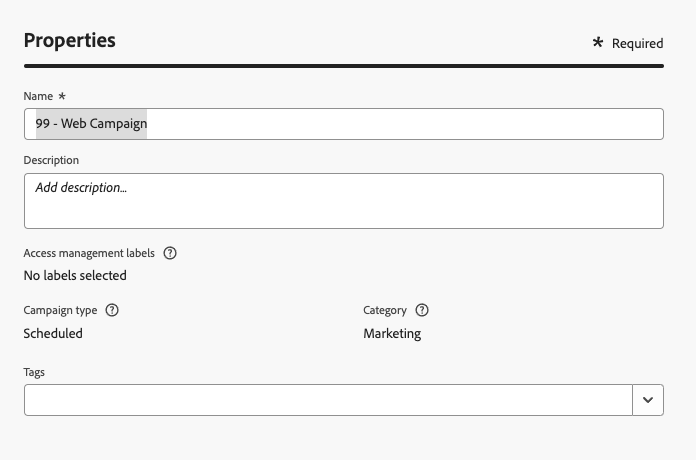
3.2.2 Set up your custom trigger rule
In this section you define what triggers for the message to appear on the website. You define a unique trigger that allows you to send the message just to yourself.
-
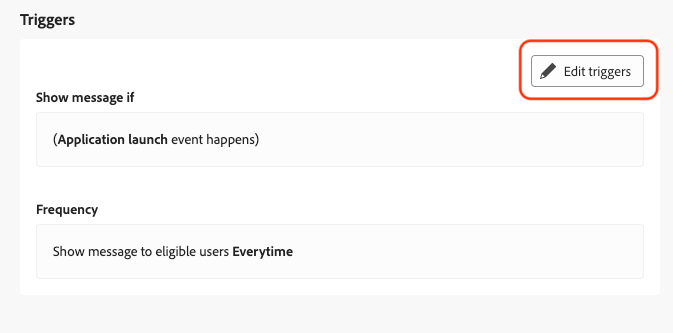
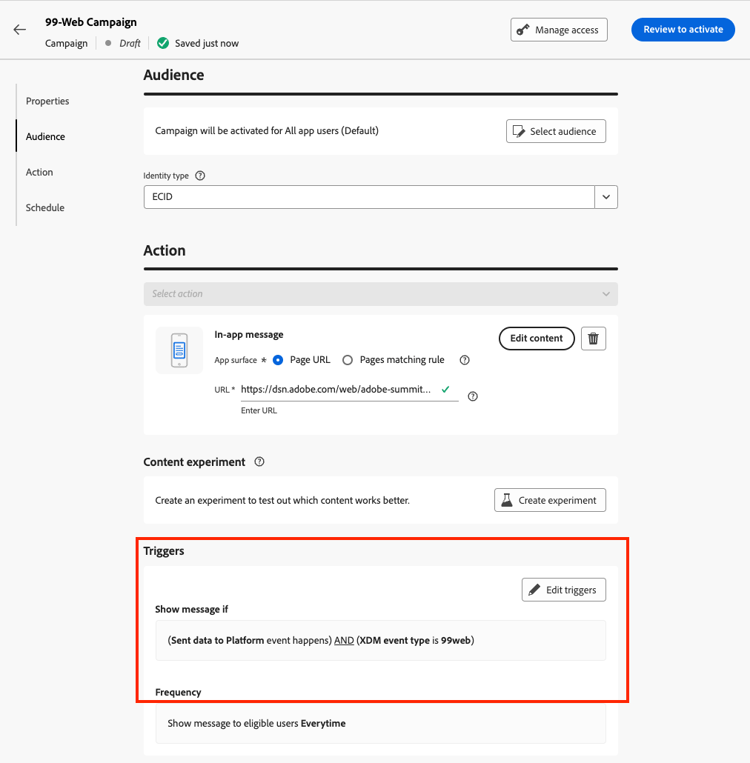
Scroll down to the Triggers section, then click Edit triggers.
-
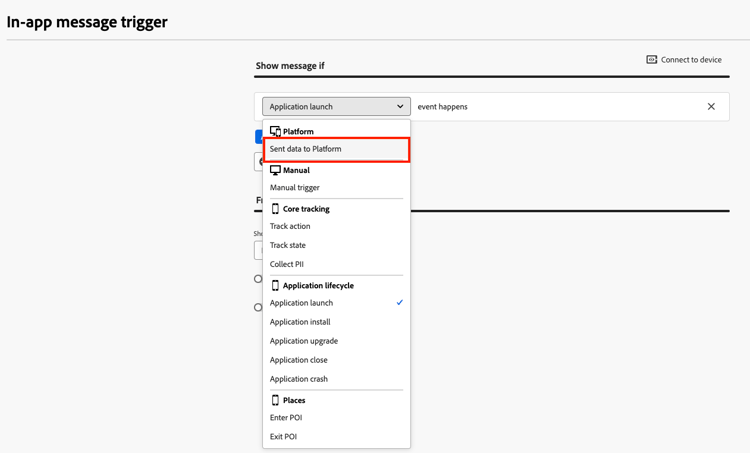
In the rule builder, click on Application Launch and from the dropdown select Sent data to Platform.
-
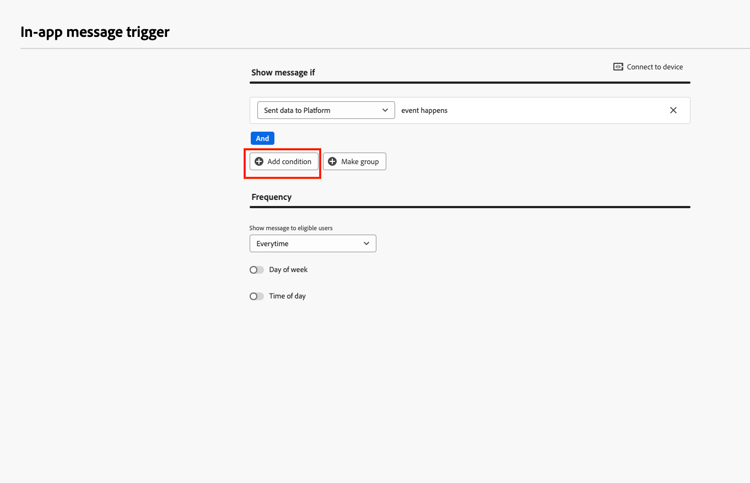
Add a condition by clicking + Add condition.
-
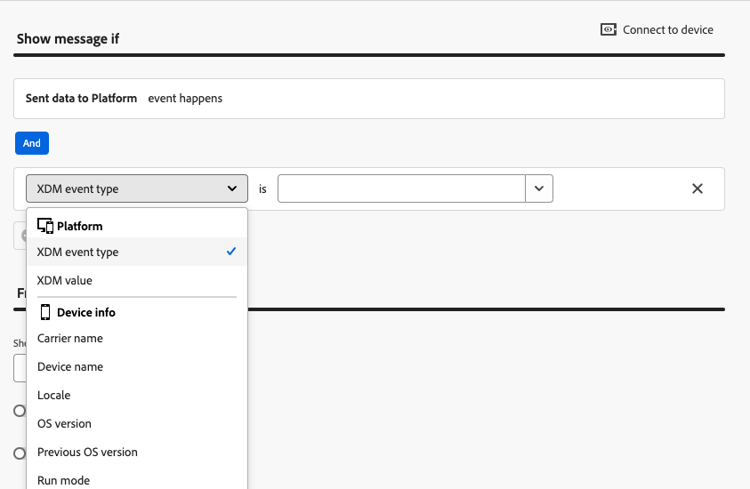
From the Select a trait drop down, select XDM event type.
-
In the following text field, add a
<custom string value>that you can remember, and press Add<custom string value>to save the value.This custom string value is used later to fire you message.
note tip TIP Adding your seat number to the custom string value, will make it unique and easier for you to remember. For example: 99web
-
Press the Done button in the top right.
3.2.3 Edit the content of the in-app message
In this section you define the content, design, and layout of your message.
-
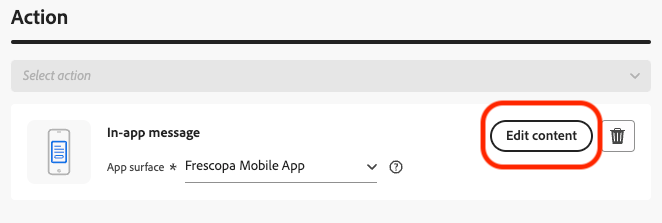
Click the Edit content button in the Action section to access the authoring construct.
-
The authoring process is the same process that you completed in the above Mobile In-app exercises. Take time to freely edit your message with your own title, body, and media content.
If you use the modal or full screen layout, you can add a button. You can use this URL to open the product page: https://dsn.adobe.com/web/adobe-summit-2024/P2WsaDPf_
-
When you are done editing your message, click Review to activate.
-
If everything looks good on the review screen, click Activate to publish your Web In-app message.
-
You are returned to the Campaign Dashboard.
Wait unit your campaign status changes to Live before moving to 4.1.4.
Exercise 3.3 Trigger the web in-app message
-
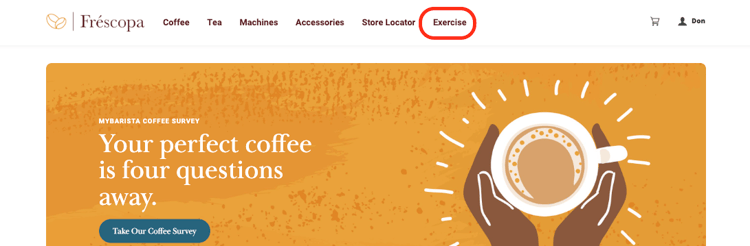
Go to the Fréscopa website and navigate to the Exercise page on your browser.
-
Make sure to refresh the web page.
-
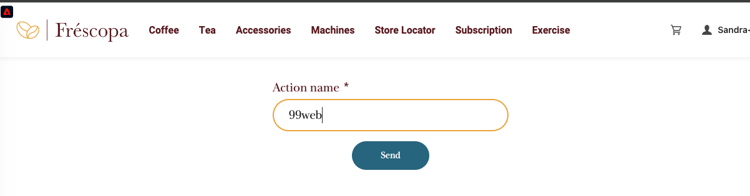
Type your unique string value that you defined in your campaign.
-
Click Send.
Additional resources
How to videos:
Product documentation: