Create Journey
In this step, you will create a journey in Adobe Journey Optimizer that is triggered by the custom price.drop event. When this event is received, the journey starts in real time and sends a push notification to users who have opted in, enabling event-driven engagement.
To create a journey that is triggered on price.drop event,please follow the following steps
- Log in to Journey Optimizer
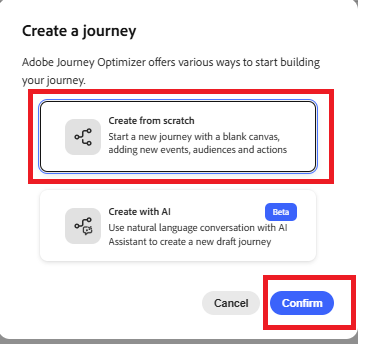
- Navigate to Journey management | Journeys | Create Journey
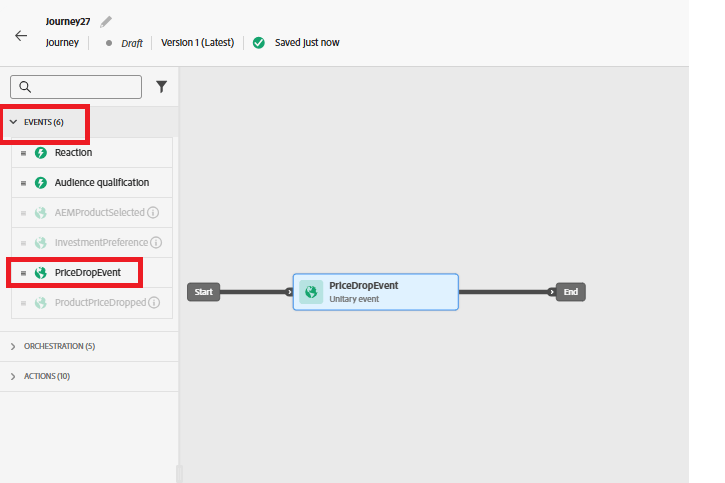
Add PriceDropEvent
Drag the PriceDropEvent from the events section on to the canvas.
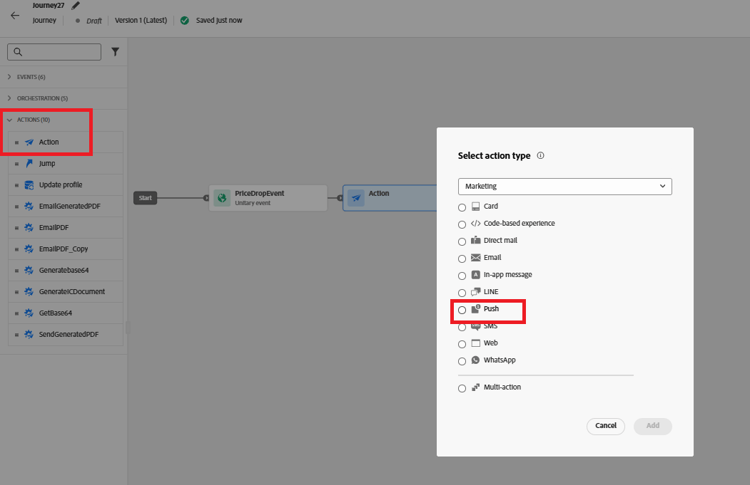
Add Push Action
Expand the Actions section. Drag and drop the Action activity on to the canvas and select Push as the action type
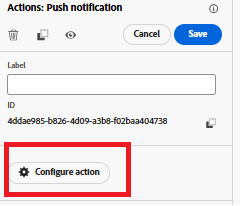
Configure the Push Action
Select the push notification activity and click on configure action
Push Notification Channel Configuration
Associate MyFirstWebPushChannel configuration created earlier in the tutorial with this push notification
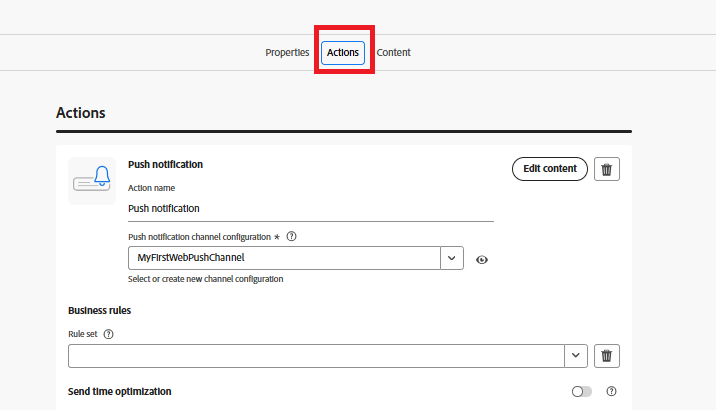
Compose push notification message
Add a combination of static and dynamic content to the push notification using the personalization editor to make the message more engaging and relevant.
To begin composing the message, click on Content to open the content tab, where you can define both the fixed text and the dynamic fields derived from the event data.
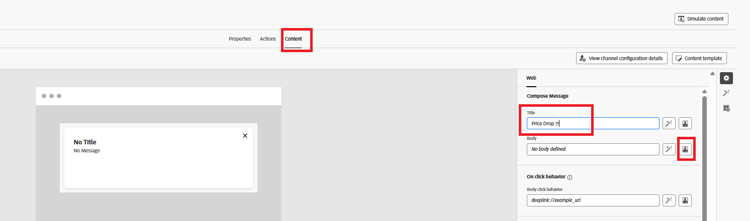
Specify the title of the push message, then open the personalization editor to compose the message body. The content will dynamically include the names of the product(s) whose prices have dropped. To achieve this, use the each helper function
to iterate over the list of products and render their names within the message.
Compose the message body
Select and insert the Each function from the helper functions menu.
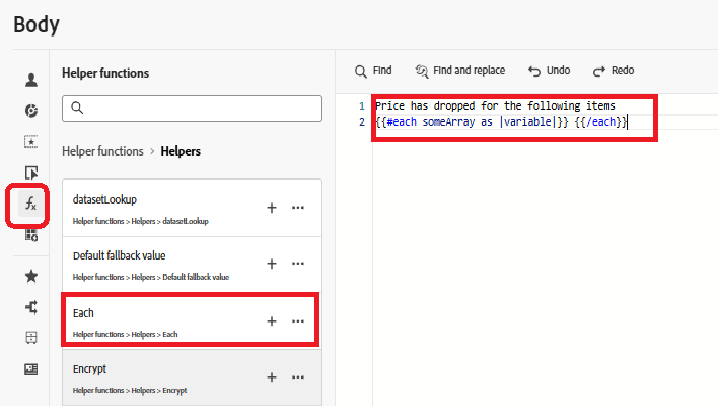
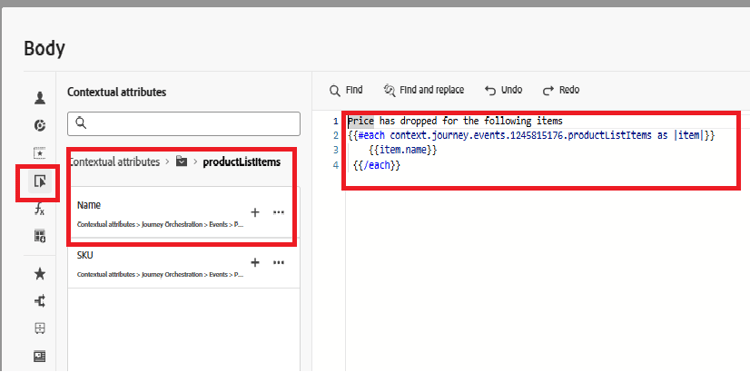
Select the contextual attributes | Journey Orchestration | Events | PriceDropEvent | productListItems | Name
Click the “+” icon to insert the array into the each loop within the personalization editor. Then, update the message content to match the format shown in the reference screenshot. Note that the event ID displayed in your environment may differ from the one shown.
Finally, save all your changes and publish the journey. Once published, the journey becomes active and listens for incoming price.drop events. Whenever such an event is received, the journey is triggered in real time, and a push notification is sent to users who have opted in to receive notifications, ensuring timely and relevant engagement.
Test the solution
To trigger the price.drop event, open the price drop trigger page, select one or more products, and click Trigger Price Drop. This sends the event through the Adobe Data Layer using AEP Tags, which then initiates the journey and delivers the push notification in real time.