Wait nodes
Use a Wait node when you want to pause the journey progression for a certain duration before moving to the next step.
There are two ways that you can define the wait time:
- A specific date when you want to move forward to the next node in the journey
- A relative duration (number of minutes, hours, days, weeks, or months)
Add the wait node
-
Navigate to the journey map.
-
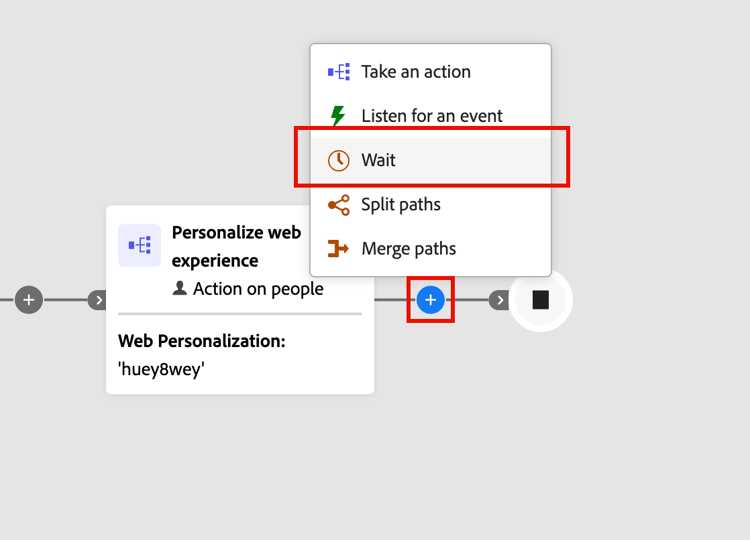
Click the plus ( + ) icon on a path and choose Wait.
-
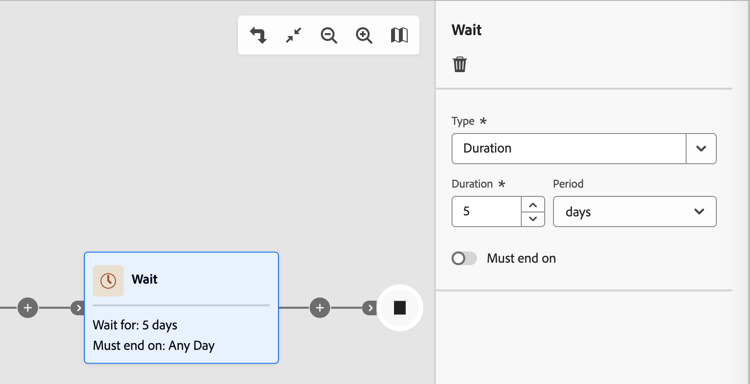
To set the time to wait before the journey proceeds to the next node in the path, use the node properties on the right to set the Type.
- Duration - Define a specific number of days, hours, or minutes to elapse between entry and exit of the wait node.
- Date - Specify a date and time for the exit.
Advanced wait settings
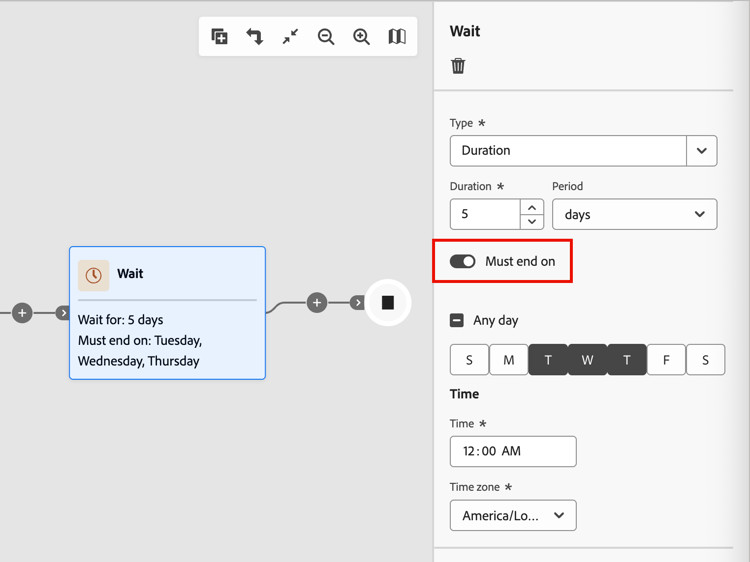
Enable the Must end on option to configure an advanced wait step and ensure that your messages reach people and account members at the optimal moment. This configuration gives you precise control over when a person or account exits a wait step and proceeds to the next node in the journey. Rather than a fixed number of hours or days from entry to exit, you can schedule actions to occur at specific times and on specific days of the week.
With an advanced wait step, you define when the person or account exits, not simply how long they wait.
Wait types
Common scenarios
The following scenarios illustrate how you can apply typical examples to your wait node configuration:
Scenario: You market to B2B customers who read emails during their workday. You want all emails to arrive during business hours.
Solution: Configure your wait step to release leads at 9:00 AM on weekdays (Monday–Friday). No matter when a lead enters the wait node, they receive your email during business hours.
Scenario: Your audience changes daily as new accounts or leads qualify. You want all leads to receive the first email at the same time, regardless of when they qualified.
Solution: Set your wait step to end at a specific time (such as 10:00 AM). All leads, whether they qualified at midnight or noon, exit the wait step together at 10:00 AM.
Scenario: Your Sales team has a two-business-day SLA to follow up on marketing-qualified account leads. Weekends are excluded.
Solution: Configure the wait step to release leads only on business days. A lead qualified on Friday is routed for follow-up on Monday or Tuesday, not over the weekend.