Email setup
To support the email delivery infrastructure provided by the attached Marketo Engage instance, set the following email options. A Marketo Engage product administrator can configure these settings by navigating to the Admin area in the Marketo Engage instance and selecting Email.
Email settings
To set up email default values for the attached Marketo Engage instance, change the configured values to reflect usage by your marketing organization.
From email and label
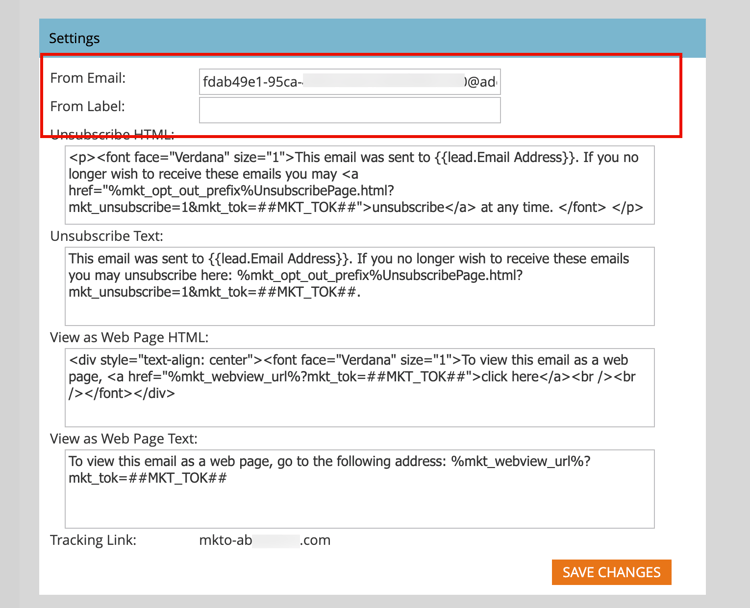
Change the values for the From email and label so that new emails are automatically populated with these default values.
-
Go to the Admin area in the attached Marketo Engage instance and select Email.
-
In the Settings panel, enter the default values you want for From Email and From Label.
-
Click Save Changes.
Unsubscribe messaging
For non-operational marketing emails, unsubscribe text and links are appended at the bottom. As a product administrator, you should configure the default HTML and text that is populated when a marketer does not mark the email as operational.
-
Go to the Admin area in the attached Marketo Engage instance and select Email.
-
In the Settings panel, enter the default values you want for Unsubscribe HTML and Unsubscribe Text.
note tip TIP Marketers can change the position of the unsubscribe HTML in their email using system tokens. 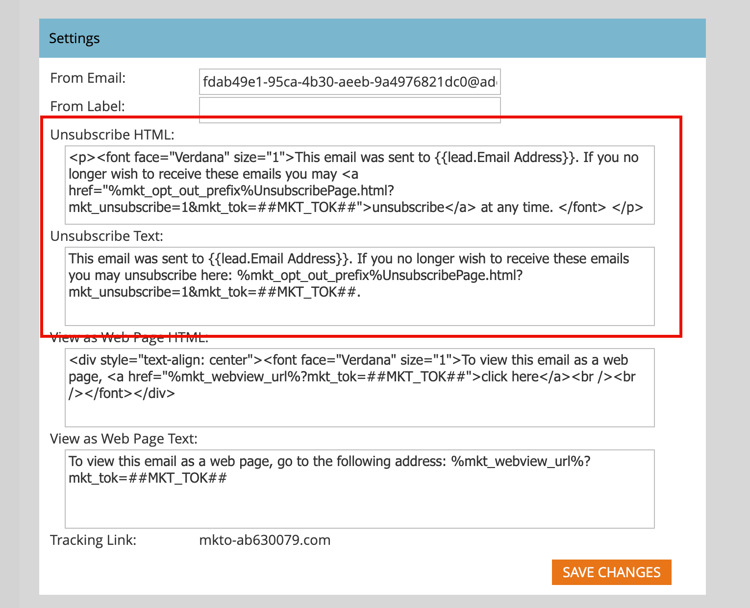
note caution CAUTION The following variables are critical. Do not delete them. %mkt_opt_out_prefix%mkt_unsubscribe=1&mkt_tok=##MKT_TOK##
-
Click Save Changes.
If you need to revert to the default system content, copy and paste the following:
| code language-none |
|---|
|
View as web page
Email content has limited display capabilities (limited CSS and no JavaScript or forms). Marketers can use the View as Web Page option to apply a cookie for the email recipient using the Marketo Munchkin. As a product administrator, you should configure the default HTML and text that is populated when a marketer chooses this option.
-
Go to the Admin area in the attached Marketo Engage instance and select Email.
-
In the Settings panel, change the content in the View as Web Page HTML and View as Web Page Text fields to reflect your tone and messaging.
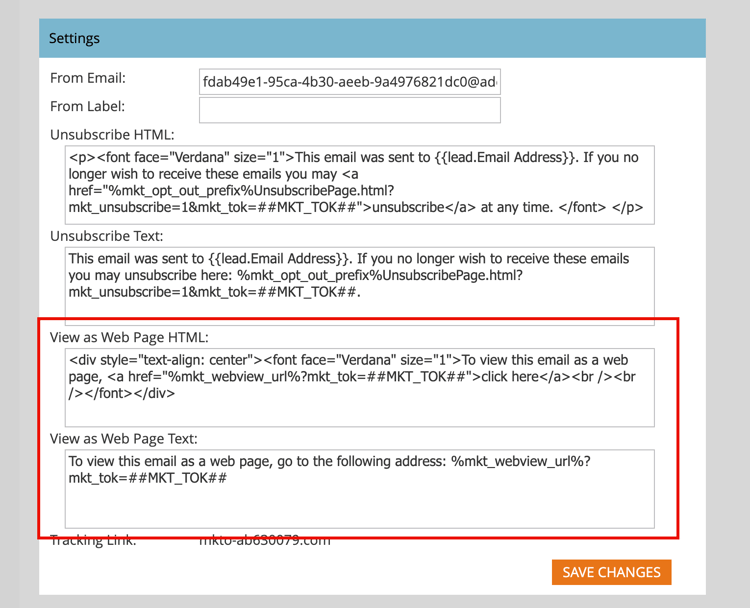
note caution CAUTION The following variables are critical. Do not delete them. %mkt_webview_url%?mkt_tok=##MKT_TOK##The second part ##MKT_TOK##is the Munchkin cookie of that person. It ensures that cookies are applied appropriately when the email recipient clicks the link.Be sure to avoid: - Adding additional URLs to either of the HTML boxes
- Putting HTML in the text version
-
Click Save Changes.
If you ever need to revert to the default system content, copy and paste the following:
| code language-none |
|---|
|
| code language-none |
|---|
|
Custom object retrieval limits
If you use Velocity Script to display custom object data in emails, adjust the parent custom object retrieval limit. By default, the limit allows access to 10 parent custom objects from Velocity Script. You can increase this limit if needed.
Apache Velocity is a language built on Java that is designed for templating and scripting HTML content. The Marketo Engage email infrastructure supports its use in the context of emails through scripting tokens, which provide access to data stored in custom objects.
You can reference parent and child custom objects that are directly connected to the lead, or contact, but not third-level custom objects. For each custom object, the 10 most recently updated records per person/contact are available at runtime and are ordered from most recently updated (at 0) to oldest updated (at 9).
To change the limit:
-
Go to the Admin area in the attached Marketo Engage instance and select Email.
-
Scroll to the Custom Object Retrieval Limits panel, and enter a new value in the Parent Retrieval Limit
field.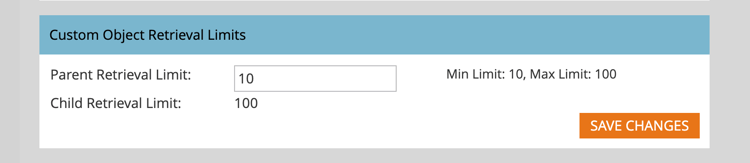
Values from 10 - 100 are supported. The system automatically sets the Child Retrieval Limit by dividing 1000 by the parent limit. For example, if you set the parent limit to 50, the child limit is calculated as 20 (1000 ÷ 50 = 20).
-
Click Save Changes.
Custom header options
Change the Custom Header Options for email to configure email tracking link headers. Enable these options to implement secure tracking links using HTTPS with Strict Transport.
-
Go to the Admin area in the attached Marketo Engage instance and select Email.
-
Scroll to the Custom Header Options panel, and change the setting according to your tracking link policies:

- Strict Transport Security - Set this option to Enabled to guarantee that tracking links are always served over HTTPS. Only enable this for subscriptions with tracking links secured by SSL.
- Max-age - This field supports the mandatory directive to specify the time, in seconds, that the browser should remember to access only the domain over HTTPS.
- IncludeSubDomains - Use this option to include the directive that applies the HSTS policy to all subdomains of the host.
note important IMPORTANT Review these settings with your IT team to make sure that they are aligned with your organization’s policy. Incorrect settings can prevent some visitors from accessing your email links. -
Click Save Changes.
Filter email bot activity filter-email-bots
Email bot activity, also referred to as non-human interactions (NHI), can inflate your email opens and clicks data, distorting your engagement metrics and triggering event-based journey progression. Use email bot filtering to maintain the integrity of click engagement metrics and insights. There are two methods for identifying suspected bot activity:
-
Match with IAB Bot list - Activities that match with anything on the Interactive Advertising Bureau bot list (User Agent/IP address) are marked as bots.
-
Match with Proximity Pattern - Two or more activities that happen at the same time (in under a second) are identified as bots. Attributes considered during comparison are:
- Lead ID (should be the same)
- Email asset (should be the same)
- Link click or email open
For email link click and email open activity, attributes are populated with the following values:
- Activities that are identified as bots - Bot Activity =
trueand Bot Activity Pattern = identified pattern/method - Activities that are identified as not bots - Bot Activity =
falseand Bot Activity Pattern =n/a
Set the filters
-
Go to the Admin area in the attached Marketo Engage instance and select Email.
-
Select the Bot Activity tab.
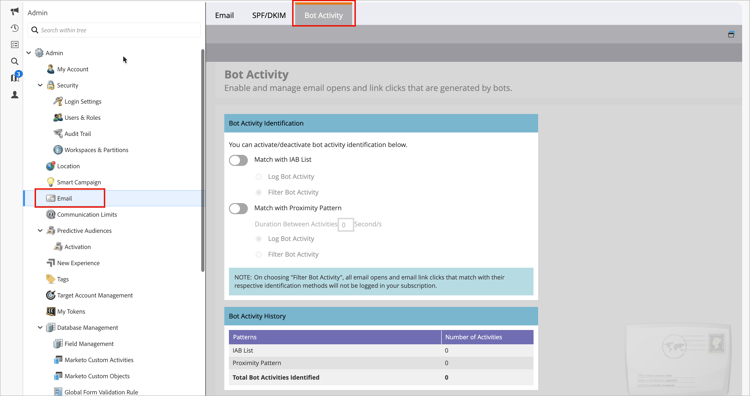
The Bot Activity Identification panel displays two sliders that you can use to identify bot activity.
-
Toggle the slider to enable one or both.
For each method that you enable, choose Log Bot Activity or Filter Bot Activity.
note important IMPORTANT If you choose Filter Bot Activity, you may see a drop in email opens and clicks because false activities are eliminated. 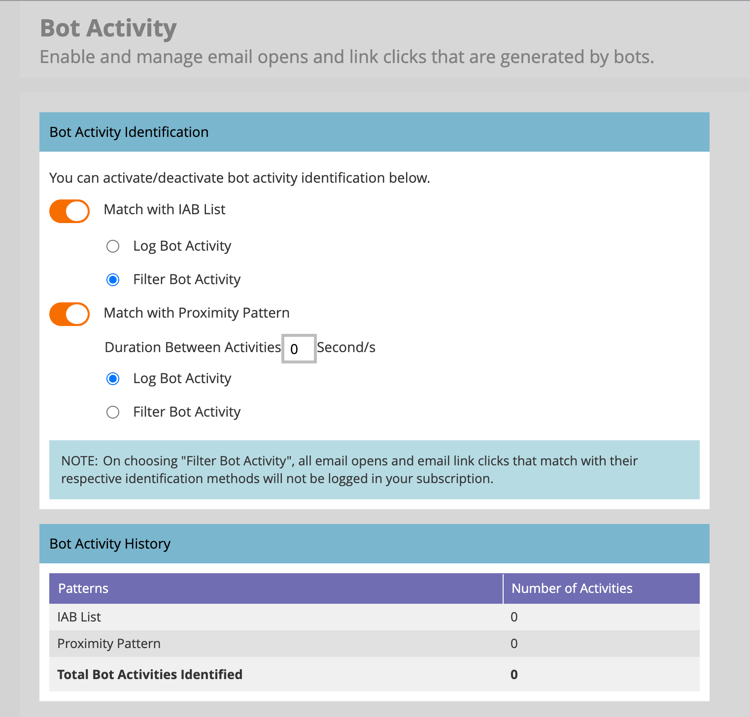
For Match with Proximity Pattern, you can also set the number of seconds for Duration Between Activities (default is
0, maximum is3).note NOTE With Duration Between Activities set to 0seconds, Marketo Engage identifies email activities that are happening at that exact second. If multiple email activities happen within the designated number of seconds, it is identified as bot activity.To disable either filtering method, toggle the slider to the left. If you do, the data does not reset.
IP Blocklist
Adobe has identified IP addresses responsible for generating fake engagements. Engagement from these IPs is automatically filtered and excluded from your Marketo Engage instance. This filtering may reduce email opens, clicks, and other related activities. This list may be updated periodically.
- 40.94.34.52
- 40.94.34.86
- 52.34.76.65
- 54.70.53.60
- 54.71.187.124
- 60.28.2.248
- 64.235.150.252
- 64.235.153.10
- 64.235.153.2
- 64.235.154.105
- 64.235.154.109
- 64.235.154.140
- 64.74.215.1
- 64.74.215.100
- 64.74.215.138
- 64.74.215.139
- 64.74.215.142
- 64.74.215.146
- 64.74.215.150
- 64.74.215.154
- 64.74.215.158
- 64.74.215.162
- 64.74.215.164
- 64.74.215.166
- 64.74.215.170
- 64.74.215.174
- 64.74.215.176
- 64.74.215.178
- 64.74.215.51
- 64.74.215.56
- 64.74.215.58
- 64.74.215.59
- 64.74.215.86
- 64.74.215.98
- 65.154.226.101
- 66.249.91.149
- 70.42.131.106
- 74.125.217.116
- 74.217.90.250
- 104.129.41.4
- 104.47.55.126
- 104.47.58.126
- 104.47.70.126
- 104.47.73.126
- 104.47.73.254
- 104.47.74.126
- 128.220.160.1
- 155.70.39.101
- 162.129.251.14
- 162.129.251.42
- 208.52.157.204
| note |
|---|
| NOTE |
| Every IP address is carefully analyzed and scrutinized before it is included in this list, ensuring that only the most critical and harmful IPs are blocked. |