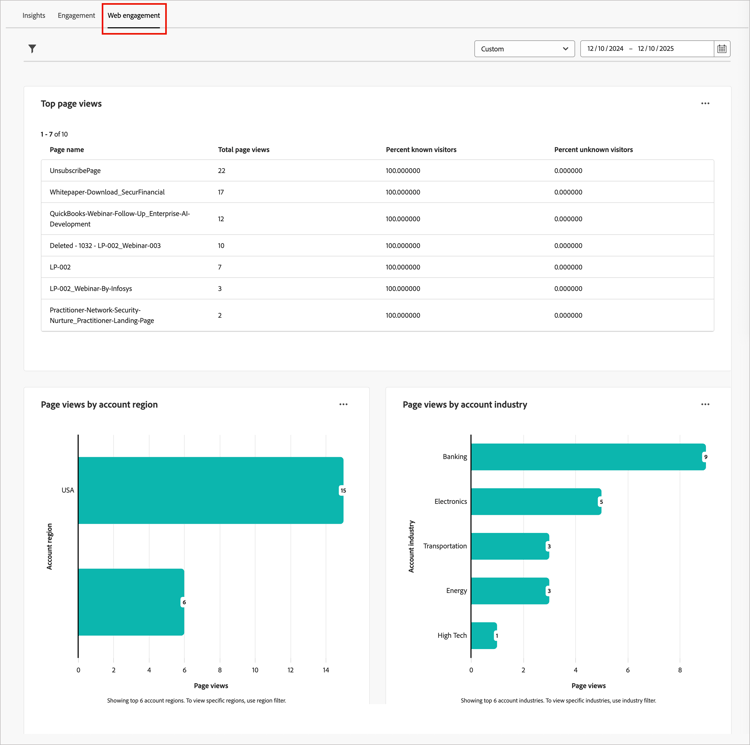
Web engagement dashboard
The Web engagement dashboard provides visibility into how web visitors interact with key content. It segments data across account industries and regions to help you understand engagement trends. Use this dashboard to support strategic decision-making by surfacing web behavior patterns that inform content strategy and account targeting.
To access the Web Engagement dashboard, select the Dashboard item in the left navigation. Then select the Web engagement tab at the top of the page.
Filter the data
Click the Filter (

- Account Region - Filters the data by one or more selected geographic regions that are associated with accounts.
- Account Industry - Filters the data by one or more selected industry classifications that are associated with accounts.
- Date Range - Filters the data by the selected date range. The default range is the current date.
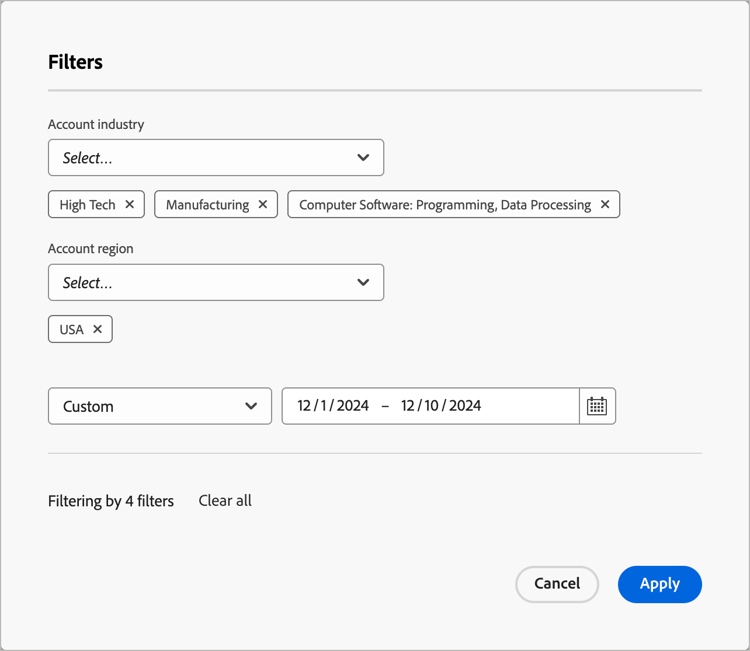
Select as many values for each attribute that you want to use to filter the data and click Apply.
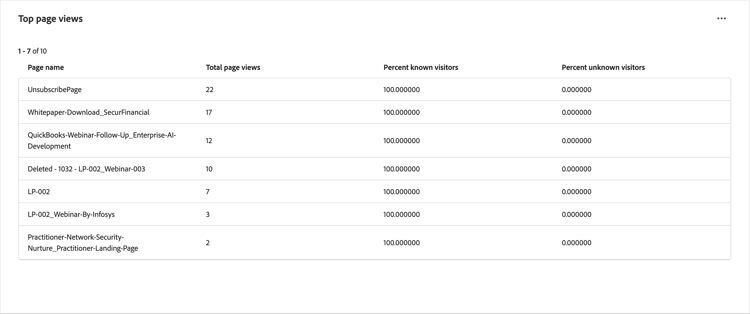
Top page views top-page-views
This table displays the top 10 most viewed web pages, helping you identify which content resonates most with visitors. The data includes:
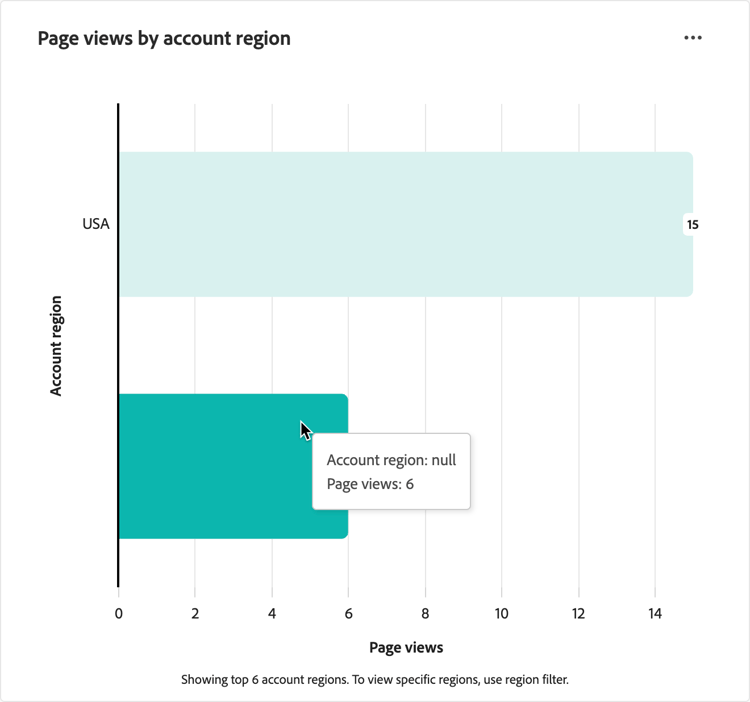
Page views by account region page-views-by-region
This visualization displays visitor counts segmented by the account region. It illustrates how web traffic varies across different geographic regions, enabling you to tailor content and campaigns to regional audiences. Hover over a bar in the chart to see the details, including:
- Name of account region
- Count of page views
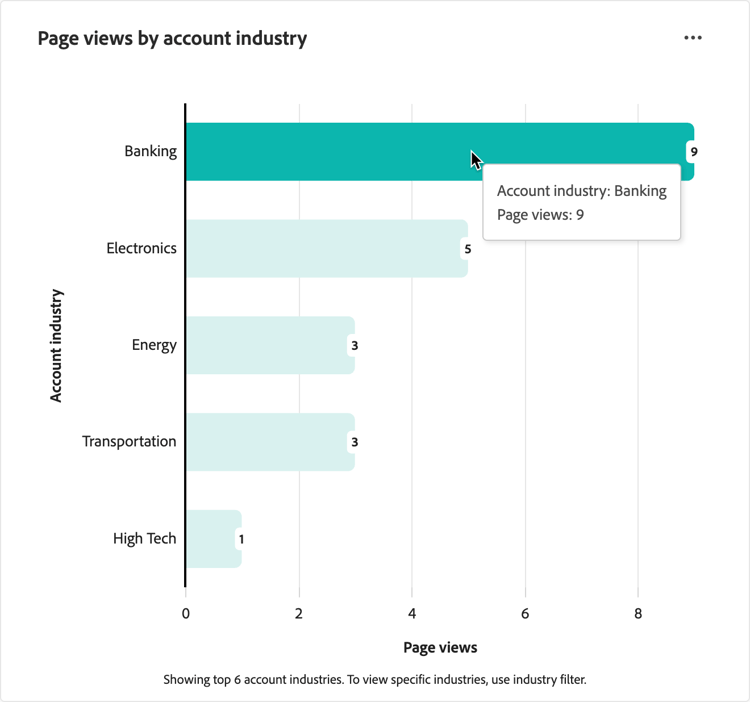
Page views by account industry page-views-by-industry
This visualization displays visitor counts segmented by the account industry. Use this chart to understand how web traffic varies across different industries, enabling you to develop industry-specific content strategies. Hover over a bar in the chart to see the details, including:
- Name of account industry
- Count of page views
Engage with the data
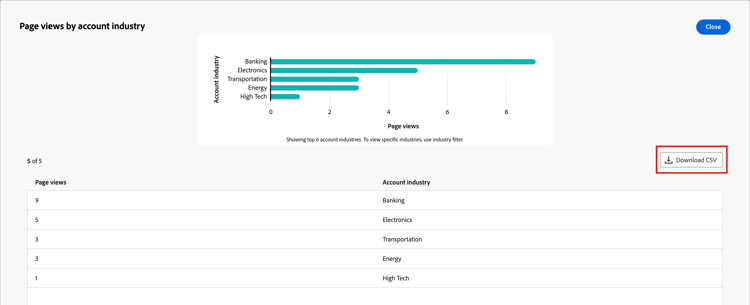
To engage with the data, use the More (…) menu at the top-right of each chart and choose View more to view extended data and insights.
The displayed pop-up includes a chart and a table that show the breakdown of the data.
To download the data, click Download CSV at the top right of the data table.