Form design
After you create a form, the visual design space opens a draft with a default basic form definition. In the Summary panel on the right, click Edit form and use the visual design space to define the form styling and field components.

The Submit button (footer field) is part of the form by default and cannot be removed. You can select the button/footer component in the form to change the text and styling for the button.
Fields
Form fields are used to capture person profile data that can be used to target people and associate them with accounts and buying groups. Use the field design tools to construct the set of fields and layout that you need for gathering the data that you need for your account-based marketing activities.
Add a field add-field
-
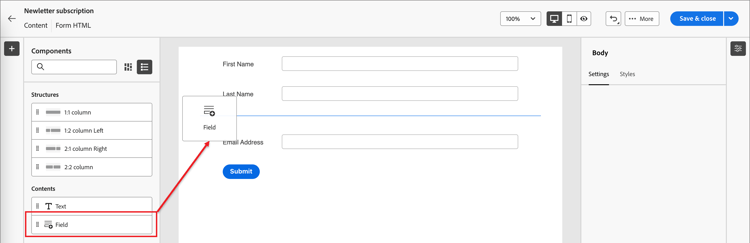
In the Components panel on the left, drag the Field content component and drop it onto the canvas.
-
For Select field attribute, choose an option and set the attribute for the field.
-
Select field attribute - Use this option to select an attribute based on the dataset schema defined in the preset for your form.
In the Select field attribute dialog, select the checkbox for the attribute that you want to use for the field and click Select.

For example, you can set the Email and Company. When users complete and submit the form, the information entered is saved to the selected dataset.
To map the collected data with a Profile, select a profile identity field. The identity fields are marked as Required in the attribute list - you can filter on them.
-
Add custom field
With this option, you can define a free field without mapping it to a field in the linked dataset.

On the canvas, the default field label for the selected attribute is populated on the canvas. The Field details are displayed in the panel on the right.
-
-
If needed, change the Label text.
This text is displayed next to the field in the form. The default text is populated from the field attribute.
-
Set Field type according to the type of data for the field:
table 0-row-2 1-row-2 2-row-2 3-row-2 4-row-2 5-row-2 6-row-2 7-row-2 8-row-2 9-row-2 10-row-2 11-row-2 12-row-2 13-row-2 14-row-2 Field type Usage Checkbox Use this type so that visitors can select a true (checked) or false (unchecked) value. Checkbox Group Use this type so that visitors can select a true (checked) or false (unchecked) value for multiple items. Currency Use this type to allow a float field that represents the default currency type selected for the Journey Optimizer B2B Edition instance. Date Use this type to restrict entry to a date format and provide a calendar selector in the field. Double Double (double-precision floating-point) variable stored as IEEE 64-bit (8-byte) floating-point numbers. Email Use this type to restrict entry to an email address format. Number Use this type to restrict the field to a numerical value. Radio Group Use this type to allow visitors to select one of a set of options. Select Use this type to allow visitors to select one of a set of options using a drop-down list. Slider Use this type to allow visitors to set a numeric value using a slider. Telephone Use this type for a telephone number entry field. Text Use this type for a standard text (string) entry field. Textarea Use this type to support longer text entry. URL Use this type to restrict text input to a URL, including the standard URL protocol. -
Depending on the selected field type, set the other options for the field entry and validation.

For example, the Text field type has the following options for field entry and validation:
-
Placeholder - The placeholder value for the field that gives the visitor an example of what is expected for the field.
-
Instructions - Instructive text that helps the visitor to complete the field. Enter the text that you want to display as hover text for the field.
note tip TIP Instructions vs. placeholder text Use these two properties to guide visitors for filling out the field. Instruction text appears as a tool tip/popup text when hovering the pointer over the field. Placeholder text appears dimmed inside the field and disappears as the visitor enters their text into the field. You can use both methods, or just one. -
Default value - Use this option to specify a default value for the field.
-
Validation message - Use this option to specify a validation message for the field. This message is displayed if the visitor enters an invalid value for the field. The Standard message is set by default. Choose Custom and enter your own message.
-
Max length - Enter the maximum number of characters that can be entered into the field.
-
-
Set the Field behaviors as needed:
-
Required - Select the checkbox to make the field input required for submitting the form.
-
Sensitive - Select the checkbox to make the field case-sensitive.
-
Prefilled Enabled - Select the checkbox to populate the field from the profile information if available.
-
Enable input mask - Select the checkbox to restrict input from your visitor using an input mask. For example, you may want visitors to enter phone numbers in a specific format. In the dialog, enter the mask using
9for any number,afor any letter, and*for either.
Click Save to enable the specified input mask.
-
Change field styling field-styling
Select the Styles tab in the right panel to change the styling for the selected field.
-
Background - Select the checkbox to apply a background color for the field. White is the default color. Click the Background color square to open the popup color picker and choose a color for the field background.

-
Label - The label styling controls the visual characteristics for the text displayed next to the field. Choose a top or a side label display relative to the field. You can set the font size, line height, text style, and text alignment. Click the Font color square to open the popup color picker and choose a color for the label text.

-
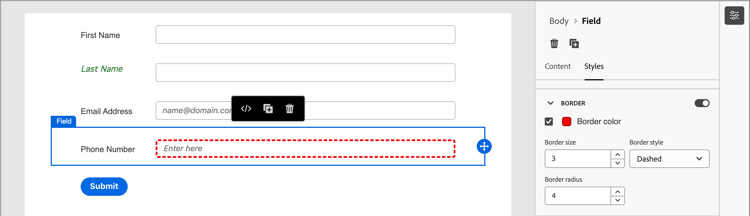
Border - Click the Border color square to open the popup color picker and choose a color for the border. You can define a border for the field, including the color and line width. Clear the checkbox to remove the displayed field border. You can also change the border size (pixel width), style, and radius setting for the corners.
-
Size - Select a size setting to determine the display width for the field. Choose Full width, Half width, or Auto.
-
Margin - Set margins (in pixels) around the field. You can set the same margin on all four sides, or select the Different margin for each side checkbox to set the horizontal and vertical margins separately.
-
Padding - Set padding (in pixels) around the field. You can set the same padding on all four sides, or select the Different padding for each side checkbox to set the horizontal and vertical padding separately.

Reorder fields field-reorder
You can move form fields directly in the visual workspace. Click the Move tool on the right edge of the selected field and drag it to a new location.
Add structural components to the form and move fields into columns to group them and change the layout. Click the Move tool on the left edge of the selected column component and drag it to a new location within the form.

Delete or duplicate a field field-delete-duplicate
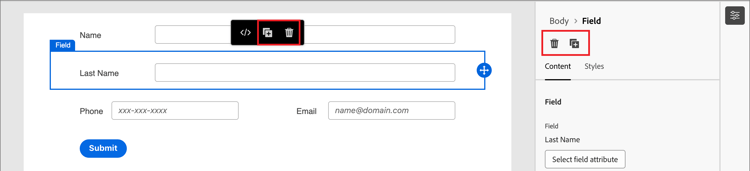
Click the Delete icon (

Click the Duplicate icon (

Submit button
The submit button (footer field) is part of the form by default and cannot be removed. Select the button/footer component in the form to change the text and styling for the button.
Edit the button content button-content
With the Content tab displayed in the right panel, change the text in the Button text field. The button sizing adjusts to accommodate the length of the text.

Style the submit button button-styles
Select the Styles tab in the right panel to change the styling for the selected button/footer component.
-
Background - Select the checkbox to apply a background color for the button. Blue is the default color. Click the Background color square to open the popup color picker and choose a color for the button background.

-
Label - The label styling controls the visual characteristics for the text inside the button. You can set the font size, line height, text style, and text alignment. Click the Font color square to open the popup color picker and choose a color for the label text.
-
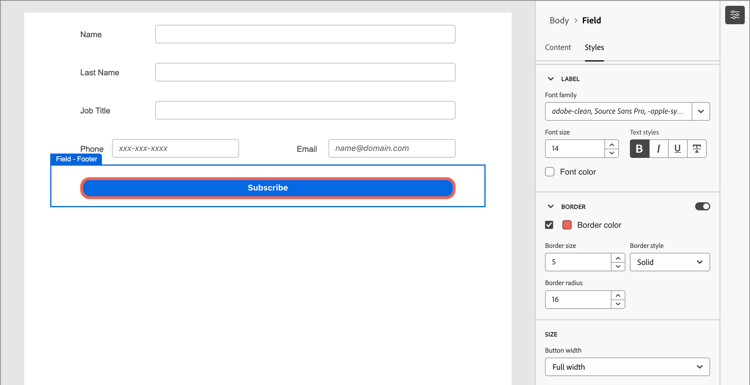
Border - Click the Border color square to open the popup color picker and choose a color for the border. You can define a border for the button, including the color and line width. Clear the checkbox to remove the displayed button border. You can also change the border size (pixel width), style, and radius setting for rounded corners.
-
Size - Select a size setting to determine the display width for the button. Choose Full width, Half width, or Auto. The padding adjusts according to the size and alignment settings.
-
Button Alignment - When you choose a Half width or Auto size for the button, set the alignment at left, right, or center. The padding adjusts according to the size and alignment settings.
-
Margin - Set margins (in pixels) around the button. You can set the same margin on all four sides, or select the Different margin for each side checkbox to set the horizontal and vertical margins separately.
-
Padding - Set padding (in pixels) around the button. You can set the same padding on all four sides, or select the Different padding for each side checkbox to set the horizontal and vertical padding separately. The padding adjusts if you change the size and alignment settings.

Form styling form-styling
You can change styles for the form area when you click outside of the structural or form components. The form components (fields and button) inherit the Body styles defined at the top level, unless other styles are defined at the field or button/footer level.

CSS styles
New forms use the default CSS for styling. If you want to change the styles by modifying the CSS, you can copy it and then use it to define a custom CSS for the form.
To define a custom CSS for the form:
-
Click View CSS in the right panel to review the CSS code.

-
Select the CSS code in the scrolling window and copy it to your clipboard.
-
Click Close.
-
(Optional) Paste the copied code into your favorite CSS tool and edit the CSS to reflect the styling that you want.
-
Click Add custom CSS in the right panel.
-
Paste the CSS code into the window.

You can edit the pasted text in this window.
-
Click Save.
Manual styling
Change the settings in the right panel to define the display for the whole form.
-
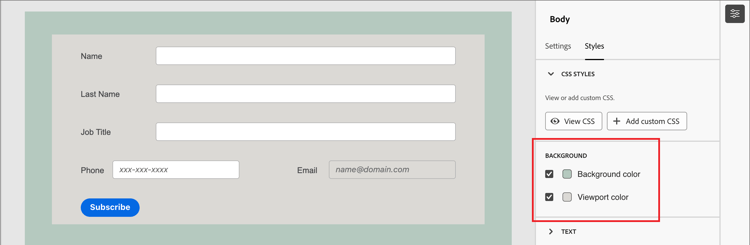
Background color - Select the checkbox to apply a background color around the form area. White is the default color. Click the color square to open the popup color picker and choose a color for the form background.
-
Viewport background - Select the checkbox to apply a background color to all form components. The default is no color (inherit from the outer background). Click the color square to open the popup color picker and choose a color for the form structural components.
-
Text - Choose a Font family for the form, which affects the labels, hint, and placeholder text for form fields. It also affects the default submit button text.
-
Size - Change the size (width) for the form in pixels.
-
Margin - Set margins (in pixels) around the form components. You can set the same margin on all four sides, or select the Different margin for each side checkbox to set the horizontal and vertical margins separately.
