Adobe Target external audiences
You can activate and personalize experiences for external audiences in Adobe Target through account journeys. Use this integration to achieve advanced and tailored personalization that increases engagement, and to maintain cross-platform consistency across Target and Journey Optimizer B2B Edition. This consistency ensures that teams align and personalize web channels for buying groups throughout the entire B2B buyer journey.
There is a two-step workflow to activate an external audience through Adobe Target:
- Add to external customer audience from a journey.
- Activate the external audience to Target as a destination in Experience Platform.
Add to customer external audience from a journey
In your journey, add a Take an action node to execute the Add to external customer audience action. Actions are typically the result of a trigger, such as an event or a previous action. The journey executes the action when a qualifying account with person profiles reaches the node.
-
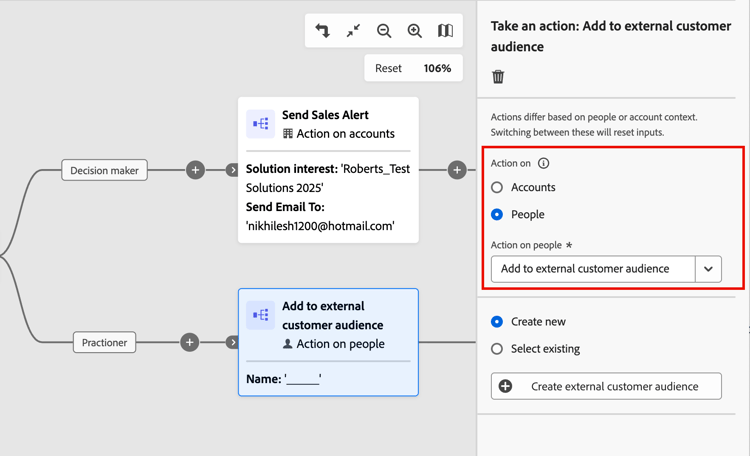
With the Take an action node selected in the journey canvas, choose the Action on People option.
-
For Action on people, choose Add to external customer audience.
-
From the node properties on the right, set the external audience.
-
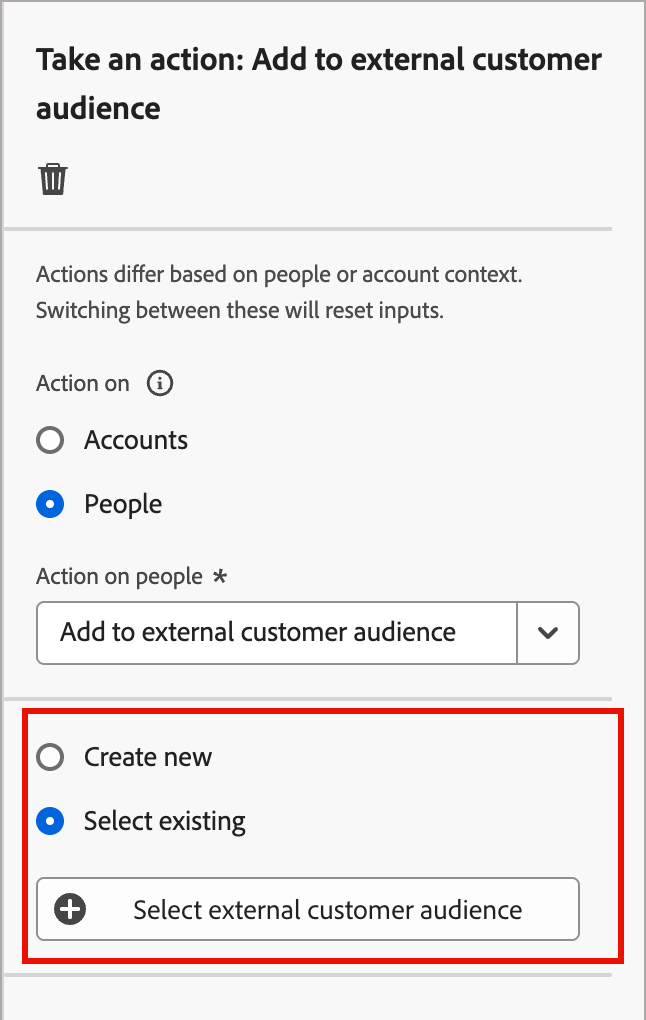
If there are one or more external audiences already created, you can choose Select existing and select the audience that you want to use.
-
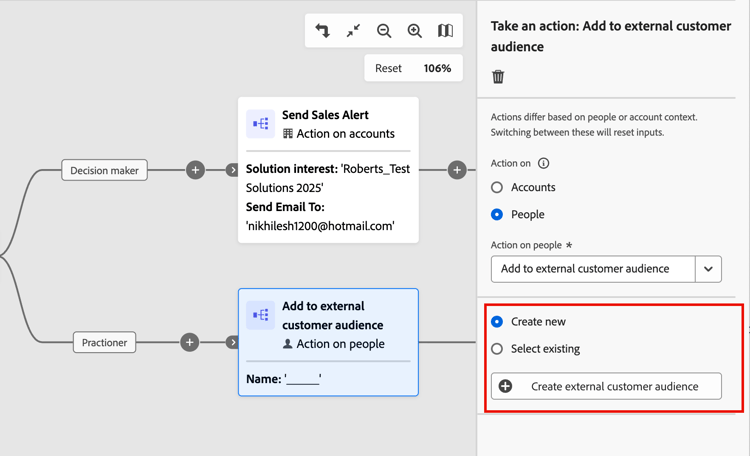
If you want to create an audience to use for the node, choose Create new.
-
Create an external audience
-
After you choose the Create new option in the node properties, click Create external customer audience.
-
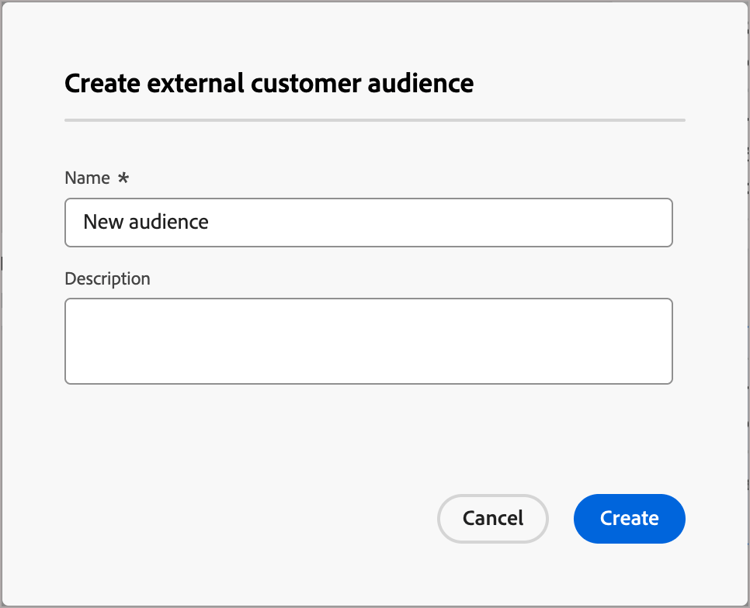
In the dialog, enter a Name (required) and Description (optional) for the new audience.
-
Click Create.
The system creates the new audience and displays a confirmation message. You can then proceed to use it as an existing audience for the node action.
Select an external audience
-
After you choose the Select existing option in the node properties, click Select external customer audience.
-
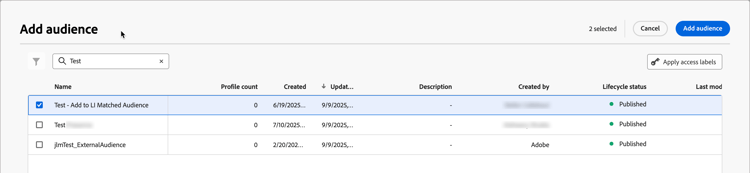
In the Add audience dialog, select the audience that you want to use.
You can enter text in the Search field to filter the displayed items for a match of the audience name.
-
Click Add audience.
Activate the external audience to Target as a destination
Activating the external audience to Adobe Target requires that you have configured Adobe Target as a destination in Real-time Customer Data Platform (RTCDP). For additional information about this configuration, refer to the RTCDP documentation.
The activation process requires that you add Adobe Target as an external audience or external destination. You begin by building a Target audience in the audience builder. You can also create a placeholder audience and add the external audience feature.

- Experience Platform - For the Destinations resource:
Activate Destinations,Manage and Activate Dataset Destination, andView Destination - Target -
Approver
-
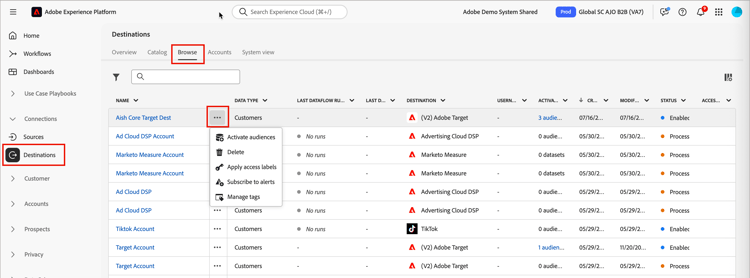
In Experience Platform, go to Connections > Destinations in the left navigation.
-
Select the Browse tab.
-
Locate the destination connection that you want to use to activate your segments, click the More menu ( … ) icon next to the name, and choose Activate audiences.
Enter text in the Search field to filter the displayed destinations for a match by name.
-
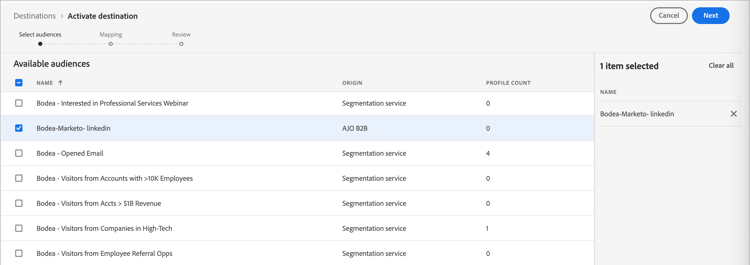
In the Available audiences list, select your external audience and click Next.
-
Perform any additional field mapping to the destination (optional) and click Next.
-
Review the new audience parameters and click Finish.
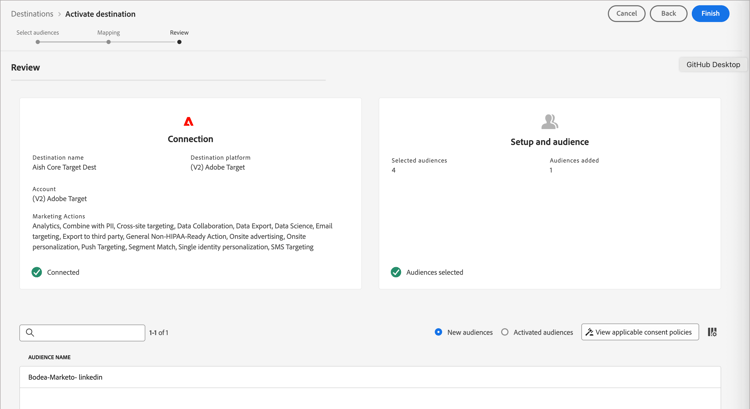
Upon activation, you can see the audience in Adobe Target Audiences and use it in Adobe Target activities.