Configure custom engagement score weighting
A buying group engagement score reflects the level of engagement by evaluating various activities recorded for members of the buying group. With custom score weighting, marketing operations teams have the flexibility to define their own models for weighting the activities. A custom scoring model produces a more accurate reflection of your pipeline by prioritizing the behaviors that most accurately signal buying intent in your sales process.
As an administrator, you can define multiple engagement score models for your organization, but only one model can be active at any one time. You define a score model according to the weight applied to each engagement scoring activity.
Access the engagement score weighting models
To view active, draft, and archived models, open the Engagement score weighting list:
-
In the left navigation, choose Administration > Configurations.
-
Click Engagement score weighting on the intermediate panel to display the list of scoring models.
From this page, you can create (duplicate), activate, and edit engagement score models.
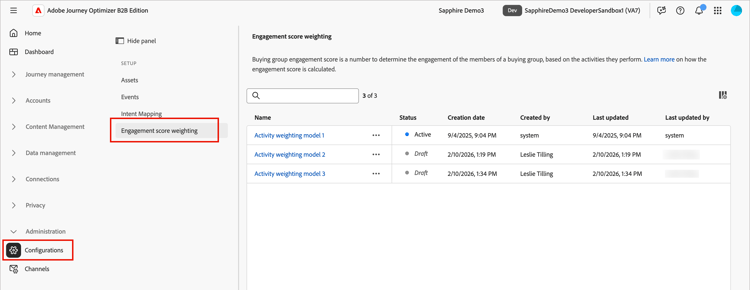
The list displays the most recently updated models at the top (sorted by Last updated) and includes the ability to search by Name.
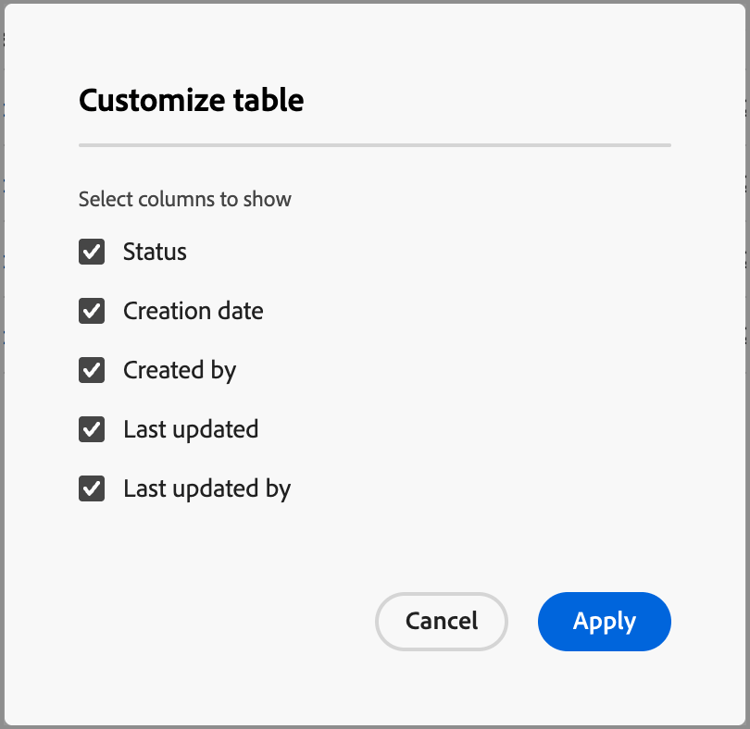
You can customize the displayed table by clicking the Column settings (

-
To access the details for an engagement score model, click the name.
Default score model
The system creates an initial engagement score model named Activity weighting model 1. Engagement activities are based on standard and custom Experience Platform events. The weights on all activities are 0 by default.
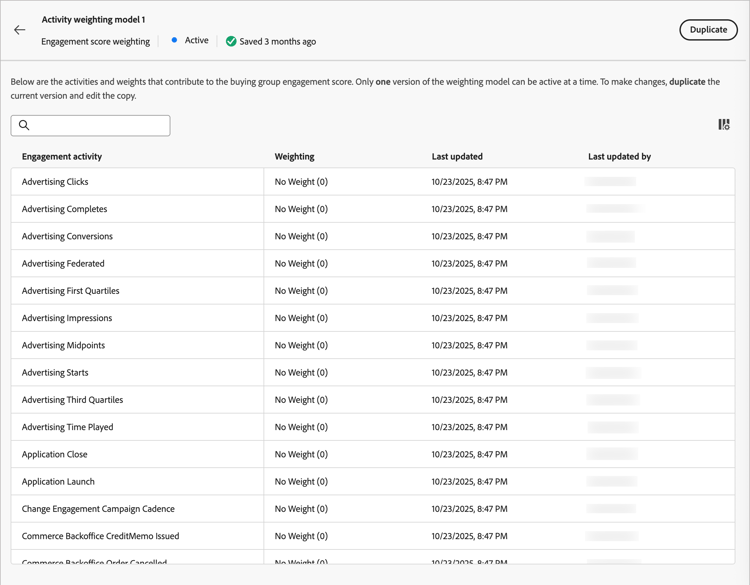
When you activate a custom model, the active model changes to an Archived status. If you decide to revert to the default engagement score model, you can duplicate the original default model and then activate it or use it as a starting point for another custom model.
Delete a draft model
You can delete a draft engagement score model if you decide that you do not want to activate it in the future. Click the More menu (…) icon next to the draft score model name in the list and choose Delete.
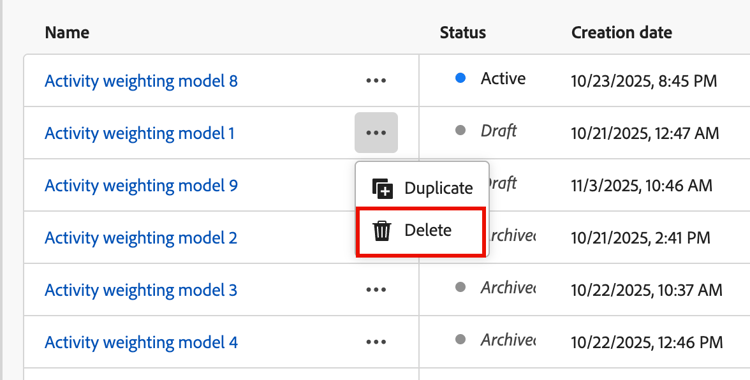
In the confirmation dialog, click Delete.
Create a custom engagement scoring model
To create a custom engagement score model, duplicate the default model or another custom model that is already created. You can duplicate the current Active model, a Draft model, or an Archived model. Then, edit the duplicate model according to your needs.
-
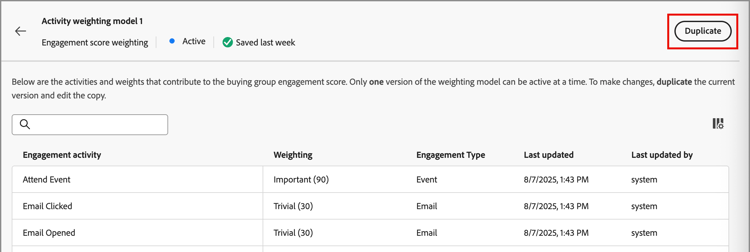
Click the model name to open the model details page and click Duplicate at the top right.
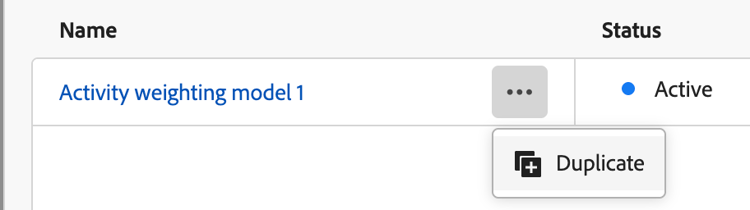
You can also click the More menu (…) icon next to the score model name in the list and choose Duplicate.
-
In the Duplicate dialog, enter a unique name for the duplicated model and click Duplicate.
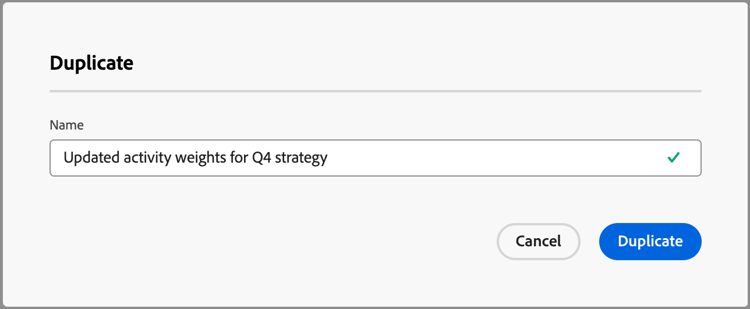
The duplicated model is displayed in the list with a Draft status. Click the name to open the score model details and make your changes.
Change the engagement weighting settings
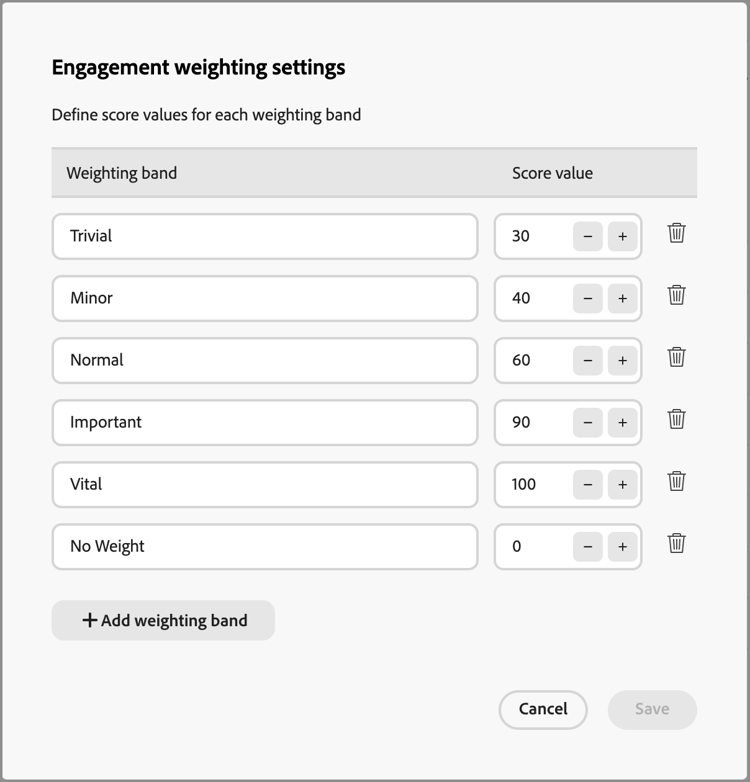
The weight settings define the bands that you can assign to each activity in the model. To reflect your organization’s strategies for evaluating engagement, change the bands. For example, adjust the Normal weighting band to a value of 65 if you want to assign a higher value to normal activities. Or, you can add a weighting band that is designed to capture activities that fall between Normal and Important. In this case, add a band, label it as Significant, and assign a weight band value of 75.
-
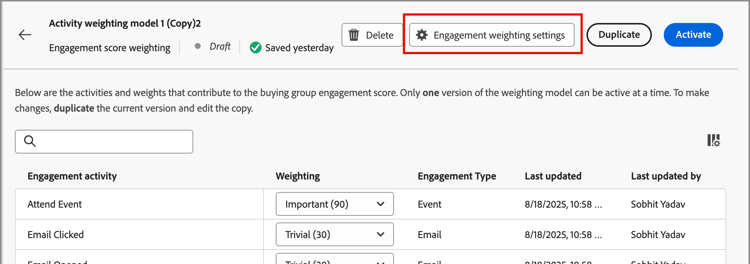
In the score model details page, click Engagement weight settings at the top.
-
For each weight band, adjust the name or values according to your needs:
- Change the name in the Weighting band field.
- Enter a new value. You can also click + or − to increase or decrease the value.
-
If needed, add another weighting band:
Click + Add weighting band at the bottom of the list. This action inserts a blank weighting band at the bottom of the list.
Enter the name and set the value for the band. Make sure to use a unique name and value.
-
To remove a weighting band, click the Delete (

-
When your changes are complete, click Save.
Change the activity weighting
Each score model includes the full list of supported engagement score activities.
The default model for Experience Platform events includes the Experience Platform tracked activities. Each activity has a zero (0) weight (not used) until you assign a weight to it. All activities also have a maximum daily frequency of 20, which you cannot change.
| table 0-row-3 0-border-0 layout-fixed html-authored no-header | ||
|---|---|---|
|
|
|
For each activity in the list, set the value that you want to assign to each activity occurrence. Click the down arrow in the Weighting field and choose the weighting band as defined in the engagement weighting settings.
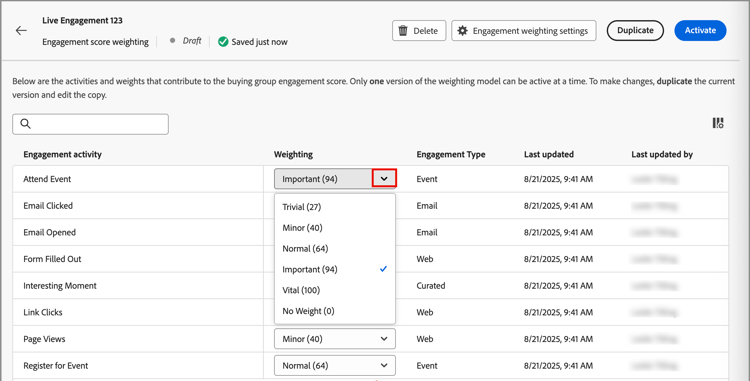
If you do not want the engagement score calculation to use an activity, set the weighting to a zero (0) value.
Your changes are saved automatically.
Activate a score model
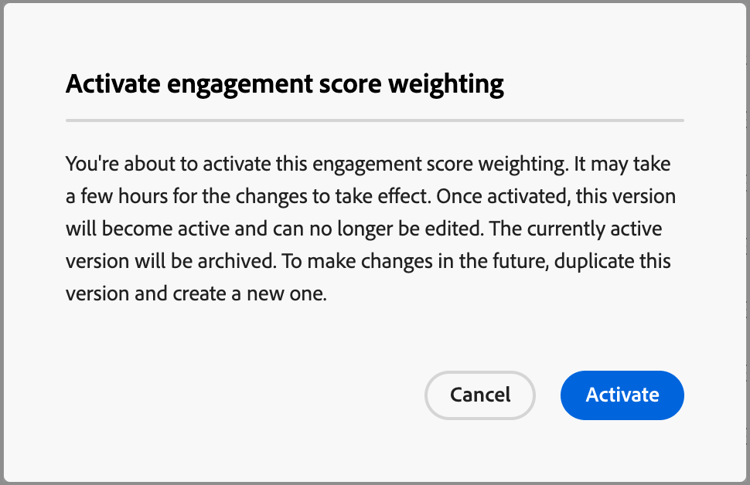
When you activate a draft score model, it replaces the currently active model. The currently active model is automatically archived.
-
To view the details page, open a draft score model.
-
Click Activate.
-
In the confirmation dialog, click Activate.