Forms configurations
Before marketers can create and publish forms to use in their landing pages, a product administrator must create one or more dedicated presets. Each preset defines the connection endpoint used to send the form submission data, and the dataset used to store the captured data.
When data lands on the streaming endpoint, it is linked with the dataset information. Using the generated source/target connections and source flow, the data is then pushed into the dataset.
Prerequisites
To use web forms, you must have one or more HTTP API streaming connections defined in Adobe Experience Platform. Make sure that each connection that you want to use meets the following requirements:
- Data type must be set to XDM (not Raw data)
- Authentication must be disabled (non-authenticated connection)
For detailed information about creating a streaming source connections, refer to the Experience Platform documentation.
Forms channel configuration in Journey Optimizer B2B Edition requires the following permissions:
- B2B Channel Configurations > View Forms Presets - Required to view forms preset configurations.
- B2B Channel Configurations > Manage Forms Presets - Required to create, update, and delete forms preset configurations.
- B2B Channel Configurations > Publish Forms Presets - Required to publish forms preset configurations.
Form preset configuration guidelines
When creating a preset:
-
You can set up multiple presets using different combinations of datasets and streaming connections.
-
You can reuse the same dataset or streaming connection across multiple presets.
-
Each streaming connection automatically generates resources, such as:
- Source connection – where the data originates.
- Target connection – where the data is stored or consumed.
- Source flow – the pipeline that moves data from the source connection into Experience Platform. It handles mapping, transformation, and validation.
Create a form preset
-
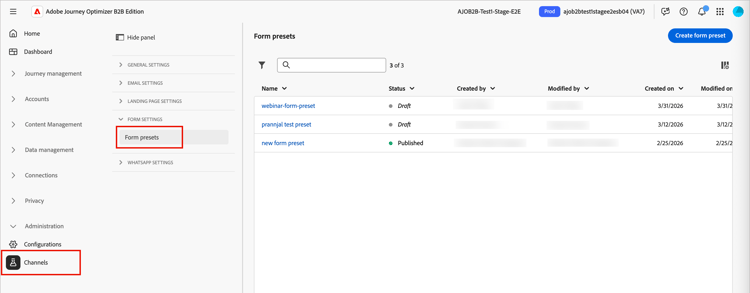
In the left navigation, go to Administration > Channels.
-
Under Form Settings in the navigation panel, select Form presets.
-
Click Create form preset.
-
Enter a unique Name (required) and a Description (optional) for the configuration.
note NOTE Names must begin with a letter (A-Z) and can only contain alphanumeric characters. You can also use underscore _, dot., and hyphen-characters. -
Select the Streaming connection.
This connection is the streaming endpoint used to send the data when a web viewer submits a form. If the needed streaming connection does not appear in the list, verify that the requirements are met.
-
Click the Select dataset (

The dataset is where the form responses are stored and reflected. You can enter a text string to search for a specific dataset or select it from the list.
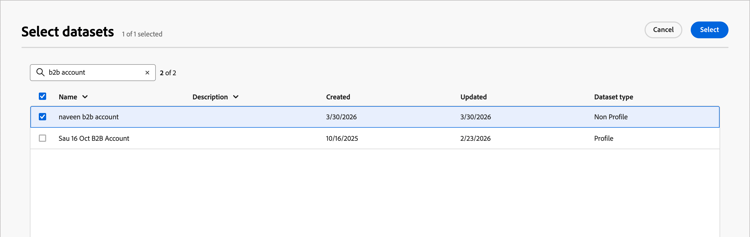
note NOTE Currently only Profile-enabled and Non-Profile-enabled Adobe Experience Platform datasets are available for selection. One dataset can be selected at a time. System datasets cannot be used for saving form data. Select the checkbox for the dataset and click Select.
-
Click Save as draft.
Publish a form preset
-
Click the form preset name to open the configuration page.
You can make any adjustments to the draft if needed.
-
Click Publish.
When the form preset is listed with a Published status, it is available to use for form creation.