Buying group filters in Marketo Engage
As a marketer, you might want to suppress campaigns in Marketo Engage for people that are part of buying groups in Journey Optimizer B2B Edition. You can also inform the lead scoring workflows in Marketo Engage using information about the leads associated with buying groups. For example:
- Is this lead part of a buying group?
- Is the buying group complete and engaged?
If these conditions are true, you might choose to score the lead the higher. If not, you might choose not to mark it as a marketing-qualified lead (MQL).
In your Marketo Engage instance that is connected to Journey Optimizer B2B Edition, you can use the Member of Buying Group filter in your Smart Lists to identify these leads according to your campaign strategy.
-
After you create a Smart List in Marketo Engage, select the Smart List tab to open the filter editor.
-
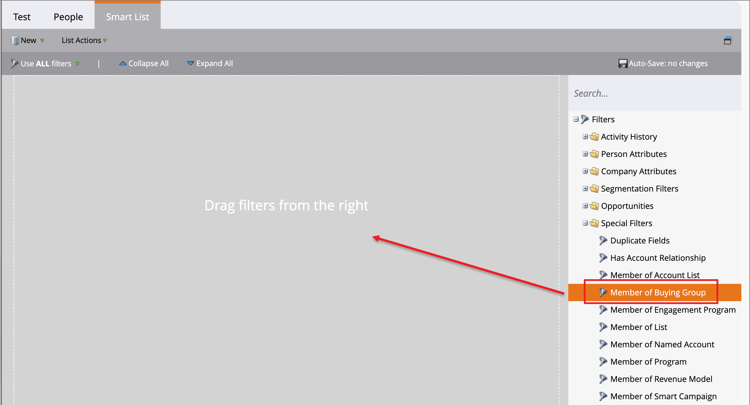
In the filters list on the right, scroll down the list and expand the Special Filters folder.
-
Click the Member of Buying Group filter and drag it onto the filter definition area.
-
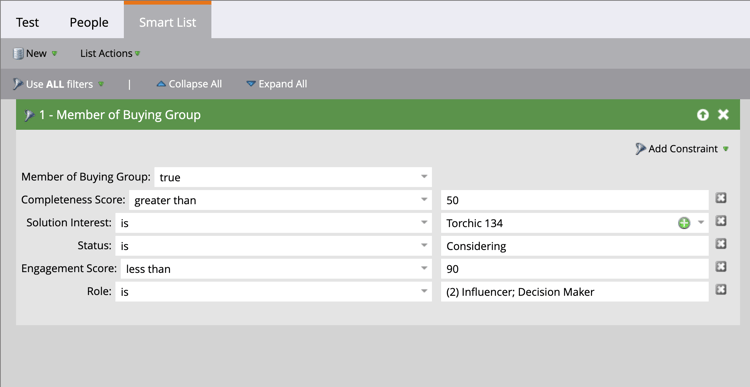
Set the Member of Buying Group option to true or false.
This constraint is required for the definition.
-
(Optional) Add other buying group-related constraints to the filter according to how you want to identify leads for the Smart List.
-
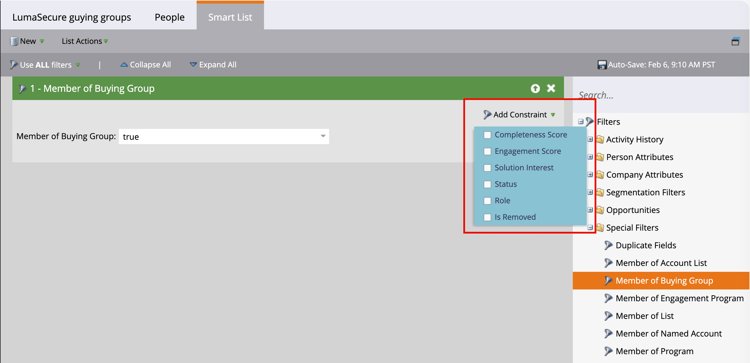
Click Add Constraint at the top right of the filter card.
-
Select the constraint that you want to add, such as Completeness Score or Solution Interest.
-
Set the evaluation that you want to use for a match.
For a score, you can use an exact match, or a range that is above or below the number you enter.
To exclude members who were removed from a buying group, use the Is Removed constraint set to
false. You can also explicitly include removed members in the smart list by setting this constraint totrue.For a discrete item, such as the solution interests defined in Journey Optimizer B2B Edition, you can select one or more items for the list.
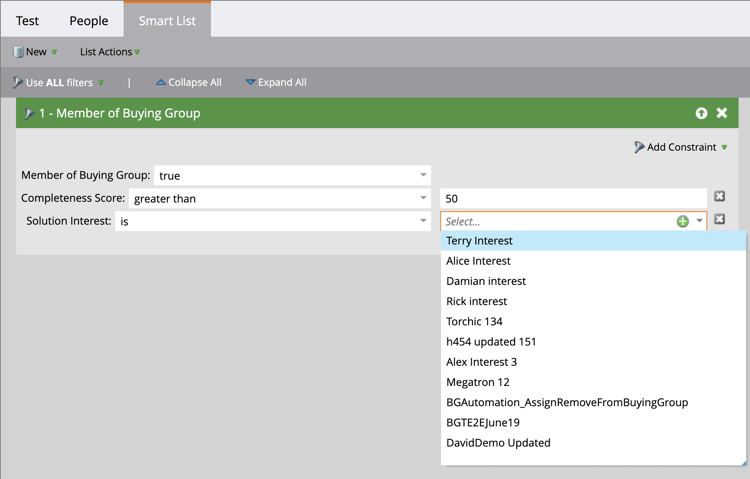
Select the first one and click the selector again to open the Multiple Value Chooser dialog.
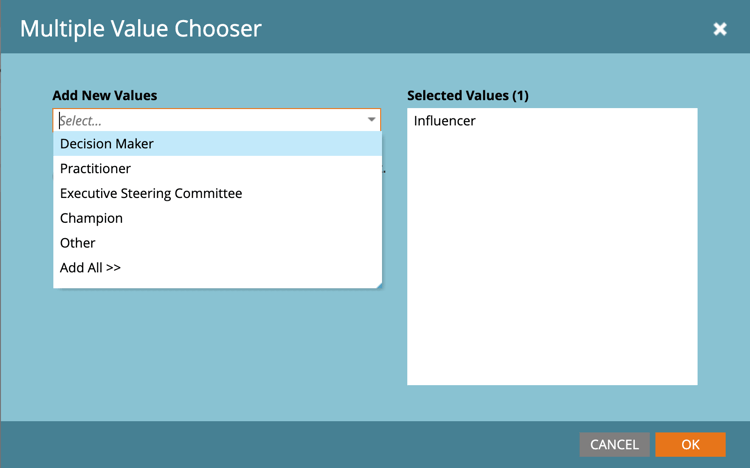
Move any of the remaining items over to the right and click OK when you have the list of items that you want to use for the constraint.
-
Repeat these actions to add as many of the constraints that you need.
-