In-CRM Insights
In-CRM Insights is a web-base application that integrates into Salesforce and Microsoft Dynamics 365, giving you access to Journey Optimizer B2B Edition buying groups directly within your CRM. It brings together sales data sources, making it easier to identify opportunities for increased engagement and sales potential.
Installation
The installation process includes:
- Setting up user permissions and groups
- Installing the software package
- Logging in through your CRM
Set permissions
Users installing the software must have permissions to install Salesforce packages.
To access the application, users must have membership in a role with the Sales Insights:View Sales Insights permission.
If you want to restrict users to only In-CRM Insights:
- Create a custom role and assign it the Sales Insights: View Sales Insights permission.
- Create a new user group.
- Add an Experience Platform product profile to the group.
Install the package
To install the In-CRM Insights package, follow the steps for Salesforce or Microsoft Dynamics.
Salesforce
-
Download the In-CRM Insights installer package.
-
After sign-in, you are redirected to the package installation page.
-
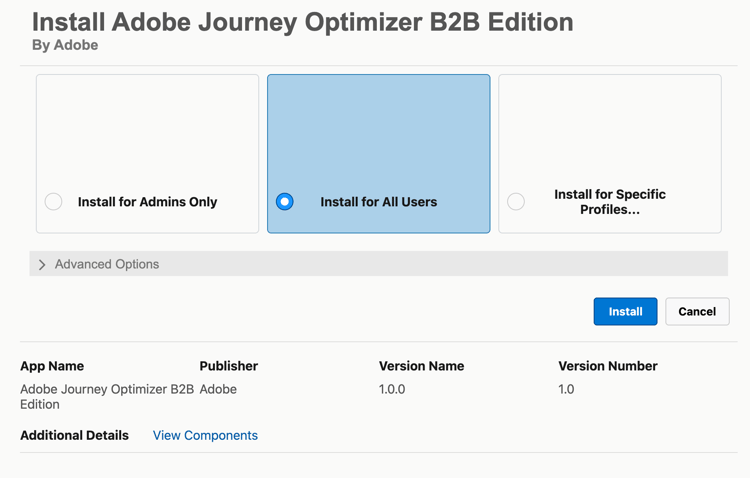
Select the Install for All Users option and click Install.
-
Approve third-party access in the dialog, then click Continue.
-
When the installation finishes, click Done.
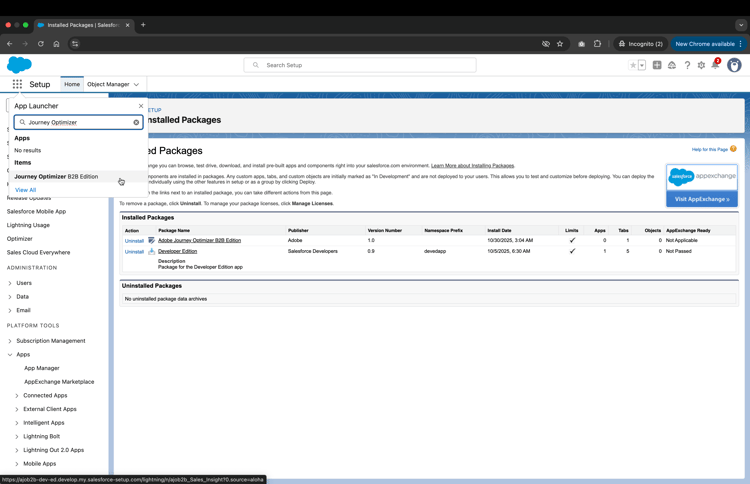
It is now listed on the Installed Packages page and Journey Optimizer B2B Edition is listed in the App Launcher.
MS Dynamics
-
Download the In-CRM Insights installer package.
-
Go to the Power Apps porta.
-
After signing in, select the environment for the package, and then navigate to Solutions from the left menu.
-
Click Import solution.
-
Browse to and upload the installer package, then click Next.
-
Verify the package details and click Next.
-
Under Environment variables, verify that the value is set to
prod(do not change the value) and click Import. -
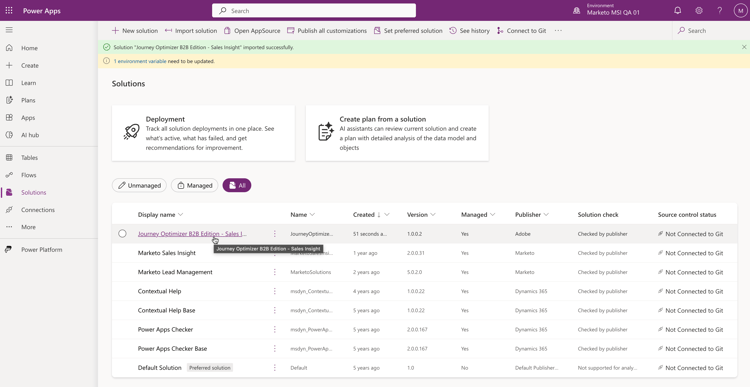
When installation is complete, Journey Optimizer B2B Edition > Buying groups is displayed on the left navigation bar.
View your buying groups
Follow the prompts to log in to your Adobe account. Your buying groups are loaded and available to view.
After selecting a buying group, you can browse the group details. This is the same as the data and insights displayed in Journey Optimizer B2B Edition, but data is read-only through In-CRM Insights.