Create a connected TV experience
Use Create in GenStudio for Performance Marketing to build connected TV (CTV) ads in one place—from brief and shared guidelines through generation, scene-based refinement, approval, and publisher-ready export. The workflow below runs entirely in GenStudio for Performance Marketing; there is no separate CTV app or publisher embed.
Prerequisites
Before you create a CTV ad, confirm the following:
- Access to GenStudio for Performance Marketing.
- Brands, Products, and Personas configured as shared objects in GenStudio for Performance Marketing. See Guidelines overview to understand how these objects inform generation.
- Campaign assets (video clips, images, logos, music) are recommended but not required—generative AI can fill gaps when assets are missing or incomplete.
Create a new CTV ad
Everything in this workflow happens inside GenStudio for Performance Marketing.
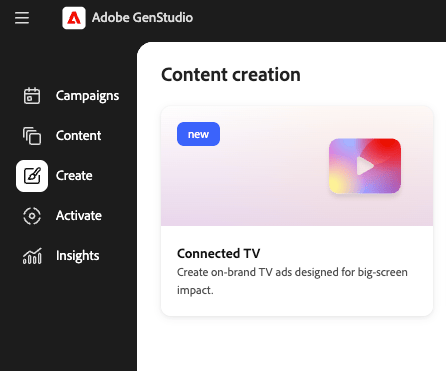
To navigate to CTV creation:
- Sign in to GenStudio for Performance Marketing.
- From the home or creation surface, go to Create.
- Select CTV using the CTV creation card.
- Click Create CTV Ad.
A single, streamlined CTV creation experience opens. You’re not required to choose an ad type first.
Configure the brief
The brief and inputs drive how the ad is generated. This is your opportunity to provide context and constraints for the ad generation process.
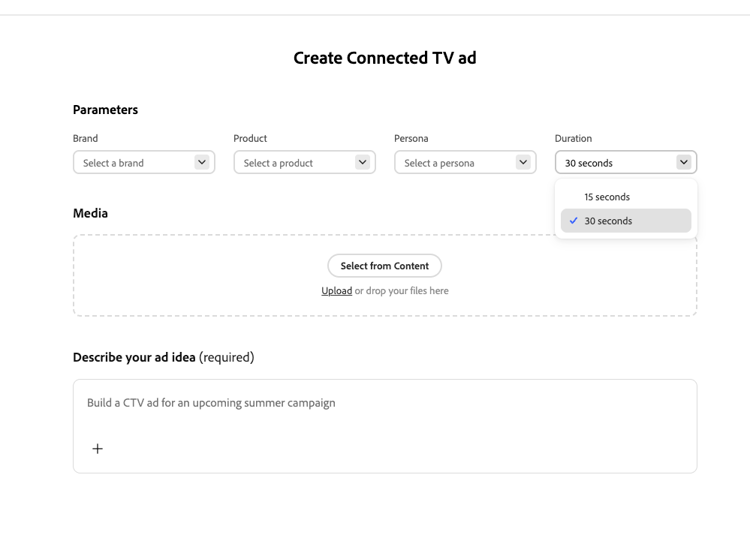
To configure the brief:
- Select Brands, Products, and Personas from your existing shared objects.
- Add the creative brief by entering it directly or uploading it. Include the campaign objective, key message, and any constraints.
- Set ad duration to 15 seconds or 30 seconds.
- Optionally add assets. Upload video clips, images, logos, music, voiceover, or intro/outro cards (drag-and-drop or file selection), or choose assets from your Content repository.
- Click the Generate button.
If assets are missing or incomplete, GenStudio for Performance Marketing can generate missing scenes, music, or voiceover using AI. Assets you provide always take priority over generated material.
GenStudio for Performance Marketing automatically:
- Interprets the brief together with context from Brands, Products, and Personas.
- Assembles a full CTV ad structure.
- Creates scenes, text overlays, music, and voiceover as needed.
- Applies CTV-compliant duration and formatting.
The result is a fully formed, previewable CTV ad—not a bare draft timeline.
Edit and refine the ad
Use the scene-based editor to refine the ad without regenerating everything.
Click a scene in the scene strip to open it for editing. Edits you can perform include:
- Replace or regenerate a single scene with AI.
- Edit the scene prompt to create variants.
- Reorder or trim scenes.
- Edit text overlays.
- Swap, mute, or replace music and voiceover.
- Adjust transitions between scenes.
Editing is scoped so you can regenerate one scene at a time for faster iteration and creative refresh.
Review and approve
Submit the ad for brand review using your integrated approval workflows. Brand and stakeholder reviewers check messaging, visuals, and brand compliance. Approvers validate the ad; they are not expected to perform video editing in place of the marketer.
Export
After approval, you can:
- Export the finalized CTV ad in a publisher-ready, compliant format.
- Save the ad back to Content.
- Use it in downstream CTV buying and trafficking workflows.
Creative is intended to be ready for activation without re-encoding or rework.