Multi-entity Targeting with Federated Audience Composition audiences in Adobe Journey Optimizer
With multi-entity targeting, you can use Federated Audience Composition audience attributes as supplemental identifiers in Adobe Journey Optimizer journeys. These attributes let you activate audiences at multiple entities such as accounts or subscriptions level.
Create your audience in Federated Audience Composition create
To start with multi-entity targeting, you’ll first need to create and save your audience in Federated Audience Composition.
Within the Audience Composition UI, add the Build audience activity to create the audience within the federated composition canvas and add the Save audience activity to configure the audience’s mappings, primary identity, and data expiration.
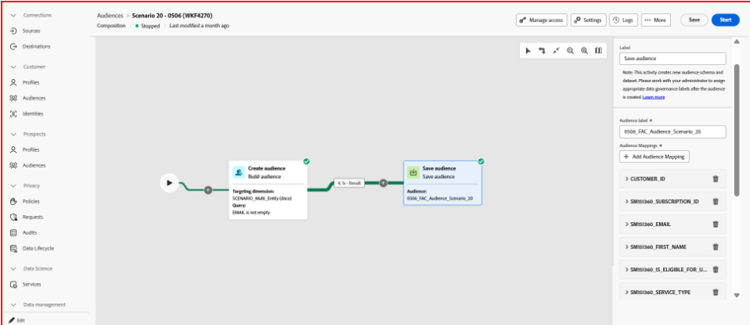
Once you’ve finished your audience’s configurations, select Start to start the composition’s execution. This audience and its corresponding dataset will be available for use in Experience Platform.
For more details on creating a composition in Federated Audience Composition, read the create a composition guide.
Activate audience in Adobe Journey Optimizer activate
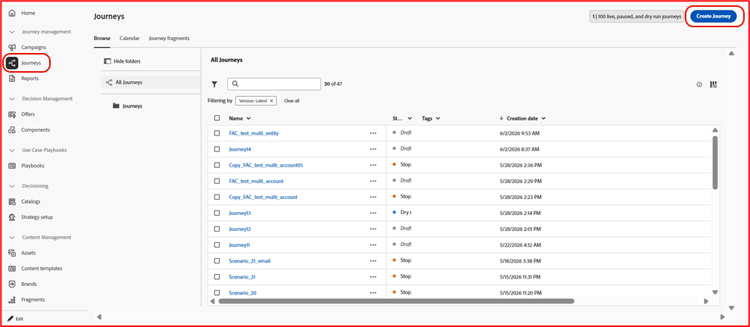
After your composition has finished executing, you can activate the audience in Journey Optimizer. Within the Journey Management section of Adobe Journey Optimizer, select Journeys followed by Create journey to open the journey user interface.
Within the journey interface, add a Read audience node. You can configure this node by providing a label and selecting the audience you previously created.
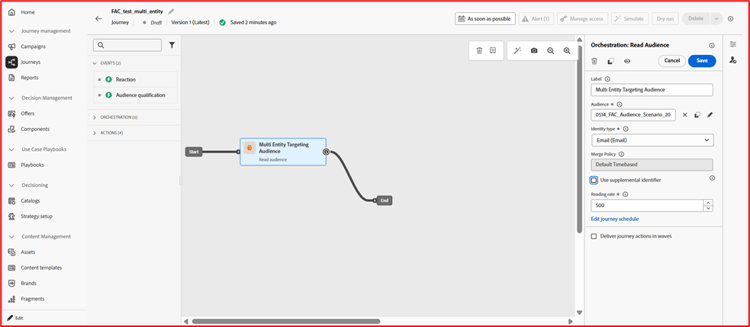
After choosing the previously created audience, enable Use supplemental identifier.
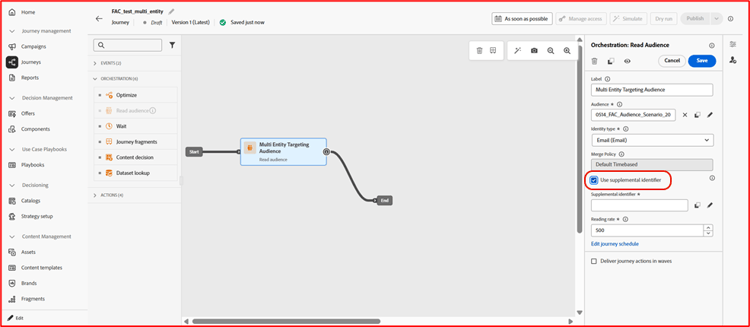
You can now choose a supplemental identifier. In the selector screen, select Advanced Mode and navigate to Experience Platform. Within this page, select the name of the audience you previously created, and choose the supplemental identifier you want to use for the audience.
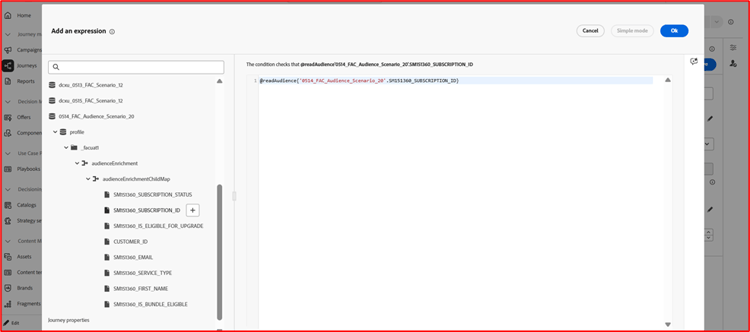
Configure journey conditions configure-journey
Now that you’ve activated and configured your audience settings, you can continue to configure the rest of your journey’s conditions. For this use case, you’ll want to add an Optimizer node after the Read audience node, followed by an Action node.
After configuring the remaining nodes, select Publish to complete the journey creation.
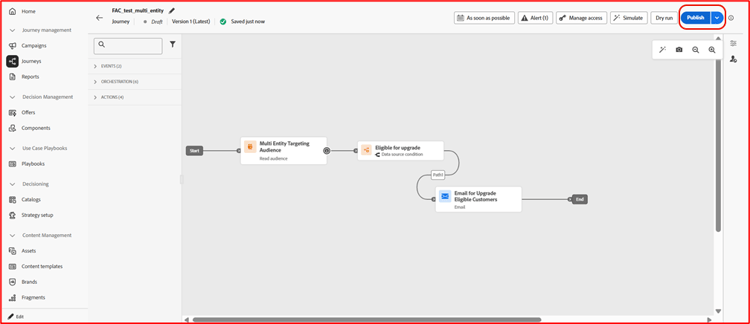
Your journey will now target the audience profiles based on the supplemental identifier rather than the primary identifier. Using this feature, you can now target multiple entities such as subscription ID, account ID, or order ID and activate to your desired channel.
Next steps next-steps
After reading this guide, you now know how to use supplemental identifiers from your Federated Audience Composition audiences in Journey Optimizer journeys. For more information on using supplemental journeys, read the use supplemental identifiers in journeys guide.