Create a composition
Federated Audience Composition lets you create compositions, where you can leverage various activities into a visual canvas to create audiences. After creating your composition, the resulting audiences are saved into Adobe Experience Platform and can be leveraged in Experience Platform destinations and Adobe Journey Optimizer to target customers.
Define your composition create
To create a composition, you’ll first need to define its label and optionally configure additional settings.
To create a composition, select Audiences within the Customer section, followed by the Federated compositions tab.
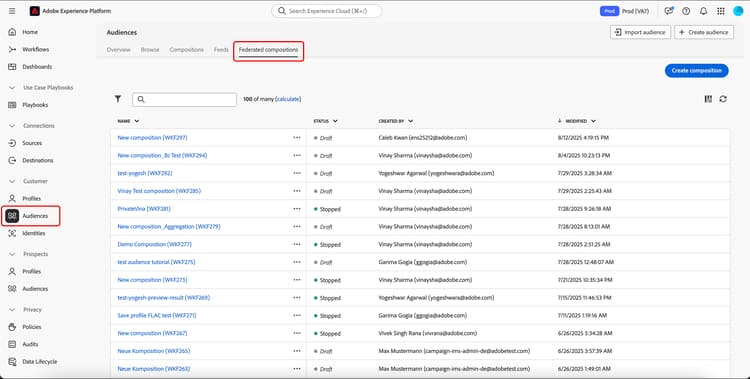
The federated compositions browse page appears. Select Create composition to continue with the composition creation process.
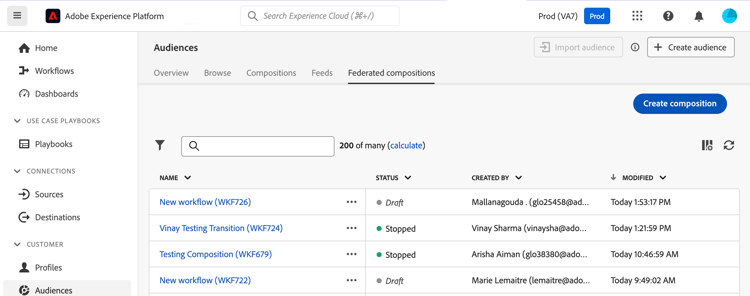
Within the Properties section, specify a label for your composition and select a data model. Only the schemas associated to this data model will be available in your composition’s activities.
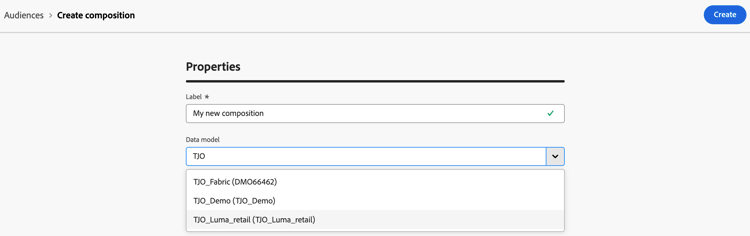
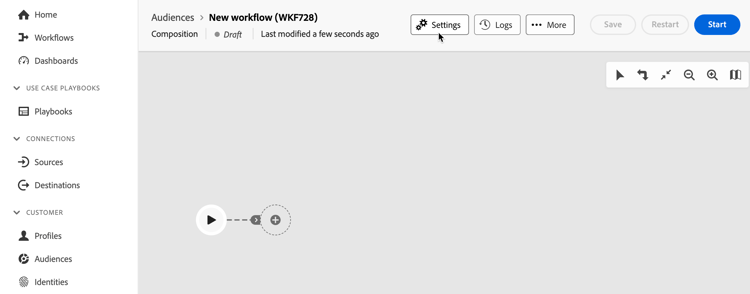
Select Create. The composition canvas is displayed. You can now configure your composition by adding activities and transitions to the canvas.
Composition canvas canvas
On the top of the canvas, you can access a toolbar that provides options to manage and navigate your activities.
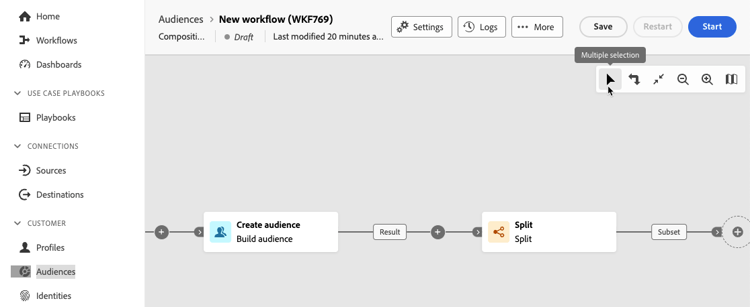
Available options include:
- Multiple selection: Select multiple activities to delete them all at once or copy and paste them.
- Rotate: Switch the canvas to display vertically.
- Fit to screen: Adjust the canvas zoom level to your screen.
- Zoom in / Zoom out: Zoom in or out of the canvas.
- Display map: Opens a snapshot of the canvas showing you are located.
Add activities add-activities
In the composition canvas, you can add activities and transitions that help define your audience. Activities let you define the components within the audience while transitions let you organize the flow of your composition.
For more information about the activities and transitions that are available for use, read the activities overview.
Manage activities manage-activities
You can perform operations on your added activities within the properties pane.
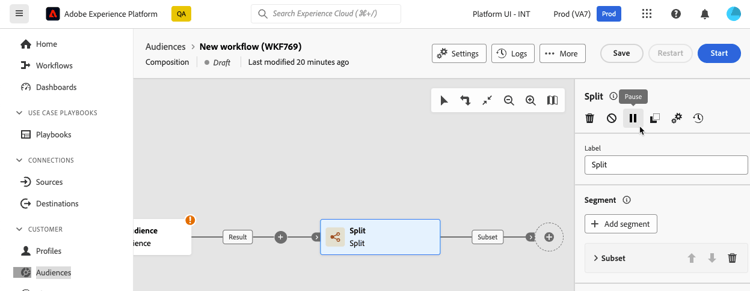
The options include:
-
Delete: Delete the activity from the canvas.
-
Disable/Enable: Disable or enable the activity. When the composition is executed, disabled activities and the following activities on the same path are not executed and the composition is stopped.
-
Pause/Resume: Pause or resume the activity. When the composition is executed, it pauses at the paused activity. The corresponding task as well as all those that follow it in the same path are not executed.
-
Copy: Copies the activity to paste it at another location in the composition. To do this, select the + button on a transition and select Paste X activity.
-
Configure Execution options for the selected activity. Available execution options include the following:
accordion Available execution options The Properties section allows you to configure generic settings regarding the execution of the activity:
- Execution: Define the action to be carried out when the is started.
- Maximum execution duration: Specify a duration such as “30s” or “1h”. If the activity is not finished after the duration specified has been elapsed, an alert is triggered. This has no impact on how the composition functions.
- Time zone: Select the time zone of the activity. Federated Audience Composition allows you to manage the time differences between multiple countries on the same instance. The setting applied is configured when the instance is created.
- Affinity: Force the composition activity to execute on a particular machine. To do this, you must specify one or several affinities for the activity in question.
- Behavior: Define the procedure to follow if asynchronous tasks are used.
The Error management section allows you to specify the action to be carried out should the activity encounter an error.
The Initialization script section lets you initialize variables or modify activity properties. Select the Edit code button and type the snippet of code to execute. The script is called when the activity executes.
-
Logs and tasks: View the logs and tasks for the selected activity.
Start and monitor your composition start-and-monitor
After you’ve finished adding your activities to the composition, you can start the composition’s execution. To start a composition, select the Start button in the upper-right corner of the screen.
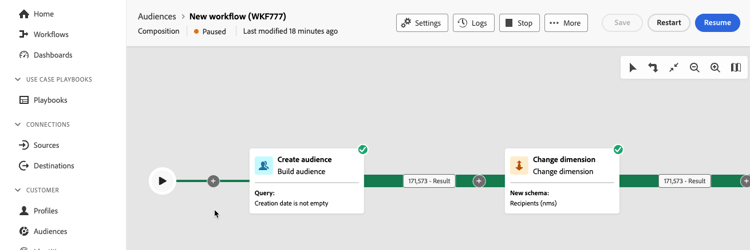
When the composition is running, each activity in the canvas is executed in a sequential order, until the end of the composition is reached. You can track the progress of targeted profiles in real-time using a visual flow. This allows you to quickly identify the status of each activity and the number of profiles transitioning between them.
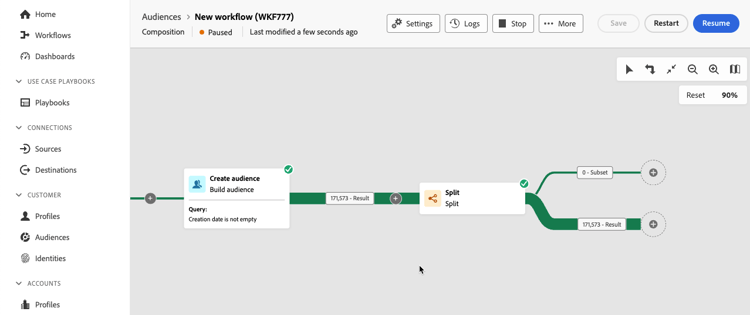
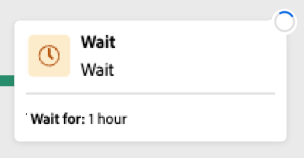
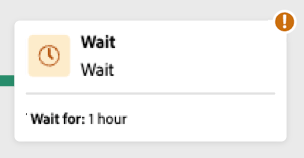
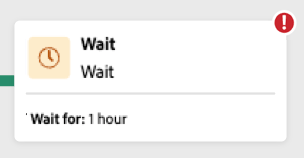
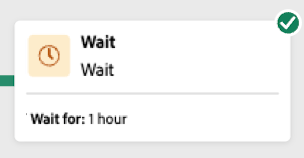
The visual indicators on the top-right corner of each activity shows the status of the execution:
Monitor logs and tasks monitor-logs
Additionally, you can view the composition logs to ensure they are running properly. Select Logs within the action tool bar to see this information.
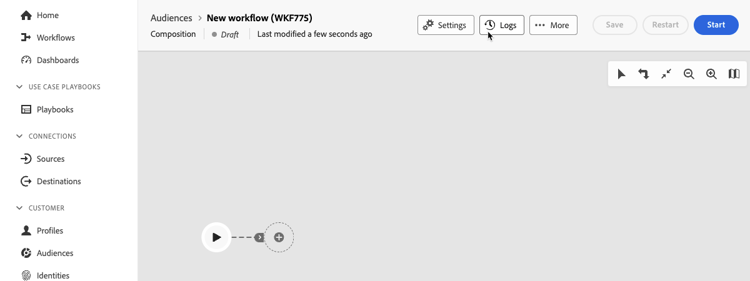
The Composition logs and tasks screen appears. This provides a history of the composition execution, recording all user actions and encountered errors.
The history is organized into several tabs, detailed below:
- The Log tab contains the execution history of all the composition activities. It indexes the operations carried out and execution errors by chronological order.
- The Tasks tab details the execution sequencing of the activities. The button located at the end of each task allows you to list the event variables passed through the activity.
- The Variables tab lists all variables passed in the composition. It is available when accessing the logs and tasks from the composition canvas only. It is now available when accessing the logs from an activity’s properties pane.
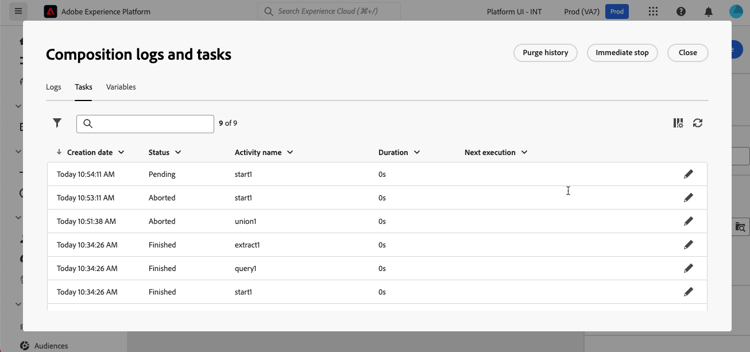
In all tabs, you can choose the displayed columns and their order, apply filters, and use the search field to quickly find the desired information.
Subscribe to alerts alerts
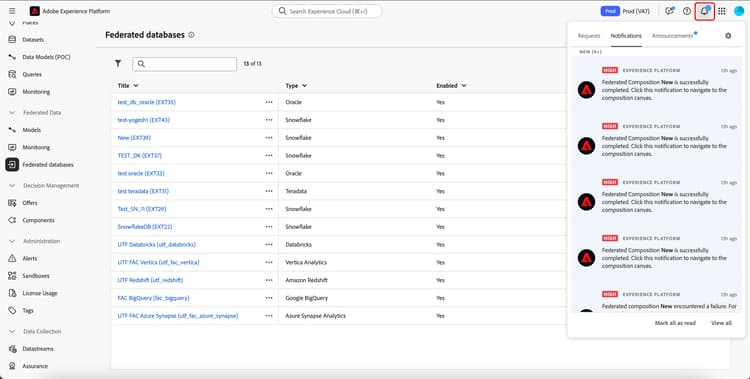
You can also subscribe to alerts to receive notifications if your federated composition executions have succeeded or failed.
To subscribe to alerts, select the


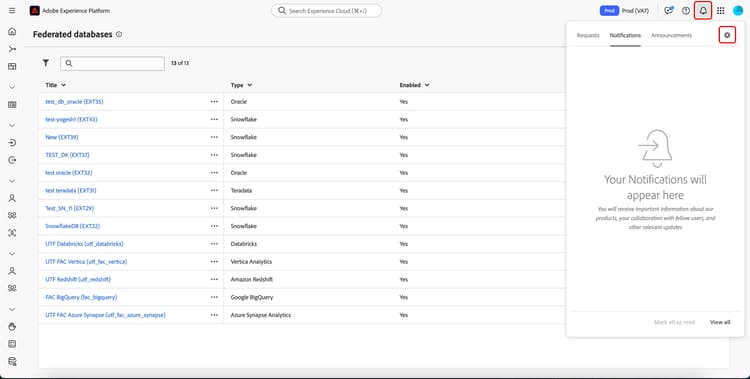
The notifications settings page is displayed. On this page, select Experience Platform and choose the channels of alerts you want. To see the notifications within the UI, select In-app.
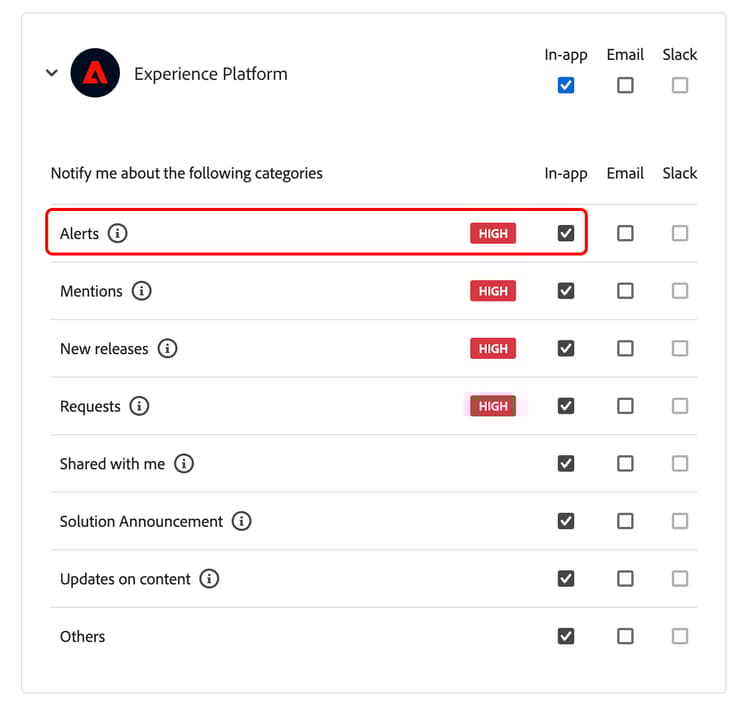
With In-app selected, you’ll now be notified for composition execution successes and failures.
Configure the composition’s settings settings
When accessing a composition, you can access advanced settings that allow you, for example, to define how the composition should behave in case of error.
To access these additional options, select Settings in the upper section of the composition creation screen.
Defines the actions taken if the composition has an error. There are three possible options:
- Suspend the process: The composition is automatically paused and its status changes to Failed. Once the issue is solved, resume the composition using the Resume buttons.
- Ignore: The status of the task that triggered the error changes to Failed, but the composition keeps the Started status.
- Abort the process: The composition is automatically stopped and its status changes to Failed. Once the issue is solved, restart the composition using the Start button.